 productionOS
User Manual
From the routing through planning, scheduling and staff deployment to the Shopfloor Terminal and the analyses — with screenshots from the demo tenant Nordwerk.
productionOS is a manufacturing execution system: routings describe how an item is made; orders are exploded from them, scheduled and released; at the Shopfloor Terminal operators perform setup, processing, inspection and handover; the analyses show costs, dates, quality and traceability. This manual follows exactly this path.
It consists of three user interfaces:
| Interface | Purpose | nonprod | local |
|---|---|---|---|
| Main frontend | Master data, planning, order processing, analyses | https://dev.productionos.eu | http://localhost:8181 |
| Shopfloor Terminal | Confirmation at the machine, touch-operated, employee ID + PIN | https://werker.dev.productionos.eu | http://localhost:8002 |
| Plan Editor | Create and change routings graphically | https://plan.dev.productionos.eu | http://localhost:8003 |
The manual is also available online under /handbuch/ of the main frontend (https://dev.productionos.eu/handbuch/), with search and table of contents. The ? button in the header of the main frontend and the terminal opens it at the chapter for the view currently open.
The screenshots are captured, not drawn: a script drives through the user interface and takes a picture of every step. The case behind them is the hydraulic block HB-100 of the demo tenant: three production stages (Gehäuse GH-200 (housing), Ventilschieber VS-310 (valve spool), Montage (assembly)), nine machines, two raw materials, two purchased parts — explainable in one sentence and still multi-level.
Getting started — sign-in, tenant, navigation
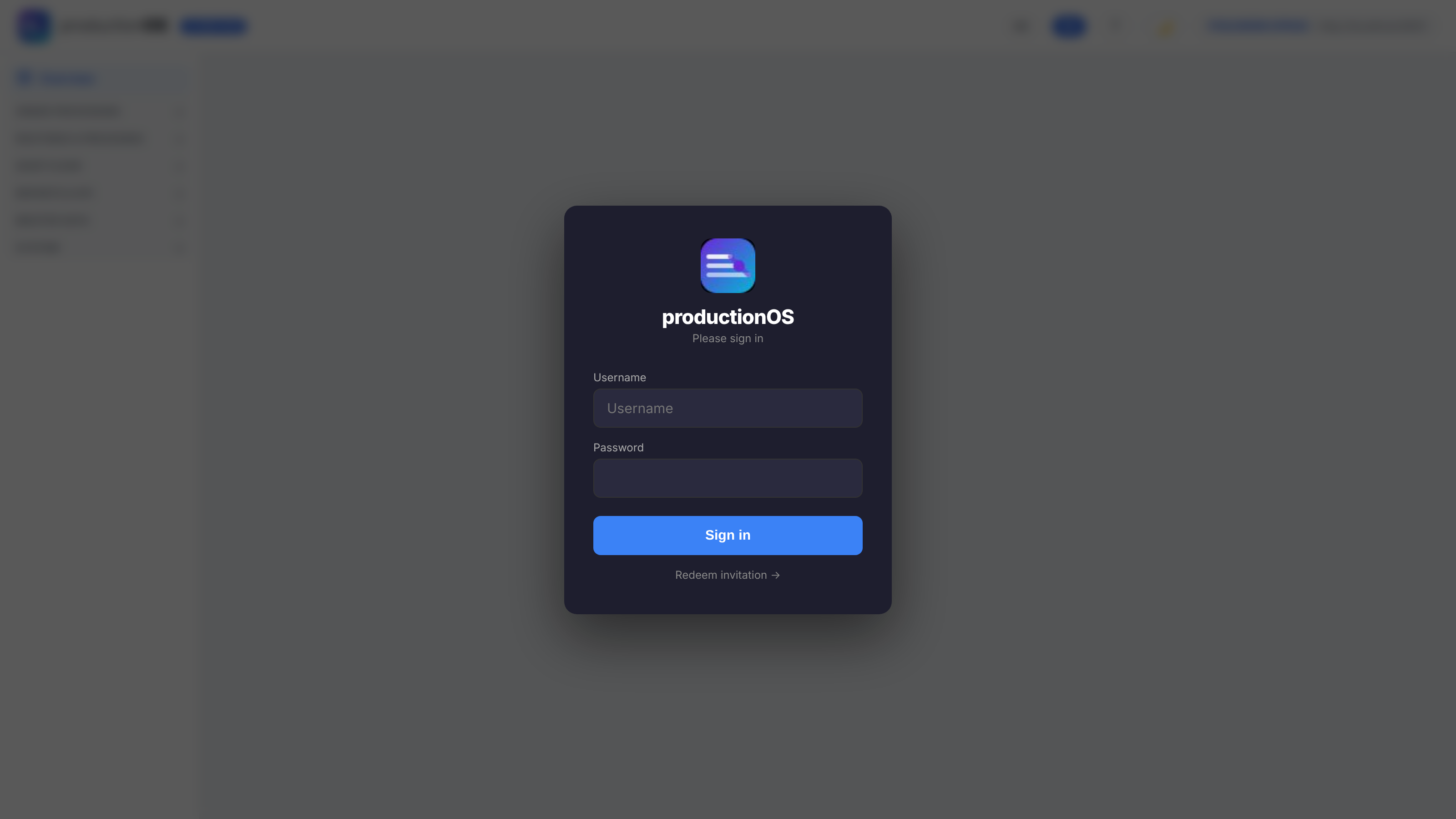
Signing in to the main frontend takes a user name and password. An account belongs to exactly one tenant (area / plant / department); anyone working in several departments switches between them under Settings → Switch tenant. All data is separated per tenant — in the database as well, not only in the user interface.
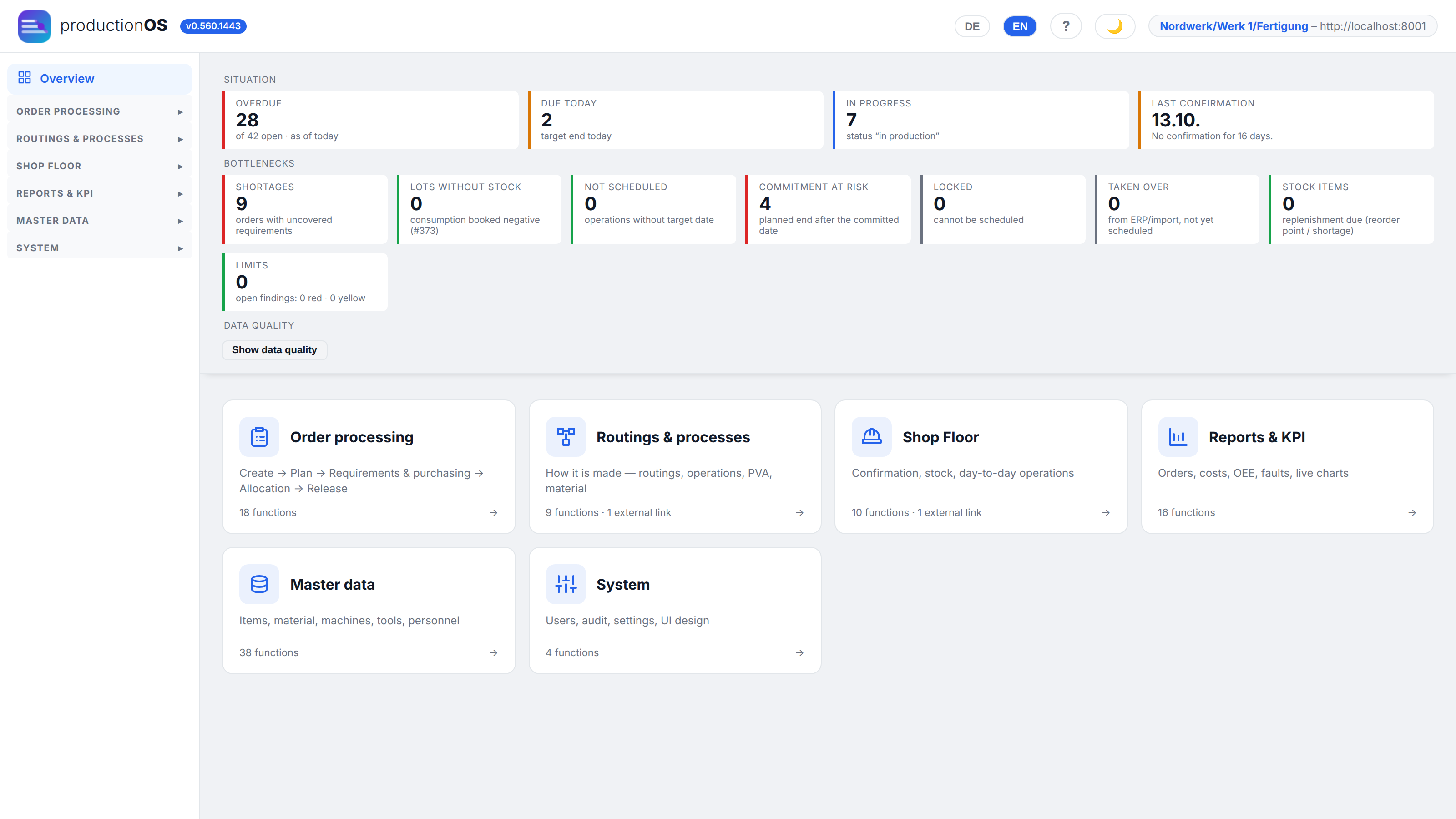
The home page shows the situation: how many orders are running, what is due today, what is overdue or locked, which deliveries are outstanding, and the latest confirmation. The six tiles below are the areas of the navigation:
| Area | Content |
|---|---|
| Order processing | Create → Plan in → Requirements & purchasing → Allocation → Release (with shift supervisor), plus dates, Gantt, archive, guided workflows |
| Routings & processes | Routing, alternatives, matrix, co-products, process instruction, inspection plans, material consumption, Plan Editor |
| Shop Floor | Open terminal, confirmations, input/output bookings, stock, batches, serial numbers |
| Reports & KPI | Status, plan/actual, costs, performance summary, traceability, OEE, disruptions, control charts, scrap |
| Master data | Items, material, machines, tools, personnel (master, calendar, skills, wage groups), calendar, shifts, units, codes |
| System | Users (role and additional roles), audit log, UI design, settings (tenant, terminal devices, API access, operating model, order numbers) |
Language. All three user interfaces are available in German and English; the DE / EN switch is in the header and applies to the user's own account. Server messages also come in the selected language. Stored data (descriptions, remarks) stays as it was entered.
User interface per tenant. Under System → UI design it is possible to define which fields a form shows per role (switch Simple / Full), what terms are called, which guided workflows exist and how a terminal is laid out per device or machine group. How this works is described in Part 8.
Every list has a search at the top and a button for creating on the right. In the order dialogs, links lead onwards (e.g. from the production plan to the requirements list), and Back returns to the place one came from.
Part 1 — Master data
Master data is what everything else builds on. The demo tenant has set it up the way a new tenant would: first units, calendars and shifts, then machines, material and items, and finally the routings.
1.1 Items
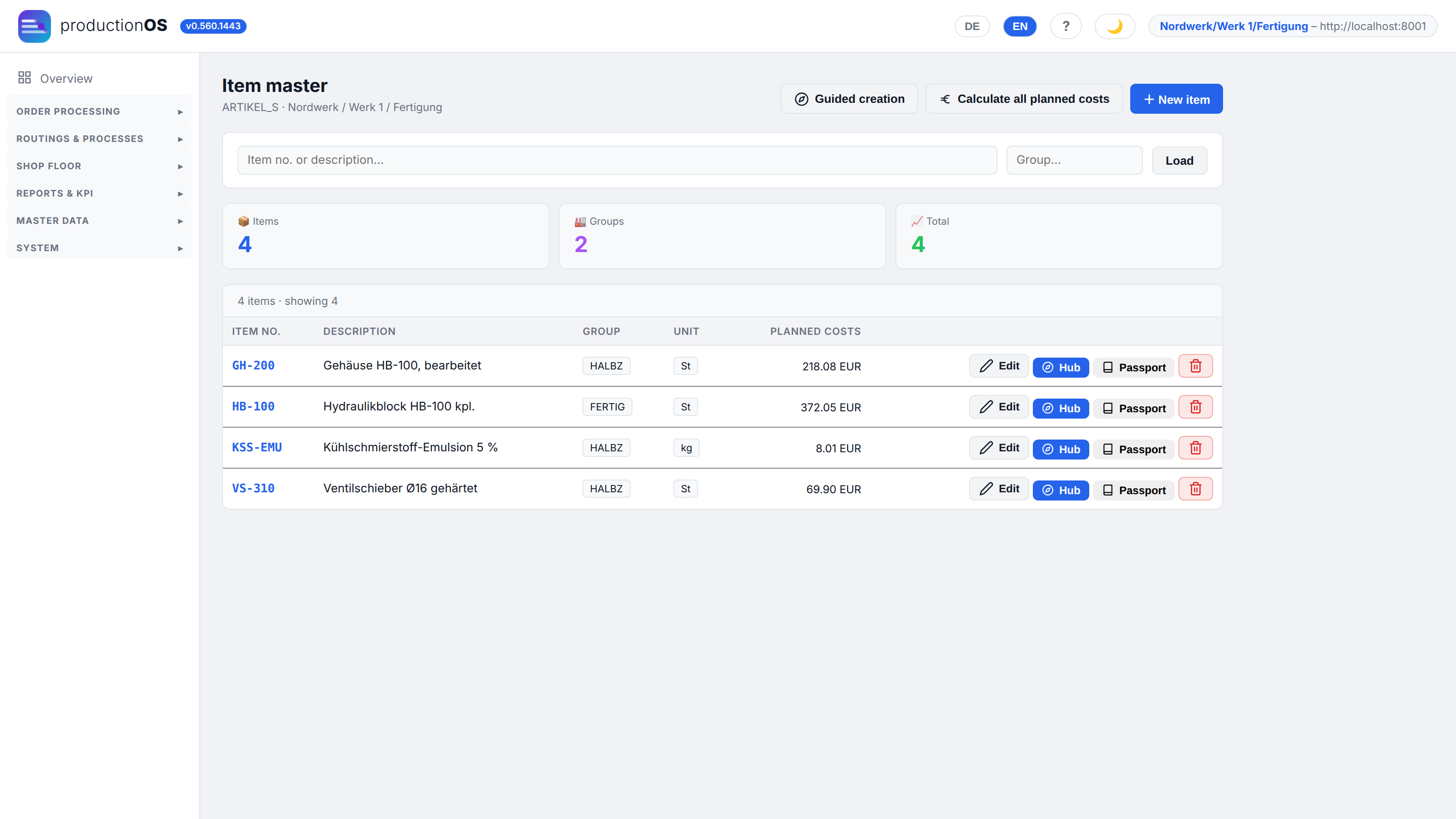
An item is what is produced — end product or semi-finished product. The list shows group, unit and the planned costs per piece, which are calculated from the routing (Calculate all planned costs). For each item, the edit dialog has tabs for master, prices, storage, dimensions, product passport and external procurement; Info opens the preliminary costing, Passport the product passport (Part 6).
Semi-finished products (here GH-200 and VS-310) are items of their own with their own routing. That they go into HB-100 is not recorded on the item but in the material consumption of the routing of HB-100 (2.3).
1.2 Material
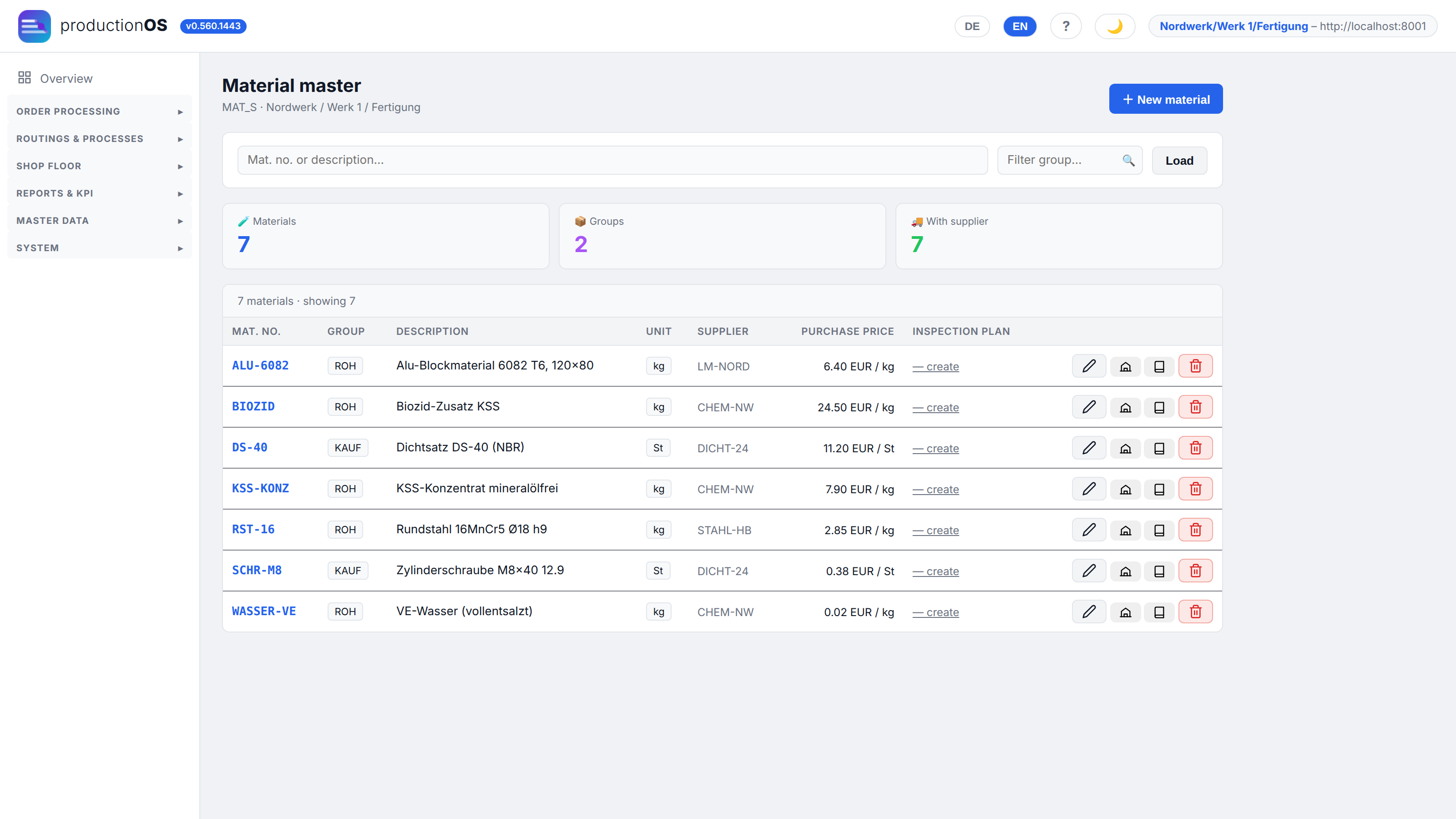
Material is what is purchased and consumed: raw material (ALU-6082, RST-16) and purchased parts (Dichtsatz (seal kit), Schrauben (screws)). The list shows group, unit, supplier, purchase price and the column Inspection plan: an inspection plan on a material is the goods receipt inspection. It is created here (Edit → Goods receipt inspection or create in the column) or under Plans → Inspection plans; goods receipt later asks for it (3.6).
The unit of a material in the routing is a ratio — “kg per St” —, not a bare unit. The denominator carries the reference quantity, and the requirements calculation needs it (2.3).
1.3 Machines
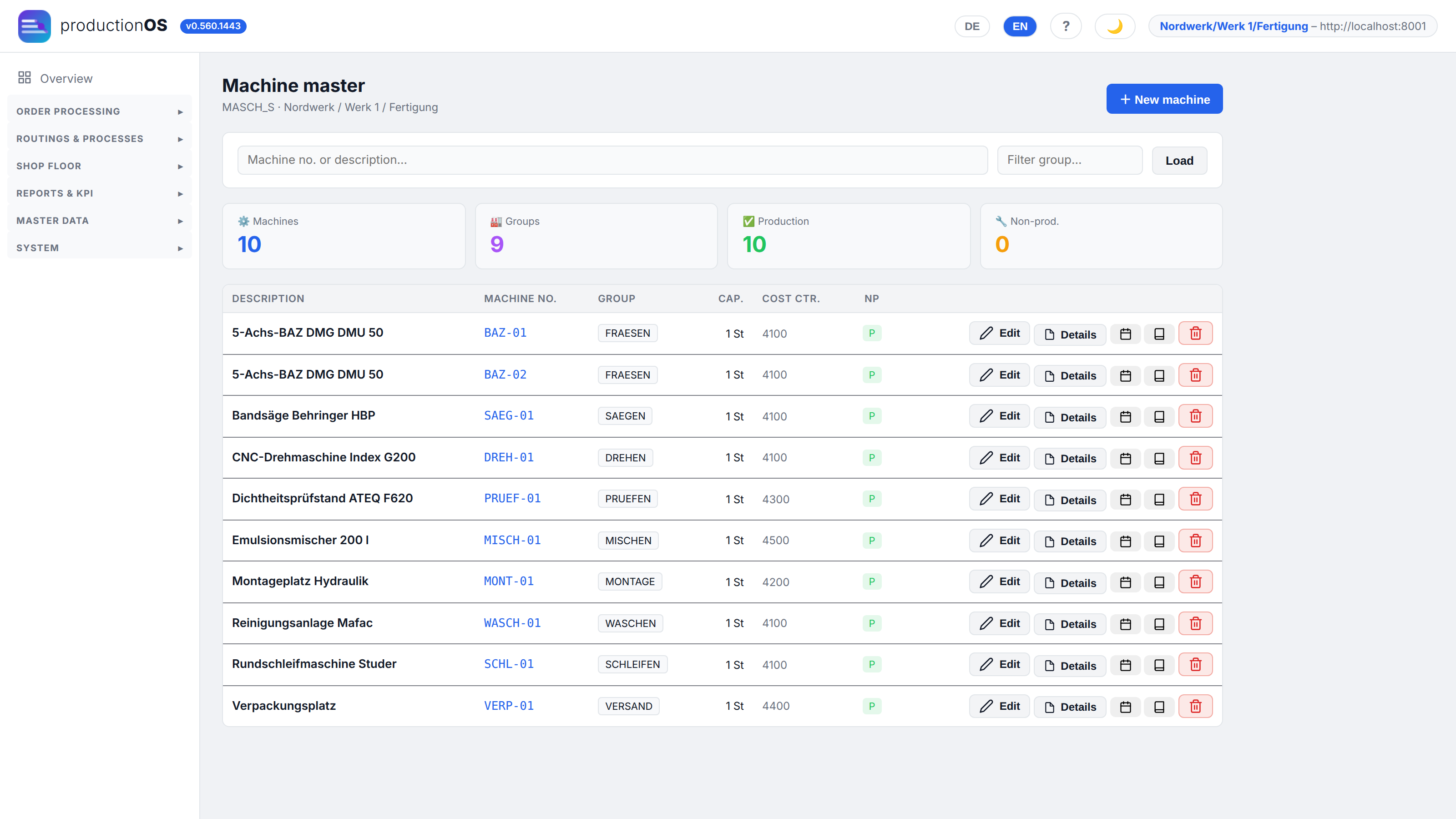
Per machine: group, cost centre, hourly rate, calendar. Details shows utilisation and machine loading, Calendar the machine-specific working days, Maintenance plan the planned downtimes. Which machine can perform which operation is recorded in the matrix Operation ↔ machine and in the alternatives of the routing (2.6).
Two flags on the machine state whether setup and teardown take any time at all. They are the default for all operations on this machine; the operation can override them (from machine / yes / no). When switched off, that portion is missing from scheduling, Gantt and costs. The Skills tab records which skills the personnel at this machine need if the operation itself requires none (1.5).
1.4 Plant calendar and shift models
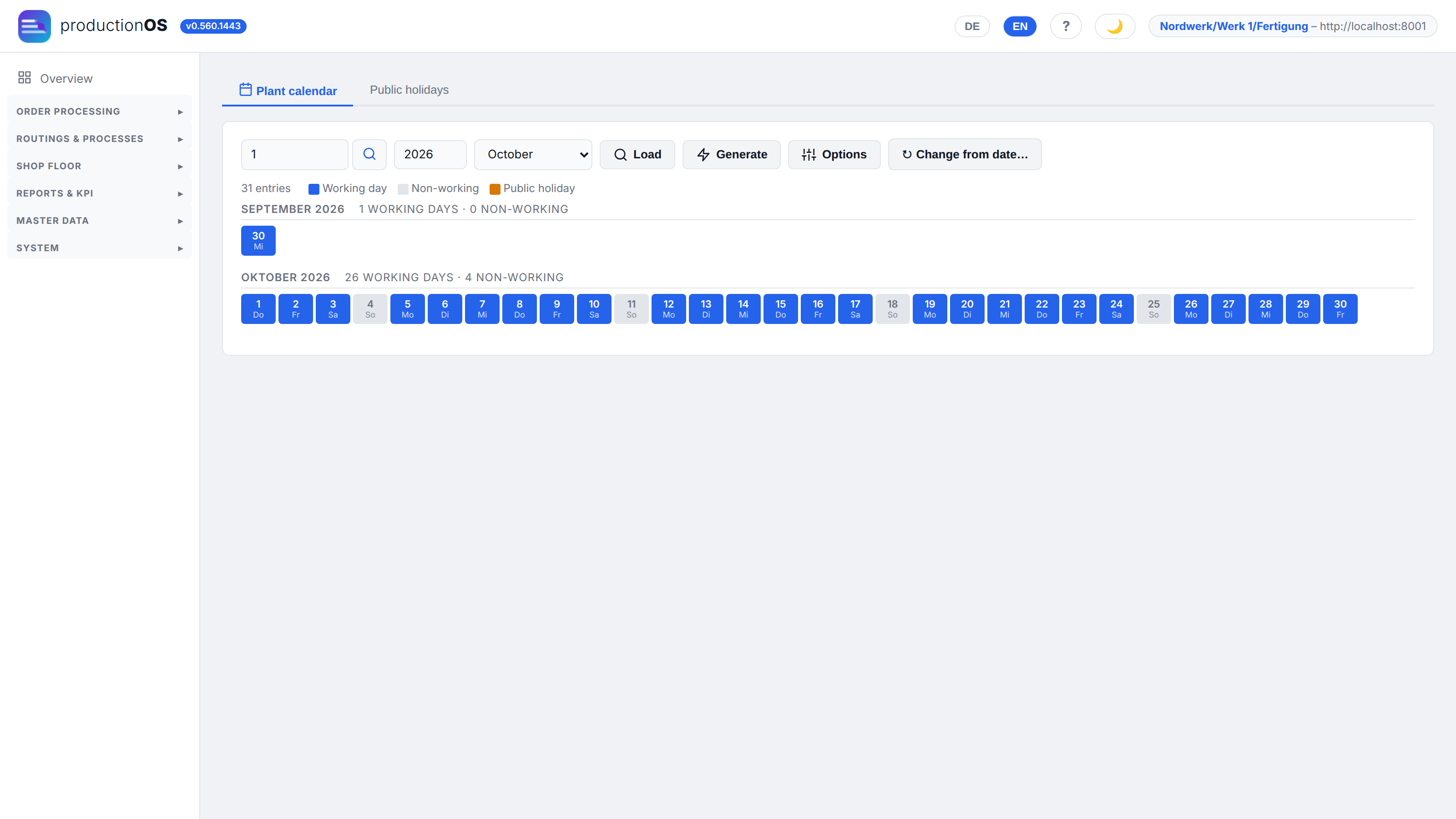
The plant calendar states for each day whether work takes place and with which shift model. Generate creates a year (Mon–Fri with the standard model); public holidays come in via the Public holidays tab (import by federal state). Individual days can be switched — in the demo tenant, Saturdays with an early shift are working days, as is common for a contract manufacturer under deadline pressure.
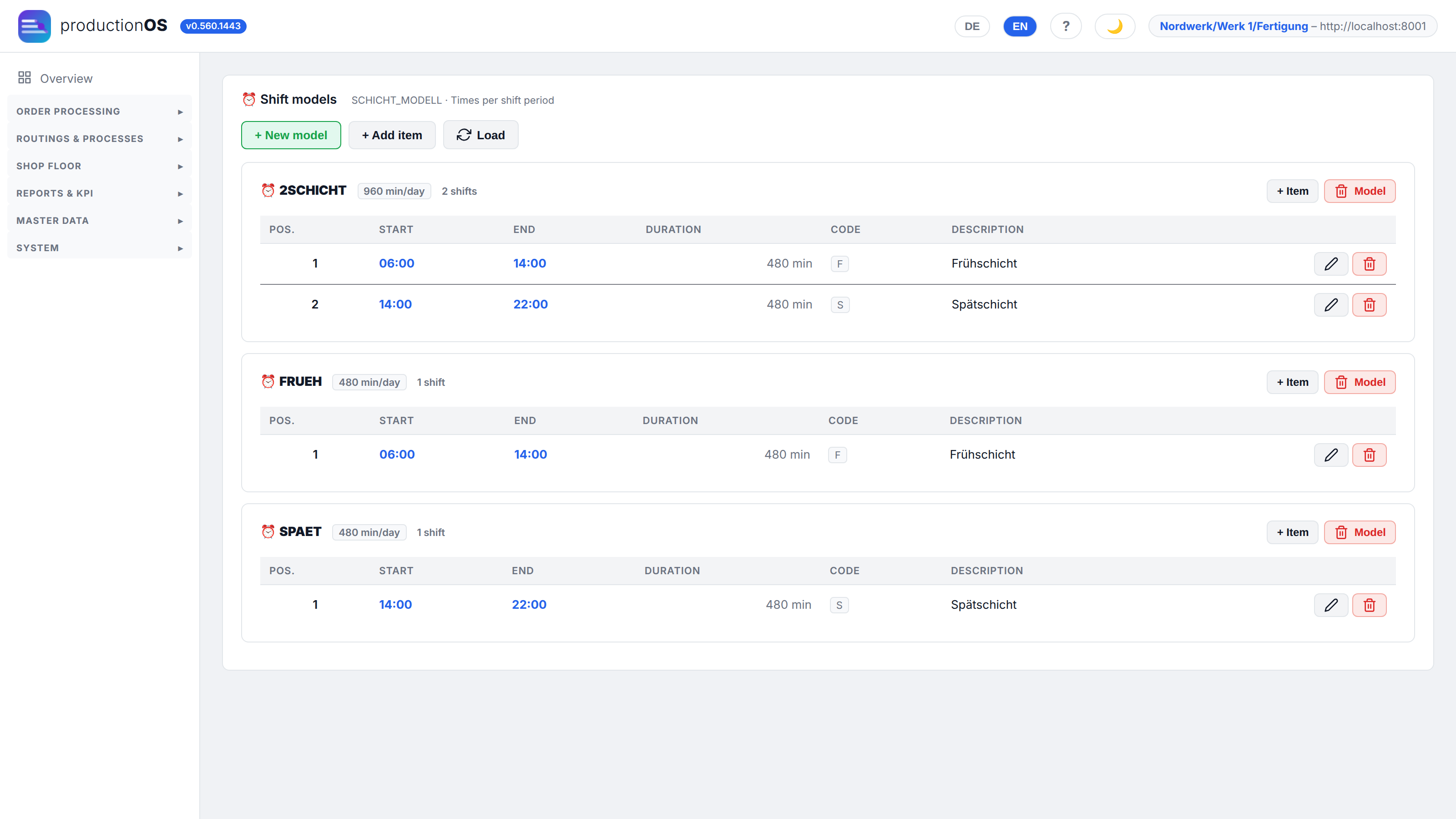
A shift model consists of positions with start and end (here early 06–14, late 14–22). Scheduling calculates only within these times; the daily capacity of a machine is the sum of its shifts. Machines without a calendar of their own follow the plant calendar.
1.5 Personnel: skills, calendar, wage groups
Since v0.516, personnel is a resource like a machine: scheduling can move an operation if nobody with the required skill is present (3.12). This requires four kinds of master data.
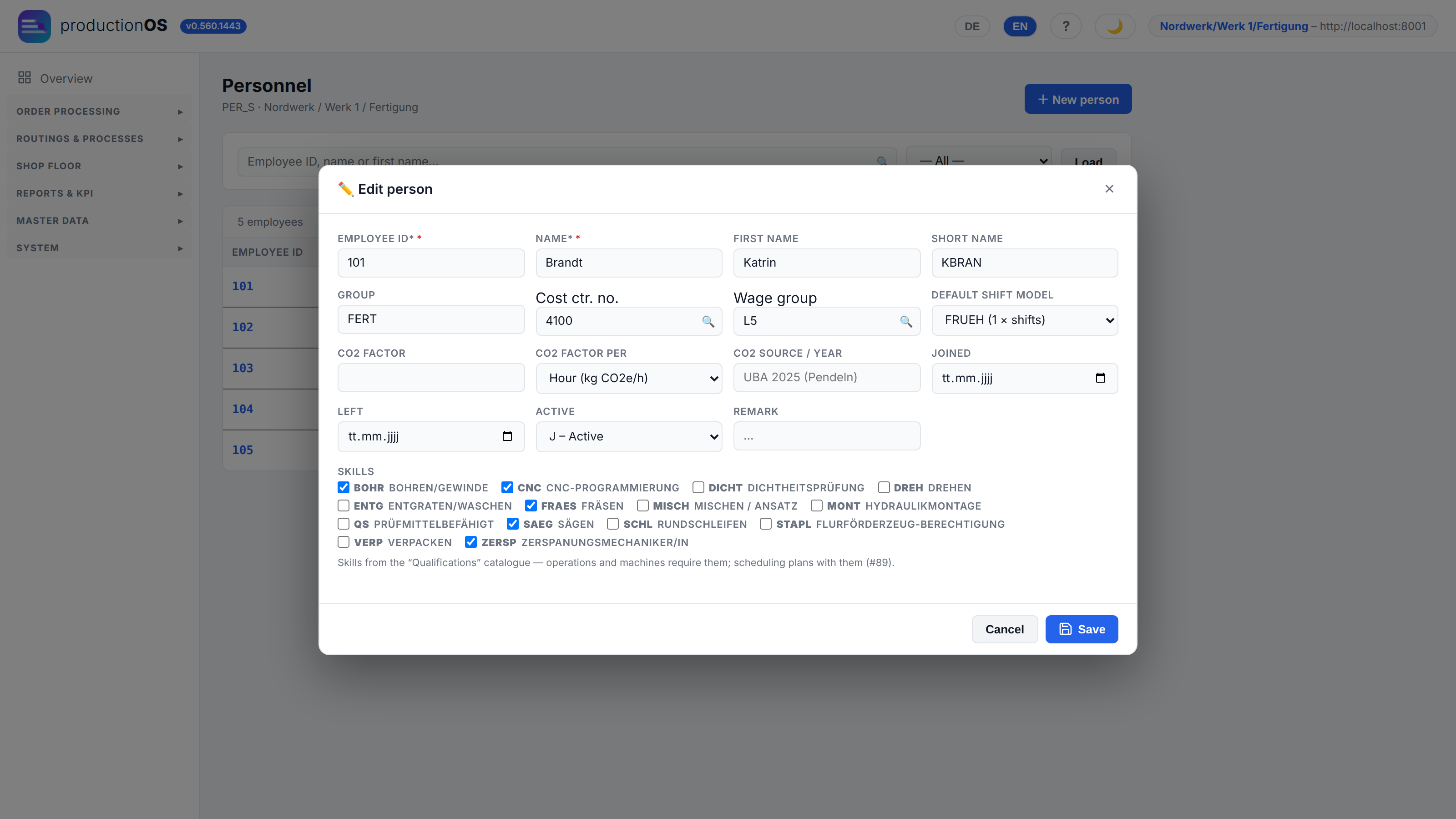
Personnel master. Per person the employee ID and PIN for the terminal, wage group, default shift model (here FRUEH 06:00–14:00) and the skills as a multiple selection from the catalogue — any number per person.
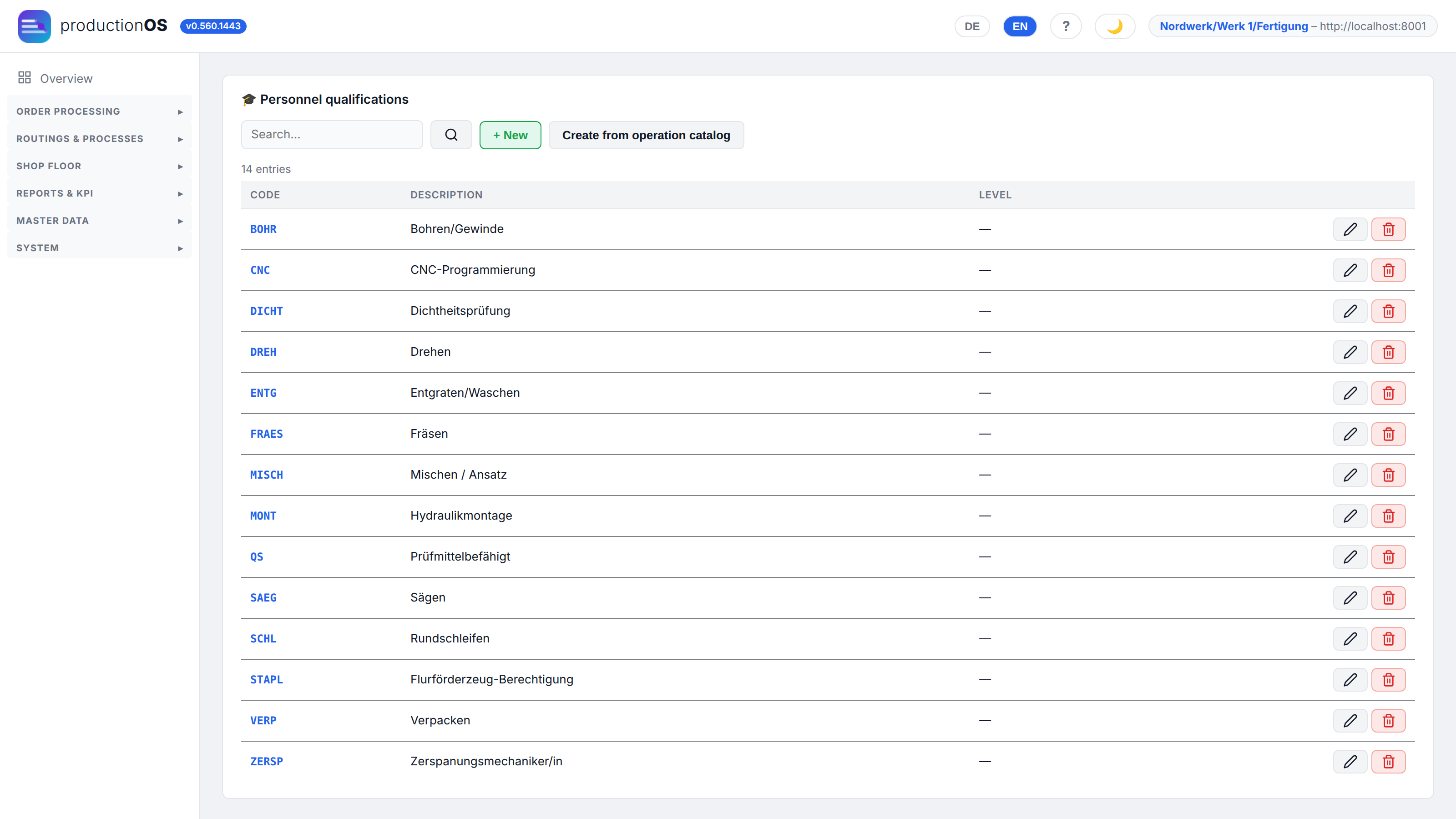
Qualifications (skills). The catalogue from which persons and requirements draw their skills — activities (milling, hydraulic assembly), abilities (CNC programming, qualified for inspection equipment) and certificates (industrial truck). Create from operation catalog creates one skill with the same code per operation. This is the simplest way to start: a skill with the code of the operation then automatically counts as a requirement for processing, and the only thing left to maintain is who can perform which operation.
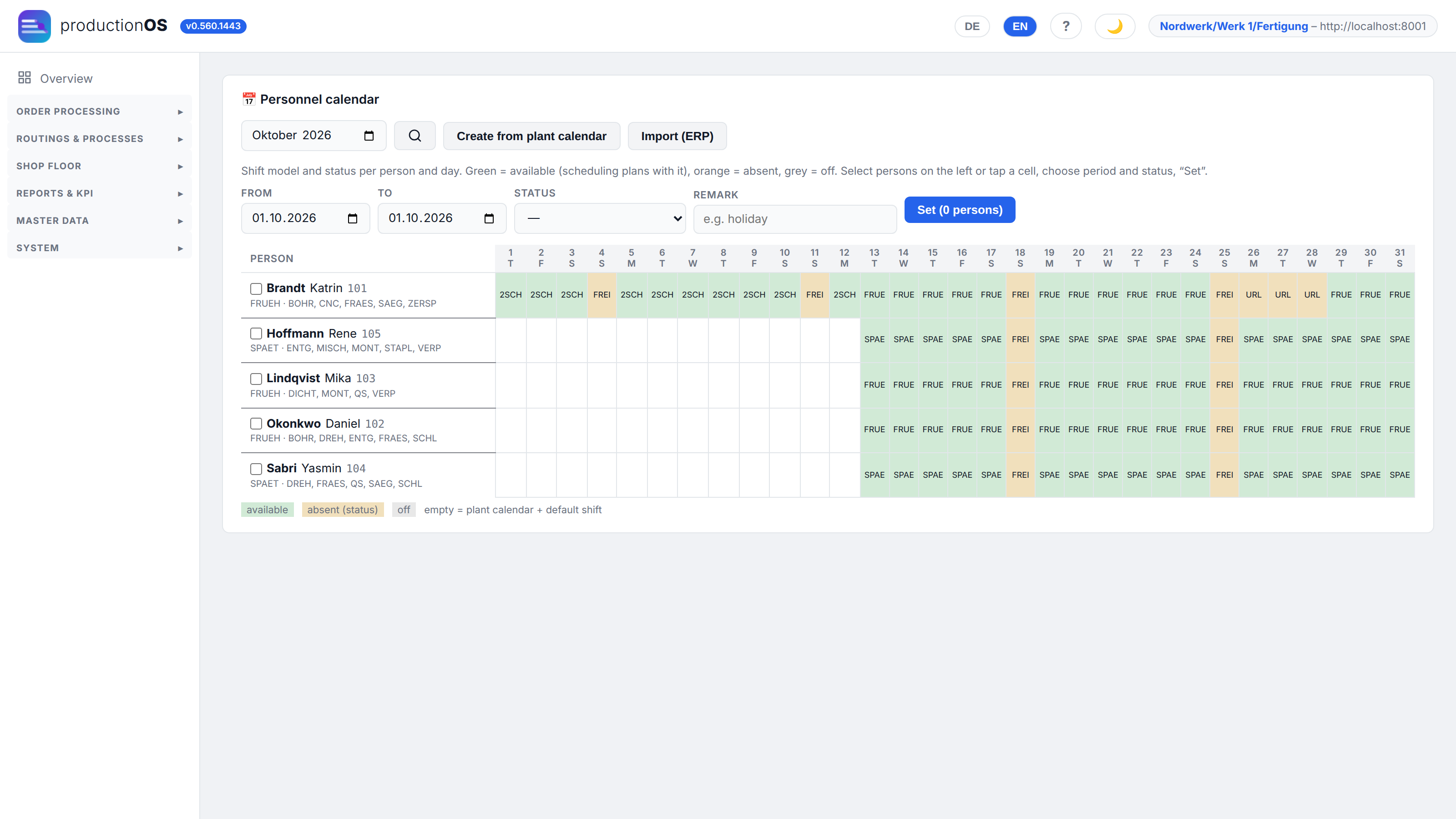
Personnel calendar. Per person and day: shift model and status (available, holiday, sick, training, time off in lieu). Create from plant calendar fills a period from the plant calendar and the person's default shift model; after that only the deviations are maintained. Several persons and days can be selected together and given a status (in the screenshot, holiday in the week from 26/10). Import (ERP) takes over attendance from an ERP — as an ISA-95 file (B2MML, PersonnelCapability) or as CSV per_nr;typ;von;bis;grund;schichtmodell. A preview comes first; nothing is written until Take over; days maintained by hand remain untouched. Without an entry in the personnel calendar, the plant calendar applies with the default shift model; without either, the person counts as not available — scheduling does not plan with personnel that does not exist.
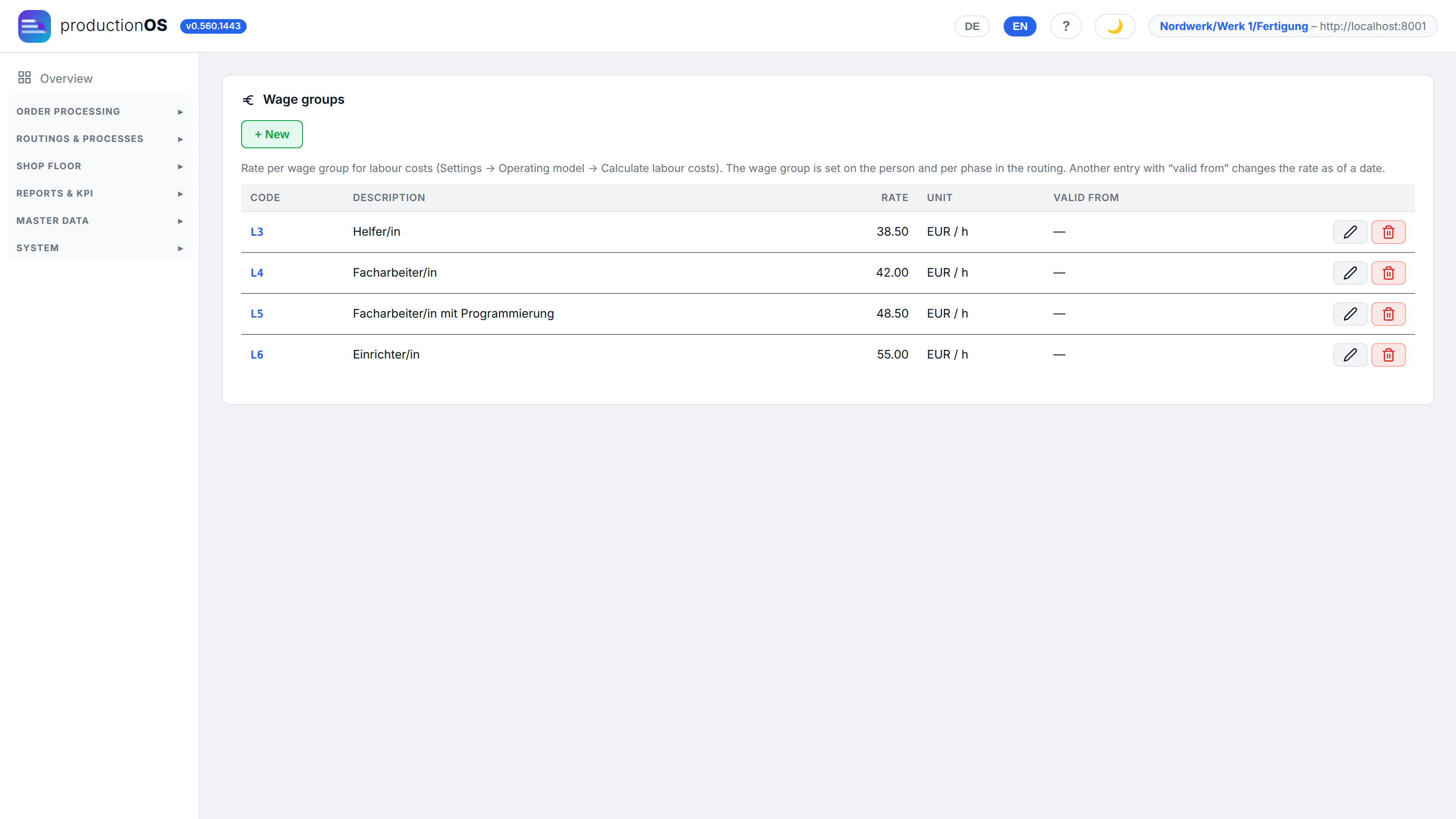
Wage groups. Code, description and rate in EUR/h, with “valid from”. The wage group is recorded on the person and per phase on the operation; the personnel costs are calculated with the rate (5.1). Codes that are used somewhere but have no rate yet are shown by the form as buttons for creating them. A wage group is a cost attribute, not a planning criterion — anyone wanting to plan by it creates a skill.
1.6 Units, inspection characteristics, defect types, tools
No screenshot, because these are simple lists — but each has a role in the process:
| Master data | Role |
|---|---|
| Units | St, kg, min, EUR / h … — the active selection can be restricted per tenant; units with the integer flag round to whole pieces when distributing across lines |
| Characteristics (setup/inspection) | the master from which process instruction and inspection plan draw their characteristics (description, unit, specification values) |
| Inspection codes, inspection frequencies | codes for the inspection plan items |
| Defect types | why a part fails (burr, dimension, roughness, leakage …); inspection and scrap justification share this list |
| Downtime groups | reasons for a downtime at the terminal (material shortage, disruption, maintenance …), basis of the OEE analysis |
| Tools | Flag individual: every item is kept in stock as an individual piece and selected at the terminal when mounted; max. deployment duration (tool life until maintenance) and Usage limit by shots, strokes or uses — when a limit is reached, an event and a maintenance order are created per piece (5.7); the edit dialog shows the pieces with tool life since maintenance and service life |
| Material: smallest delivery unit | e.g. bales of 25 kg: goods receipt divides the quantity into packages (one lot per package), purchase orders round up to whole delivery units |
| Containers, storage types, storage numbers | packages for the output, storage locations for stock and handover. Containers can be kept individually: Single containers creates pieces with a sequential identifier (e.g. KLT-02-0001, also as label barcode). The state is not booked but derived — in use while an open lot is in it, free as soon as it has been consumed; in addition blocked (cleaning, defect) and disposed. The Stock column shows free / total. The container also carries tare weight and CO2 factor for transport |
| Customers, suppliers, purchase order items | customers and sources of supply; delivery conditions per material |
1.7 Operating model
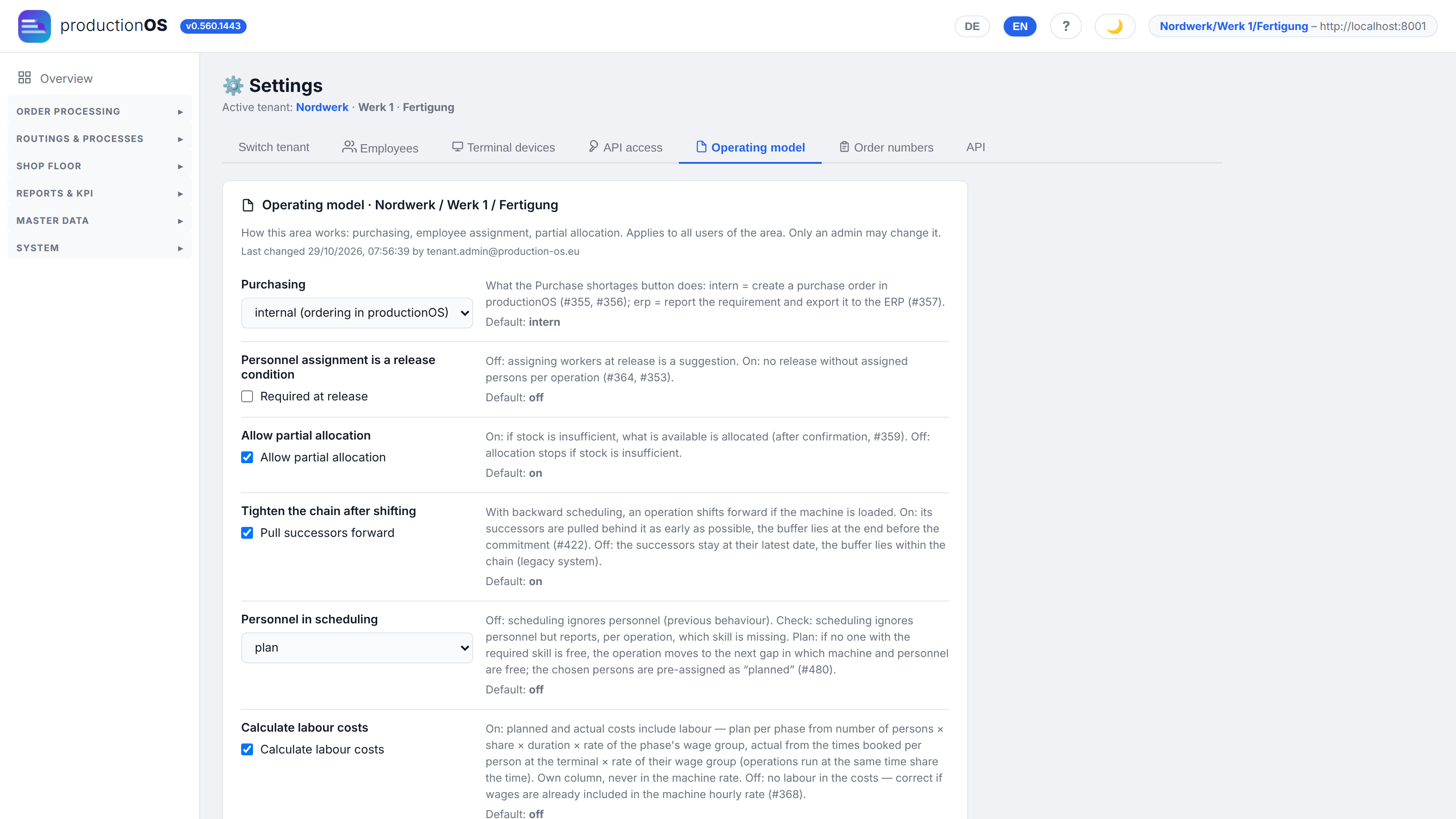
Under Settings → Operating model there are six switches with which a tenant defines how the system works at certain points. They apply per area / plant / department.
| Switch | Default | Meaning |
|---|---|---|
| Purchasing | internal | internal: the Purchase shortages button creates a purchase order in productionOS. ERP: the requirement is reported and exported as CSV to an ERP |
| Personnel assignment is a release condition | off | on: no release as long as a skill requirement of an operation is not covered by assigned persons (without a requirement: without any assignment at all). off: the assignment is a suggestion |
| Allow partial allocation | on | on: in case of a shortfall, what is available is allocated (after confirmation). off: allocation is aborted |
| Personnel in scheduling | off | off: scheduling knows no personnel. check: planning is done without personnel, but the run reports per operation which skill is missing — the way to start while skills and calendars are still incomplete. plan: if personnel with the skill is missing, the operation moves to the next gap in which machine and personnel are free (3.12) |
| Calculate labour costs | off | on: planned and actual costs contain personnel as a separate column (5.1) |
| Tighten chain after moving to free slots | on | in backward scheduling, an operation moves forward to an earlier slot when its machine is occupied. on: its successors are pulled in behind it, and the buffer lies at the end before the commitment. off: the successors stay at their latest date, and the buffer lies within the chain (as in the legacy system) |
Alongside these are Terminal devices (4.1), API access (keys for external systems) and Order numbers (the number pattern, e.g. {JJ}{MM}-{NR:3} for primary and {UR}-{SEK:2} for sub-orders).
Part 2 — Routings and processes
2.1 The routing
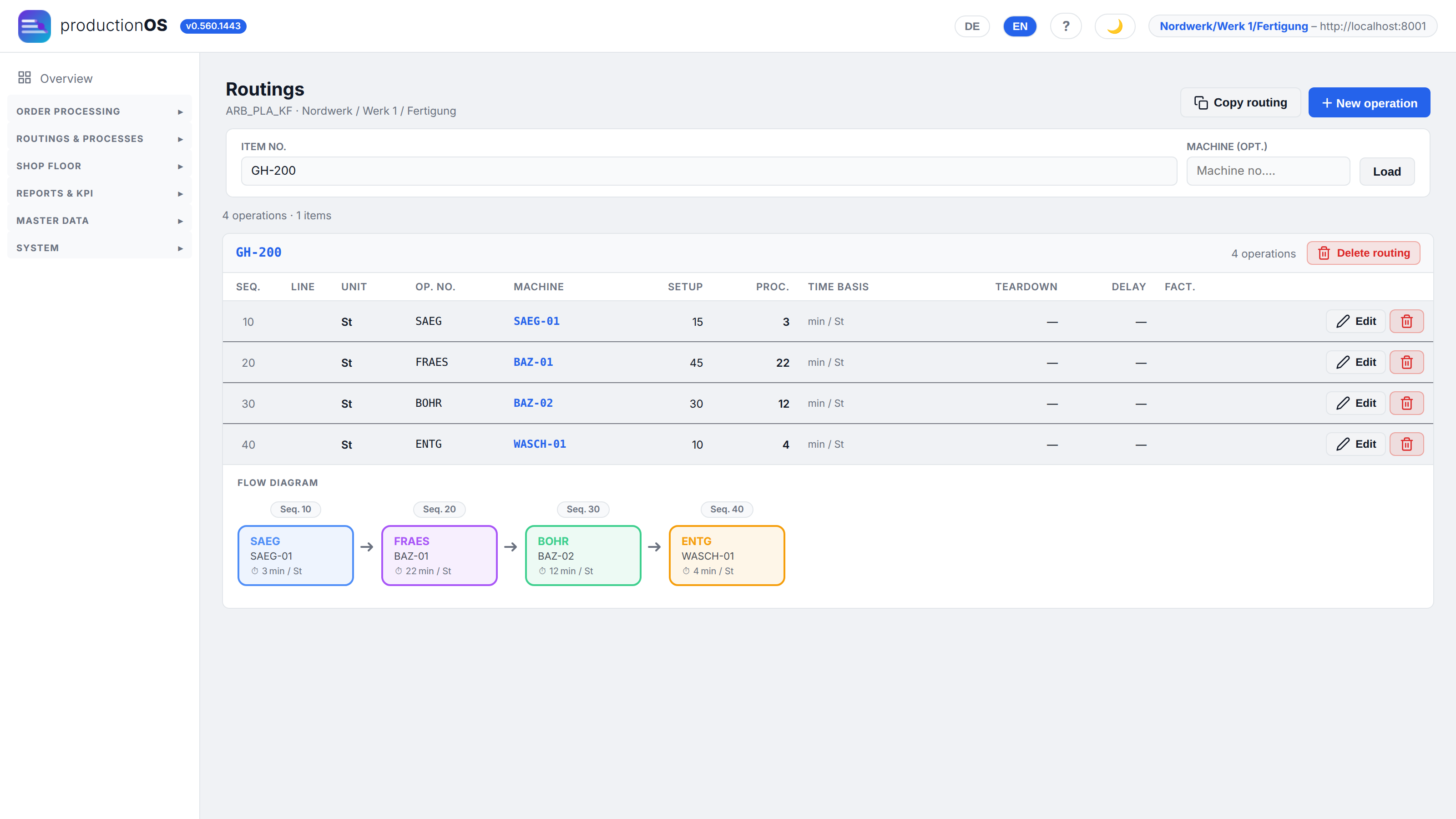
A routing is the sequence of operations of an item — here for the housing: sawing → milling → drilling/threading → deburring. For each sequence it lists machine, setup time, processing time per unit, teardown time, delay, the column Line (parallel lines, 2.6) and the P/A flag. The flow below shows the chain with machines and times as a diagram.
The routing is the template; the order receives its copy during the explosion (3.4). A later change to the routing does not change running orders — what was instructed remains traceable.
Copy routing creates the routing of an existing item for a new item, including material consumption, instruction and inspection plan.
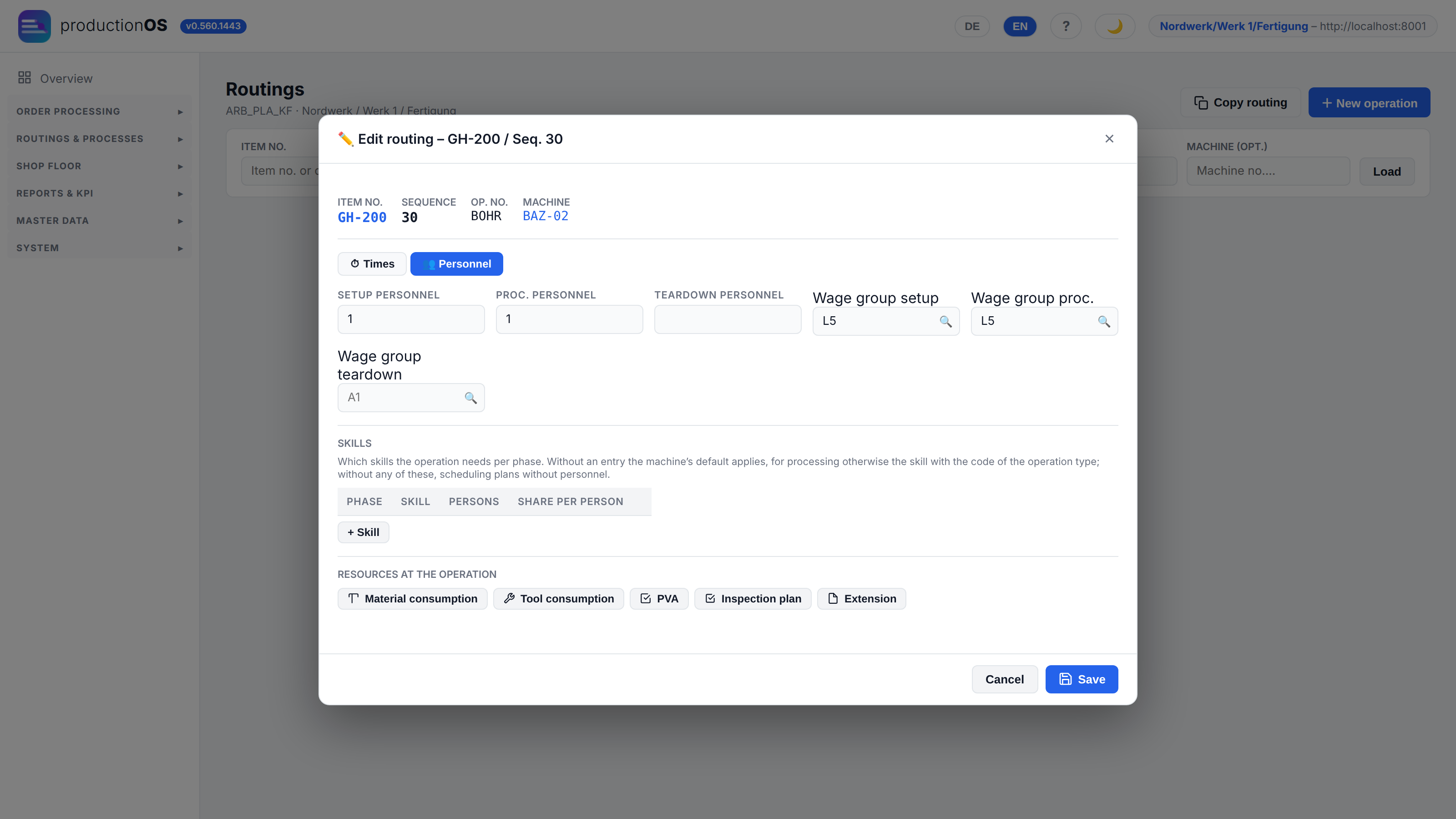
The Personnel tab of an operation holds, per phase (setup, processing, teardown), the number of persons, the wage group and the skills: which skill, how many persons, with which share per person (0.5 = one person tends two machines at once). An empty list is the normal case: then the machine's default applies, and if that is missing too, the skill with the code of the operation. In the screenshot drilling has no entry of its own, and BAZ-02 has no default — so the skill BOHR is required. The same list appears in the operation dialogue of the Plan Editor.
2.2 Plan Editor
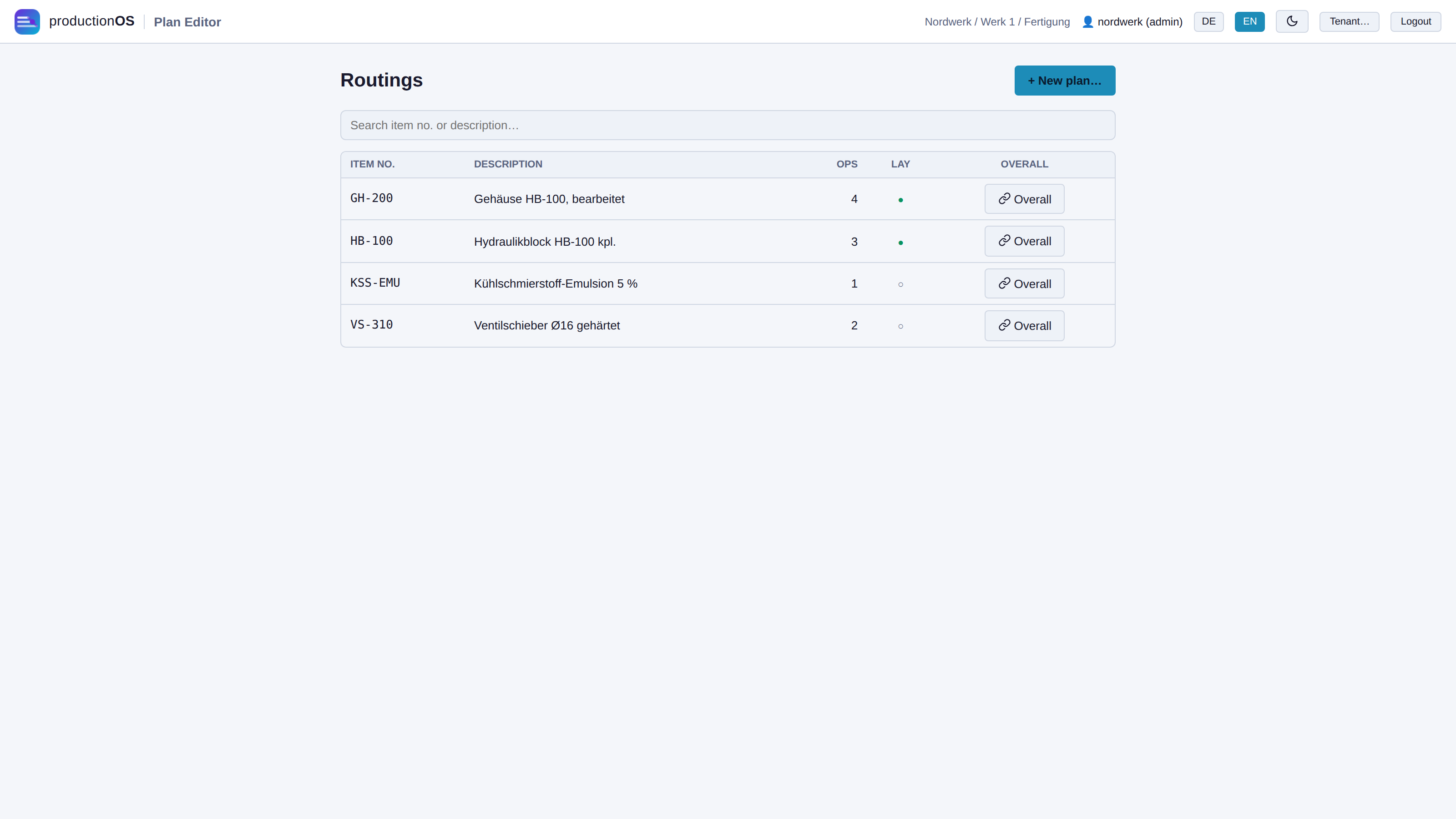
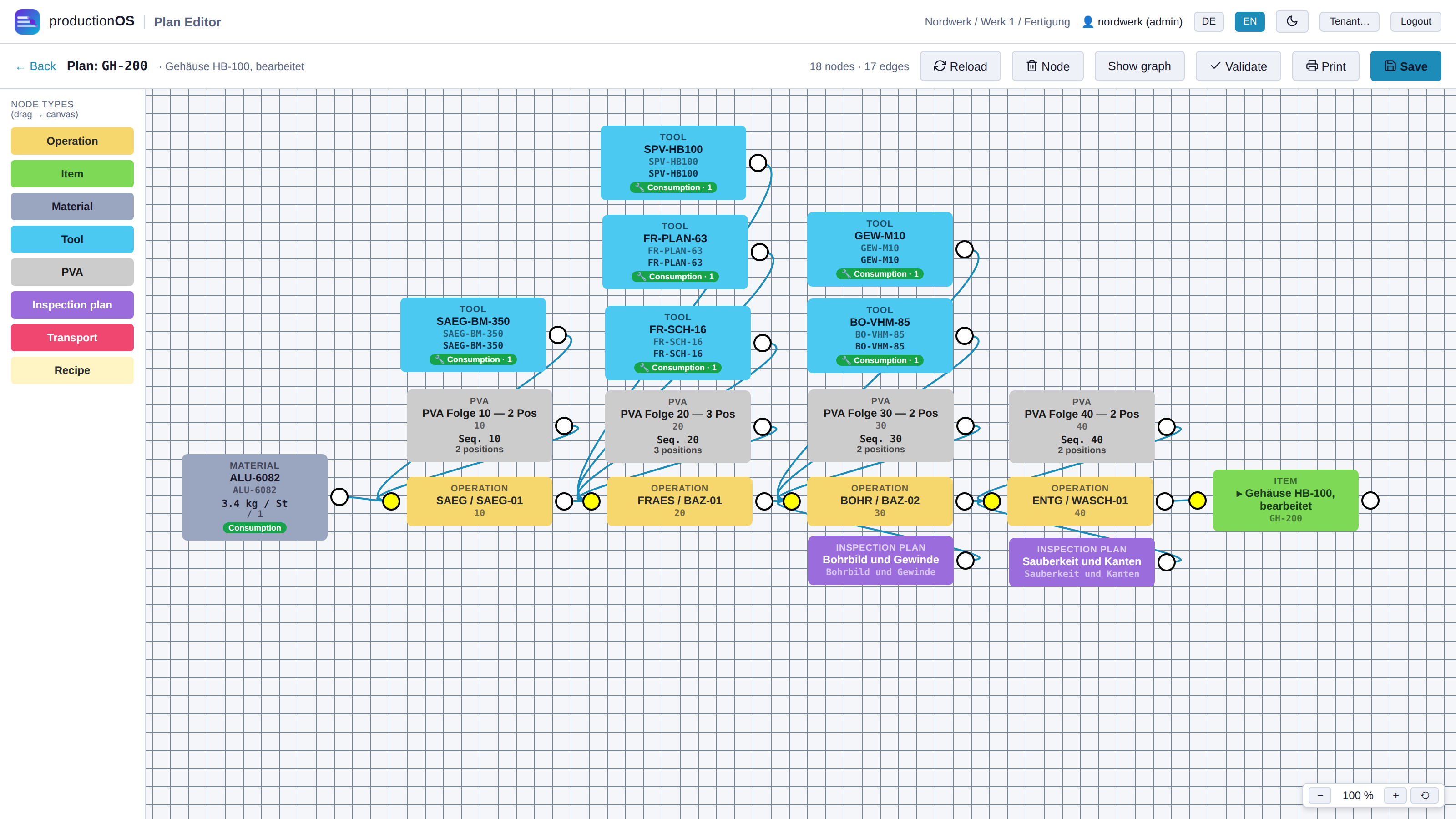
The Plan Editor shows the same routing as a graph. The node types carry the colours of the legend on the left: Operation (yellow) with its machine, Item (green) as output, Material (grey) and Tool (turquoise) as inputs, PVA (light grey) and Inspection plan (violet) per operation, plus Transport (red) for the resources an operation needs for transport — containers, pallets, mesh boxes from the container master — and Recipe (cream) for mixes with proportions. Nodes can be dragged, connected and edited; Validate checks whether every operation has a machine and the chain is closed; Save writes to the same tables as the form — there is one routing, not two. Print outputs the plan as a notice for the shop floor on one sheet of A4 landscape: at the top plan, description, tenant and date, below it the whole drawing, scaled to the page. In the print dialogue the sheet can also be saved as a PDF.
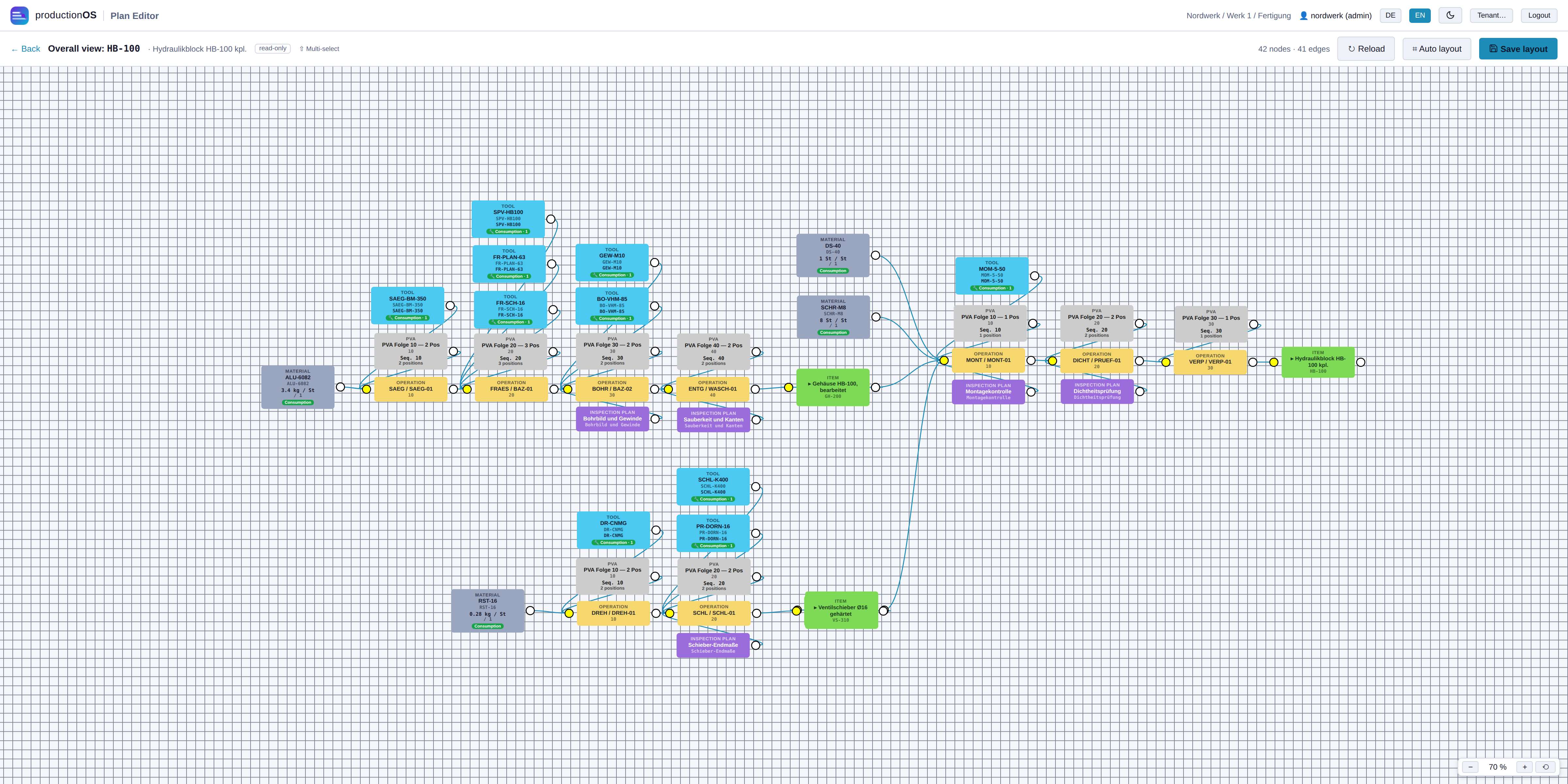
The Overall view of an end product shows all levels together: the routing of the hydraulic block with the incoming routings of the housing and the valve spool. This shows where a semi-finished product goes in and everything that happens before it.
2.3 Material consumption
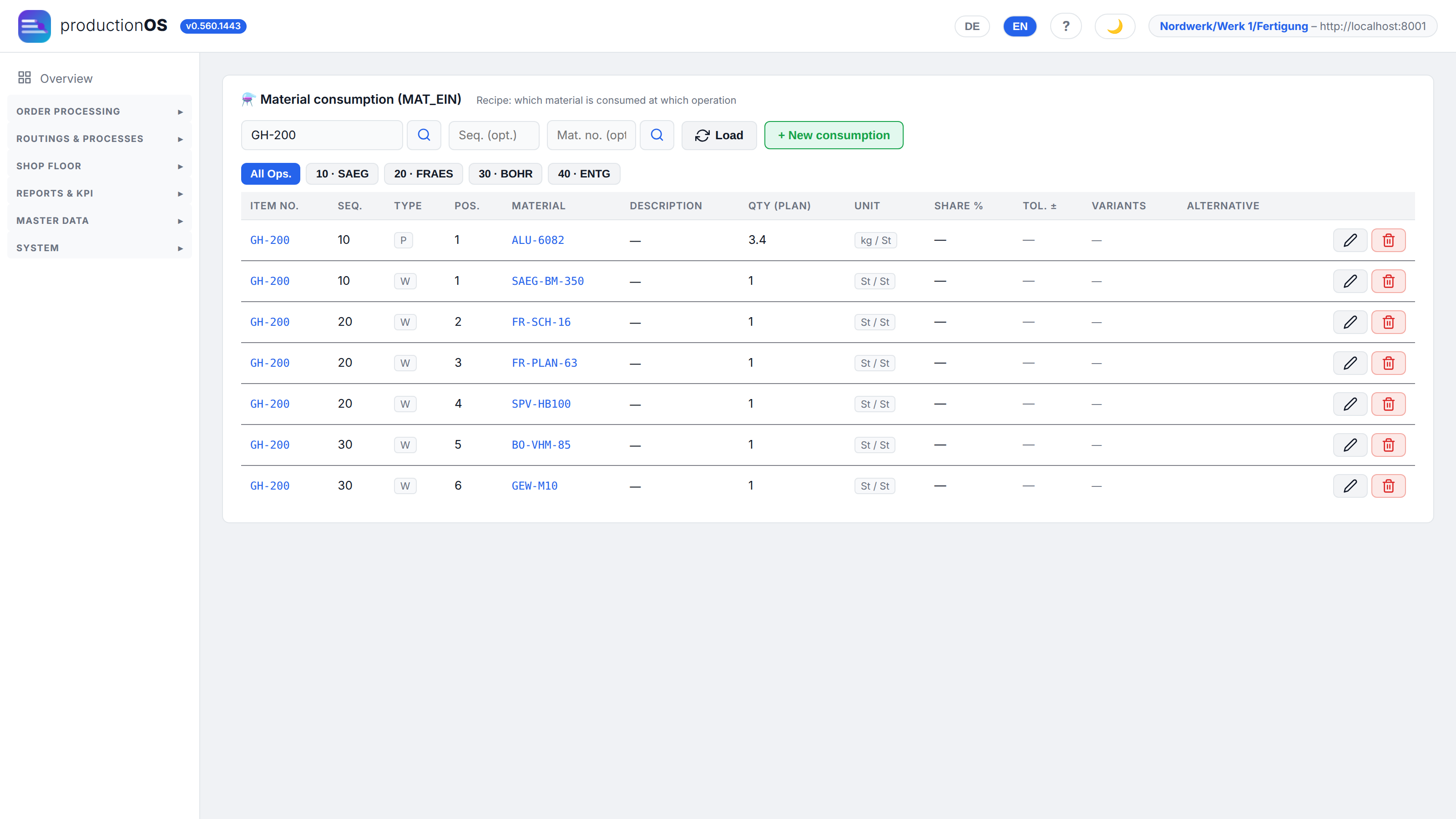
Material consumption states for each operation what goes in: material (type P), tool (W) or packaging (V), with quantity and unit as a ratio ("3.4 kg / St"). Semi-finished products of an end product are also listed here — GH-200 and VS-310 as inputs to the assembly of HB-100 —, not in a separate bill of materials alongside. The requirements calculation (3.6) multiplies the quantity of the operation by this factor.
Next to type P a second marker says where the input comes from: R raw material from the material master, A item — a semi-finished good from own production, for which the chain can create a sub-order. The terminal shows the same letters during setup. The description always comes from the respective master (material, item, tool, container) — a change there is visible here immediately.
Tools are managed factor-based (one milling cutter per operation, not per piece) and are not reserved; inspection equipment counts as tools, not material.
2.4 Process instruction (PVA)
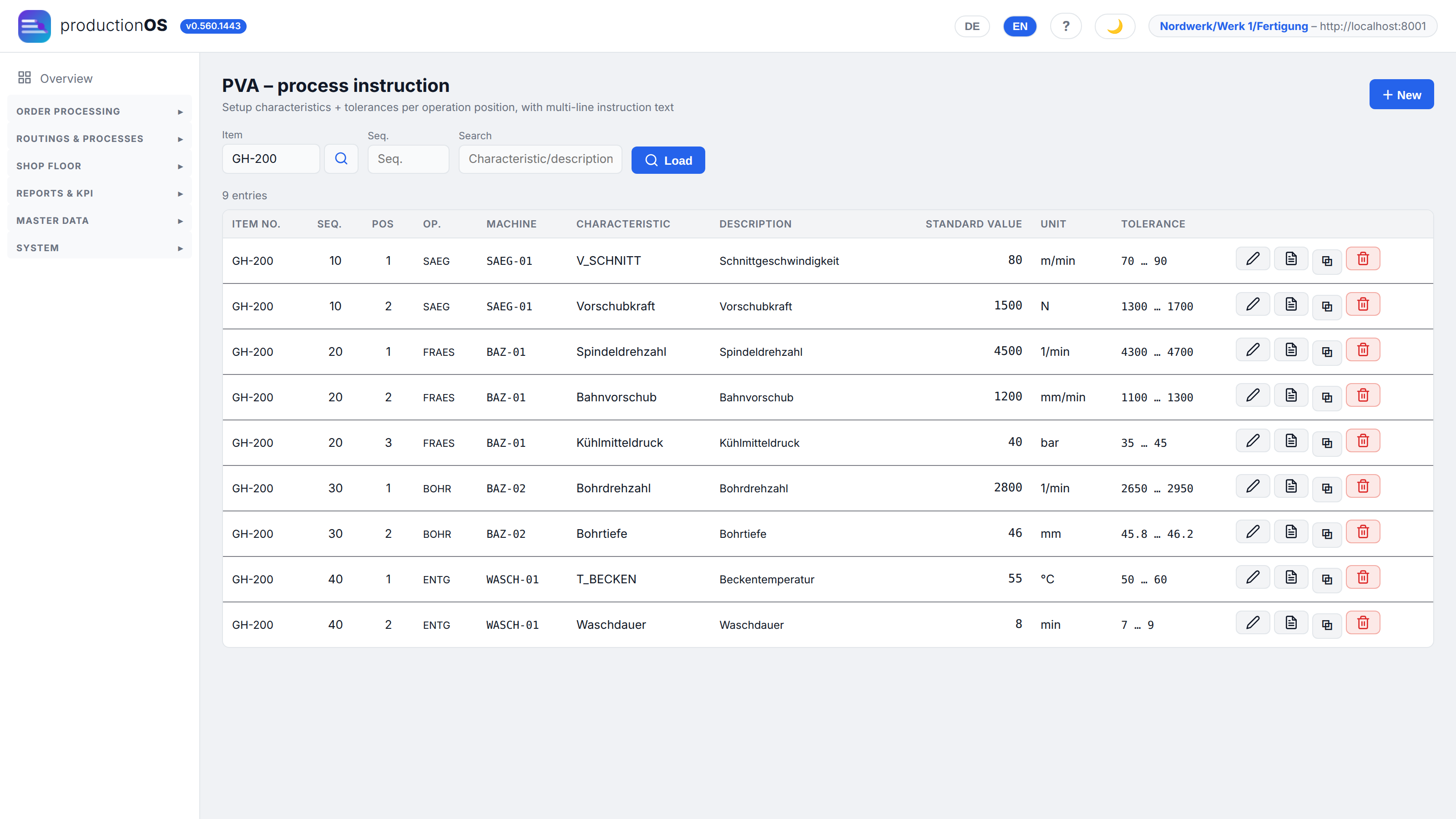
The process instruction (Prozess-Verfahrens-Anweisung, PVA) states how an operation is to be set up: cutting speed, feed rate, torque, test pressure — with standard value and tolerance. Three forms occur: two-sided (standard value with range), one-sided (< 0,25 mm/s) and pure instruction (text without a number). At the terminal the instruction appears between material and START (4.4).
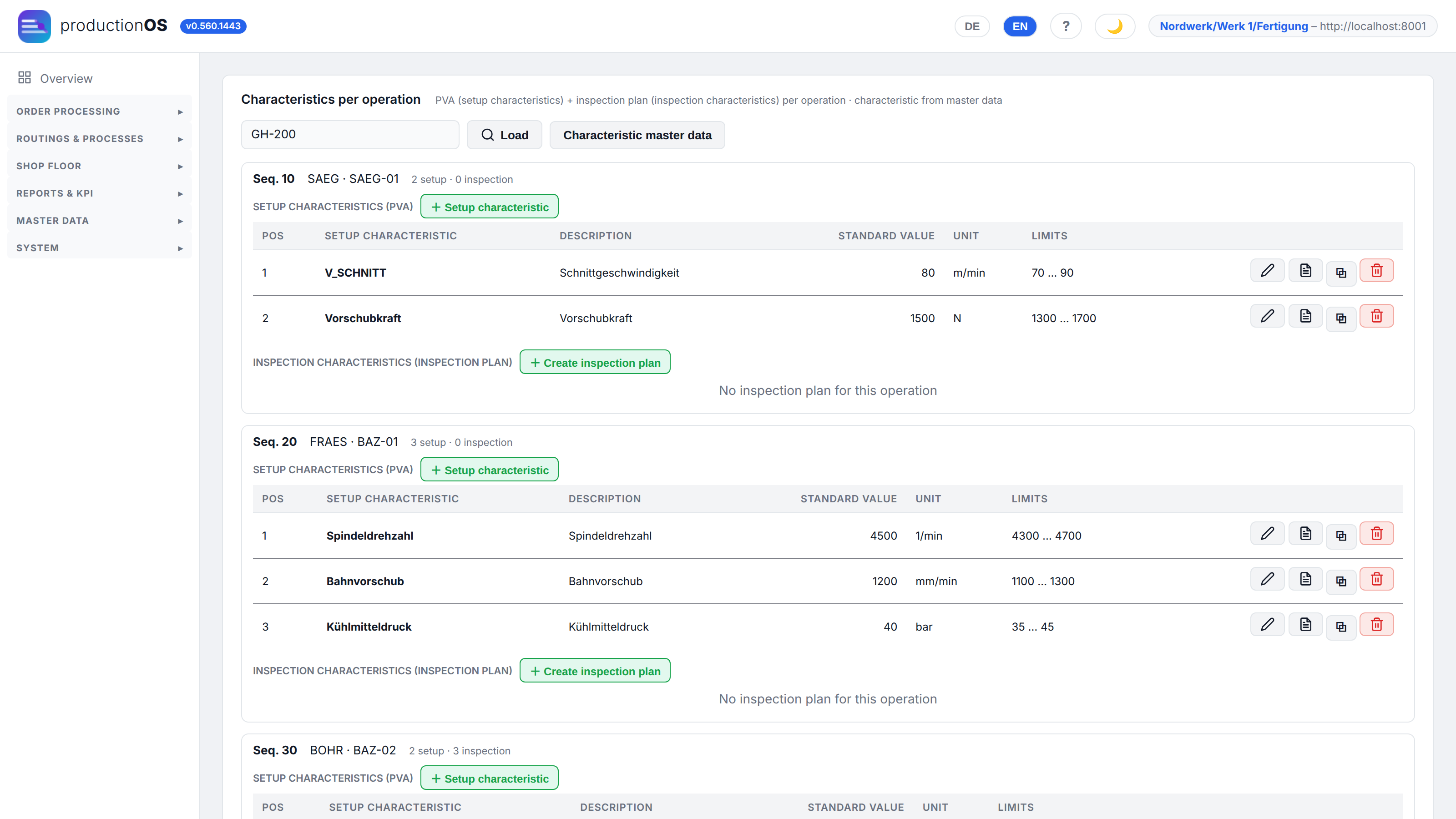
Characteristics per operation combines process instruction and inspection plan per sequence — the view in which an operation is maintained completely.
2.5 Inspection plans
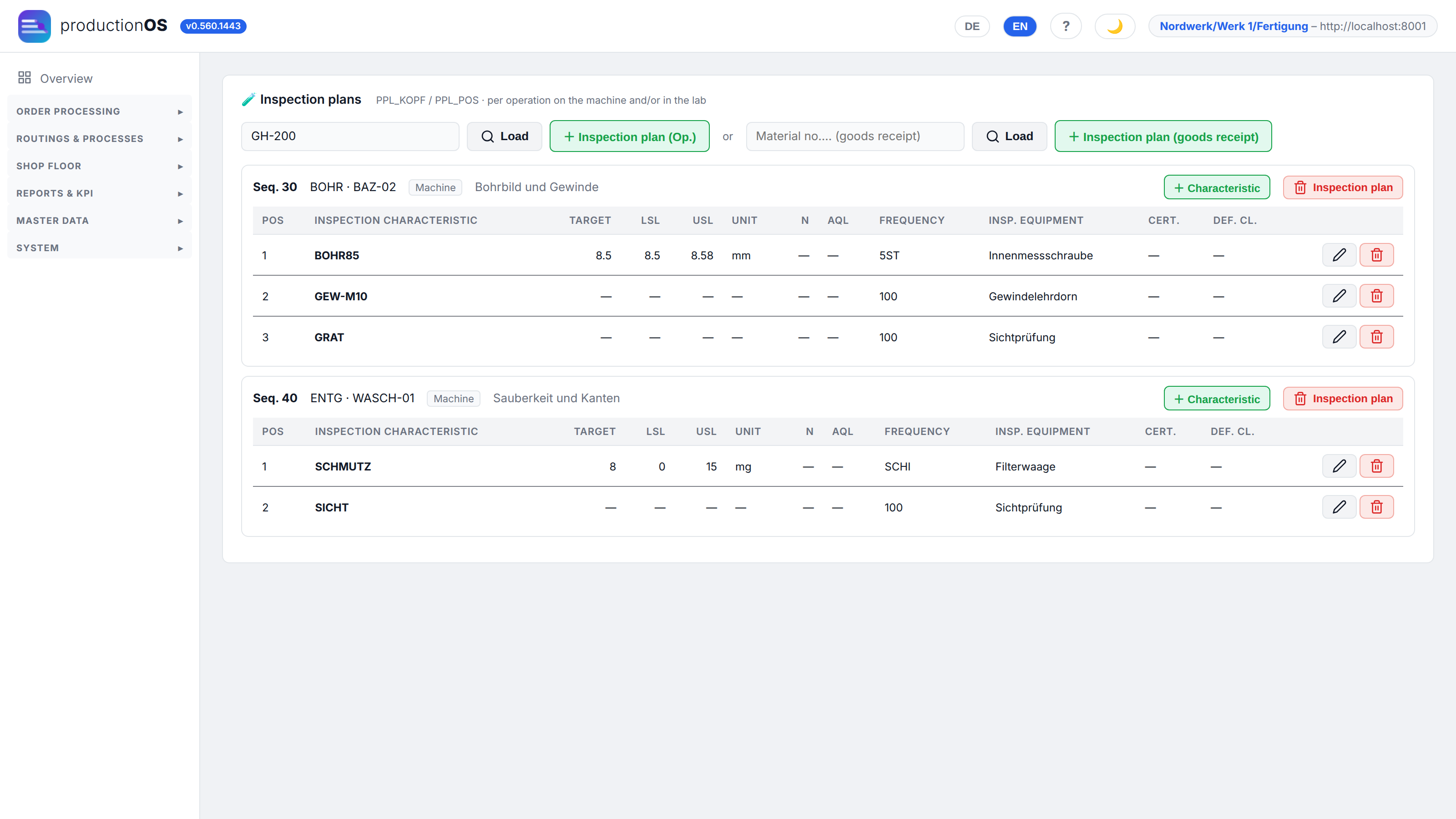
An inspection plan belongs to the operation (sequence 30 drilling: bore 8.5 H7 with LSL 8.50 / USL 8.58, thread M10, burr) and lists for each characteristic the target value, limits, frequency and inspection equipment. Two recording modes, decided by the characteristic itself: a characteristic with the unit BEURT (assessment) is counted (scratch yes/no, n of m defective), all others are measured. At the terminal the matching form opens automatically (4.8).
Inspection plans on the material are goods receipt inspections (1.2).
2.6 Alternatives and parallel lines
An operation can run on more than one machine. Two flags distinguish how:
| Flag | Meaning | Scheduling |
|---|---|---|
| A — alternative | either one machine or the other | the machine loading check picks one; at the terminal the siblings disappear as soon as one has been started |
| P — parallel line | both lines process at the same time, the quantity is split | default: all lines active, quantity by throughput (the faster line gets more); per order the distribution can be changed under Routing alternatives, down to 0 on a line (= line off) |
The distribution by throughput is calculated across the whole P block (sum of the processing times per line, like resistors in parallel) and rounds via the unit table: pieces to whole pieces, kilograms not. Planning in again resets a manual distribution.
2.7 Co-products and by-product quantities
An operation can produce more than its item: samples, a by-product, waste. Such outputs are maintained on the producing operation, with two settings:
| Setting | Choice | Meaning |
|---|---|---|
| Output type | A — branch-off | is taken from the processed quantity; the operation has to process correspondingly more |
| N — by-product | arises in addition; the quantity of the operation stays the same | |
| Quantity rule | P — proportional | K per G: 1 kg per 100 kg |
| S — stepped | K per started G: 2 pieces per started 1,000 pieces | |
| F — fixed | K per order, independent of the quantity | |
| A — per mix | K per mix (mix quantity of the operation) |
K is the quantity per, G the base quantity. K counts in the unit of the output item, G in the unit of the producing operation. Previously a factor ("1003") stood here, whose reciprocals, together with the quantity ratio, had to add up to 1; this calculation no longer applies. One states what arises and how much per how much. Outputs from the legacy system without a rule are shown in the list with the old factor ("1 per 1003 (old factor)").
Where outputs are maintained. Routings & processes → Co-products / outputs: enter the header item (the item whose operation produces the output), Load. For each output the list shows the producing operation, the output item with its own operation, the quantity rule as a sentence and the output type. The same settings are found in the Plan Editor on the output node; both ways write to the same table. A semi-finished product that the operation consumes does not belong here — that is material consumption (2.3).
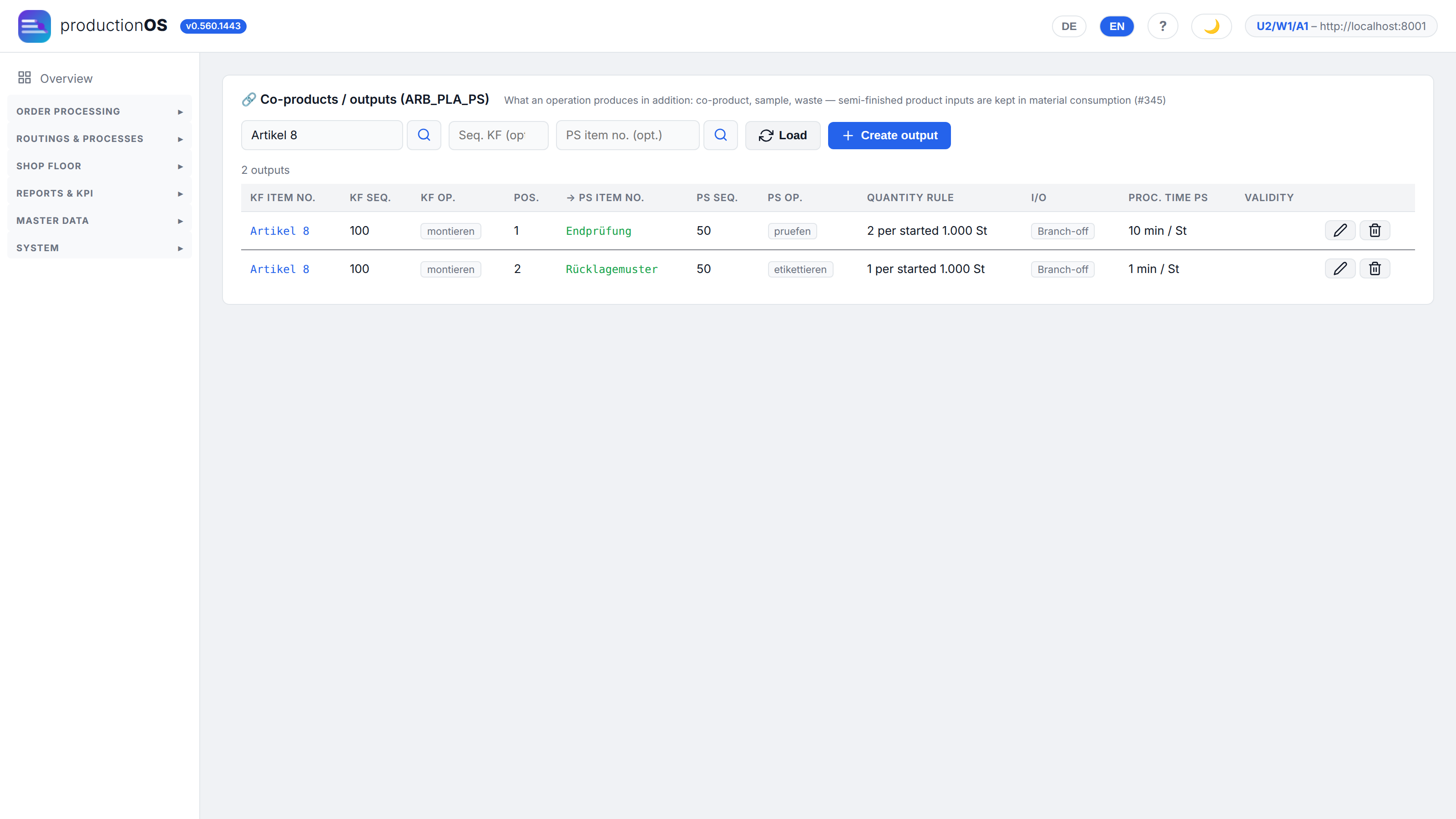
Prerequisites. The output item (sample, by-product) is created in the item master and has its own routing with at least one operation — that is where it is processed and confirmed (e.g. "pruefen" (inspect), "entsorgen" (dispose)); this operation determines machine and times of the output. The producing operation has a unit (a new operation takes it over from the item); without a unit the rule reads "1 per 100" instead of "1 kg per 100 kg".
Creating.
- Load the header item, Create output.
- From seq. (KF): the sequence of the producing operation.
- Select the Output item; leave Seq. in sub-routing empty if the first operation of the output item is meant.
- Enter Output type, Quantity rule, Quantity per (K) and — for P and S — Base quantity (G).
- Check the Preview: it shows the sentence and what arises at 10, 100, 1,000 and 5,000, with the same calculation as the order explosion (rounded up for pieces).
- Create.
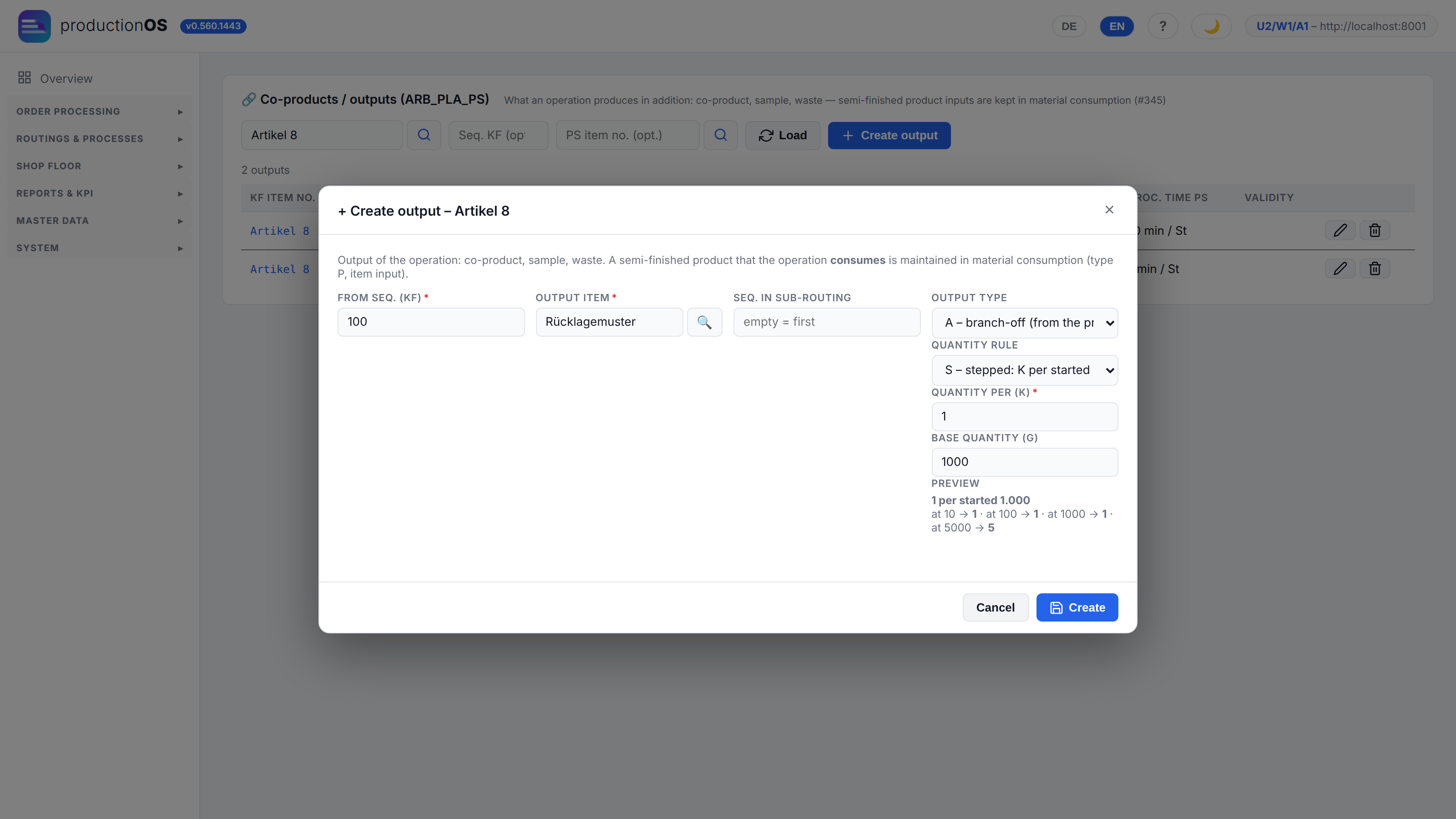
In the create dialogue the preview lacks the unit of the producing operation; in the edit dialogue it is shown. When an order is planned in, the report lists the by-product quantities per output; on the order the operation of the output appears with its quantity, and its final confirmation creates the lot of the output item.
Branch-off or by-product. The output type decides whether the output is part of the processed quantity. Order for 100 kg, output 1 kg per 100 kg:
| Output type | producing operation processes | passes on | output |
|---|---|---|---|
| A — branch-off | 101 kg | 100 kg | 1 kg |
| N — by-product | 100 kg | 100 kg | 1 kg in addition |
- Branch-off, when the output is taken from the product: samples, retained samples, part of the mix. The material consumption of the operation grows accordingly (at 0.6 / 0.4 kg per kg: 60.6 + 40.4 kg); the mass balance adds up.
- By-product, when something arises alongside the product: solvent recovery, waste, chips. The quantity of the operation stays the same.
This also applies to the last operation of a routing. Exception: routings taken over from the legacy system whose last operation carries its own quantity ratio ≠ 1 continue to calculate as they did there. Several branch-offs on one operation add up.
The four quantity rules.
| Rule | Sentence | Order 100 | Order 1,000 | Order 1,500 |
|---|---|---|---|---|
| P proportional, K = 1, G = 100 | 1 per 100 | 1 | 10 | 15 |
| S stepped, K = 2, G = 1,000 | 2 per started 1,000 | 2 | 2 | 4 |
| F fixed, K = 3 | 3 per order | 3 | 3 | 3 |
| A per mix, K = 1, mix quantity 400 | 1 per mix | 1 | 3 | 4 |
- P for quantities that grow with the order (recovery, offcuts).
- S for samples and test pieces per lot size: "per started 1,000" means from the first piece of a new thousand.
- F for a fixed number per order (first article samples, retained sample per lot).
- A for quantities per batch of a mixer; the mix quantity is set on the producing operation (2.8), if it is missing, A acts like F.
For piece units the result is rounded up: 0.3 samples become 1 sample.
Example item 8: samples as a branch-off. Routing 50 montieren (assemble) → 100 montieren → 150 Verpacken (pack); on operation 100 two branch-offs:
| Output | Output type | Rule | K | G |
|---|---|---|---|---|
| Rücklagemuster (retained sample) | A | S | 1 | 1,000 |
| Endprüfung (final inspection) | A | S | 2 | 1,000 |
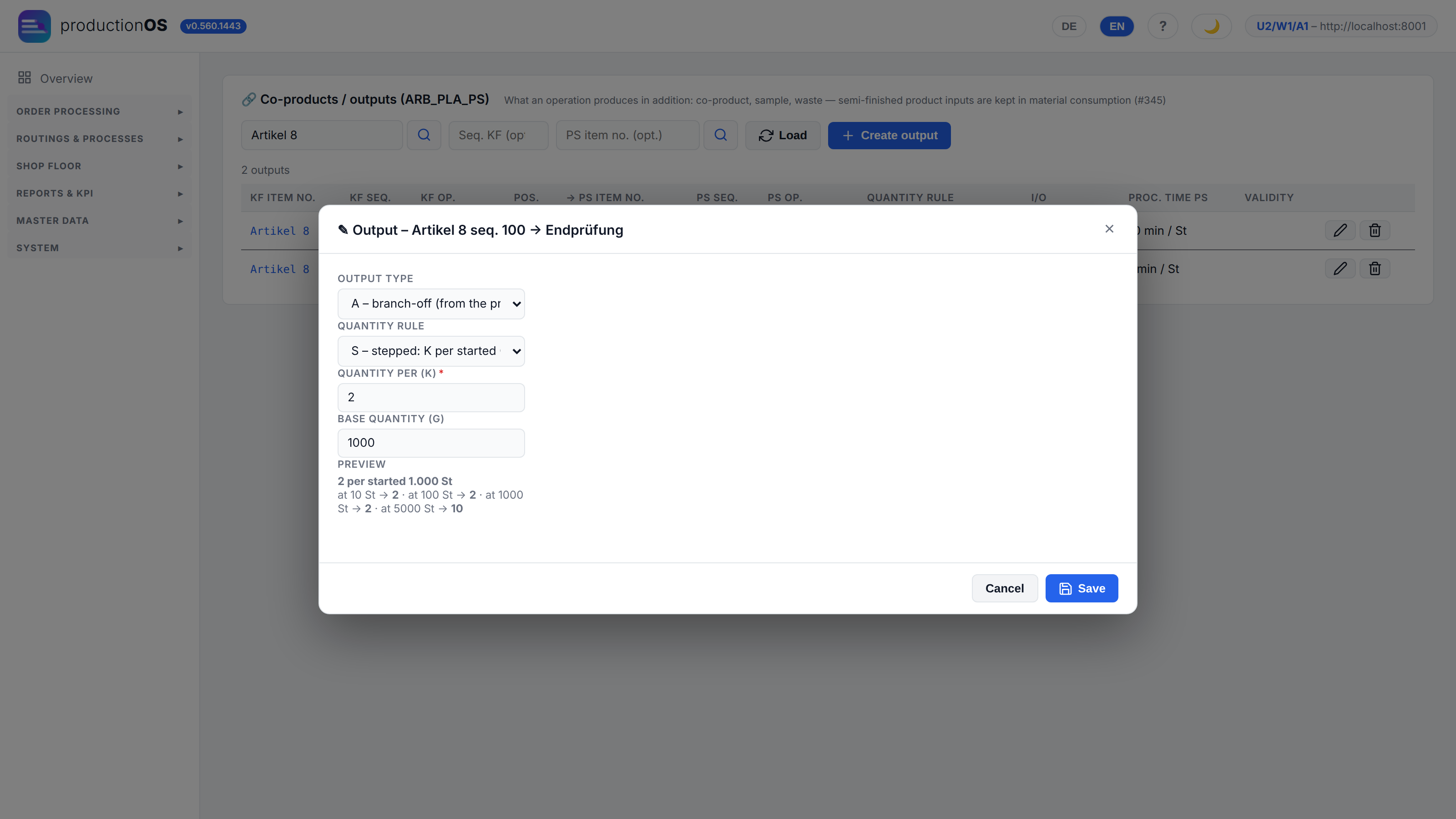
An order for 100 St: montieren (sequence 100) processes 103 St, Verpacken 100 St, plus 1 retained sample and 2 final inspection samples. At 1,500 St it is 1,506 St (2 retained samples + 4 final inspection samples). In the legacy system the same statement was expressed as quantity ratio 1.003 and factors 1003 / 501.5 — which held exactly for a lot of 1,000.
Example mix: by-product quantity during mixing. An item with one operation "mischen" (mix), material 0.6 + 0.4 kg per kg; per 100 kg of mix, 1 kg of by-product is to arise, which is confirmed in its own operation "entsorgen" (dispose).
| Setting on the output | mischen | by-product |
|---|---|---|
| N, P, K = 1, G = 10 | 100 kg | 10 kg — "1 per 10" is 10 %, not 1 % |
| N, P, K = 1, G = 100 | 100 kg | 1 kg in addition |
| A, P, K = 1, G = 100 | 101 kg | 1 kg from the mix |
Which of the last two rows applies is a business question: is the output part of the mix (branch-off, the mixer mixes 101 kg) or does it arise in addition (by-product)? In the example it is part of the mix — so a branch-off, 1 per 100.
2.8 Recipes — mixes with proportions
Not everything is sawn and milled. An emulsion, a paint, an electrode paste is made by mixing: several components in one mix, each with a proportion in percent, 100 % in total. The example of the demo tenant is the coolant emulsion KSS-EMU (VE-Wasser (demineralised water) 93 %, concentrate 5 %, biocide 2 %), mixed in the emulsion mixer MISCH-01.
Three things make up a recipe:
| Element | Where it is held | Meaning |
|---|---|---|
| Components with proportion | material consumption of the operation (proz) | a recipe is consumption with a percentage — not a type of its own. Quantity and unit ("kg / kg") are derived from it, not a second statement |
| Mix quantity | routing of the operation | the upper limit of one mixing run (here 100 kg, the mixer holds 200 l). An order for 250 kg becomes three mixes: 100, 100 and 50 |
| Tolerance | per component (tol_proz, percentage points) | permitted deviation of the actual proportion; empty means not evaluated. There is no business rule for a default, so there is no default either |
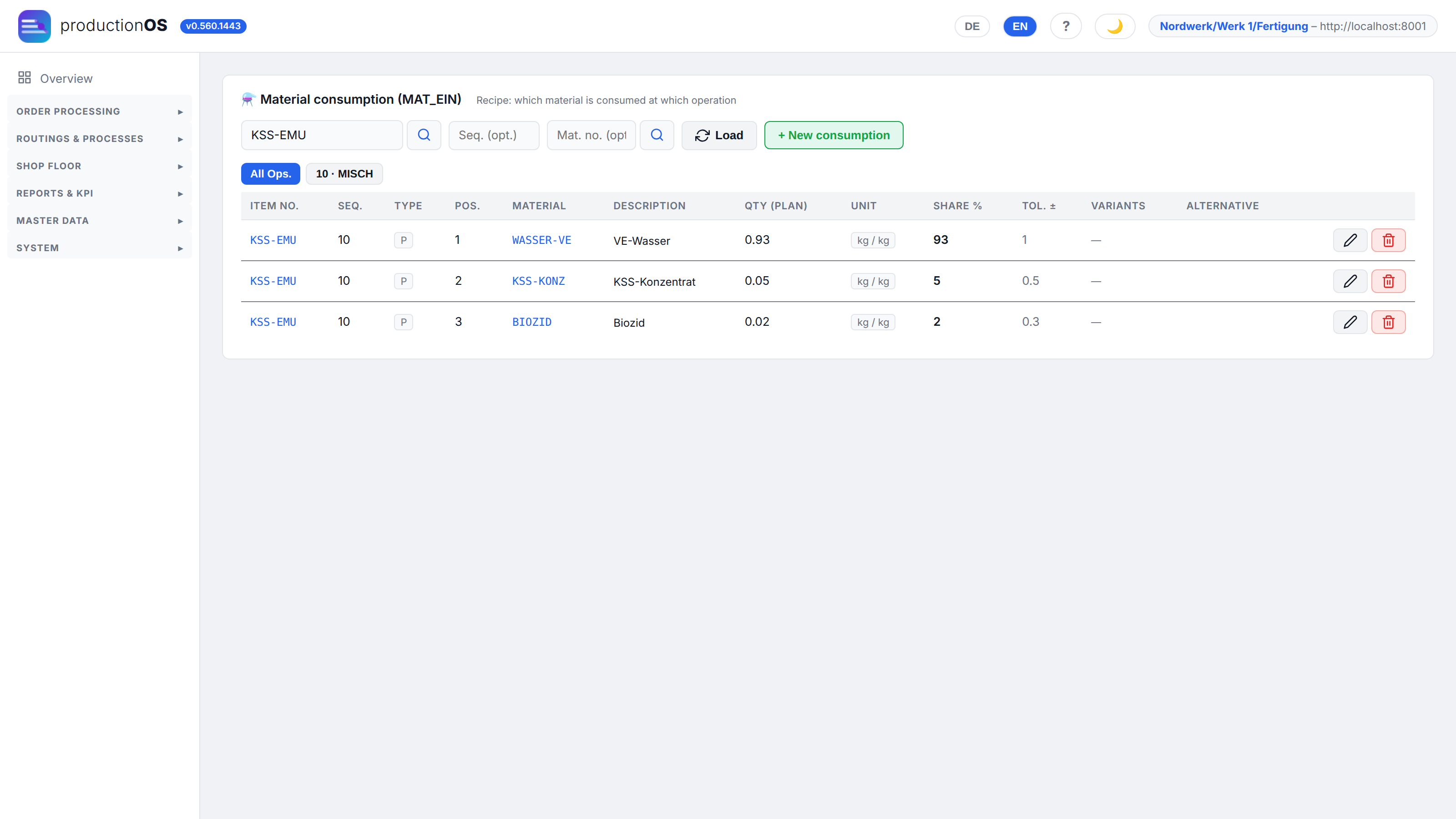
In the Material consumption form the components appear as rows with proportion and tolerance — the same table as for any other material. The rule for this: each material only once per operation, either directly with a quantity or as a recipe component with a proportion, never both. Material alongside a recipe (water in litres for a kg mix) remains possible; it then runs individually and not into the scale total.
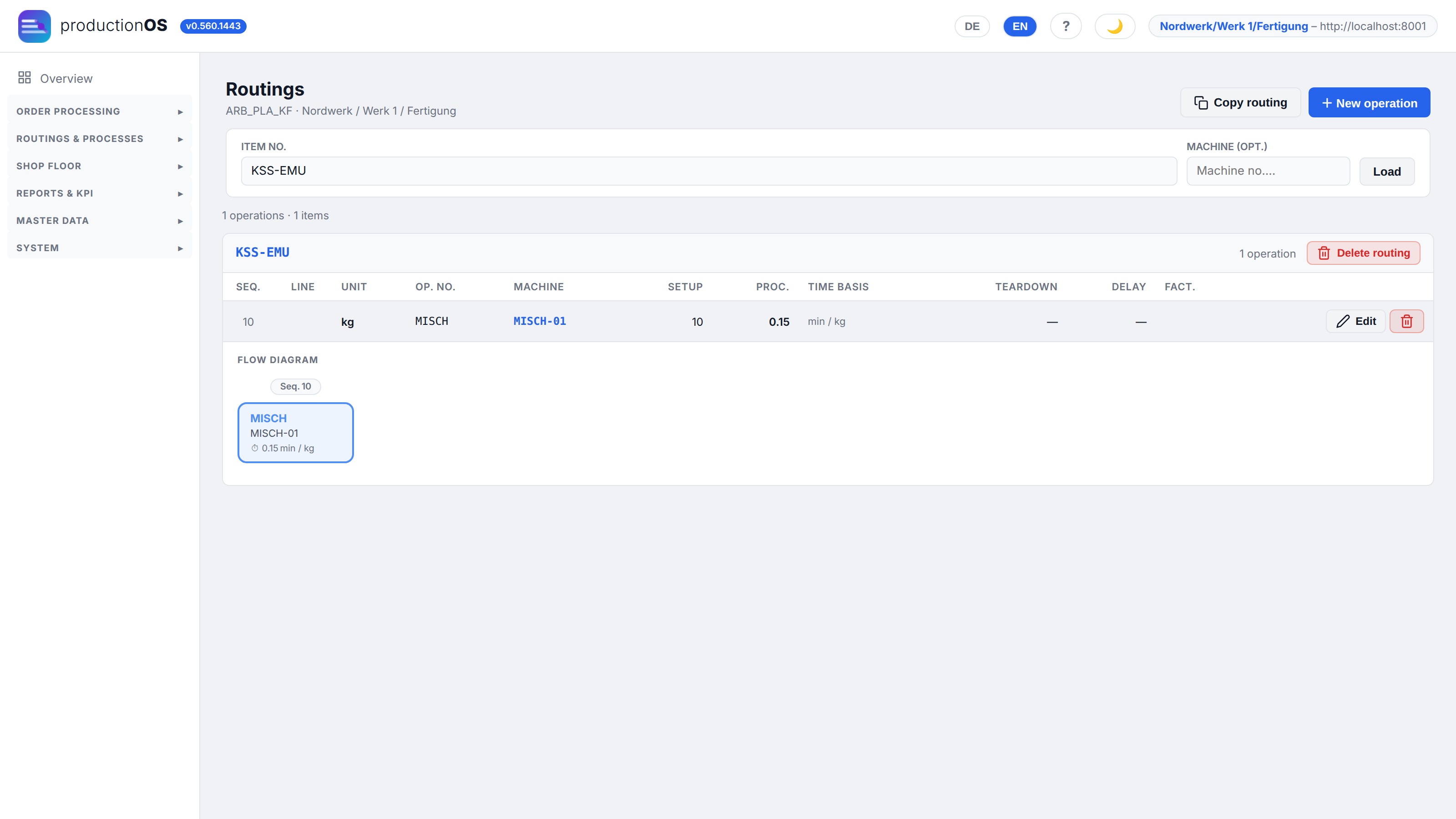
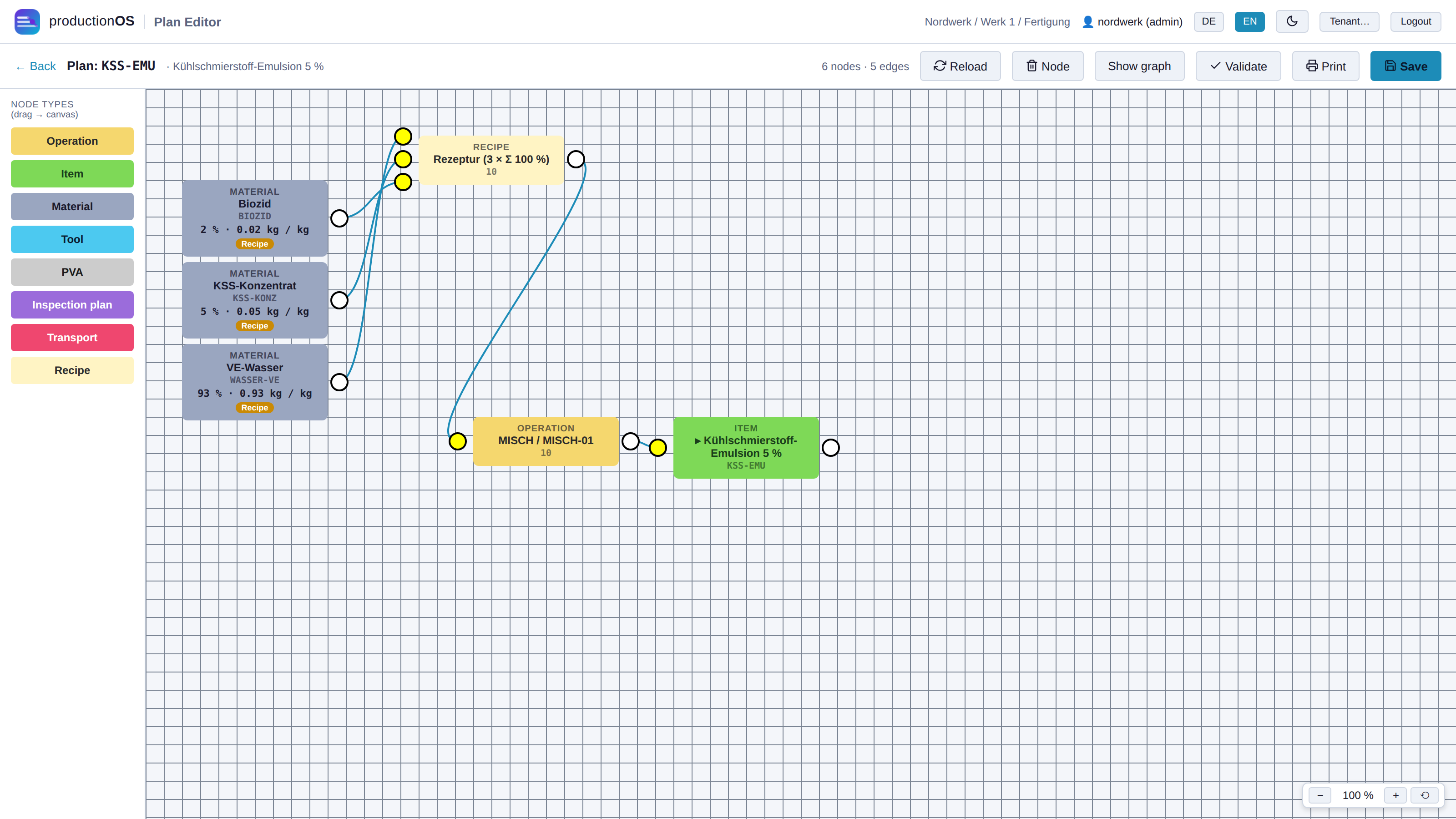
In the Plan Editor the recipe is a node of its own (cream) on the operation, with the components as material nodes in front of it; the node shows the number and mix quantity ("3 × 100 kg"). A double-click opens the component list:
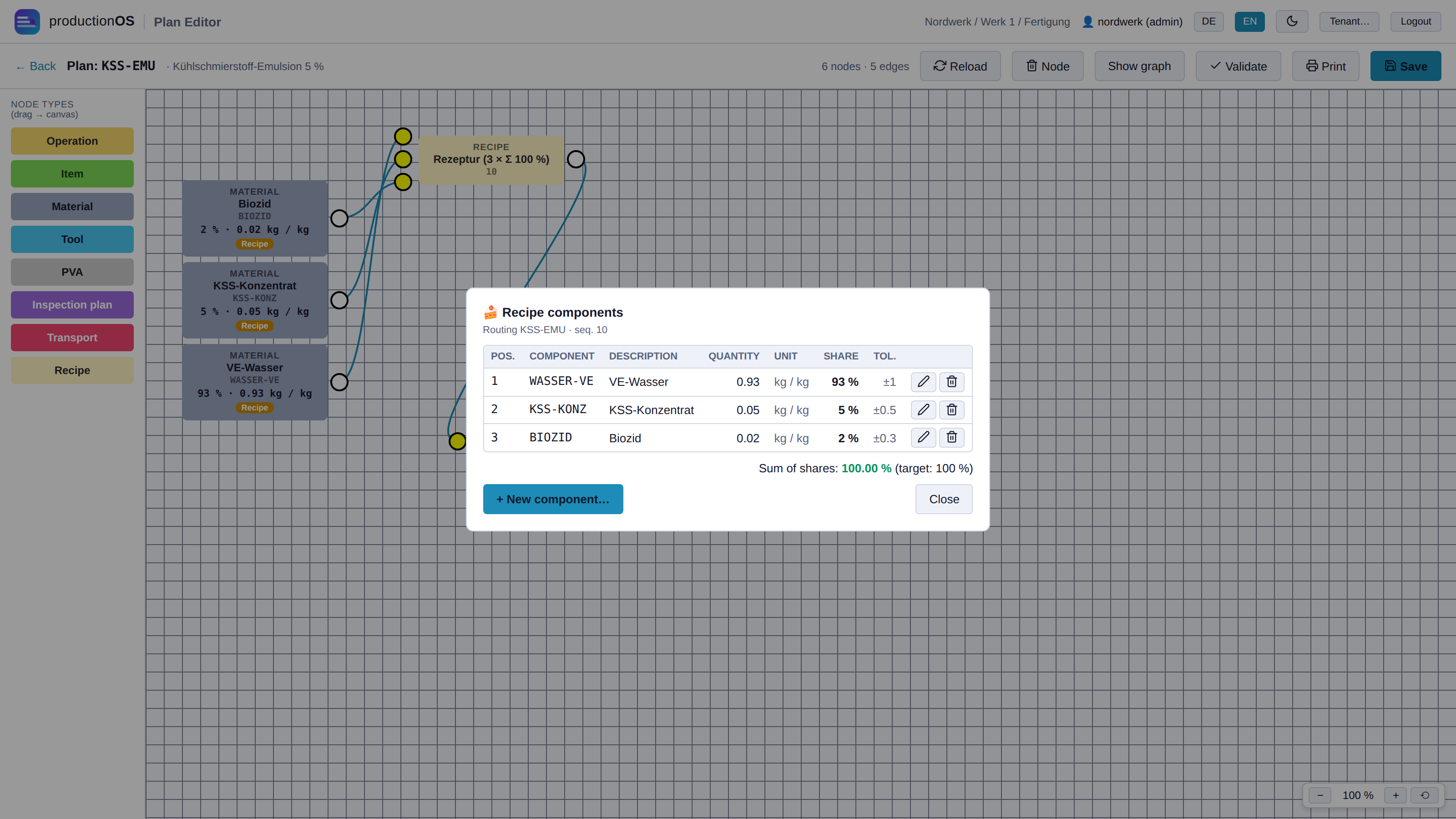
Here components are created and proportions and tolerances maintained; the sum of the proportions is checked against 100 % and turns red if it does not match.
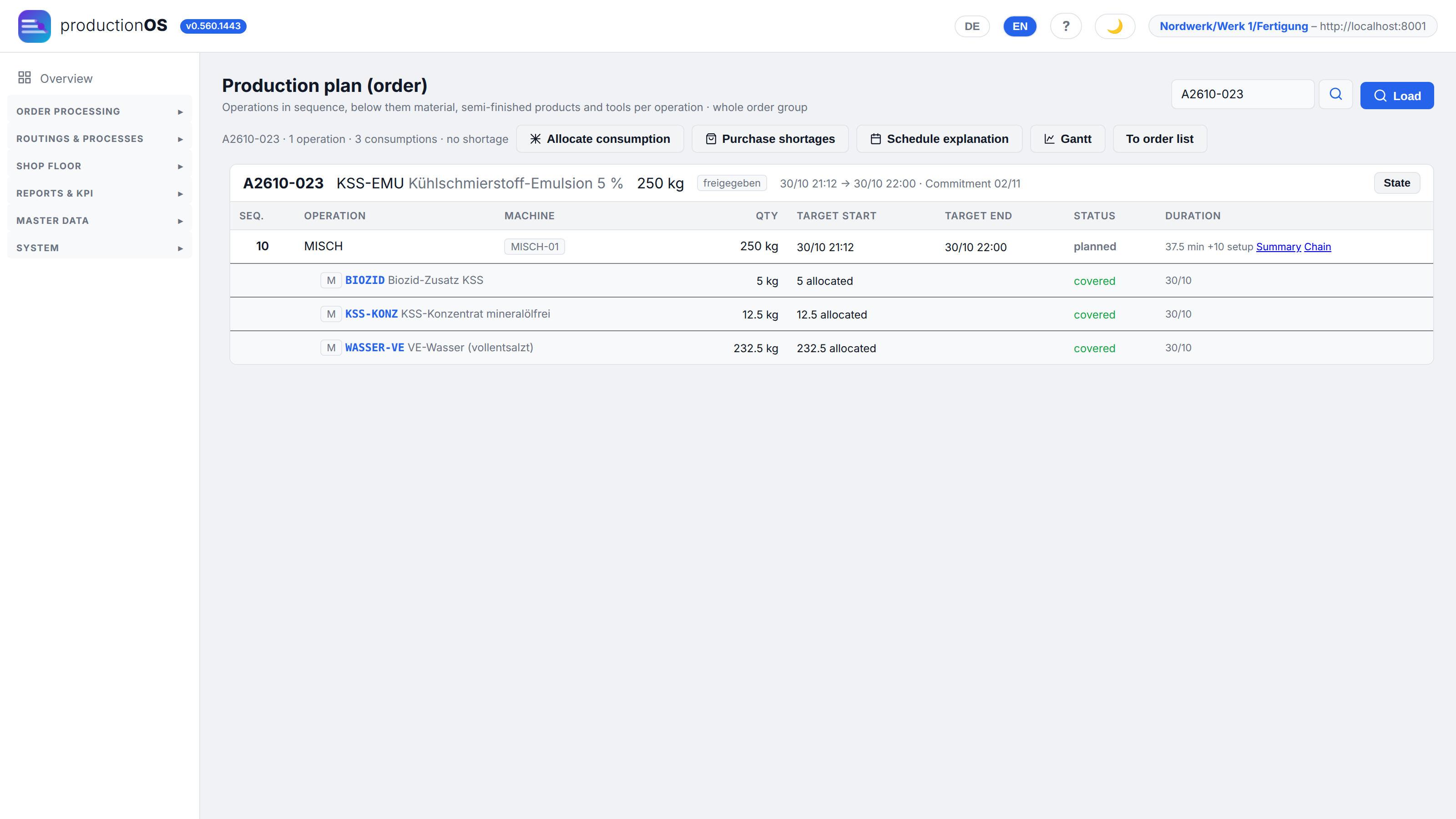
In the order, the requirements calculation applies each component's proportion to the order quantity (232.5 kg water, 12.5 kg concentrate, 5 kg biocide for 250 kg) and checks coverage as for any material. What becomes of it at the terminal is described in 4.12.
Part 3 — Order processing
The path of an order: create → plan → cover requirements → schedule and load → allocate → release → execute → complete. The Order processing bar above the order list carries exactly these actions.
3.1 Order list
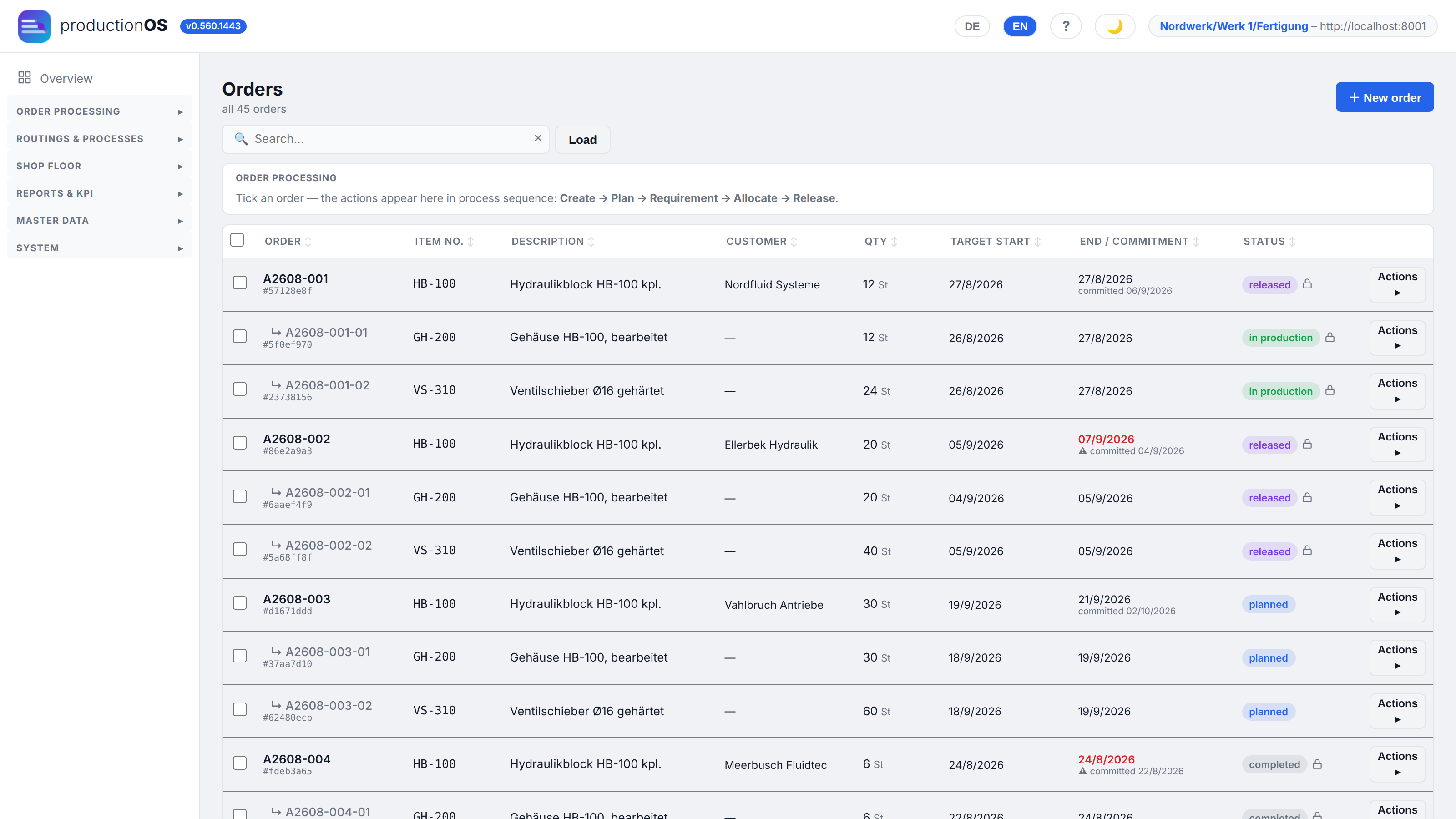
Primary orders are at the top, their sub-orders indented below them (A2610-013 → A2610-013-01 Gehäuse (housing), A2610-013-02 Ventilschieber (valve spool)). Per row: item, customer, quantity, target start, end and commitment, status. An overdue date is red; an order without release shows as planned. Actions on each row lead to Edit, Plan, Requirements list, Schedule, Release, Archive; multiple selection via the check boxes on the left acts on the bar at the top.
The order processing area above the list is the control centre: as soon as an order is ticked, all actions appear there as large tiles, grouped by the flow — 1. Create, 2. Plan, 3. Requirement, 4. Allocate, 5. Release, followed by Other. Blue means possible; grey means not possible, and a click on it states the reason (e.g. “only for one order” or the change lock of a released order).
What the status values mean — and why there are two status concepts — is explained in Part 9.
3.2 Creating an order
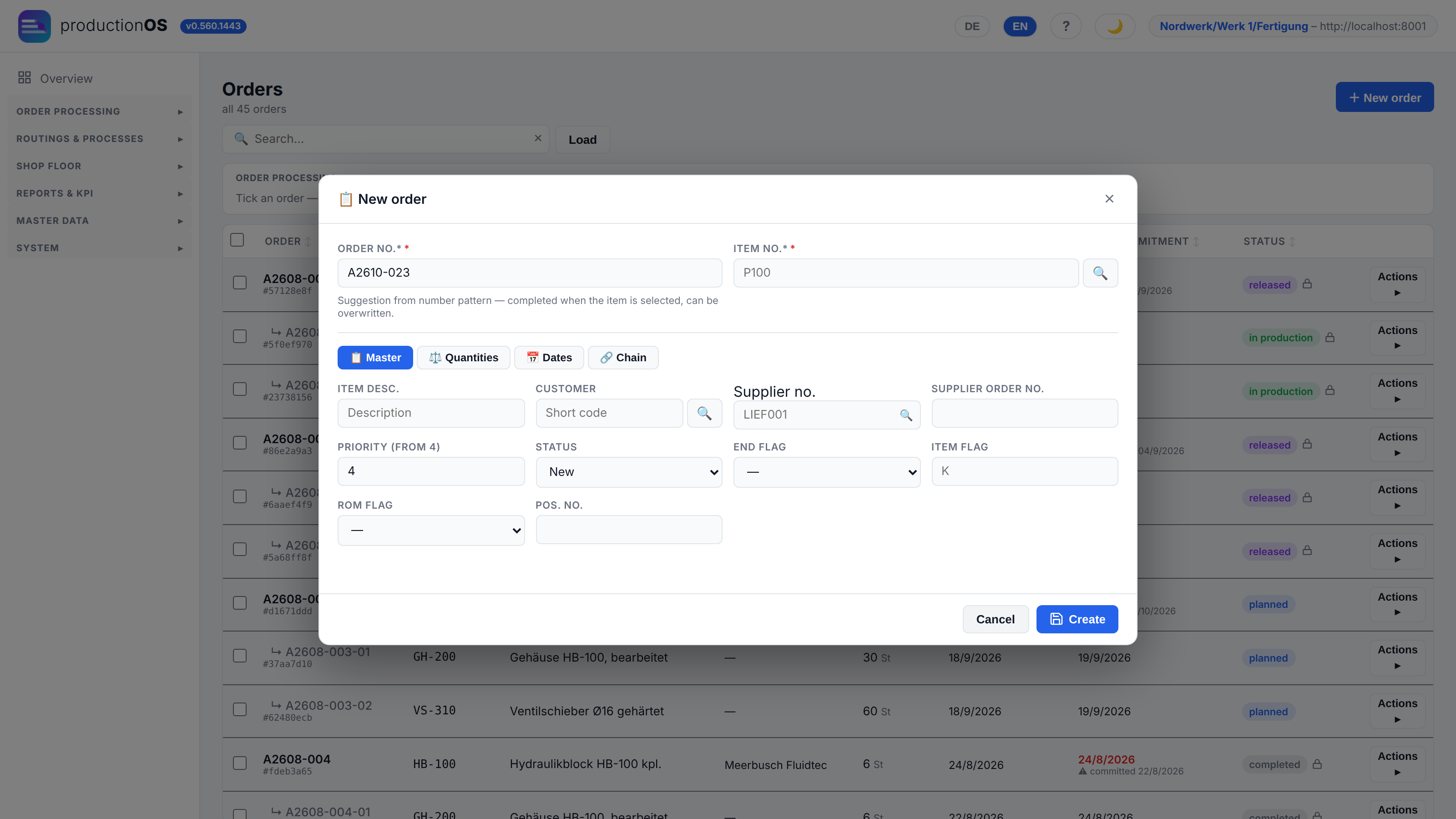
An order needs an item, a quantity and a date; the system assigns the number from the number pattern (suggest). Customer, priority and supplier no. are optional. Four tabs: Master, Quantities, Dates, Chain (the sub-orders, as soon as they have been created).
3.3 Dates: target, plan, commitment
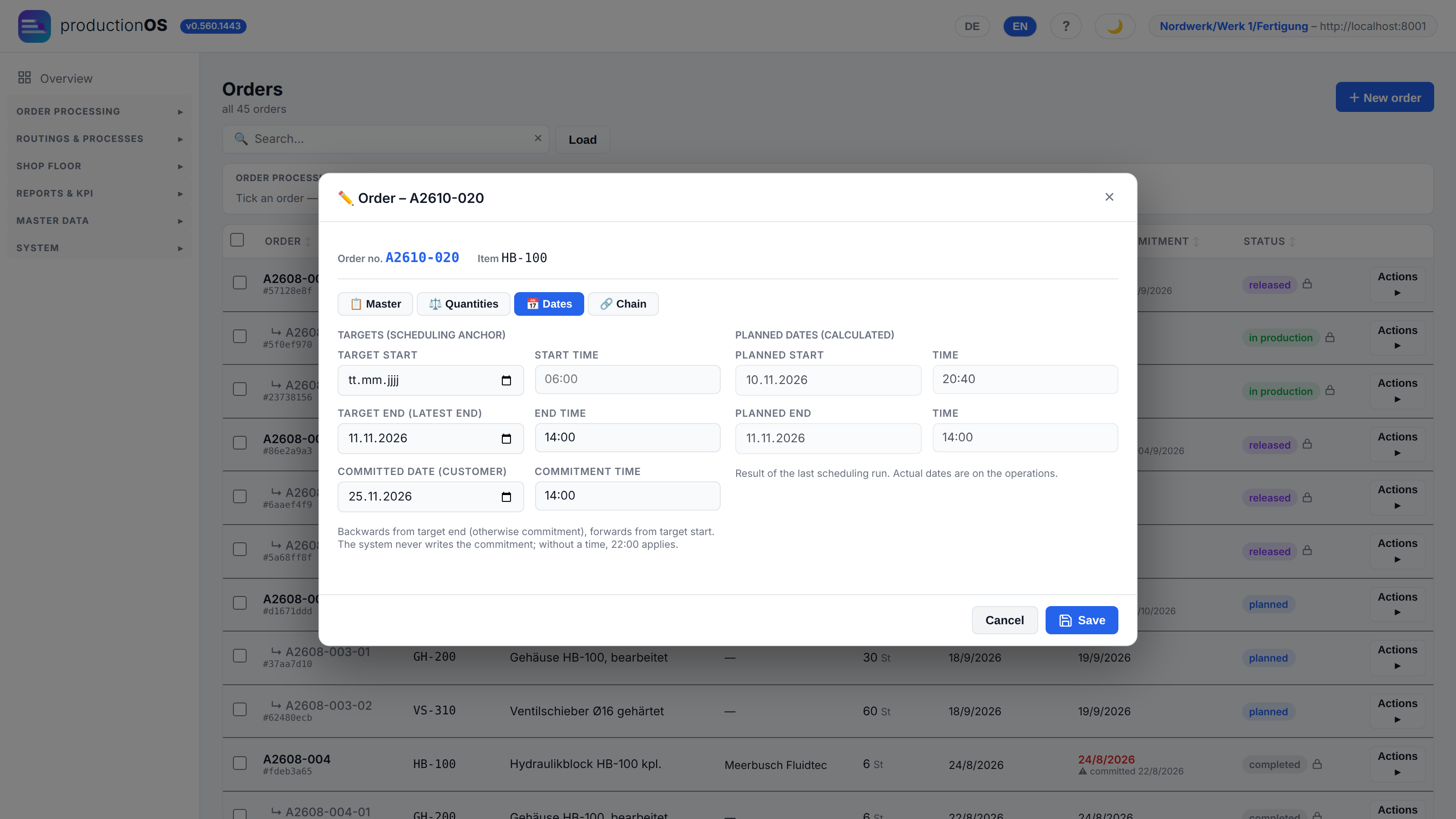
Three pairs of dates that say three different things:
| Field | Who writes it | Meaning |
|---|---|---|
| Targets (target start / target end) | the planner | the anchor of scheduling. Backward scheduling starts from the target end, forward scheduling from the target start. No scheduling run overwrites these fields |
| Planned dates (calculated) | scheduling | the result of the last run: when the first operation starts and the last one is finished. Read-only |
| Commitment (commitment end) | the planner | the date committed to the customer. The system never writes it; if there is no target end, the commitment serves as the anchor |
There are no actual dates here — they are on the operations as soon as the terminal supplies them. Without a time of day, an end means the end of the day, 22:00.
What is measured against the commitment and the target end is the end of processing of the last operation (processing including transition). Its teardown may lie after it — the product is already finished then; the machine stays loaded in the Gantt until the end of the teardown.
If there is no end date at all, scheduling calculates forward from now and says so in the report — it does not abort, because many orders are created without a date.
3.4 Planning in
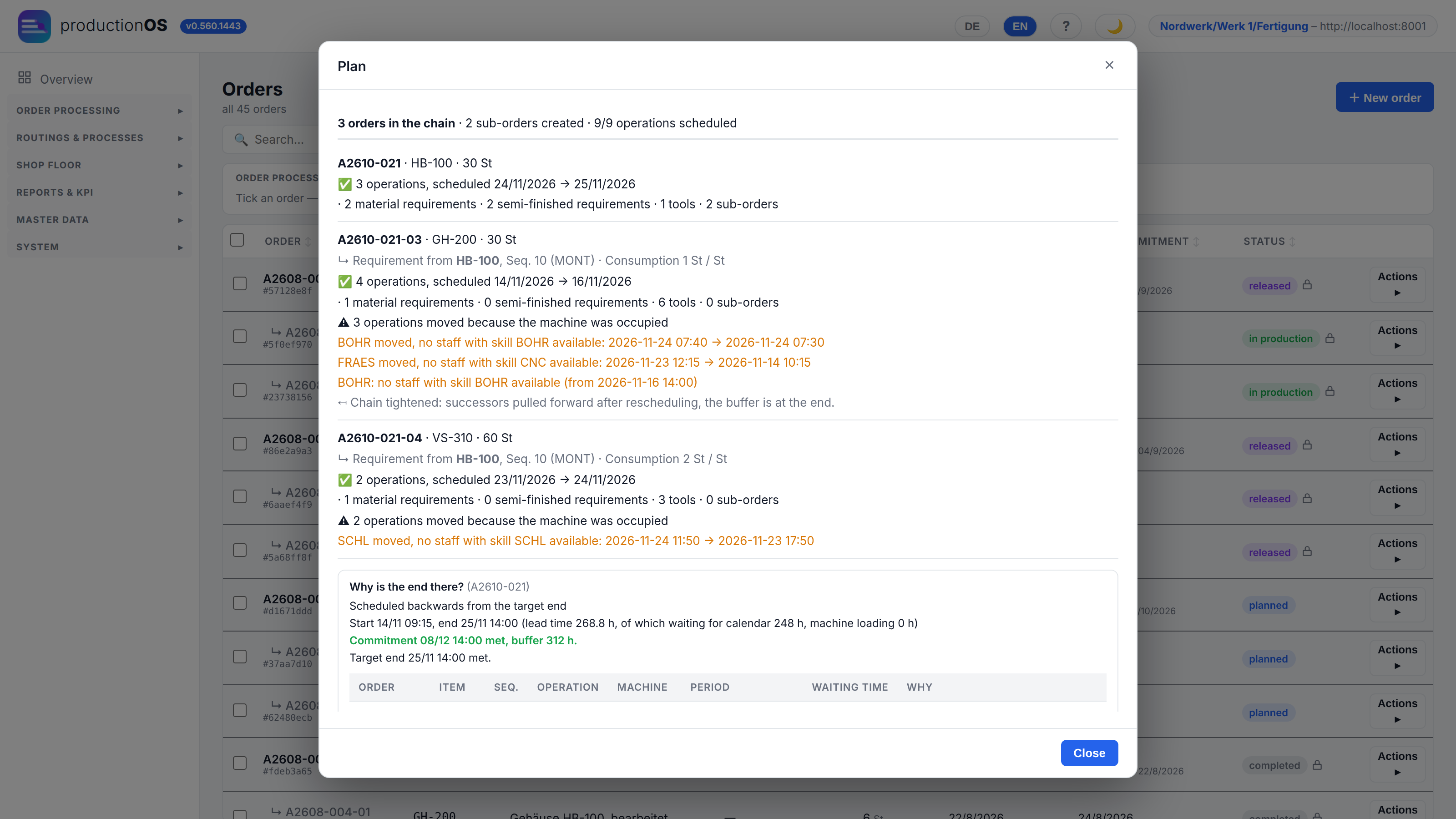
Plan is one action over the whole chain: explode the routing (each order gets its own copy of the operations), create a sub-order for each semi-finished item (or use stock if it is sufficient), calculate the requirements, schedule everything. The report states for each order what happened: how many operations were scheduled, which dates were met, which shortages are open, and — if a date could not be met — why.
In the image: the order for 30 blocks needs 30 housings and 60 valve spools; both sub-orders are scheduled backward from the requirement date of the assembly. A sub-order takes its quantity from stock if an earlier order produced more than was needed — then none is created. If the tenant plans with personnel (operating model), the report additionally names which operations had to wait for personnel (orange: “no staff with skill … available”) and where they moved as a result.
Material consumption variants. If an item of the chain has variants in its material consumption (e.g. cell A or cell B), the variant is chosen under Order processing → Other → Select variants — per item of the whole chain, including the semi-finished goods, and already before planning in. The choice is stored on the primary order; on a sub-order the same dialog opens with a note saying so. Without a choice the variant-dependent material gets no requirement; the order list marks such orders with the red badge Variants open, a click on it opens the dialog. If the chain has already been exploded, the change rebuilds it from the primary order; the sub-orders are then created again with Plan.
Planning a running order again is possible, but it is a change (3.11): what has already been confirmed stays; what was planned is recalculated.
3.5 Production plan and date explanation
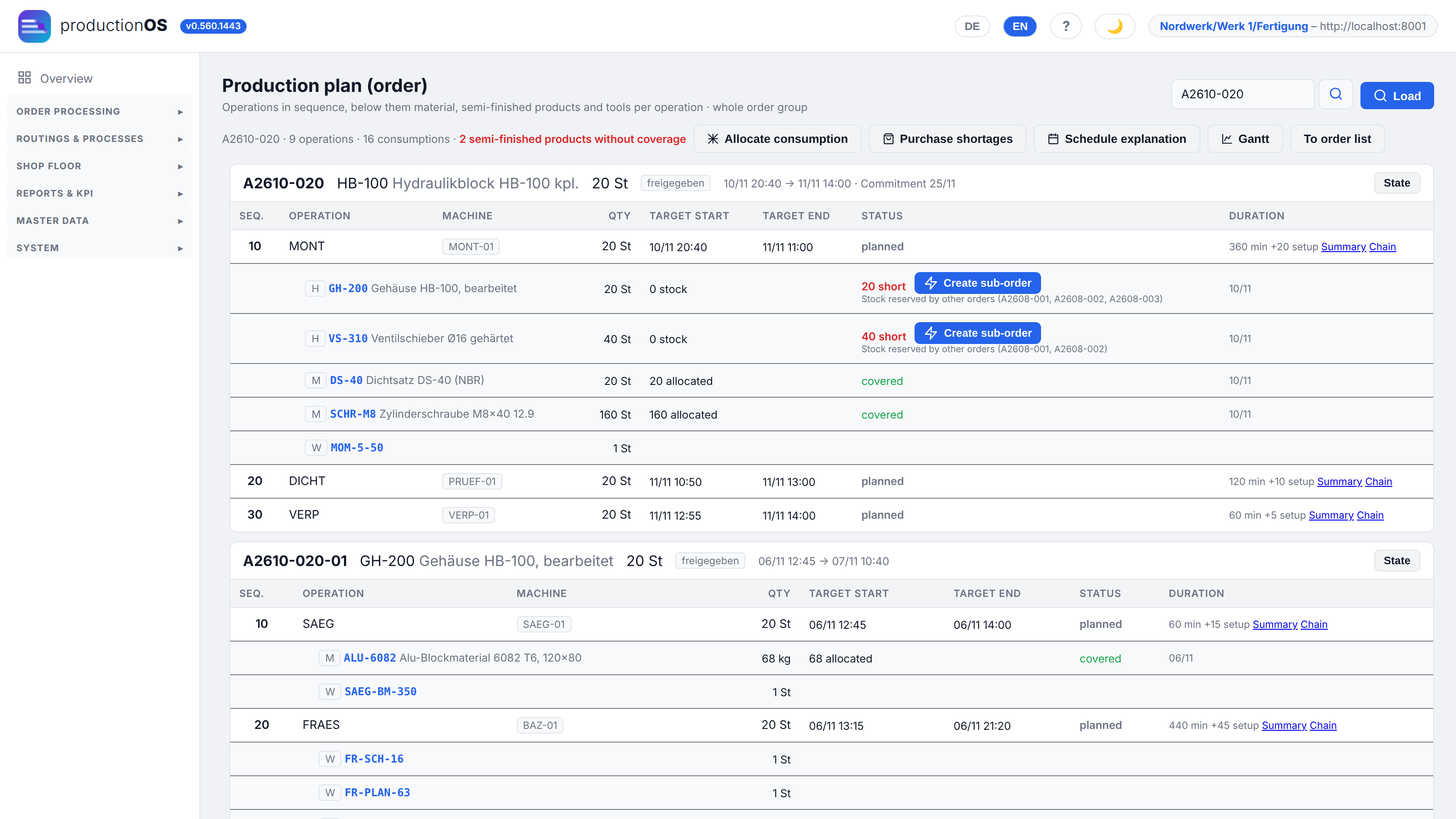
The production plan is the view of one order with everything that belongs to it: the header with commitment, target and planned end, below it per operation machine, quantity, target start and end, status and duration, plus the inputs — material with covered / short, semi-finished items with their sub-order or from stock, tools. If something is missing, short leads directly to the purchase dialogue; a semi-finished item without coverage gets Create sub-order. The line row of a P block shows the share and whether a line is switched off.
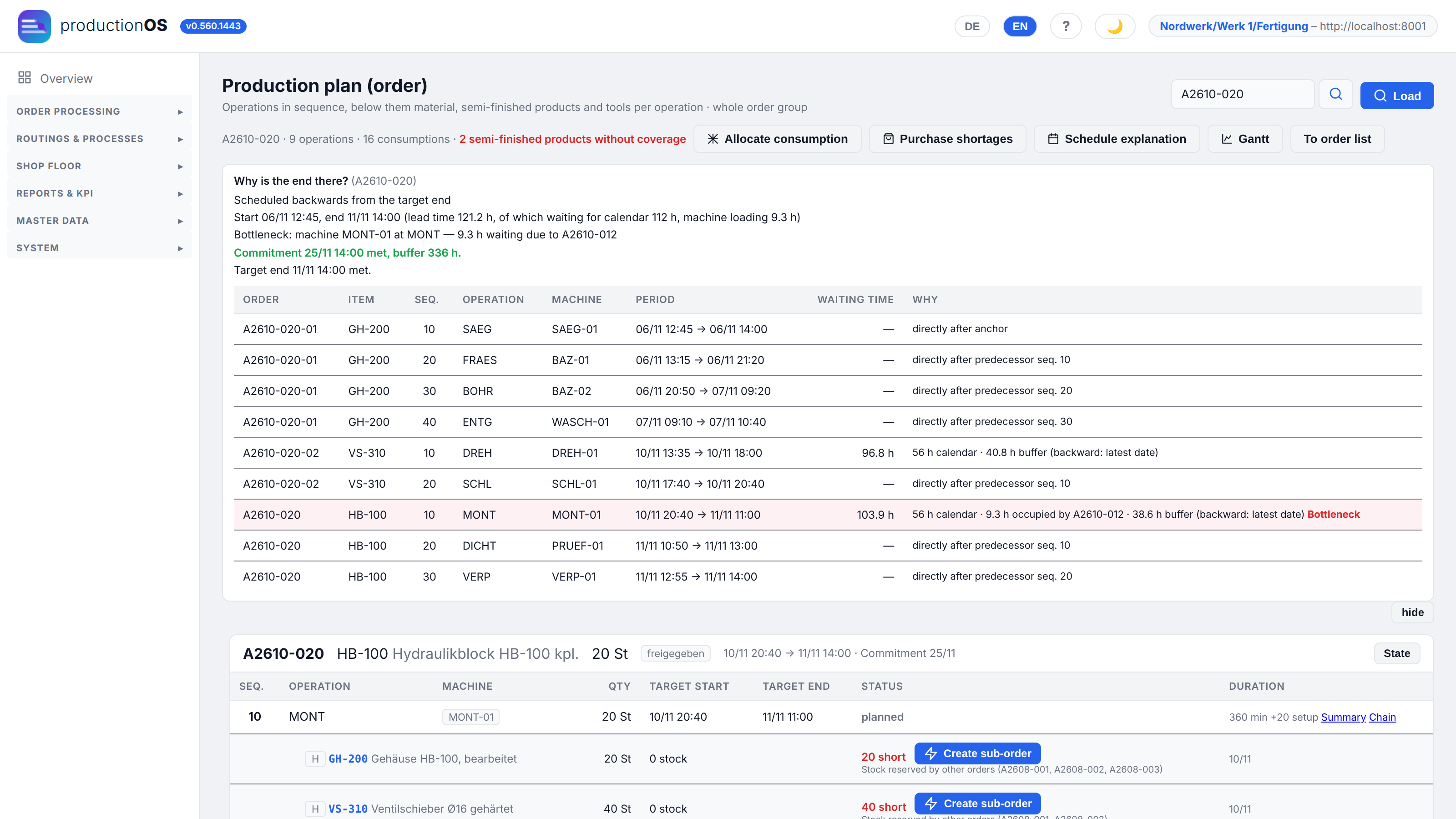
Schedule explanation answers the question “why is the end there?”: from which anchor and in which direction the calculation ran, which calendar applied, where waiting time arose and where from. For each operation it states whether it lies directly after its predecessor, whether it overlaps with it, whether it moved because of an occupied machine (and because of which order), whether its predecessor moved, and whether a remainder is buffer (backward scheduling) or unexplained. If a successor lies before its predecessor, this is named as a sequence violation. If an operation waited for personnel, this is shown as a separate share (“2.0 h no staff with skill CNC available”).
3.6 Material requirements, shortages, purchasing
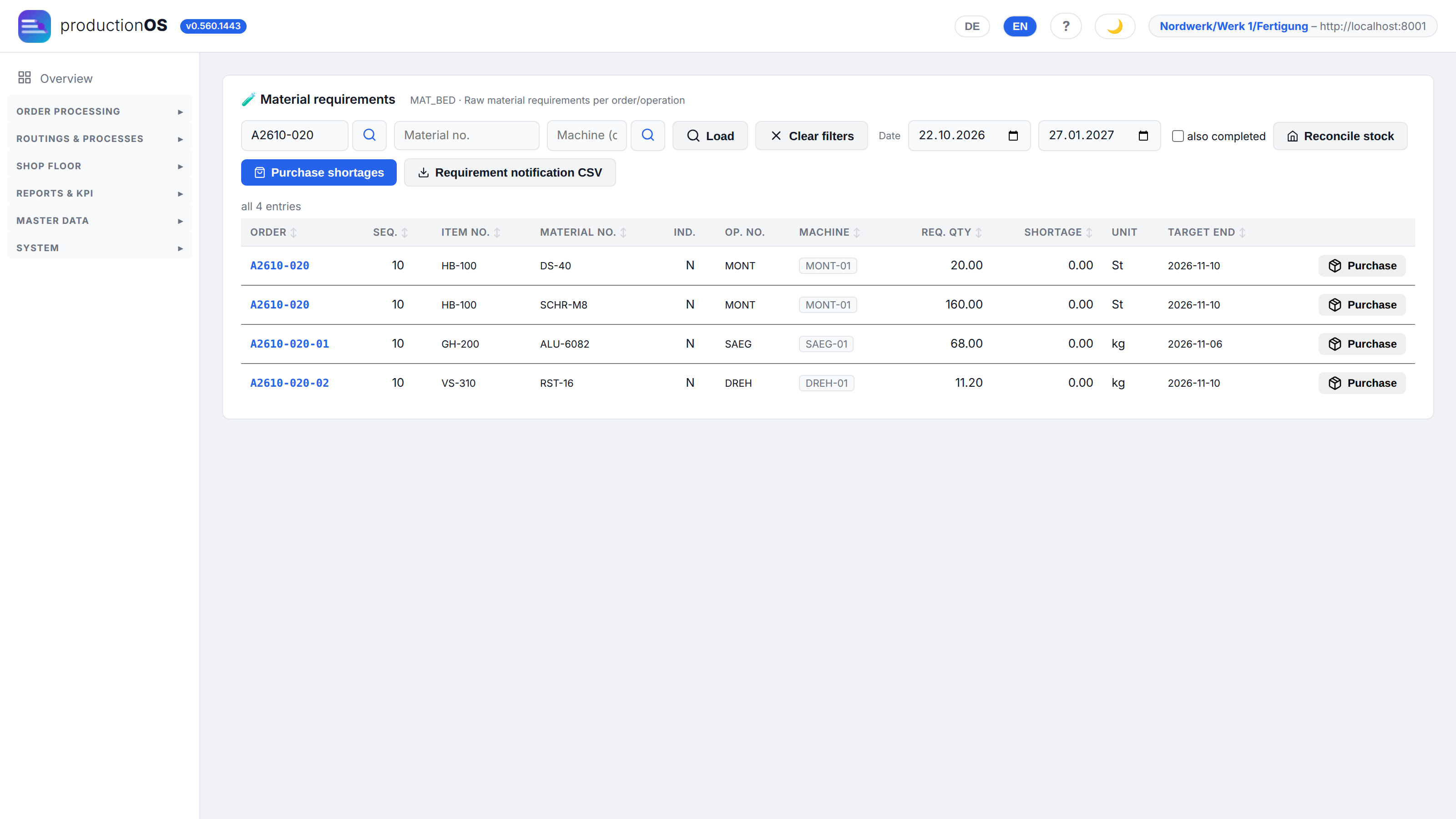
Material requirements lists per order and operation what is needed, what the stock covers and what is short. The requirement arises during planning from operation quantity × consumption factor (with the denominator of the unit). Reconcile stock recalculates the shortage against the available lot stock.
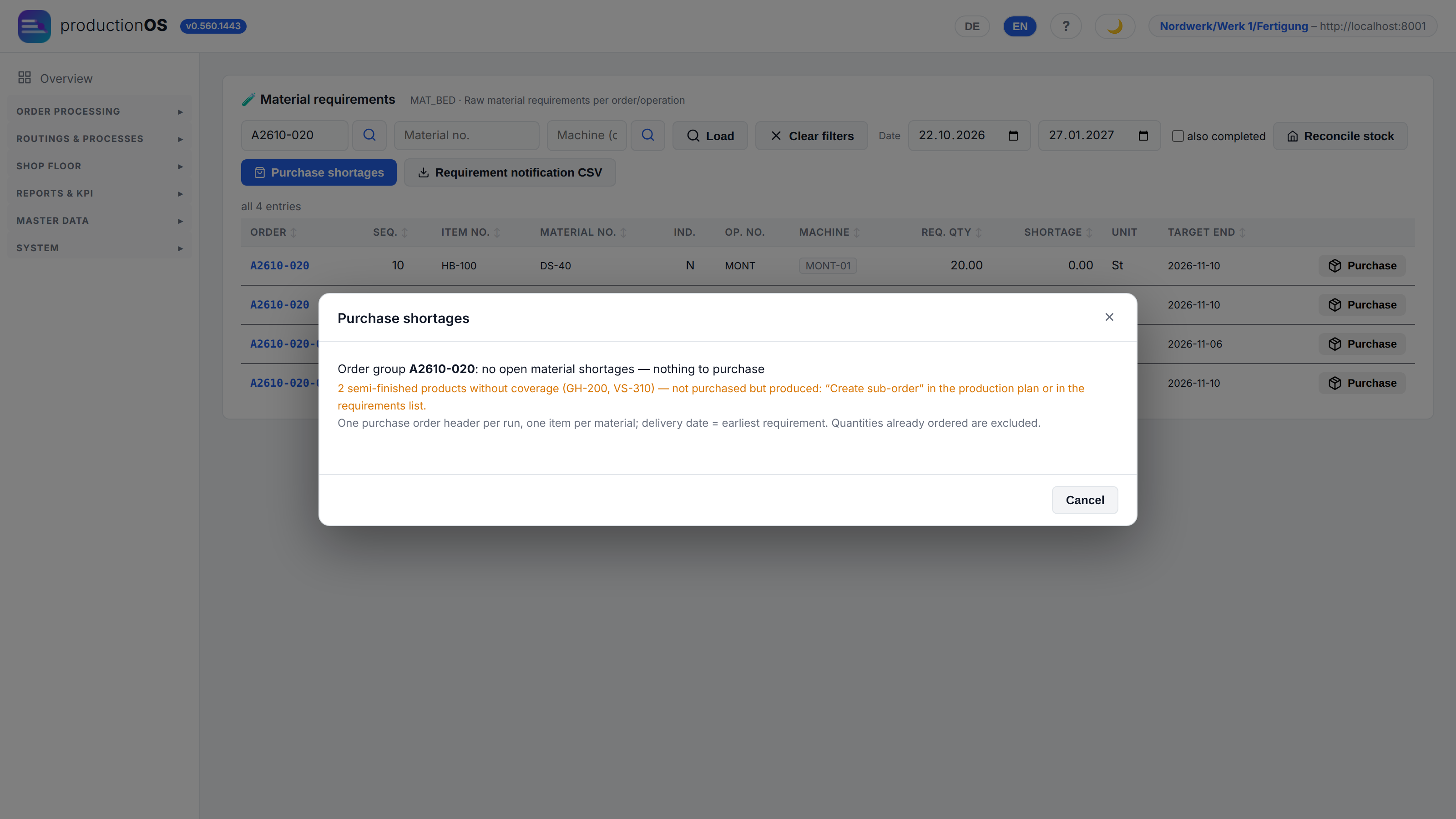
Purchase shortages opens a dialogue with one row per material shortage (in the image everything is covered — then it says so). The quantity per item can be changed (if the material has a smallest delivery unit, it is rounded up to whole delivery units and both are shown): 0 skips the item, an overdelivery becomes free stock after goods receipt, an underdelivery remains as an open shortage and can be ordered again later. Semi-finished items without coverage are listed separately in the header — they are not purchased but produced.
What the button then does is determined by the Purchasing switch in the operating model: internal creates one purchase order per supplier under Purchase orders, with goods receipt and — if the material has an inspection plan — goods receipt inspection under Goods receipt & inspection; ERP reports the requirement and exports it as CSV. Goods receipt books a lot (bes_rom) with supplier, batch and quantity — the start of the traceability chain.
Stock items (MRP) is the path for items that are produced to stock: a stock order without customer reference, triggered from the stock.
3.7 Scheduling and machine loading
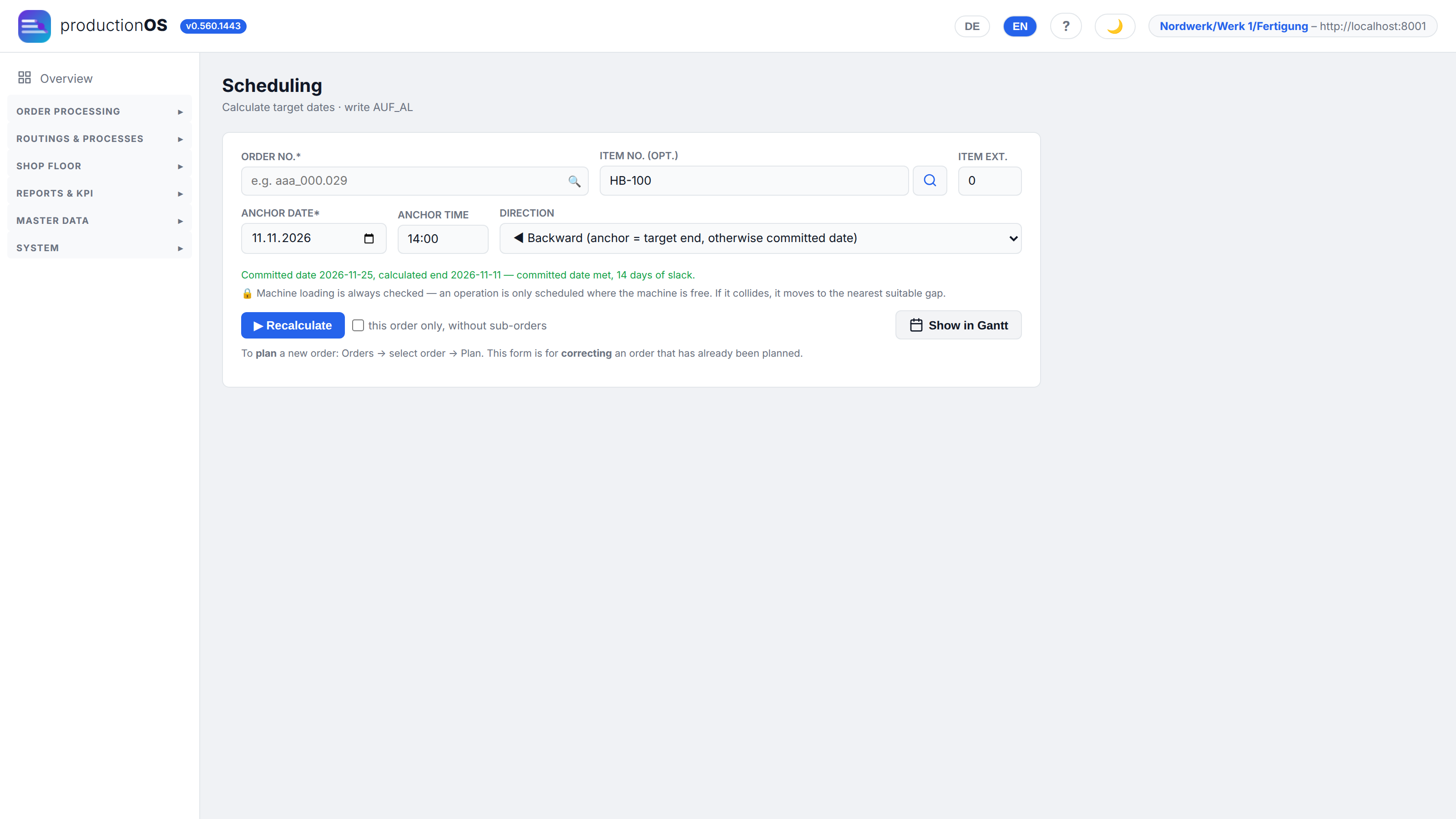
Scheduling can also be started on its own: order, anchor date and time, direction (backward from the target end or forward from the target start). Recalculate schedules only this order, Chain the order with all its sub-orders. The method is greedy, not a solver: operation by operation, observing calendars and shifts, moving away when a machine is occupied. If a date is missed, the result reports it instead of shifting silently.
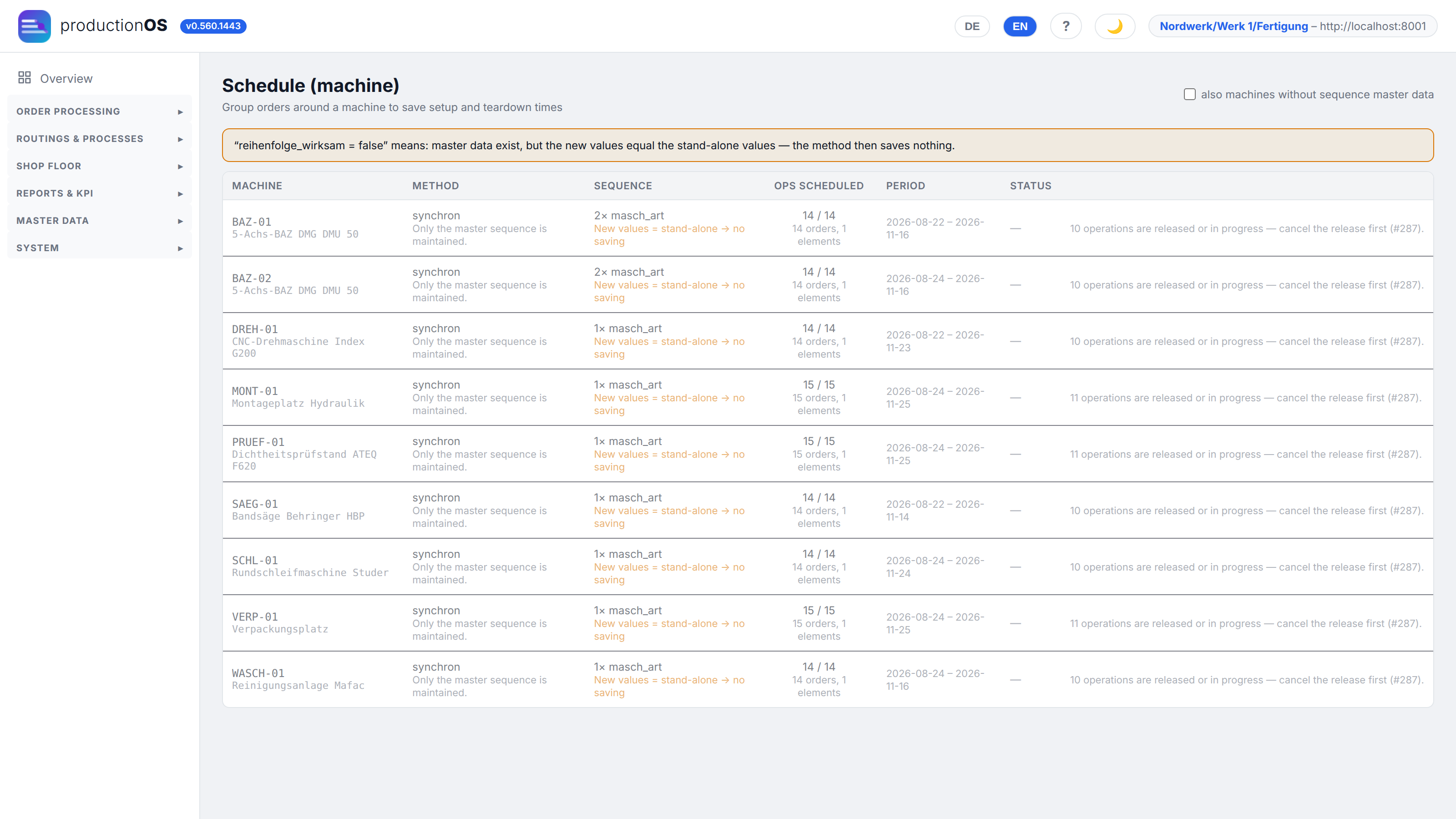
Schedule (machine) shows per machine which orders lie there and whether the machine's master data (setup and teardown times) have changed since scheduling — then the order can be recalculated with the new values without touching the others.
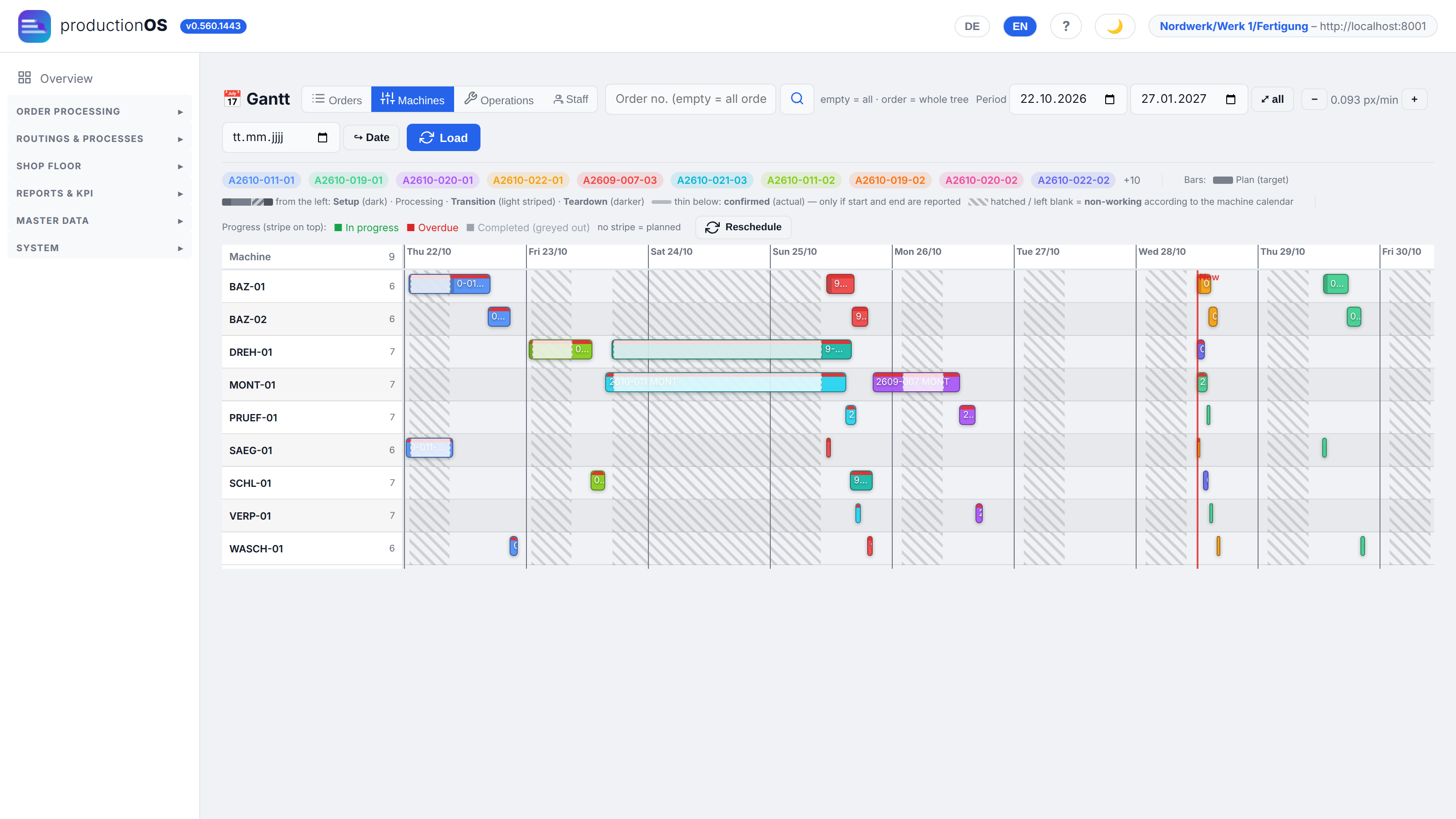
The Gantt shows the machine loading per machine (or per order) over time. Bars carry order and sequence; alternatives and parallel lines are marked, alternatives not chosen are dimmed. A bar is the gross window of the operation and shows its shares from the left: setup (dark), processing (order colour), transition (light stripes, the delay time) and teardown (darker) — true to scale, as scheduling places them; if setup or teardown is switched off by a flag, that share is missing. The hover names each phase with weekday, date and time as well as the minutes of the four shares and their sum. The order row has a handle for moving the whole order — dragging operations individually is deliberately not possible, because the chain belongs together. The fourth view Staff shows the loading per person (3.12).
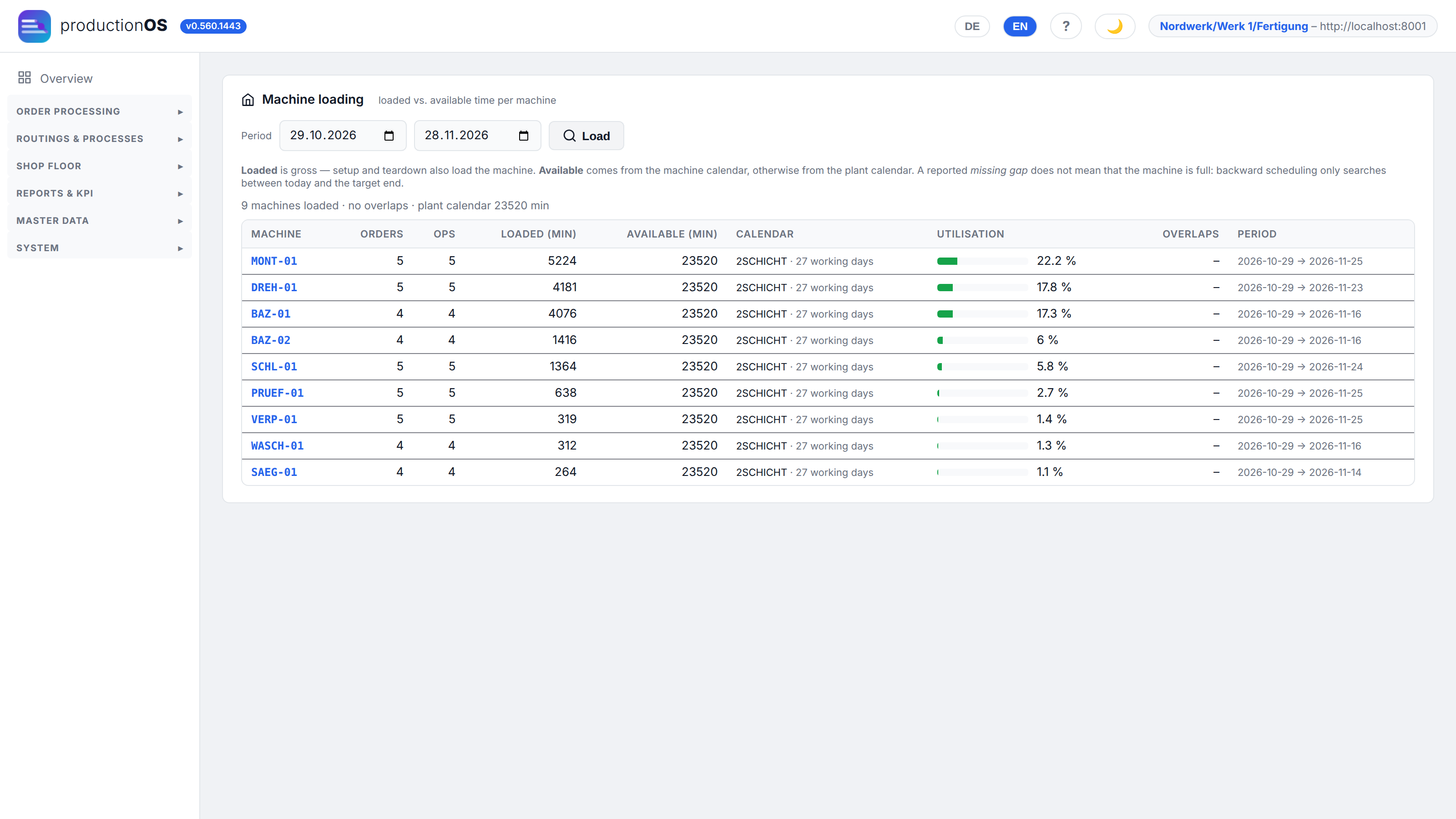
Machine loading calculates per machine capacity against loading in the period and names overloads. The loading check during planning uses the same figures: an operation only moves away if there really is no room there, and only in the direction in which the calculation runs.
3.8 Production programme
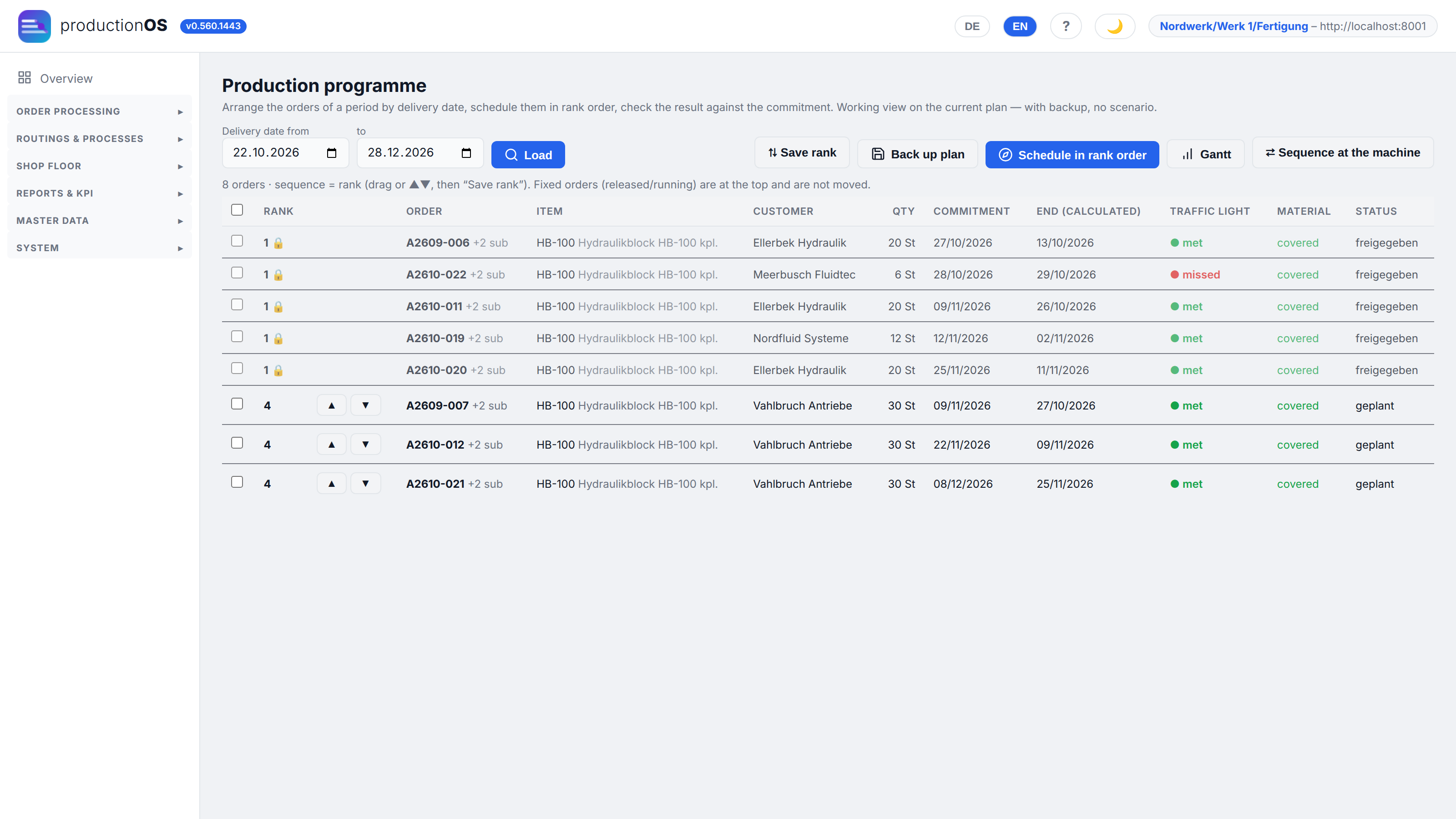
The production programme ranks the orders of a period by rank — the position in which they compete for capacity. Dragging changes the rank, Schedule in rank order reschedules all of them in this position; the traffic light shows whether the commitment is met afterwards.
3.9 Allocation and release
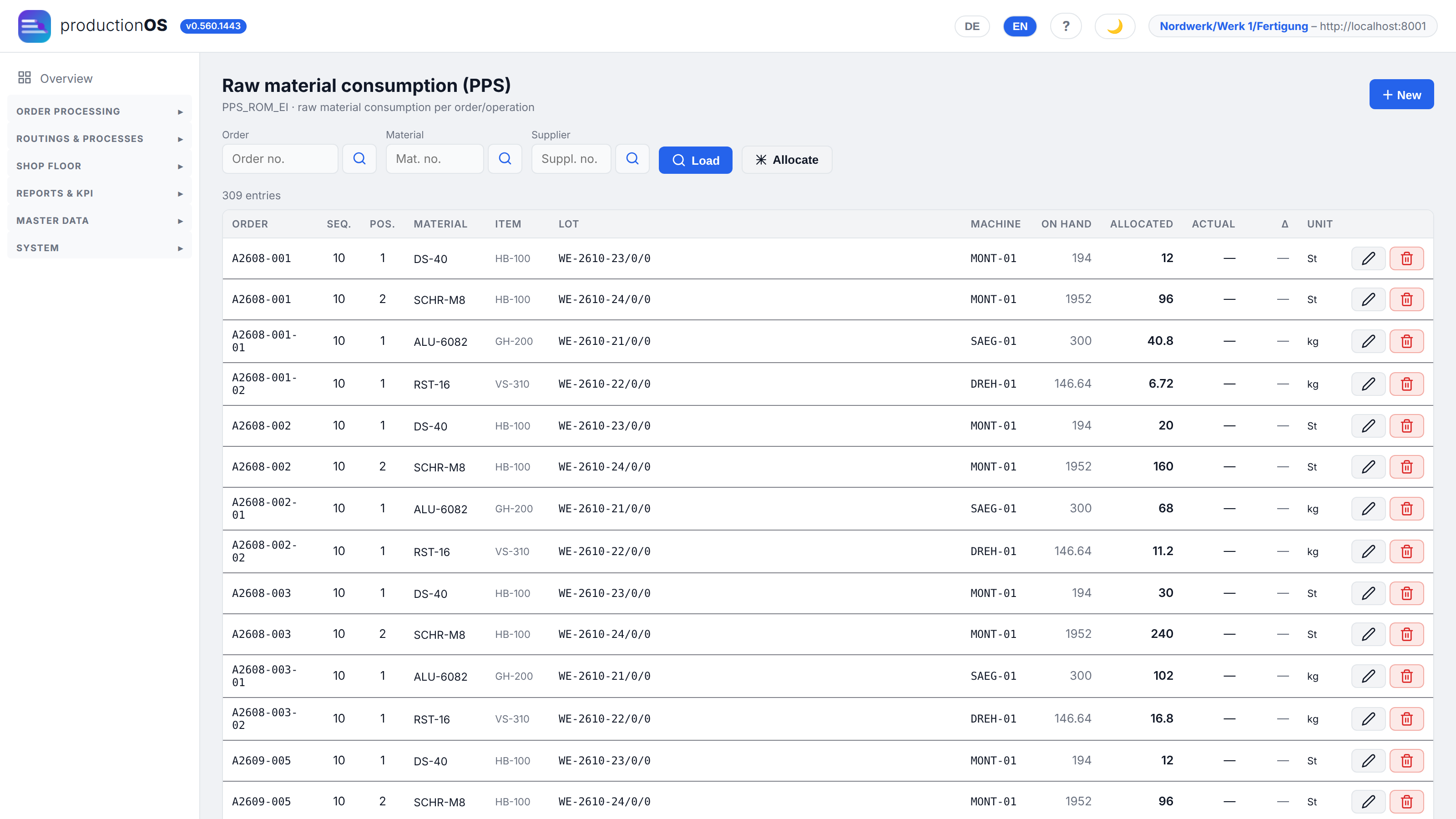
Allocation assigns concrete lots to the requirement: which lot of which material which operation gets (raw material consumption for material, part consumption for semi-finished items). The default is FIFO over the available lots; in case of undercoverage the partial allocation switch decides. The allocation is a specification for the terminal, not a lock — what is actually consumed there is recorded by the operator when booking (4.6). At the start of setup it is refreshed once more for the sequence.
Release sets the order from planned to released and reserves material (withdrawal lines). Only released orders can be started by the terminal. Under Personnel/order people can be assigned by hand per operation; with personnel in scheduling, scheduling proposes them and the shift supervisor confirms (3.12). Whether covered personnel is a condition for release is set by the operating model.
3.10 Status overview
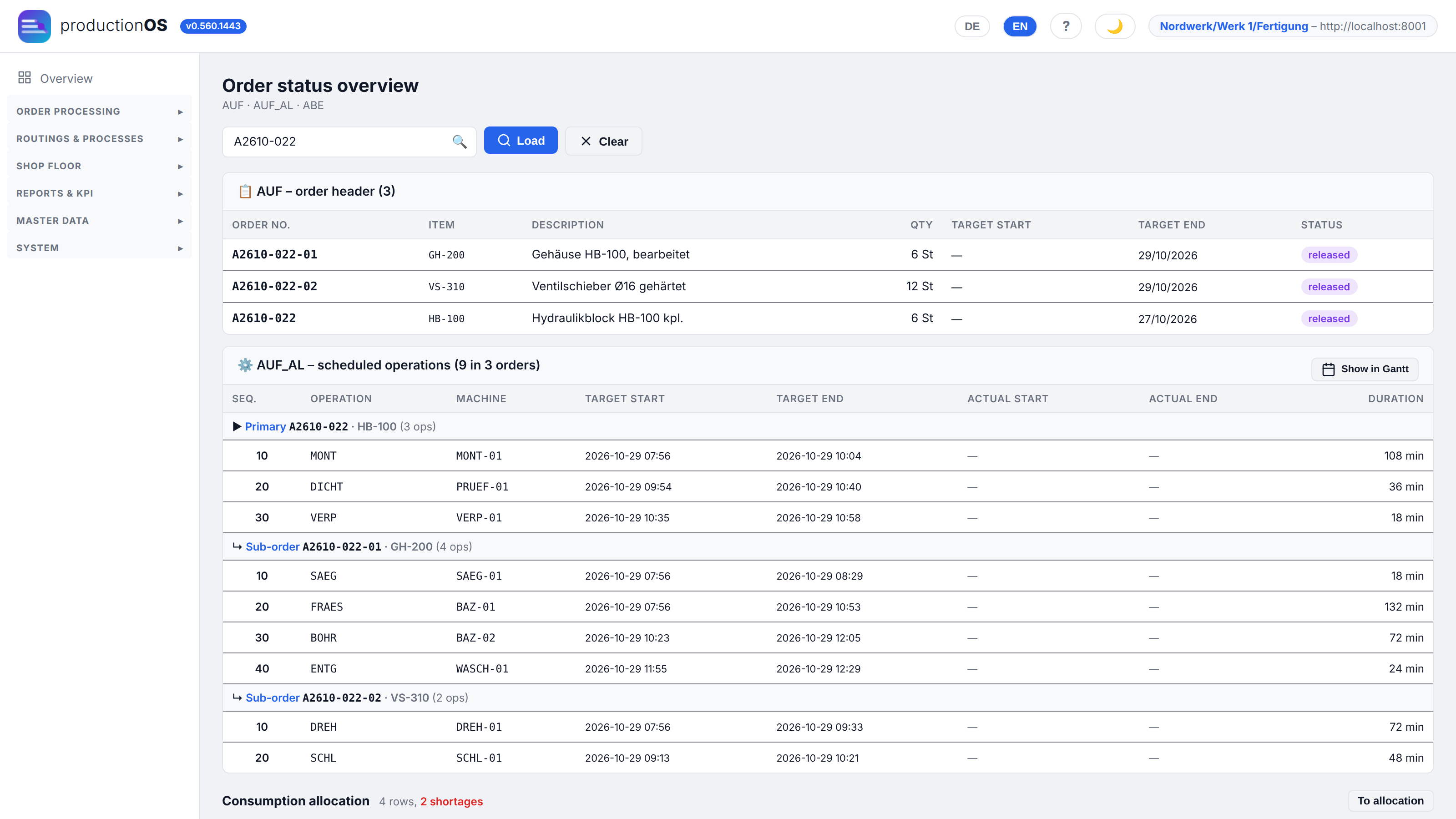
The status overview shows the order header with its sub-orders and all operations with target and actual times in one table — the view for the question “where is the order right now?”. Green is started, with actual end finished; Show in Gantt jumps to the machine loading.
3.11 Changes to running orders
As soon as an order has been released or started, changes are a change to a running order, and the system treats them as one interlocking system:
| Change | Where | What happens |
|---|---|---|
| Change quantity | Actions → Change | operations without confirmation are recalculated; started ones keep their quantity, the rest goes into a remake request |
| Change date | Dates tab / Gantt handle | new target, new scheduling of the open operations; the chain stays together |
| Swap machine | Schedule (machine) / Routing alternatives | only within the alternatives of the plan; setup time and costs follow the new machine |
| Change line distribution | Routing alternatives | share per line, down to 0 (line off) |
| Move around the machine | Gantt | the order moves behind the order that has the machine |
| Lock | status menu | locked: the terminal no longer starts anything, what is running may finish |
| Remake | Shop Floor → Create remake / from the terminal | a new order for the shortfall, the planner confirms |
| Change variant | Other → Select variants | choice per item of the chain; the chain is rebuilt from the primary order, beforehand the dialog shows what is reset |
The priority of an order acts as a lock against moving away: an order with high priority does not move away in favour of a lower one. What has already been confirmed stays in place with every change. Via Archive in the order list one can choose whether only the planning disappears or also confirmations and stock bookings. The view Order archive shows both kinds of finished order: orders with the status completed (they are still in the order list) and orders whose planning was deleted but whose confirmations are retained. The Origin column distinguishes them, the filter above it shows only one of the two.
3.12 Staff deployment: scheduling with personnel, shift supervisor
If Personnel in scheduling is set to plan in the operating model, scheduling looks for each operation not only for a free machine but also for people who
- have the required skill (2.1),
- are present for the whole window according to the personnel calendar,
- are not already scheduled elsewhere in that window (up to a loading share of 1.0).
If there are none, the operation moves into the next gap in which machine and personnel are free — just as with an occupied machine. Planning is done per phase and per shift section: an operation across the early and late shift gets two people one after the other if nobody works both shifts. If simply nobody has the skill, the operation is not moved but reported. The selected people are then shown on the operation as pre-assigned (G). The selection follows a fixed rule so that a second run gives the same result: first whoever has the skill and is least loaded, in case of a tie whoever is already assigned to the order.
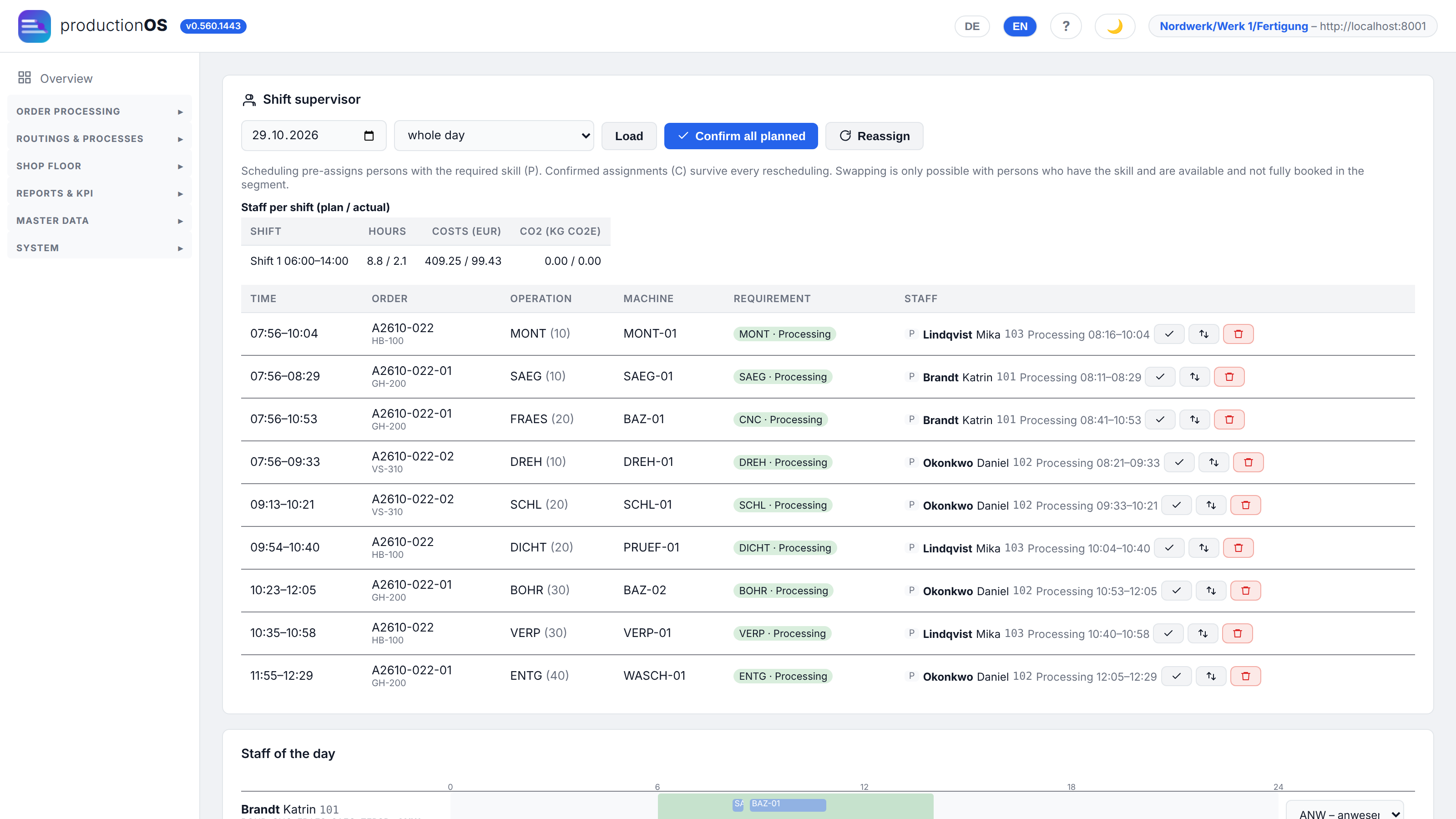
The Shift supervisor view (Order processing → 5 · Release) shows one day, in full or per shift:
- at the top the shortages — skills for which hours are uncovered;
- below that staff per shift with hours, costs and CO2, each as plan / actual;
- then per operation time, machine, the requirement (green covered, red uncovered) and the pre-assigned people.
Each row is confirmed (✓), swapped (only for people with the skill who are present and free in that section) or removed. Confirm all planned handles the normal case in one click. A confirmed assignment (B) survives every later rescheduling; if it is nevertheless lost, the report says so. If someone calls in sick, this is entered in the personnel calendar, and Reassign plans the shift without this person. What was actually worked at the terminal is shown as a thin actual line below the planned loading.
In the image the overdue order A2610-013 is covered today — milling on BAZ-01 requires CNC (specification of the machine), the others the skill of their operation. The rows marked red belong to the older order A2609-006: it was scheduled before the tenant planned with personnel, and therefore has nobody pre-assigned.
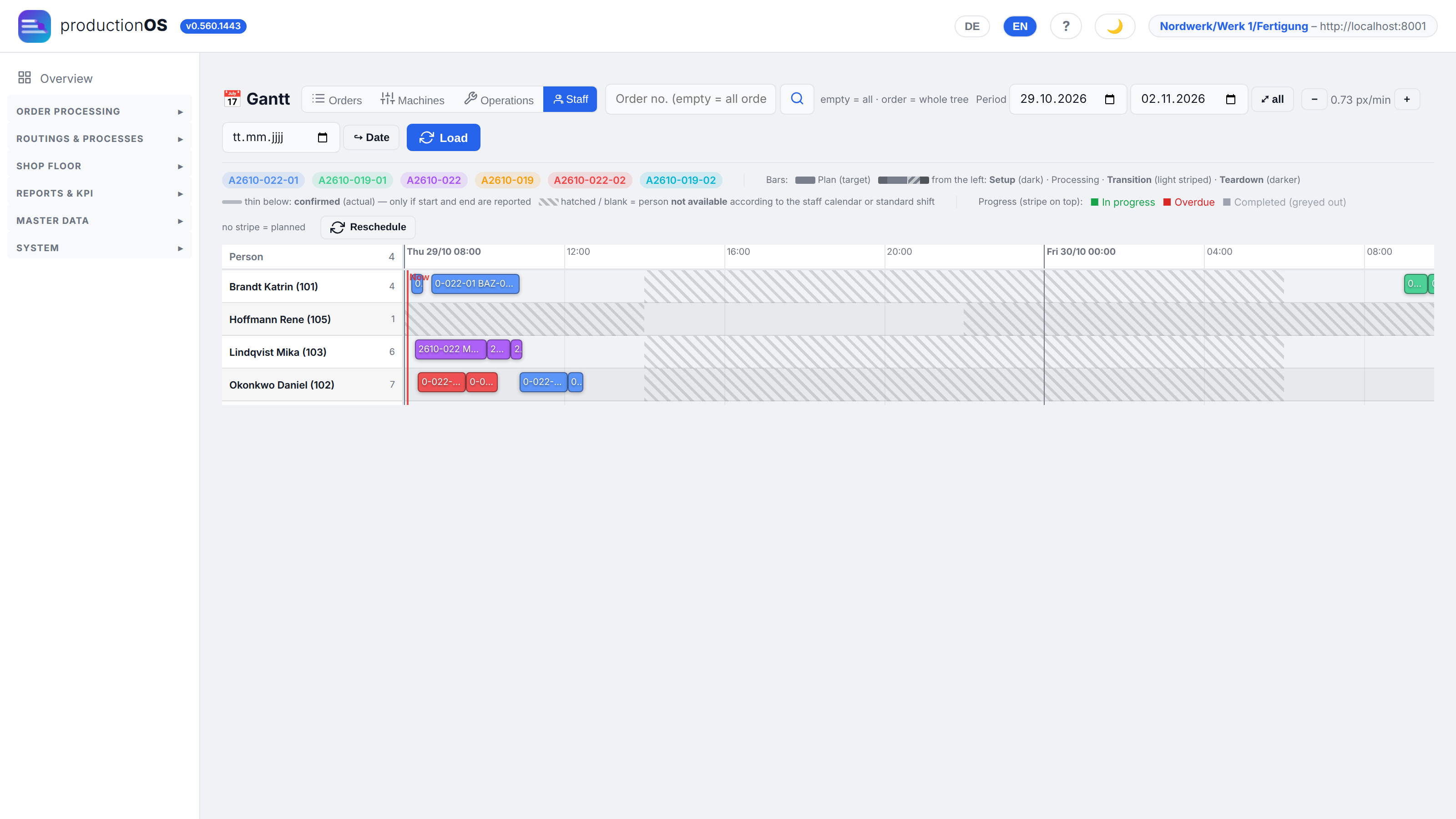
For this the Gantt has a fourth view Staff: one row per person, bars are the scheduled sections (✓ when confirmed), hatched is when the person is not present according to the personnel calendar. The red line is now.
Shift supervisor is an additional role, not a main role of its own: an operator with this additional role (System → Users) sees the Shift screen at the terminal with the same actions (4.13).
Part 4 — Execution at the Shopfloor Terminal
The terminal is built for tablet, IPC or phone: large buttons, an on-screen number pad, no keyboard needed. It knows two levels — first the device is bound to the tenant once, then the person signs in with employee ID and PIN, every shift.
The layout is the same on every screen: at the top a fixed header with tenant, person, language DE / EN, the font size step A / A+ / A++ (remembered per device) and the light/dark switch; below it the navigation in the centre with large buttons (Orders, Mine, Shift, Machine, Log out); at the bottom of the operation a fixed footer with the actions that are currently allowed — STOP on the left, the main action in the centre, Continue on the right, downtime, measurement and warnings smaller beside them.
4.1 Activating a device
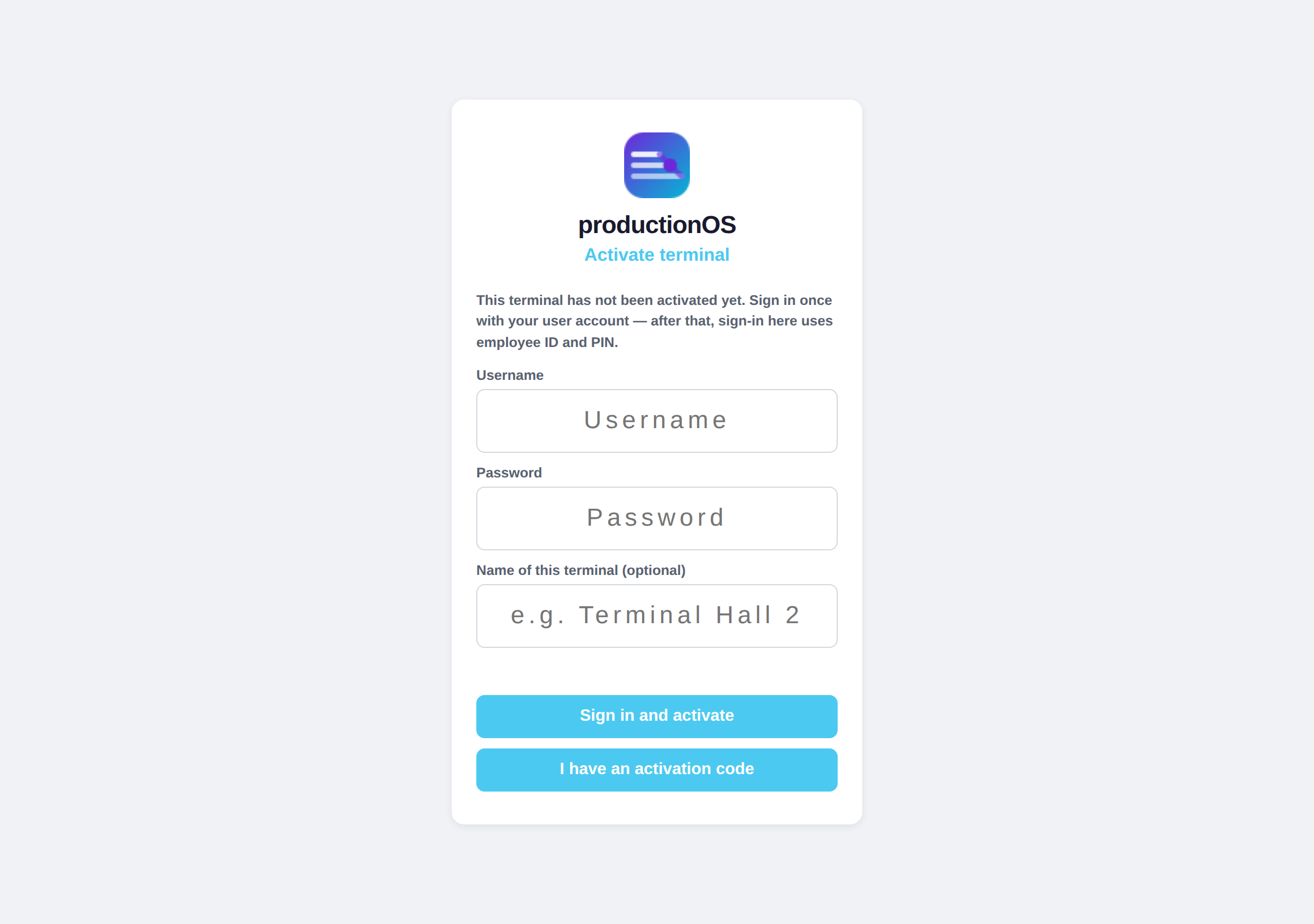
A fresh terminal immediately shows Activate terminal. Two ways:
- With one's own user account: user name, password, optionally a name for the device, Sign in and activate. From now on the device is bound to the tenant of the account. No administrator role is required; no new permissions are created.
- With an activation code: an administrator creates a device under Settings → Terminal devices and receives a one-time code (valid for 15 minutes, usable once). At the terminal I have an activation code, type in the code, done.
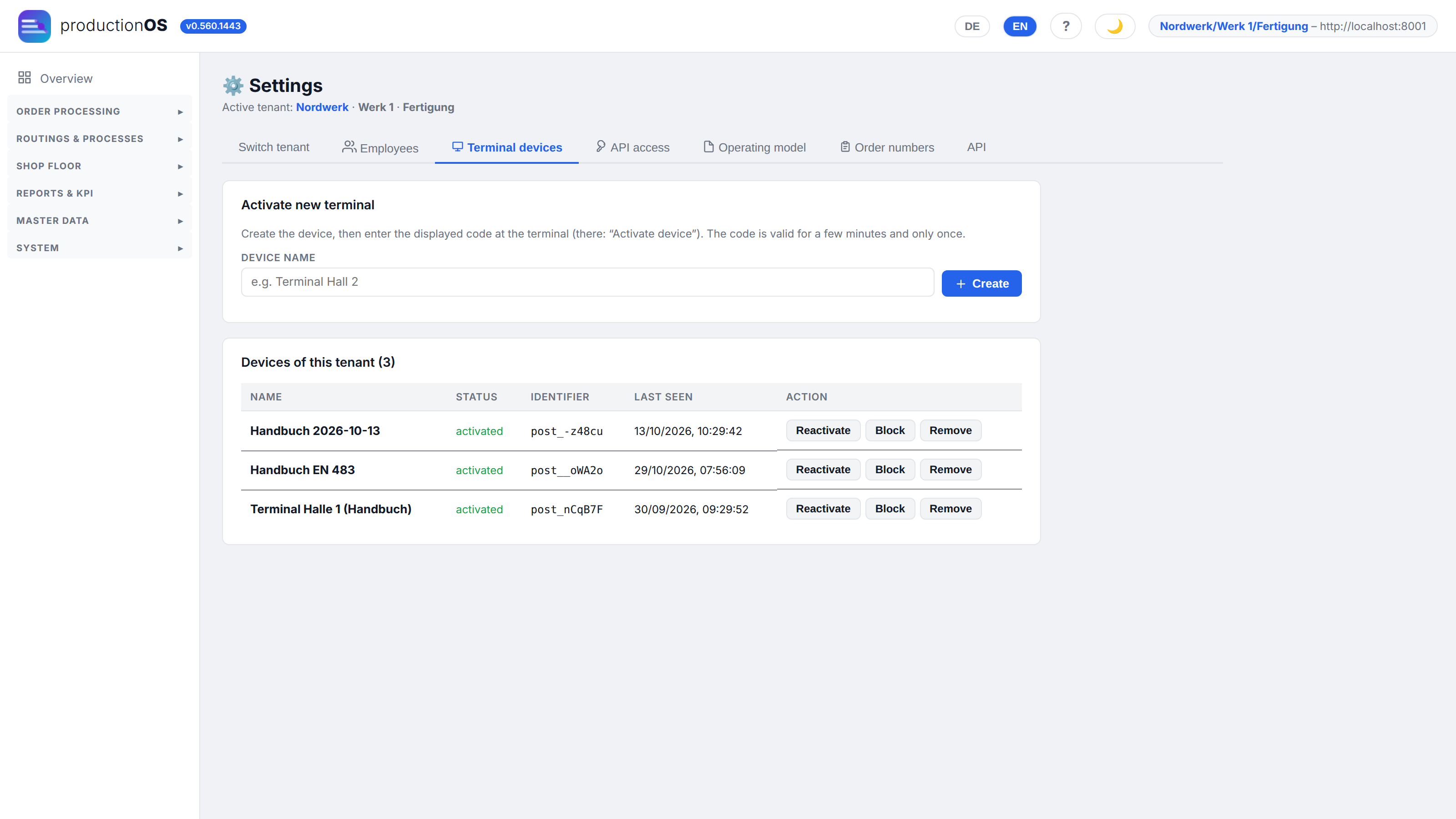
The device list shows each device with its status (awaiting activation, activated, blocked, code expired), identifier and last sign-in. Block takes effect immediately — for a lost tablet; Reactivate generates a new code and invalidates the old token; Remove deletes the entry.
Why this step: employee ID and PIN are not secrets. Without device binding, someone from outside could sign in with guessed numbers, and the server would not even know in which tenant to look up the number. The activation is stored in the browser of the device — a different browser, a private window or a cleared history count as a new device. Changing tenant means unregister and activate again.
4.2 Signing in
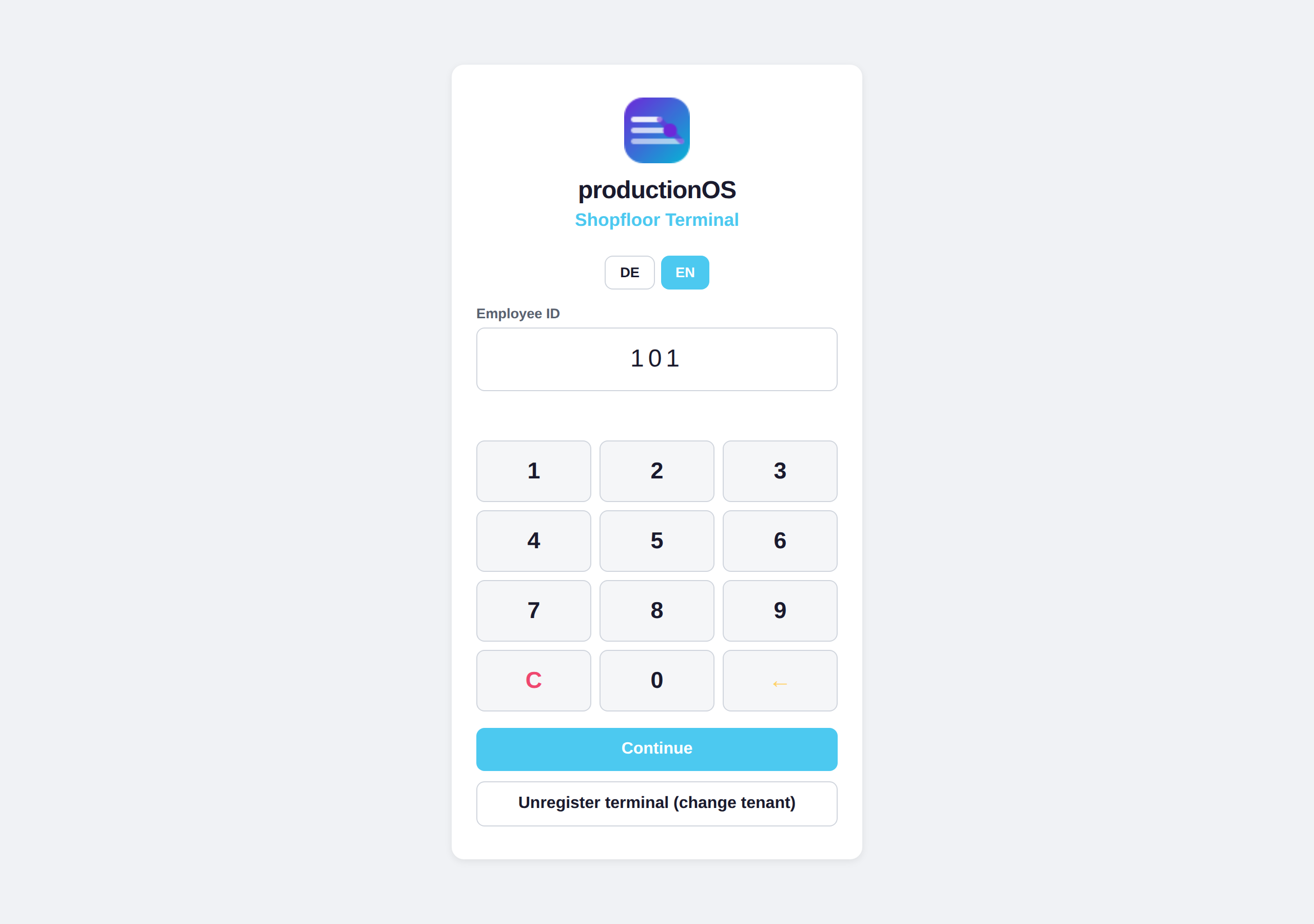
Type in the employee ID (from three digits on, the terminal checks the number and shows the name), Continue, PIN, Sign in. After five wrong PINs the number is locked for ten minutes; after ten minutes without a touch the terminal signs the person out — an operation in progress is not affected. The sign-in is valid for one shift (eight hours). Area, plant and department come from the person's personnel record, not from the device. If the person is scheduled for operations, they land after sign-in in My operations (4.13), otherwise at machine selection.
A browser only ever holds one sign-in, across all its windows and tabs: if someone signs out in one window, or another person signs in, the other windows return to the sign-in screen and say why. The ten minutes count across all windows — a window in the background does not sign out while work goes on in another. Several people at one computer at the same time need separate browser profiles.
4.3 Machine and queue
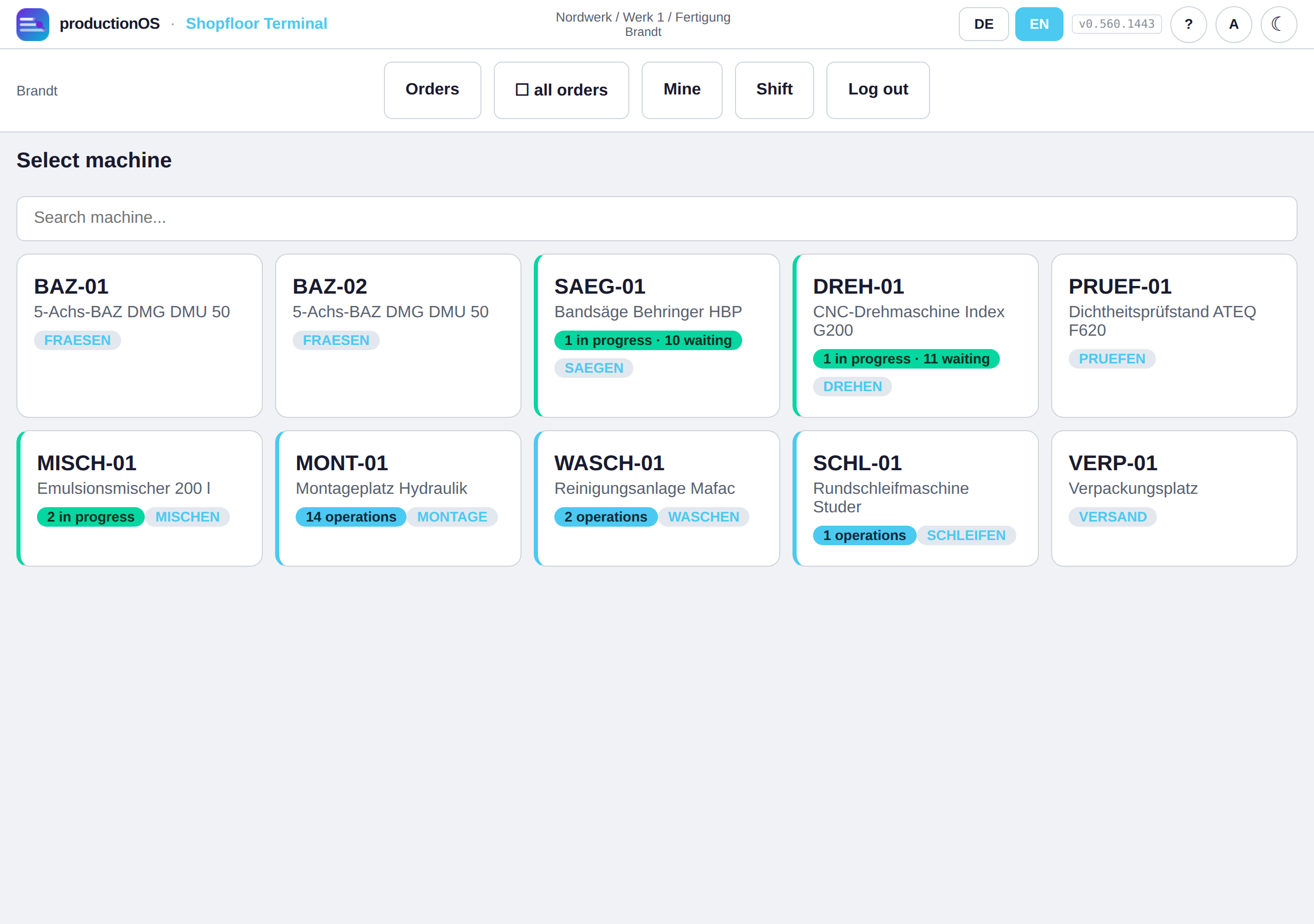
After sign-in the person selects their machine; the tile shows how many operations there are in progress and how many waiting. The machine is the organising criterion of the terminal. Anyone who is scheduled also finds their operations under Mine.
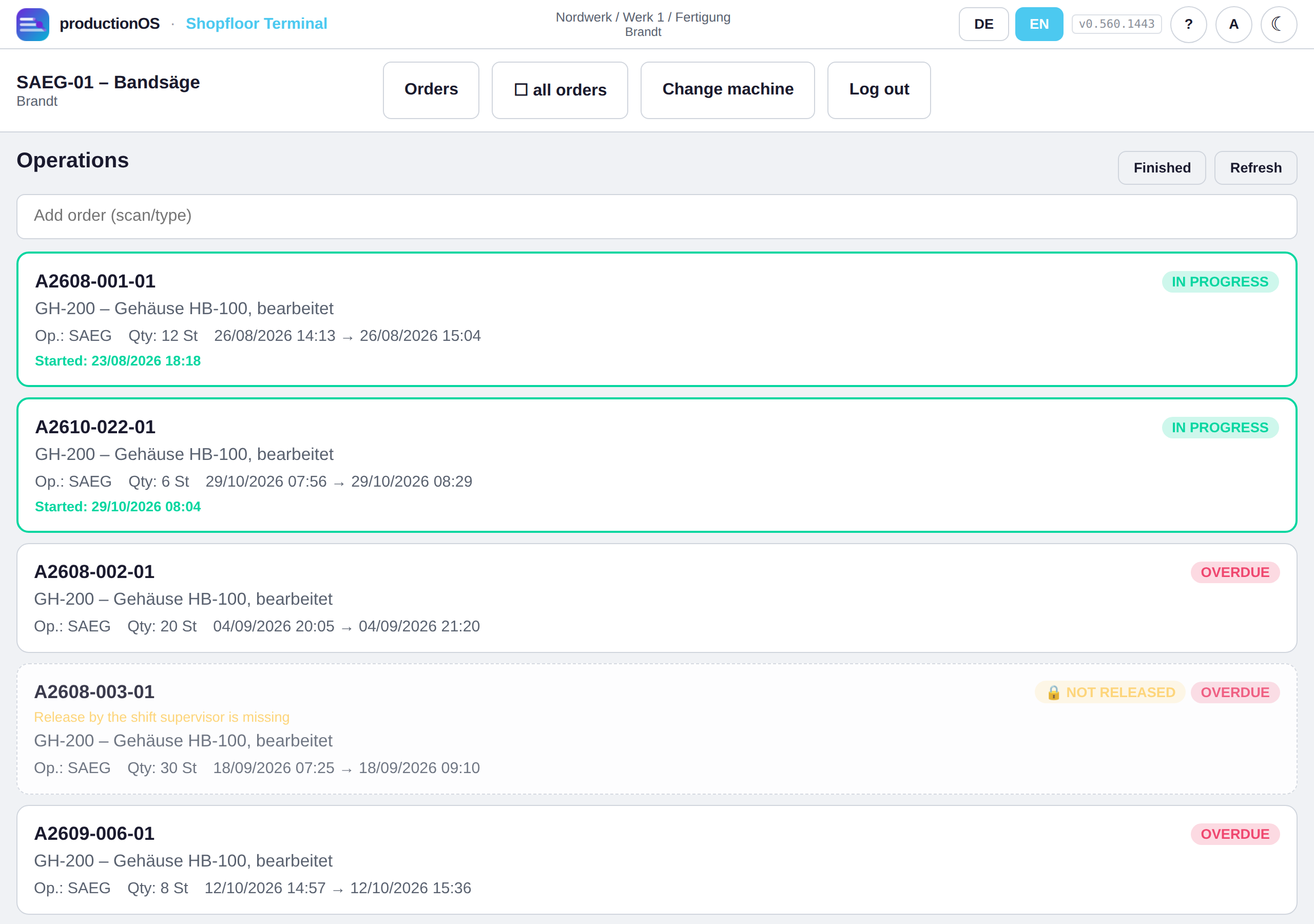
The queue shows what is next at this machine: the running operation at the top (green, In progress), then the released ones by target start, overdue ones in red, unreleased ones greyed out. An operation only appears once its predecessor is finished; with alternative machines the siblings disappear as soon as one has been chosen. An order can also be added by scan or by typing.
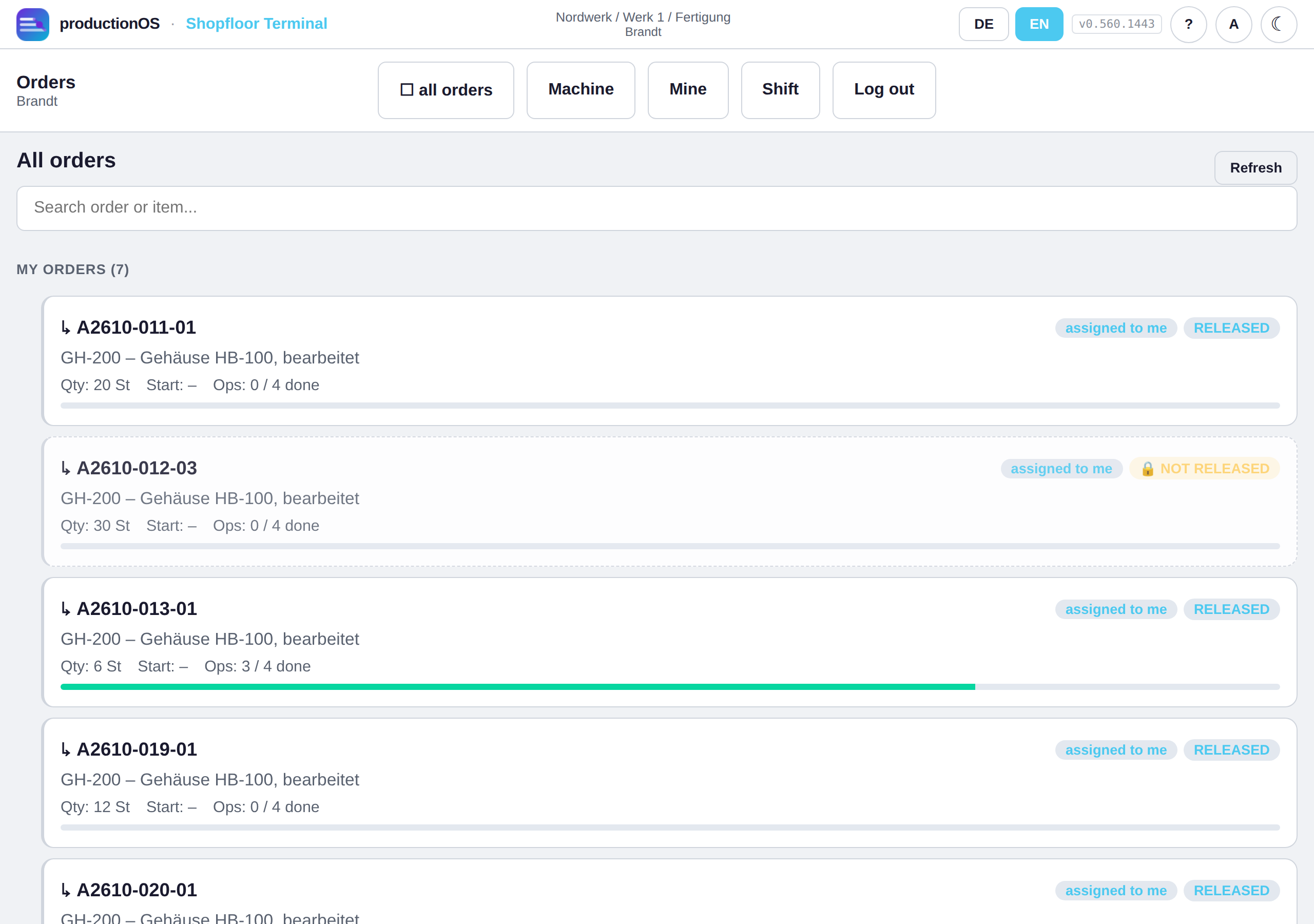
Orders shows the entire stock of orders with levels and progress — for the case where the question is not the machine but the order. At the top are My orders (assigned to the signed-in person), below them More orders, each in processing sequence: sub-orders before their parent order, because they are produced first.
4.4 The operation
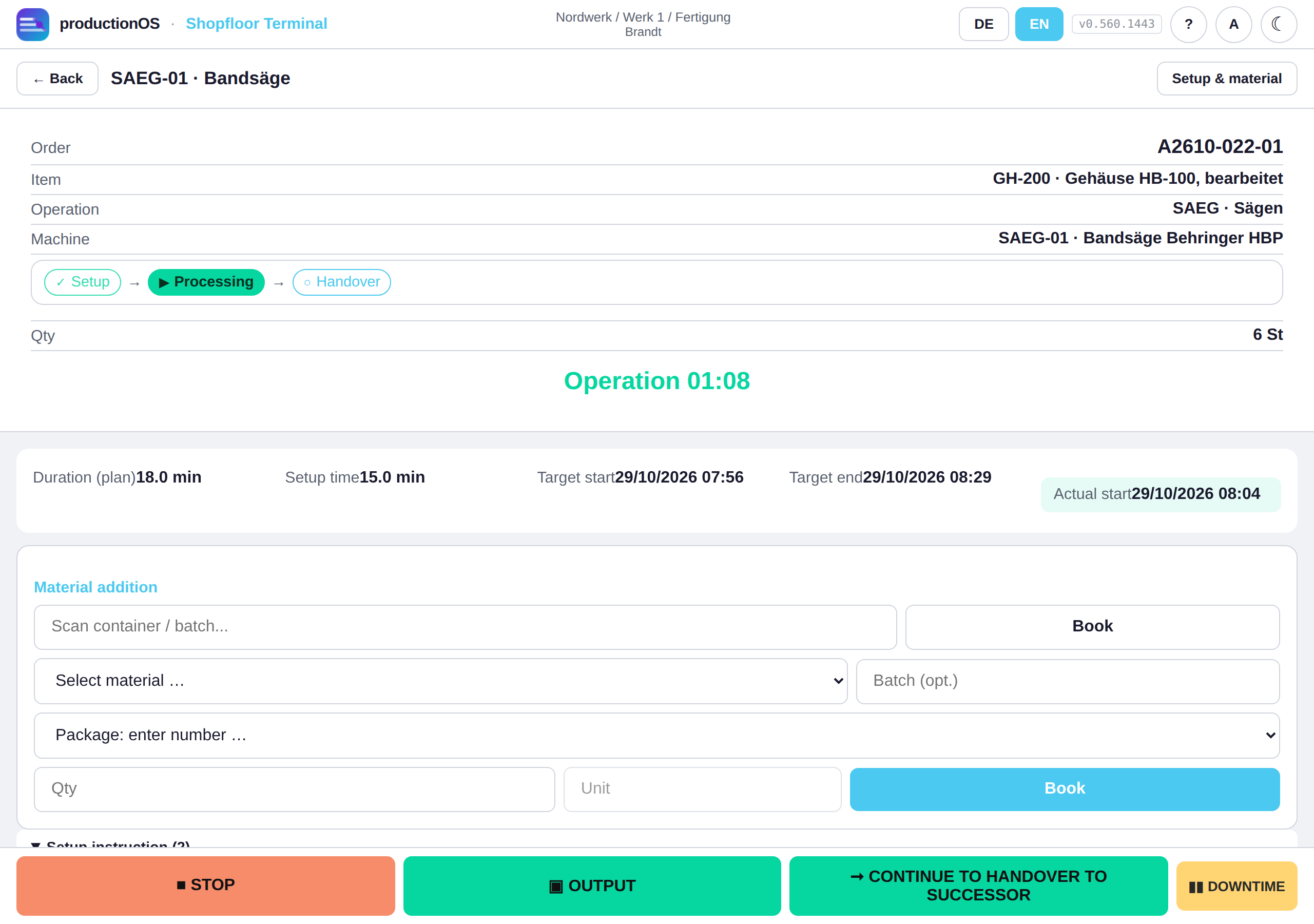
The operation screen has a fixed header — order, item, operation, machine, the phase bar (Setup → Processing → Handover) and the quantity —, below it the running time and the buttons that are allowed now. Which ones these are is decided by the server; the terminal does not rebuild the workflow a second time, and anyone addressing the endpoint directly cannot skip a phase.
Above the header the order's routing appears as a bar: one box per sequence with operation and machine, the opened operation highlighted, ✓ for finished, ▶ for running; parallel lines appear as one box with “n lines”. With long routings the bar scrolls the current operation into the middle. It only shows and leads nowhere. The same bar appears on the setup screen (4.5).
Below, in this order: planned and actual times, the material already consumed, the material addition (with scan field for container or batch), the process instruction, the inspection status per output, the outputs confirmed so far (identifier, produced, of which scrap — tapping opens the performance summary), the history with measured values, downtimes and handovers. The actions are in the footer.
Before the start only START is active. If the operation has a setup time, it begins with setup; otherwise it goes straight into processing. The start is checked against a time window around the planned date — a warning, not a block. An unreleased or locked order cannot be started.
4.5 Setup
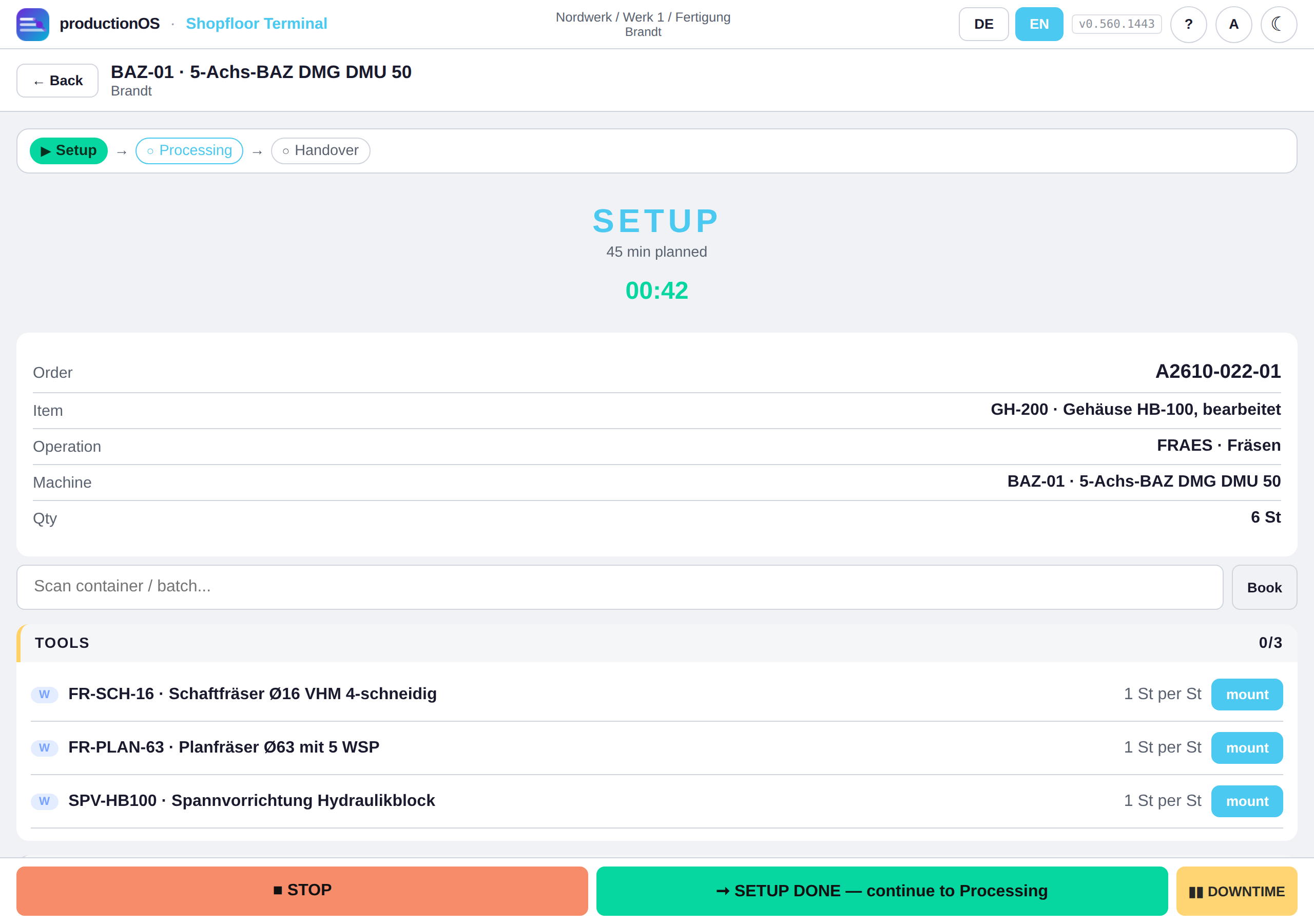
The setup screen is a checklist: the planned setup time runs, below it the tools of the operation (with scan field — a scanned tool is booked as mounted; if the tool is tracked individually, Mount asks for the piece and shows its tool life so far and usage against the limit), the material with package and batch, the process instruction with the target values and the inspection: the inspection characteristics of the operation with target, limits, inspection equipment and frequency, for viewing only — recording happens at output and in the inspection status per output. SETUP DONE switches to processing; STOP interrupts. The setup time counts towards the costs (5.1).
Mounting tools, booking material and taking over from the previous operation only work after START: before that the scan field and buttons are locked, and a note at the top says so. This applies to every other route as well — the server rejects such bookings before the start. Pure logistics operations without processing time are exempt; after a partial confirmation, booking more remains possible.
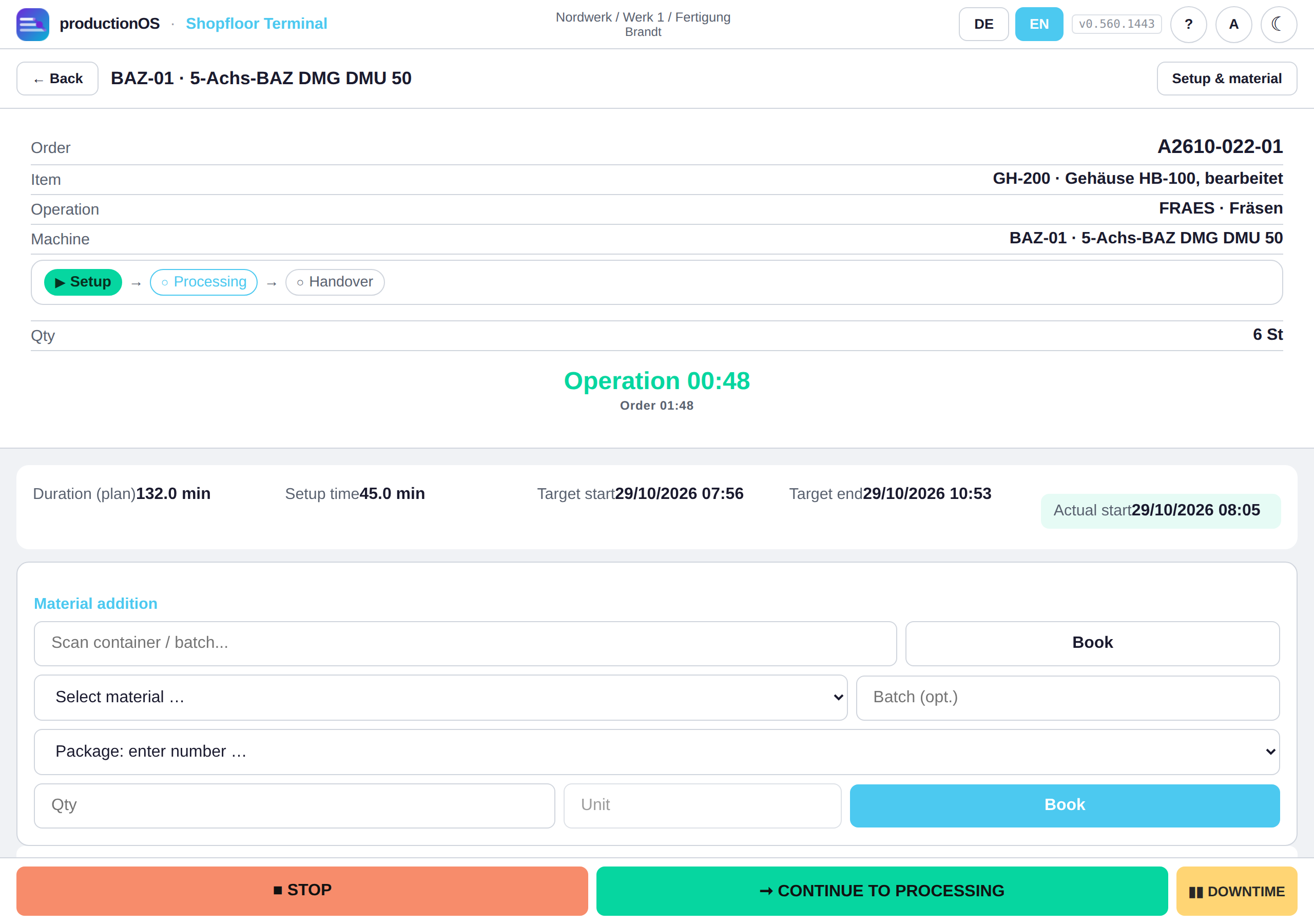
The same operation in the overview: the phase bar is on Setup, Setup & material at the top right leads back to the checklist.
4.6 Processing, material, downtime
During processing the time per piece and the costs run. Four things happen here:
Adding material. Select material, scan batch or package, quantity, Book. A scanned package is withdrawn first; only a remainder falls back to the oldest lot (FIFO). What was actually touched is reported back by the booking and recorded permanently — the basis of traceability. The allocation from planning is shown as a suggestion.
Recording the process instruction. The parameters of the process instruction appear as cards side by side, each with characteristic, target value with tolerance and a large actual field with OK; instructions without a number are acknowledged. The left edge of the card shows the state: green recorded, red outside the tolerance, neutral open. The value is always saved — a deviation is marked, not blocked. Tapping the target value changes it for this order.
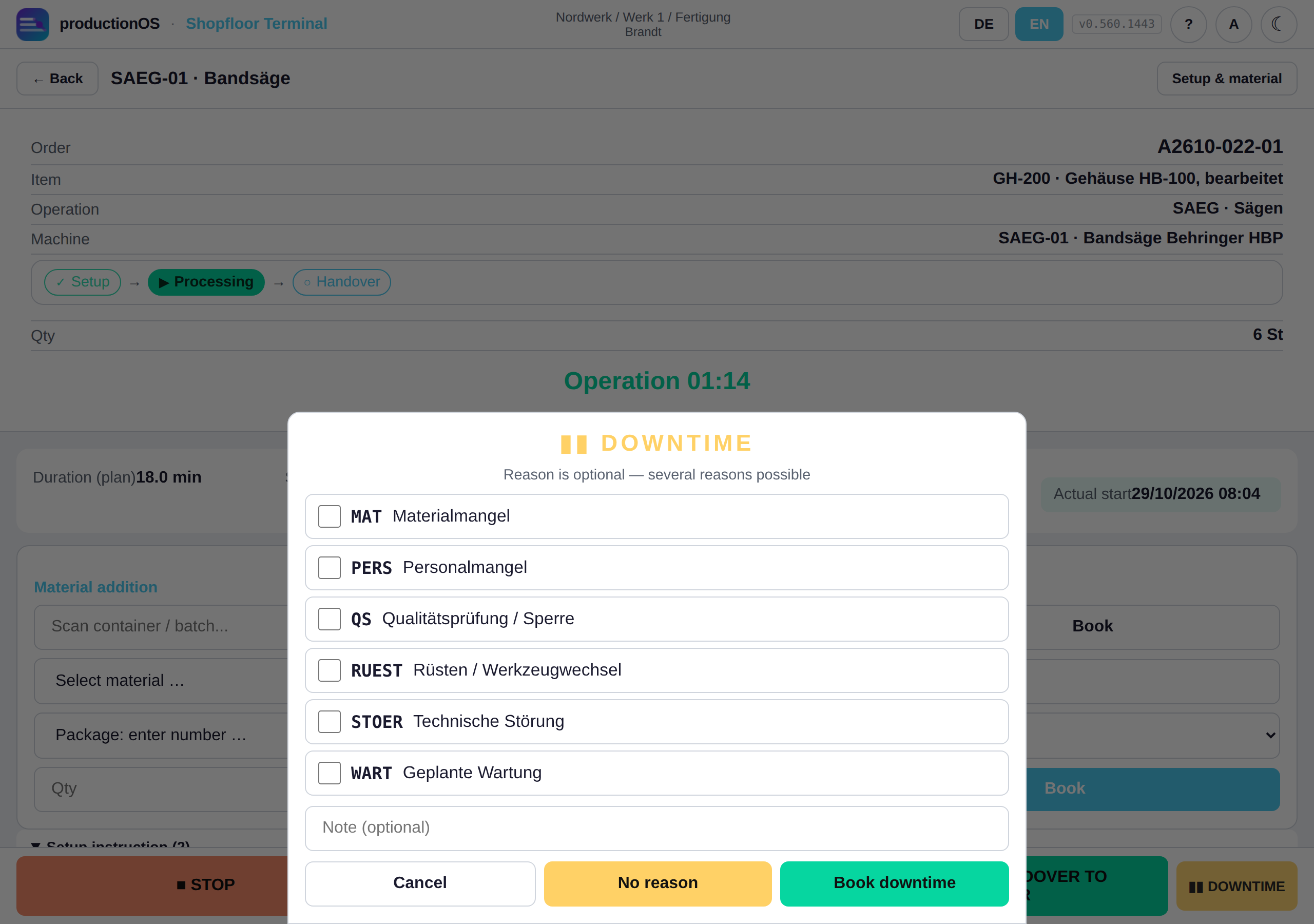
Downtime. DOWNTIME stops the clock and asks for the reason (material shortage, staff shortage, quality inspection, setup, breakdown, maintenance — from the downtime groups), optionally with a remark; No reason is possible, the reason can be added later in the history. A downtime with a reason appears in the OEE analysis per reason; without a reason it counts as loss without explanation.
Interim status. OUTPUT records finished outputs while processing continues (4.7); STOP ends the work provisionally (partial confirmation) — work continues later with RESUME in the same phase; CONTINUE TO HANDOVER completes processing.
Before processing can be completed, material must have been booked or a take-over from the predecessor must have taken place, if the operation has a material requirement — otherwise there would be output without input.
Removing. A mounted tool piece adds its time in use to the total tool life when removed; shots or strokes are counted at every handover. A mounted assembly with a serial number (child SN) can be removed in the same way: state the reason and choose the finding — blocked (default; only quality assurance releases it), available or scrap. With blocked and available the consumption at the still open operation is reversed.
4.7 Recording and inspecting output
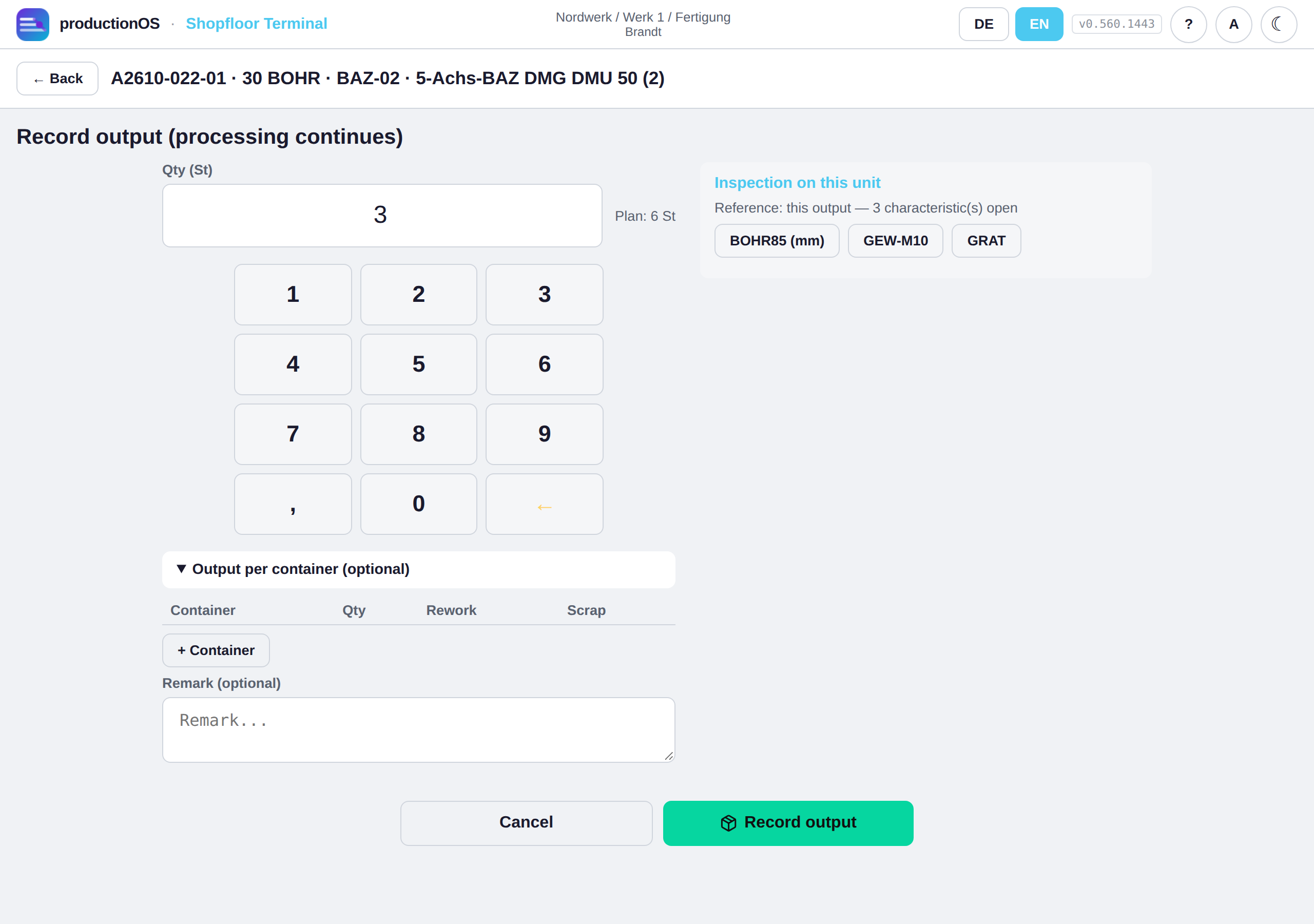
OUTPUT opens the output dialogue: quantity (with number pad), Output per container for recording down to single-unit level, remark. If the operation has an inspection plan, the block “Inspection on this unit” with the inspection characteristics as buttons sits to the right of the quantity (on narrow devices below the quantity).
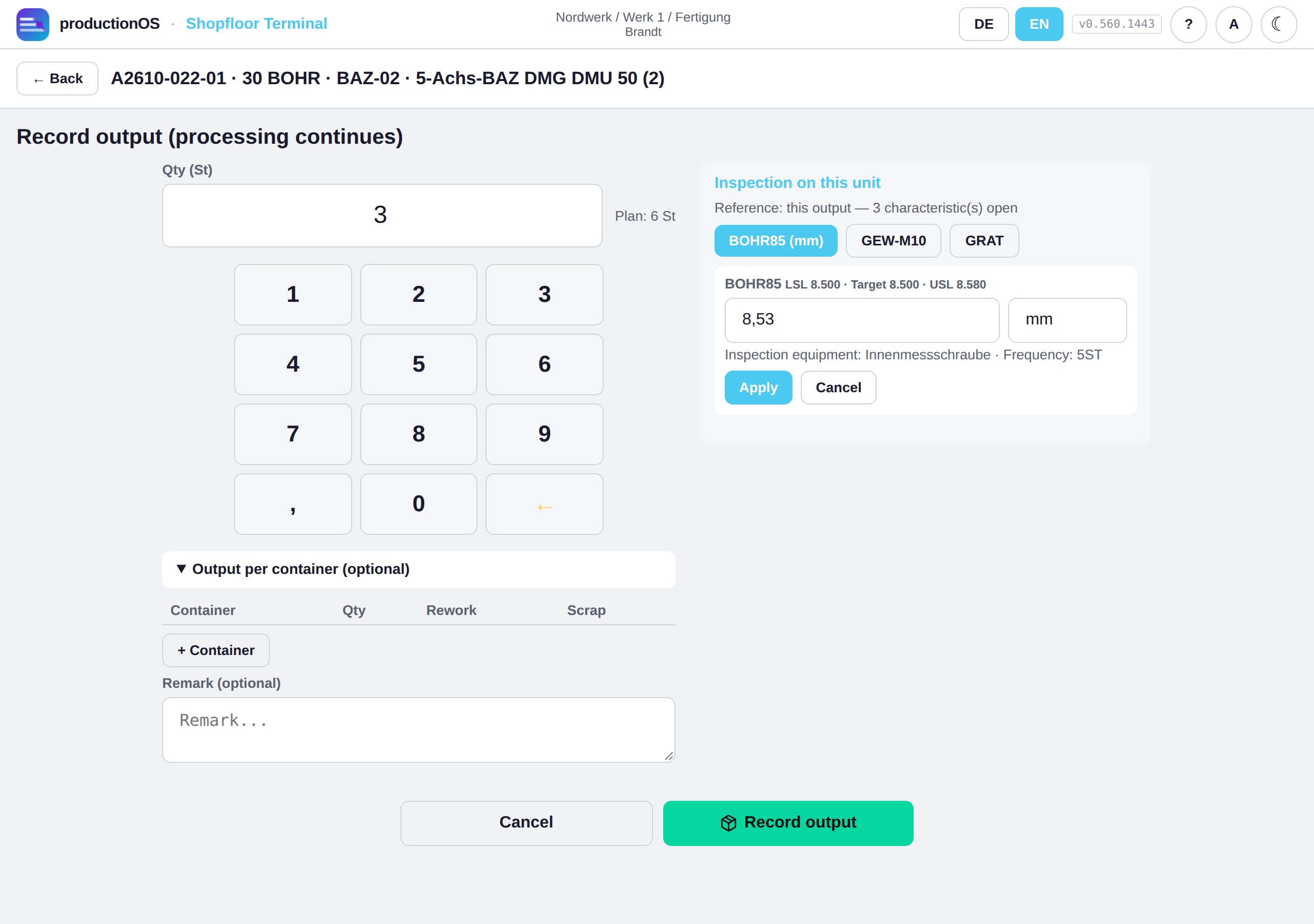
Tap a characteristic, enter a value — measuring with the limits from the inspection plan, counting with inspected quantity, defective parts and defect type —, Apply.
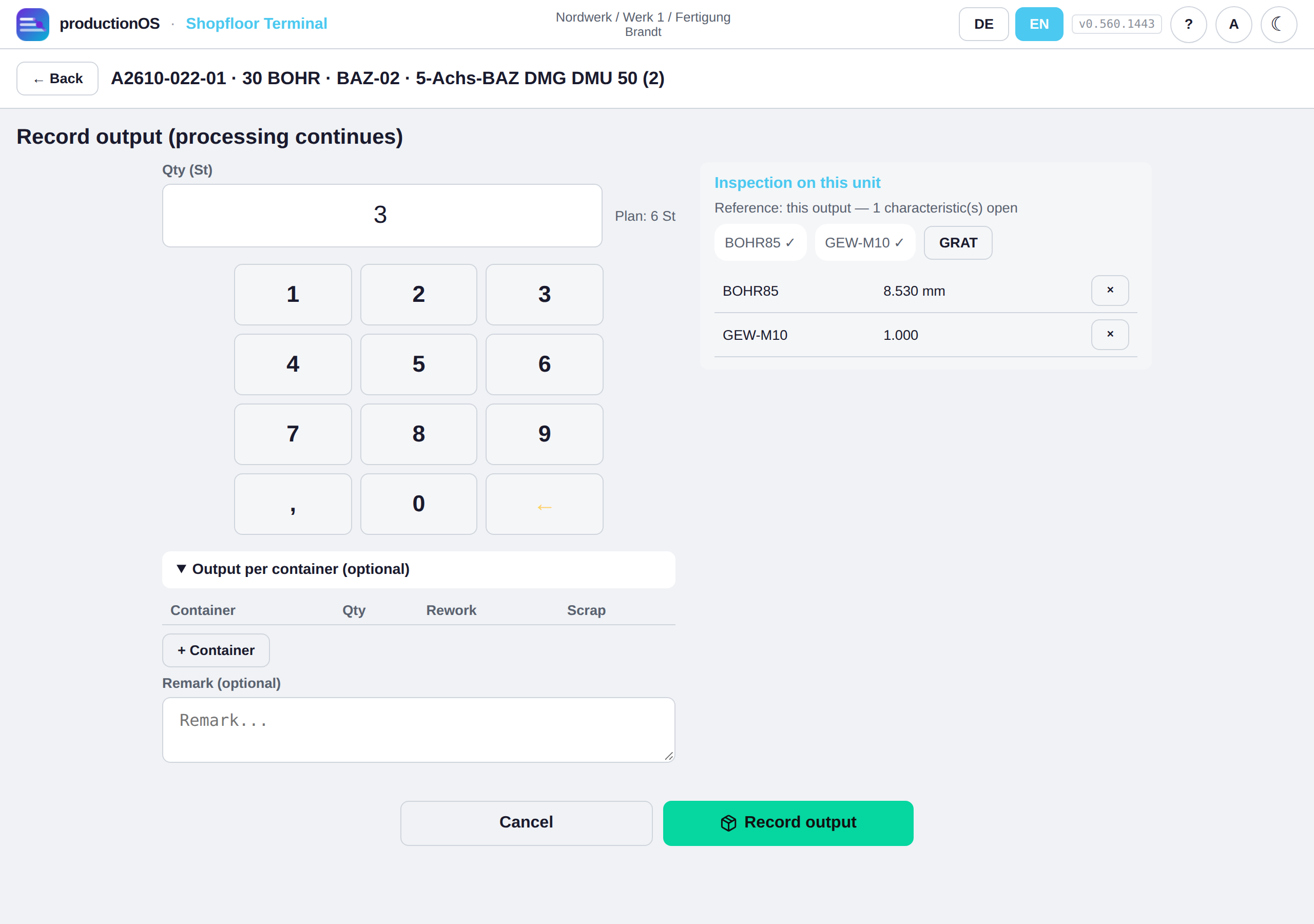
The inspection appears in the list and can be removed again until it is sent. Record output books output and inspections in one go; the inspections are attached to exactly this output. Three rules:
- An offer, not an obligation. Saving also works with open characteristics; the confirmation states “n characteristic(s) open” and NOK values, nothing is locked. Lab inspections do not count as open.
- Several containers. From the second container on the block empties — which container was inspected cannot be stated here; the inspection then takes place per container in the inspection status.
- All or nothing. If an inspection fails, the output is not booked either.
If the item is assigned serial numbers, the block “Serial numbers” also appears on the right with the numbers of this confirmation as soon as a quantity has been typed in. With capture auto these are the numbers the confirmation advances; if fewer are open than reported, the block says so. With output the numbers are only created when booking — the block shows the expected ones according to the scheme, which can shift if another terminal books in between. With stueck every part is scanned. After booking, View result leads to the units with their numbers and, per unit, to traceability.
From this moment every output is an identity with quantity and container (Part 7), a lot in the intermediate store for the successor, and a line in the handover — the successor can take over before the whole operation is finished.
4.8 Inspection status, measured value, counting inspection
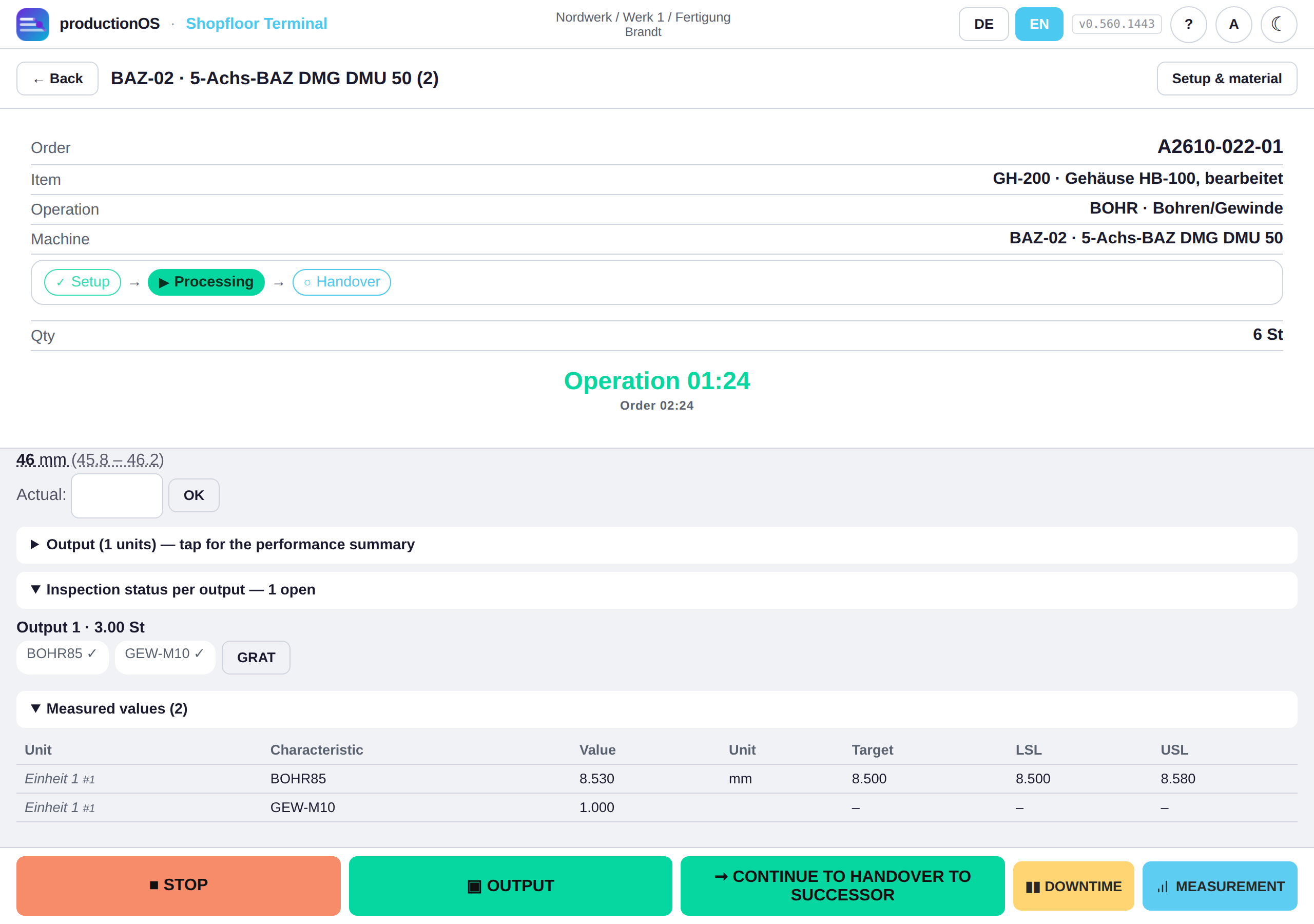
The inspection status per output shows for each output which characteristics of the inspection plan are recorded (✓, withdrawn) and which are open (tappable). It shows what is missing but does not enforce a position; every output is considered subject to inspection; the lab counts separately — the shopfloor can be finished while the lab is still running. Below that, the history of measured values and counting inspections with target and limits.
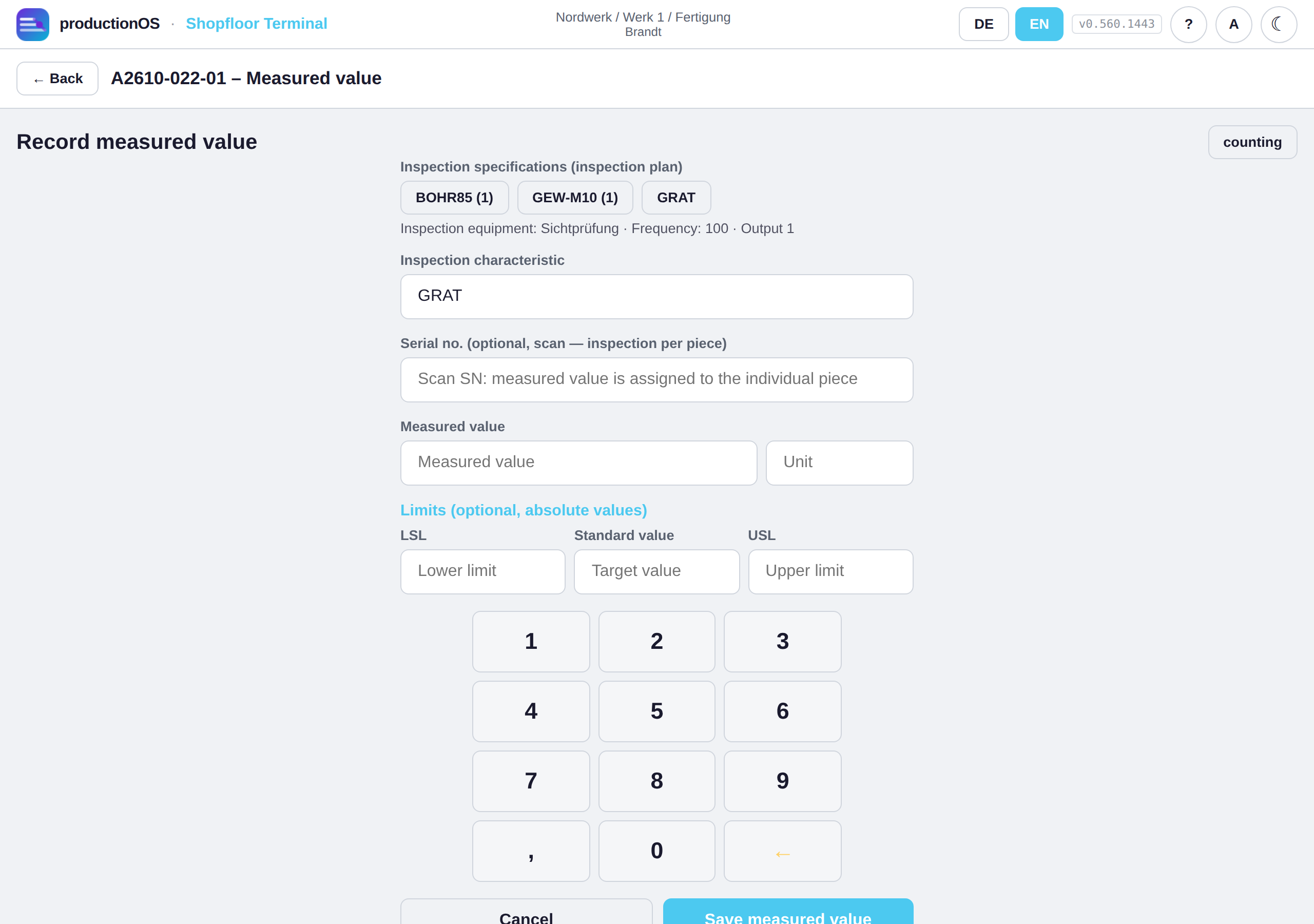
Tapping an open characteristic opens the measured value screen with the characteristic, unit, target and limits pre-filled and the reference to the output. The button MEASUREMENT in the operation opens the same screen without pre-filling — measured values are not tied to any phase and can be reached at any time. A value outside the limits is reported (and creates a quality event), not rejected; optionally a serial number can be scanned, then the inspection is attached to the piece.
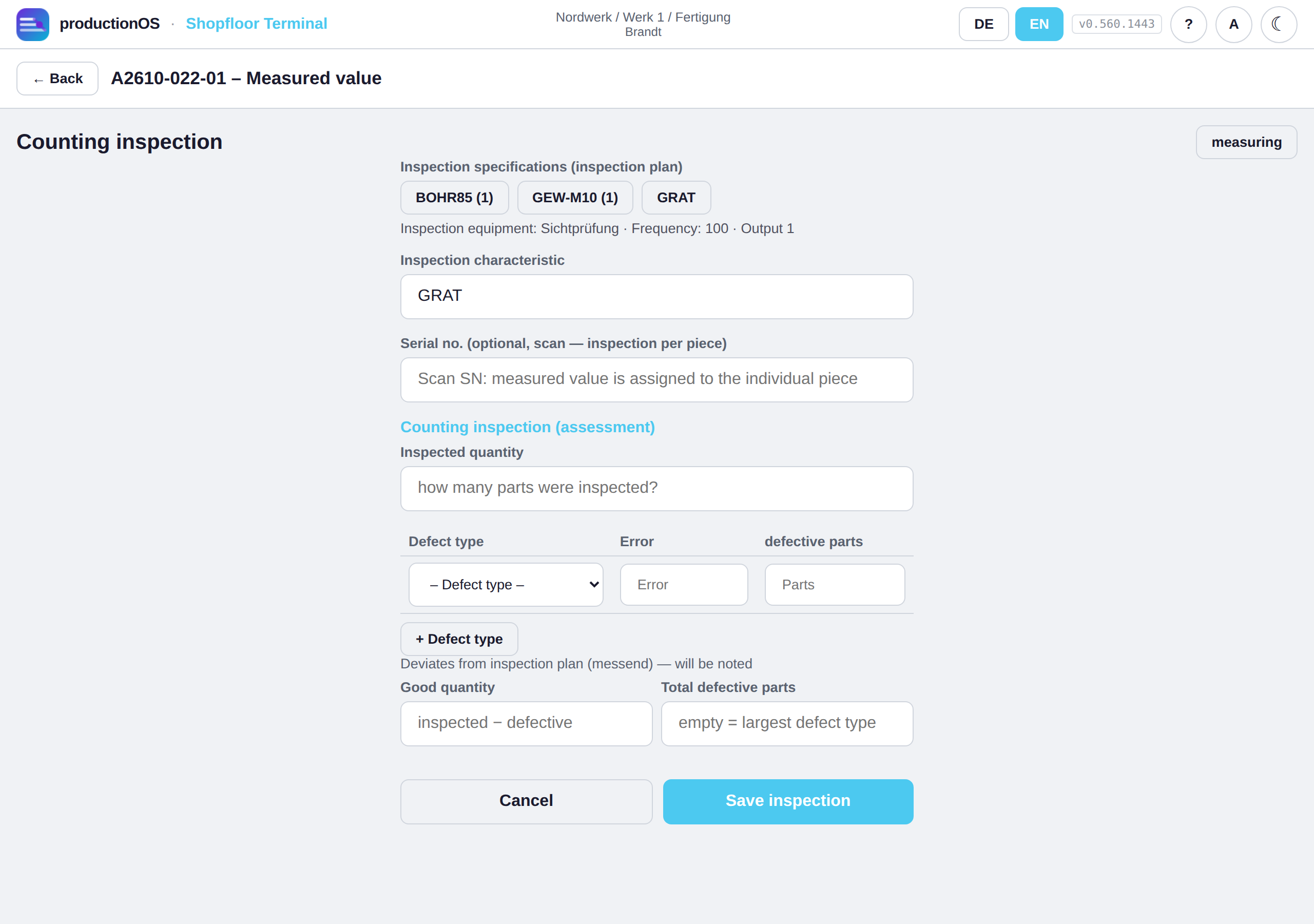
For characteristics with the unit BEURT the screen switches to the counting inspection: inspected quantity, per defect type the number of defects and of defective parts, good quantity (calculated or entered). Switching between measuring and counting remains possible — a recording that deviates from the specification is flagged, not forbidden.
4.9 Final confirmation and handover
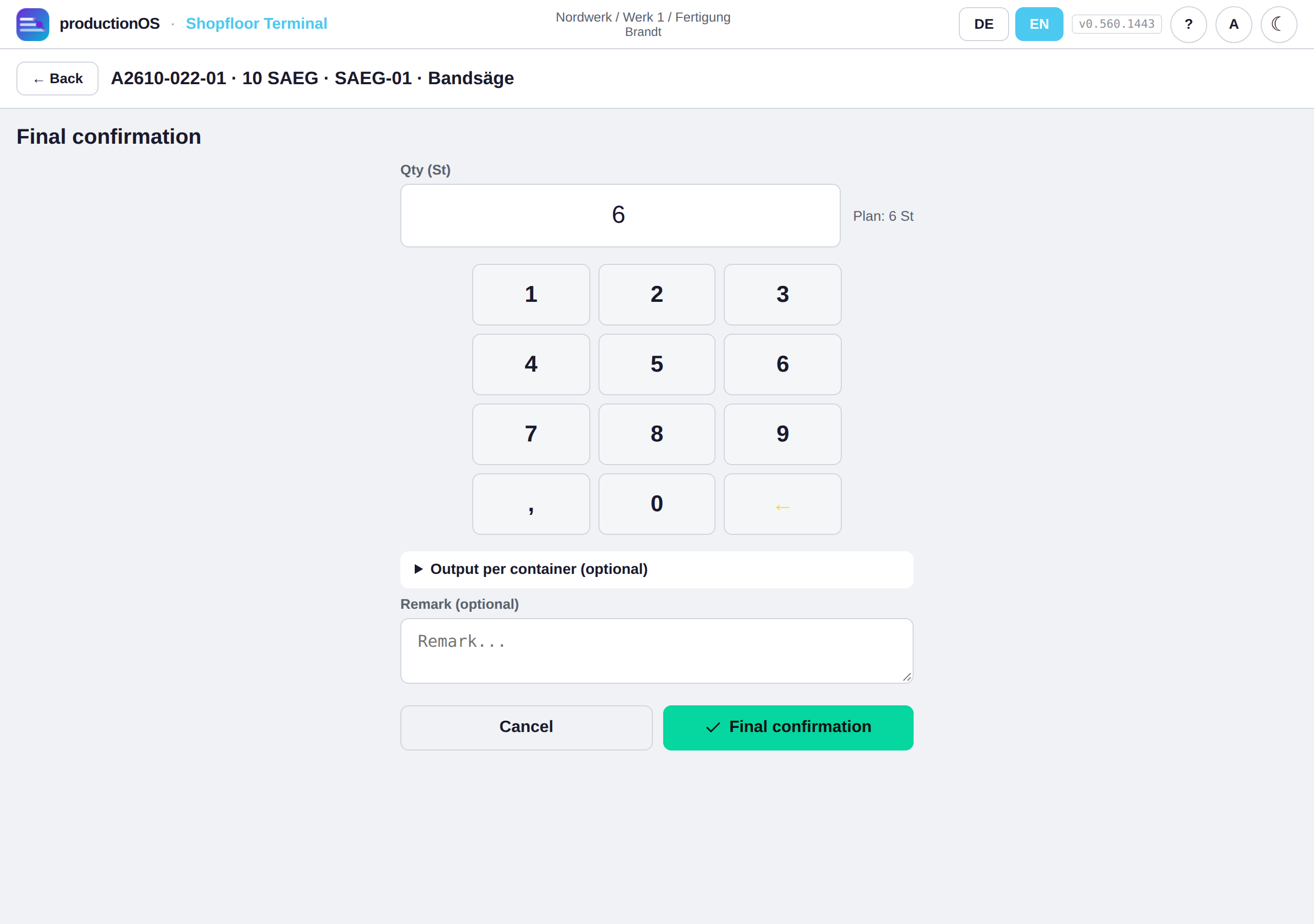
CONTINUE TO HANDOVER closes processing; in the handover phase FINAL CONFIRMATION appears. The dialogue asks for the quantity (pre-filled with the planned quantity) — what has already been recorded as output has been handed over; the final confirmation only writes the remainder. The server rejects more than the planned quantity, unless the overdelivery is explicitly confirmed.
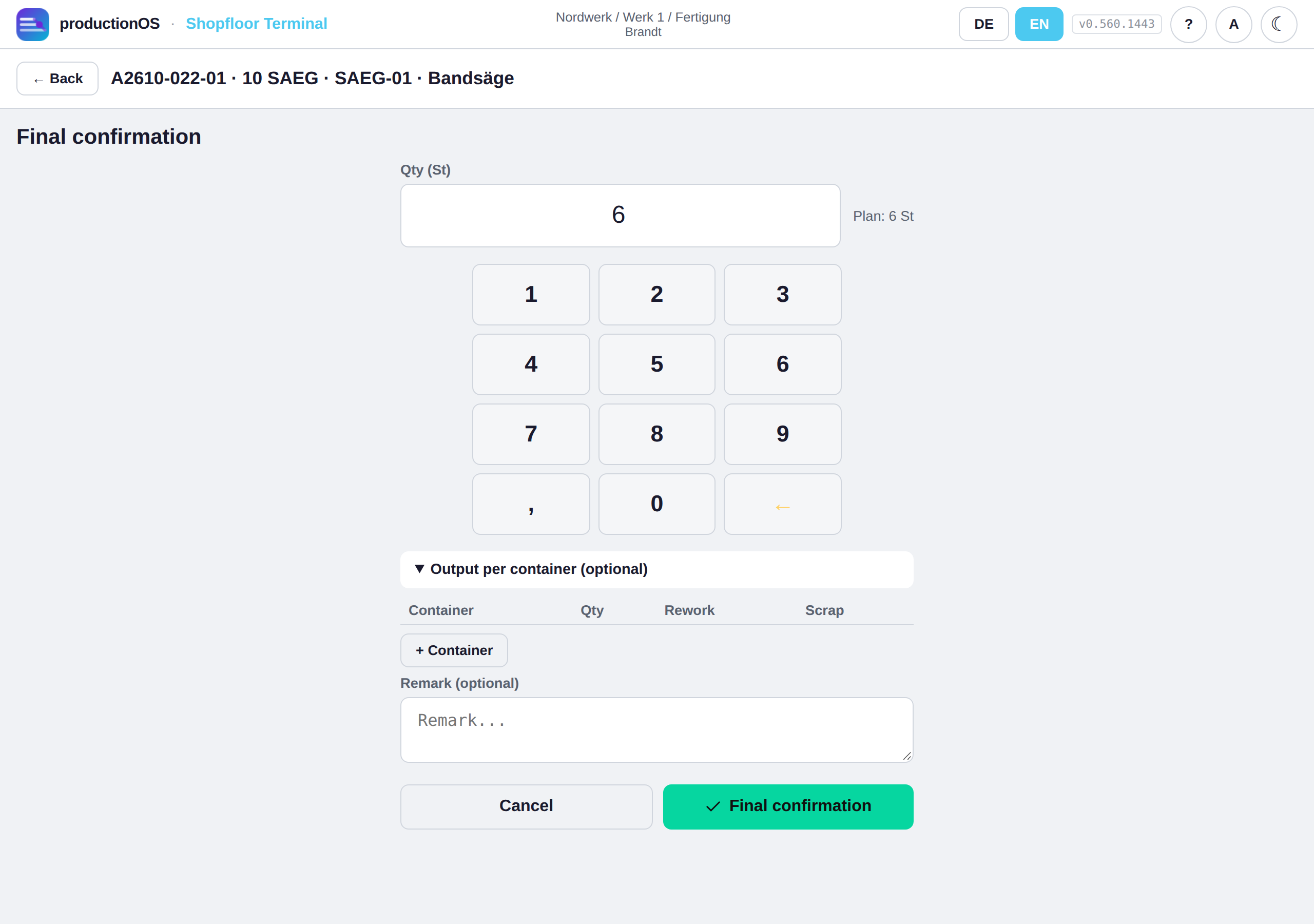
Output per container splits the quantity by package, with rework and scrap per line; the planned container from the plan is pre-filled. The total line points out deviations from the confirmed quantity without blocking. If the container is tracked individually, the field stays empty and asks for the identifier: the container itself is scanned, the system sets the type. An occupied, blocked or retired container is rejected; traceability uses the same identifier to find what is in it and what used to be in it. Each line creates a handover to the successor operation — for the last operation into stock — and a lot; the production storage costs run from the handover until the successor begins.
After the final confirmation the success message offers View performance summary — an offer, not a jump. Once the last operation of the last order is finished, the system completes the order and checks the events (date, quantity, quality).
4.10 Scrap and rework
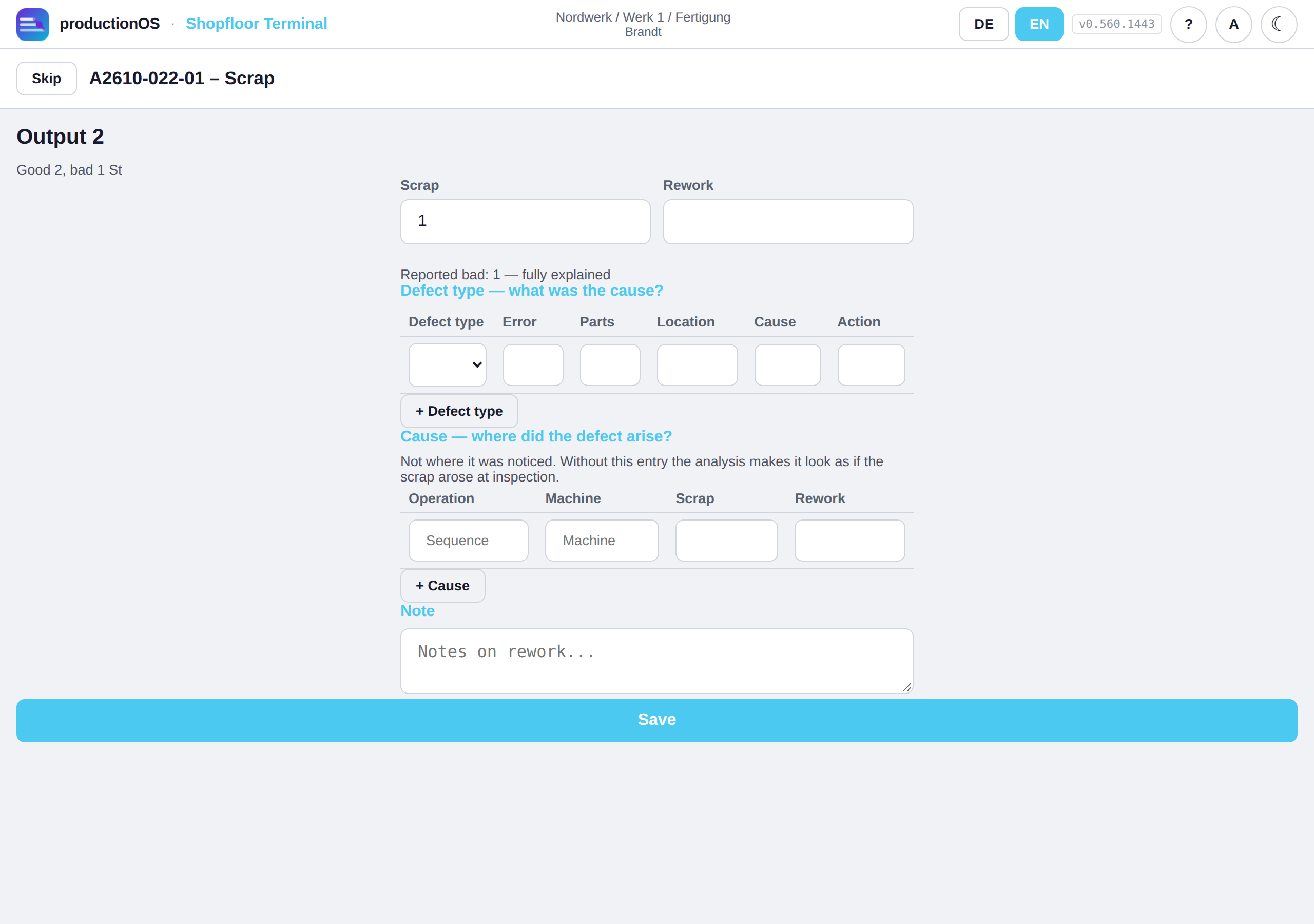
If bad parts were confirmed, the terminal asks directly — per output:
- Disposition — how many scrap, how many rework
- Defect type — what caused it; if a counting inspection exists, its defect types are suggested
- Cause — where the defect originated: operation and machine
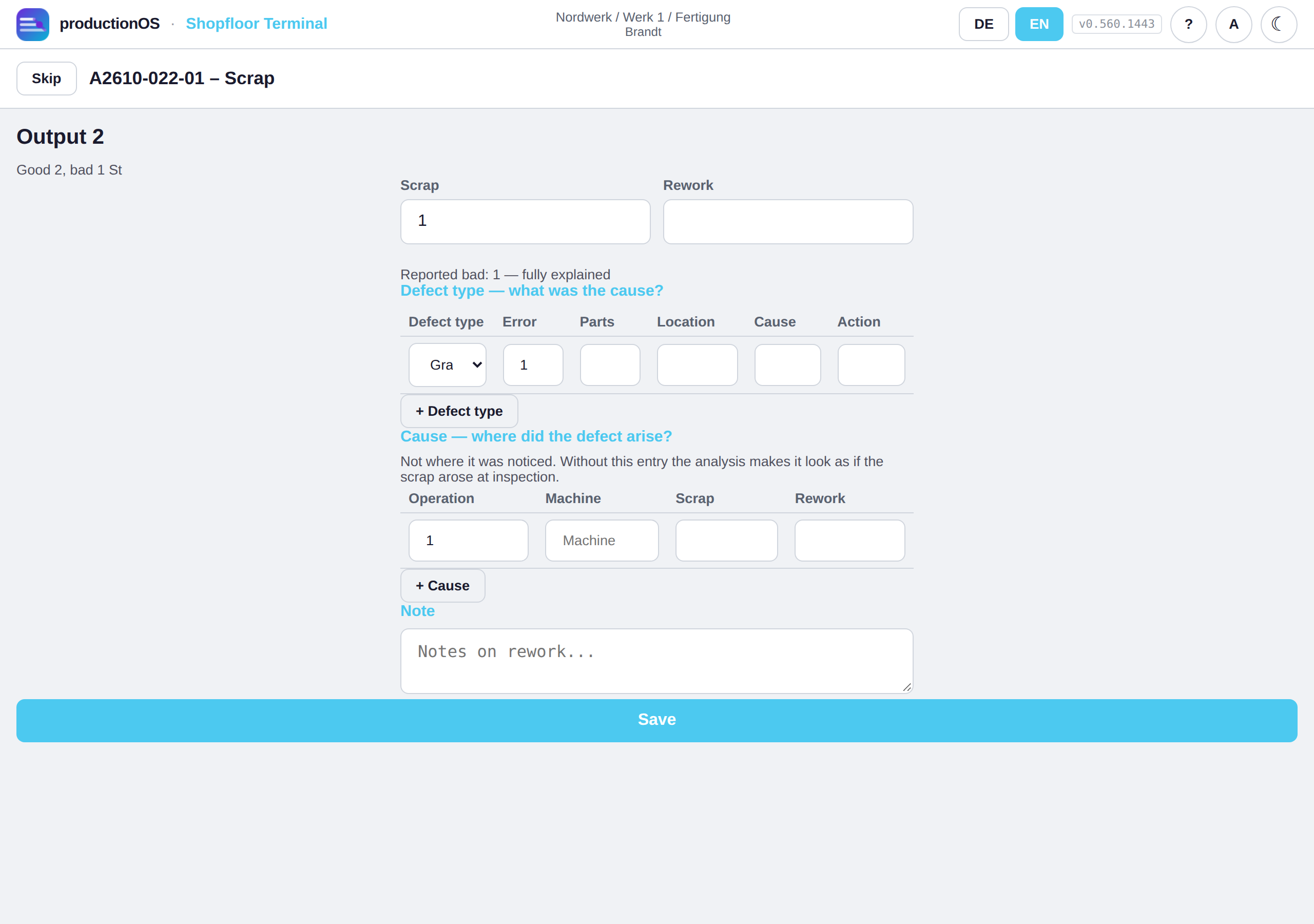
Item 3 is the actual purpose: a defect is noticed at final inspection, but it was caused three steps earlier. Without this assignment every analysis would look as if final inspection produced the scrap. Dispositioning more than was confirmed is rejected; less remains visible as unexplained. Skip is possible — nobody is blocked at the line. Rework opens a rework stage at the operation, which is booked like a run of its own.
4.11 Summary, traceability, warnings, finished
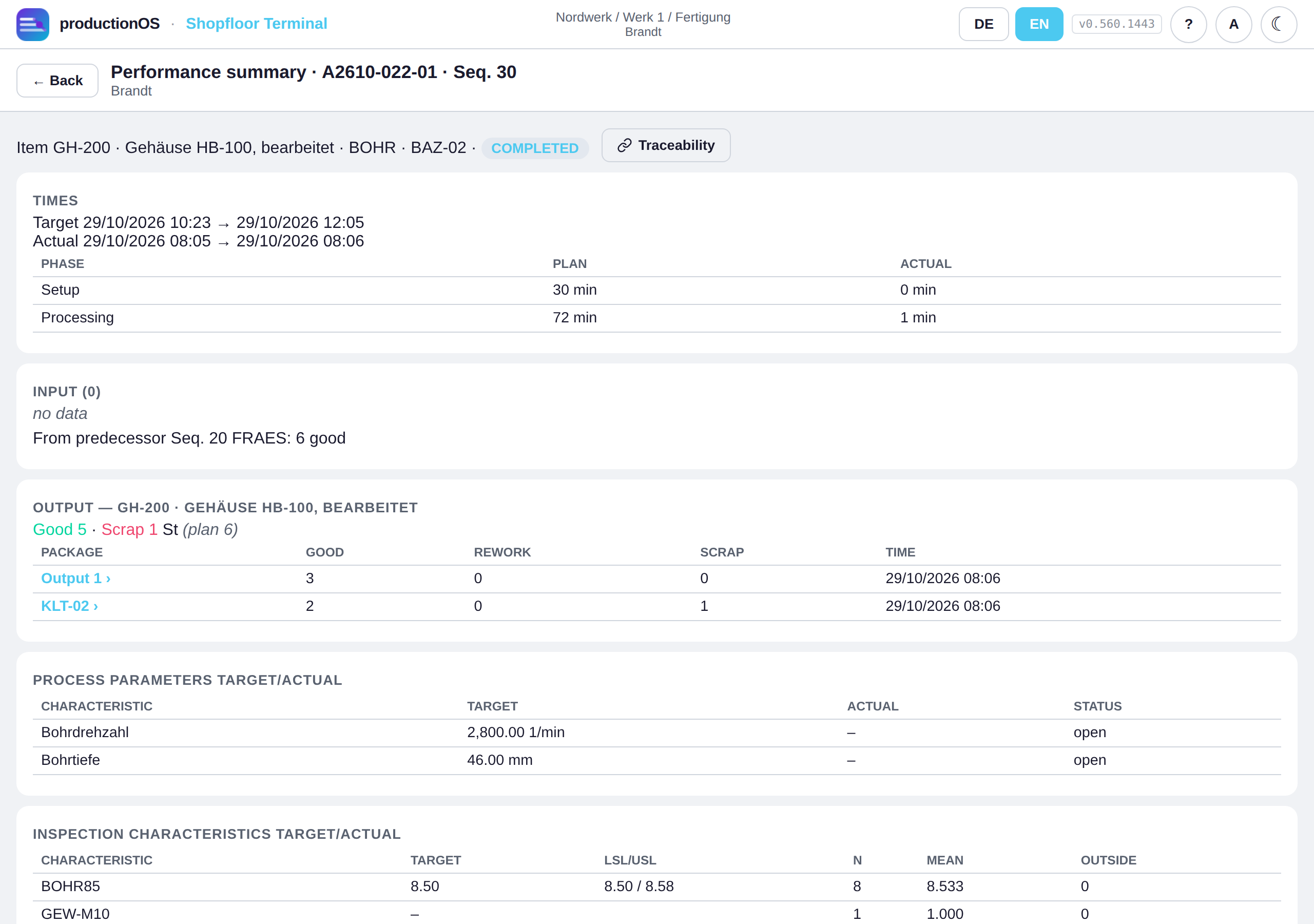
The performance summary of an operation in one view: times (plan versus actual per phase), input (lots and batches), output (packages with good / rework / scrap), process parameters target-actual from the process instruction, inspection characteristics target-actual from the inspection, costs plan-actual.
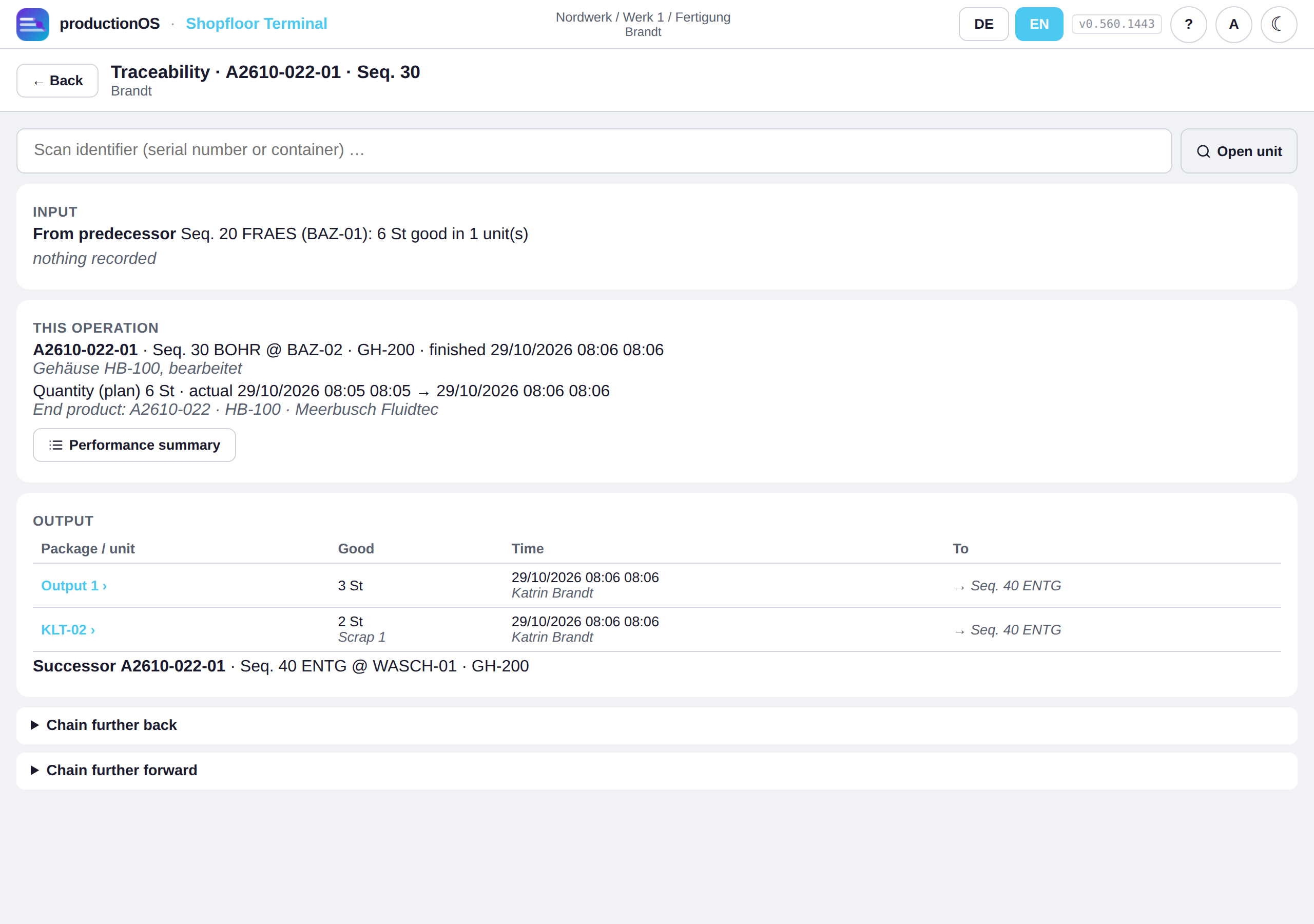
Traceability shows the same unit in both directions: where from (which lots and batches went in) and where to (which packages were created and who took them over). Summary and traceability refer to each other (button Traceability in the summary).
Traceability per unit and result after confirming
Traceability can also be started from a single piece. The unit has an identifier: the serial number, otherwise the package, otherwise the sequential number. Ways to get there:
- After DONE or OUTPUT the success message offers the button View result. The Reported view shows the processed input on the left and the units just created with their identifier on the right, per unit Traceability and Performance summary; Continue leads where it would have gone without the view. It only appears on request, never by itself.
- In the operation, tap the list of confirmed units.
- In the summary, tap a package; in traceability, a line under To.
- In traceability, scan or type in the identifier.
Traceability per unit shows what exactly this piece is made of: every input lot with quantity and share. Calculated means the quantity was distributed according to the ratio of the yield; recorded means it was added later in the main frontend under Batches. If an input came from an upstream operation, tapping leads one level back — to the unit there if the package is known, otherwise to the operation. If an operation did not consume any material (e.g. inspection), the predecessor from which the unit emerged is shown there. The predecessor's unit is unambiguous only with the same package or if it delivered exactly one unit; otherwise the terminal shows the operation and does not claim a single unit.
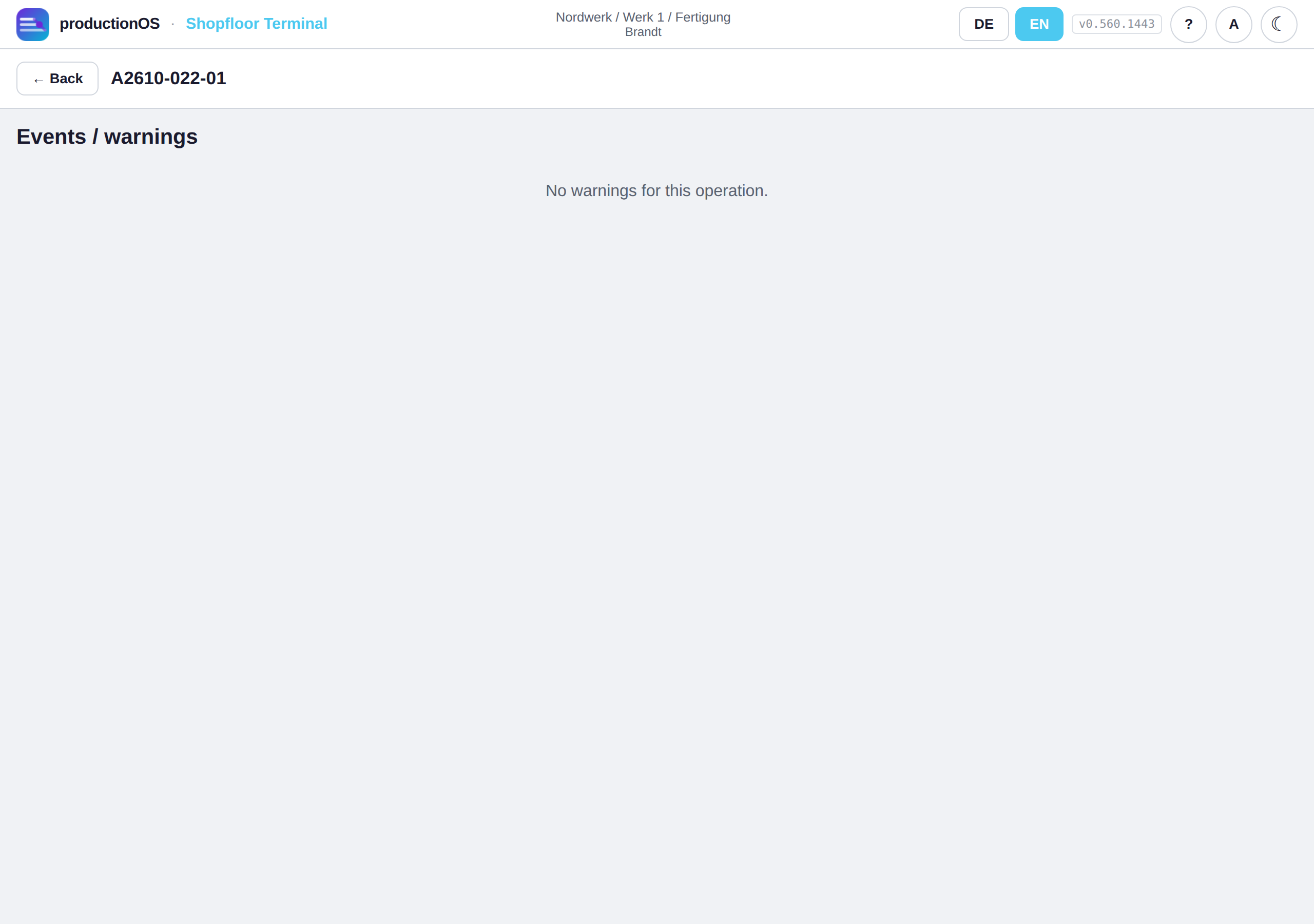
Warnings collects the events of the operation — measured values outside the tolerance, start outside the time window, a duration above plan (in the screenshot: Sägen (sawing) 13 instead of 3 min per piece) — in a separate view. The button only appears when there is something to report.
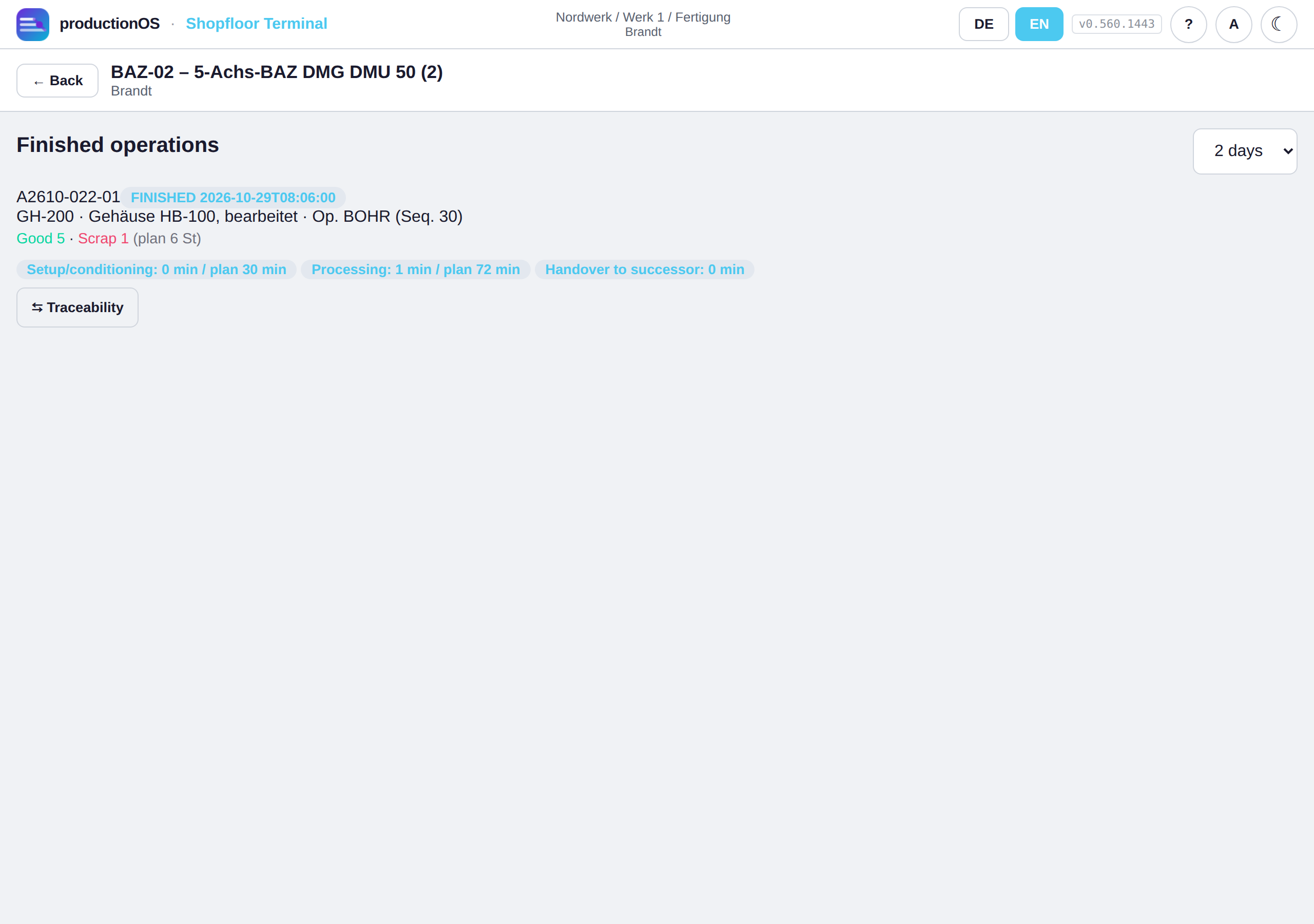
Finished lists the operations most recently given final confirmation at this machine with good and scrap quantity, times and a jump into traceability.
4.12 Weighing a mix — the recipe at the terminal
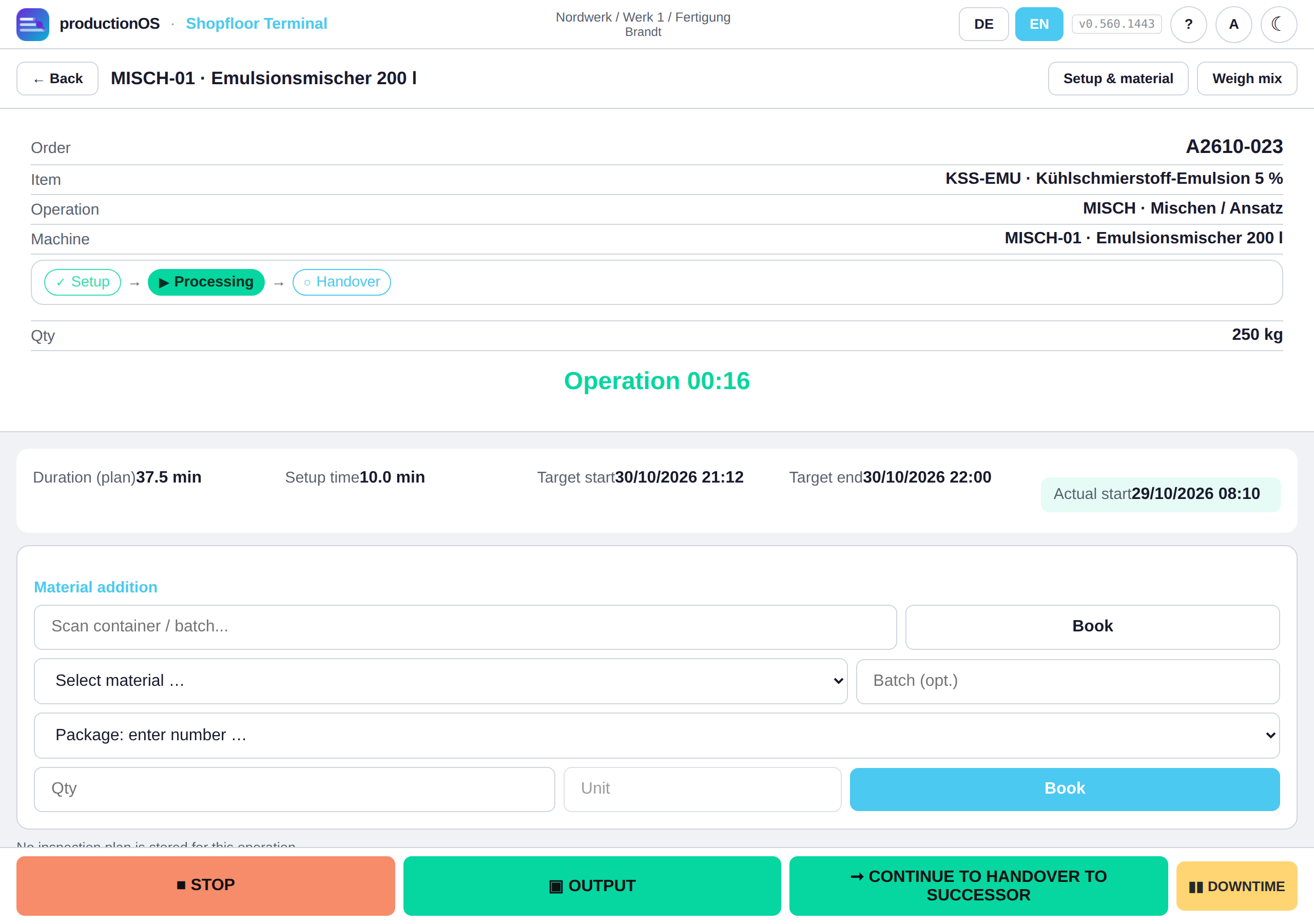
If the operation has a recipe with proportions, its screen carries the button Weigh mix at the top right. It leads into recipe execution — the counterpart to the legacy system's form, in which the recipe is copied into the order on first opening and the operator is guided through a cumulative weighing.
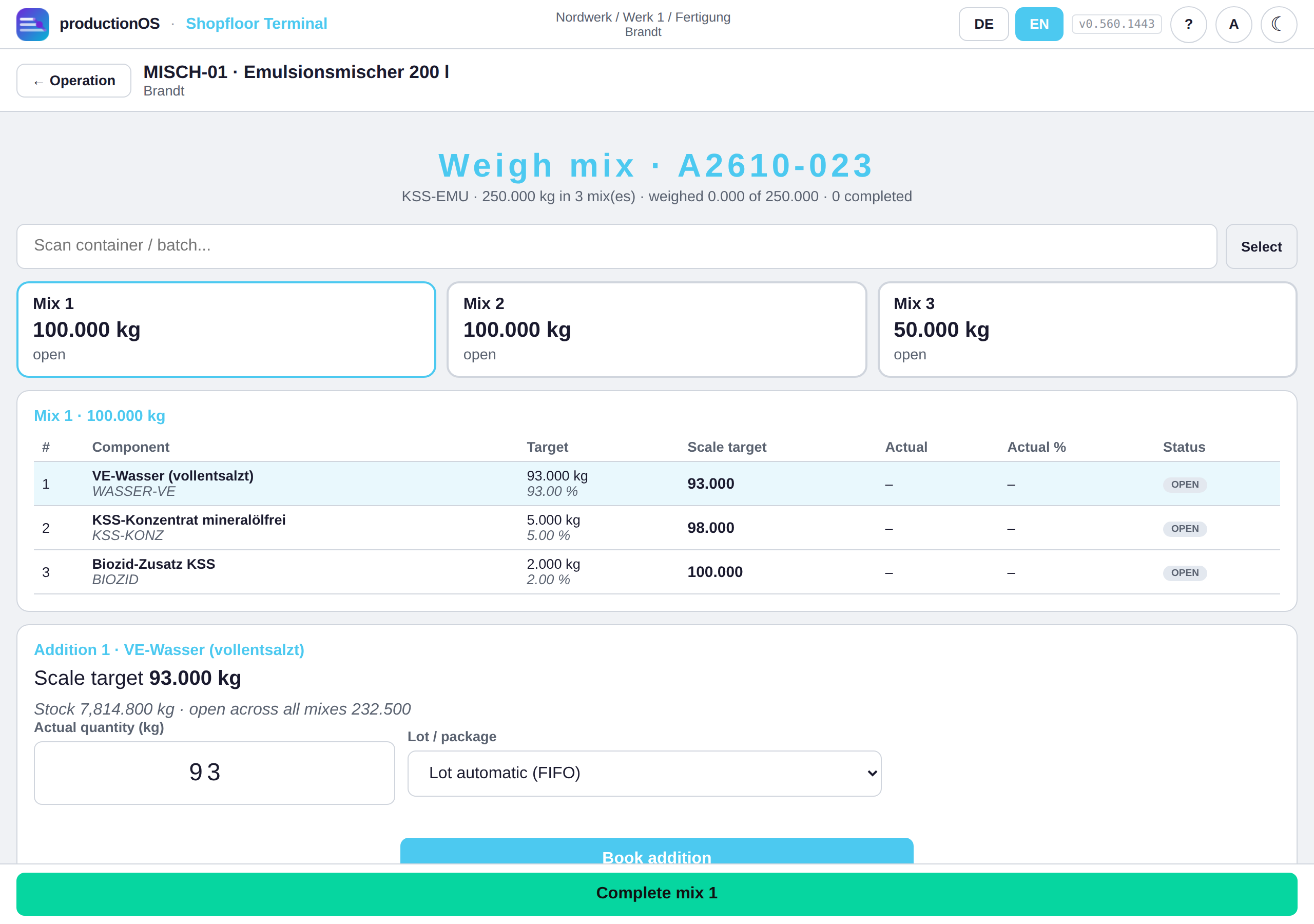
On first opening the recipe is frozen into the order as a specification: one line per mix and component. Until then the recipe may change; from now on it is documented what was weighed against. At the top the mixes as cards (100 / 100 / 50 kg), below them the components of the selected mix in addition position with target, Scale target, actual and actual share.
Scale target is the decisive column: not “5 kg concentrate”, but “the scale shows 98 kg once the concentrate is in”. Coarse first, precise at the end, and the total must be right — that is how the person at the mixer works, and that is how the screen guides.
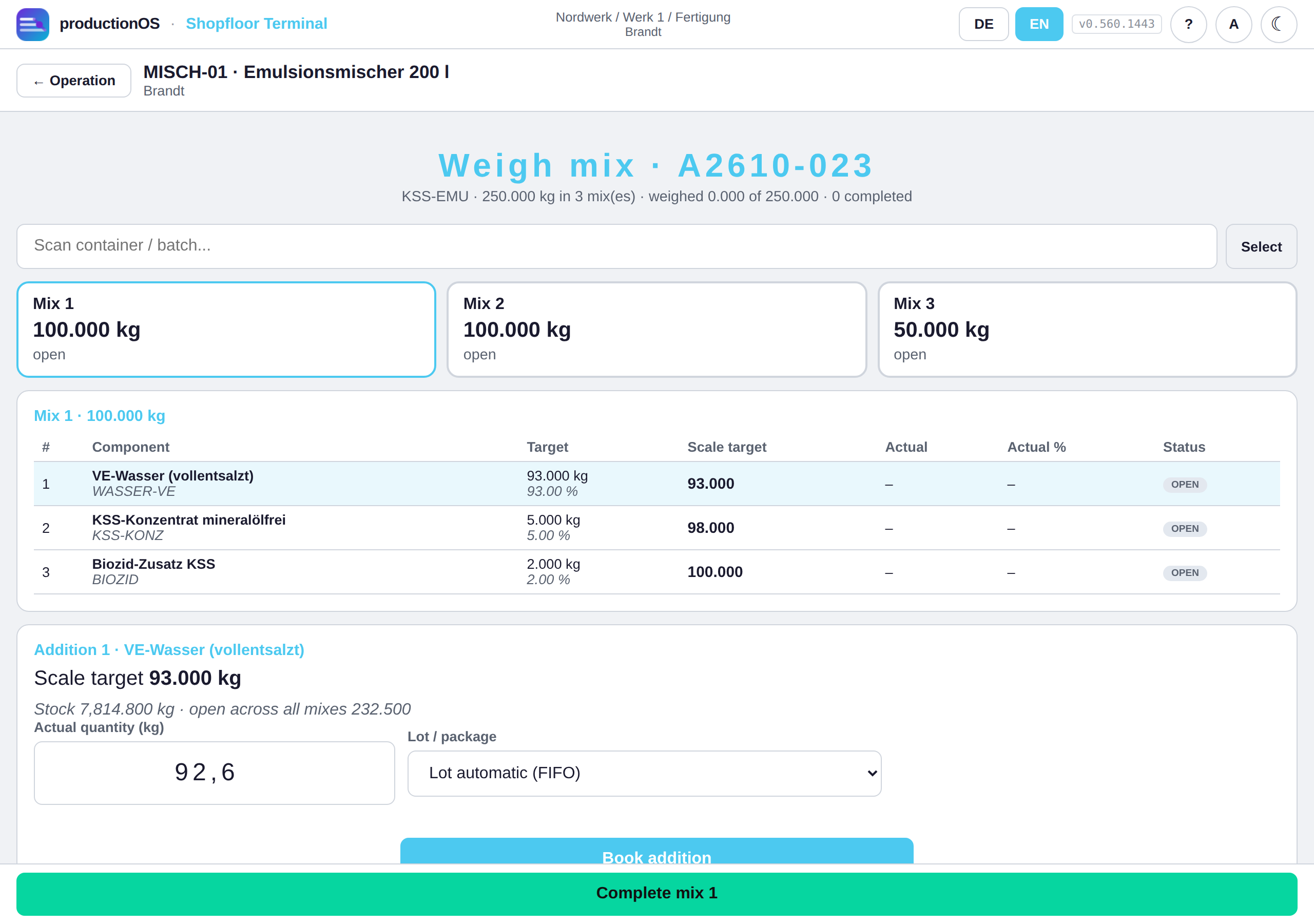
Tap a component, enter the actual quantity from the scale, choose a lot (the oldest first, or by scan the package that actually stands in front of the mixer), Book addition. Every addition is a material booking as in 4.6: it records the lot, books stock and costs and binds the consumption to the mix.
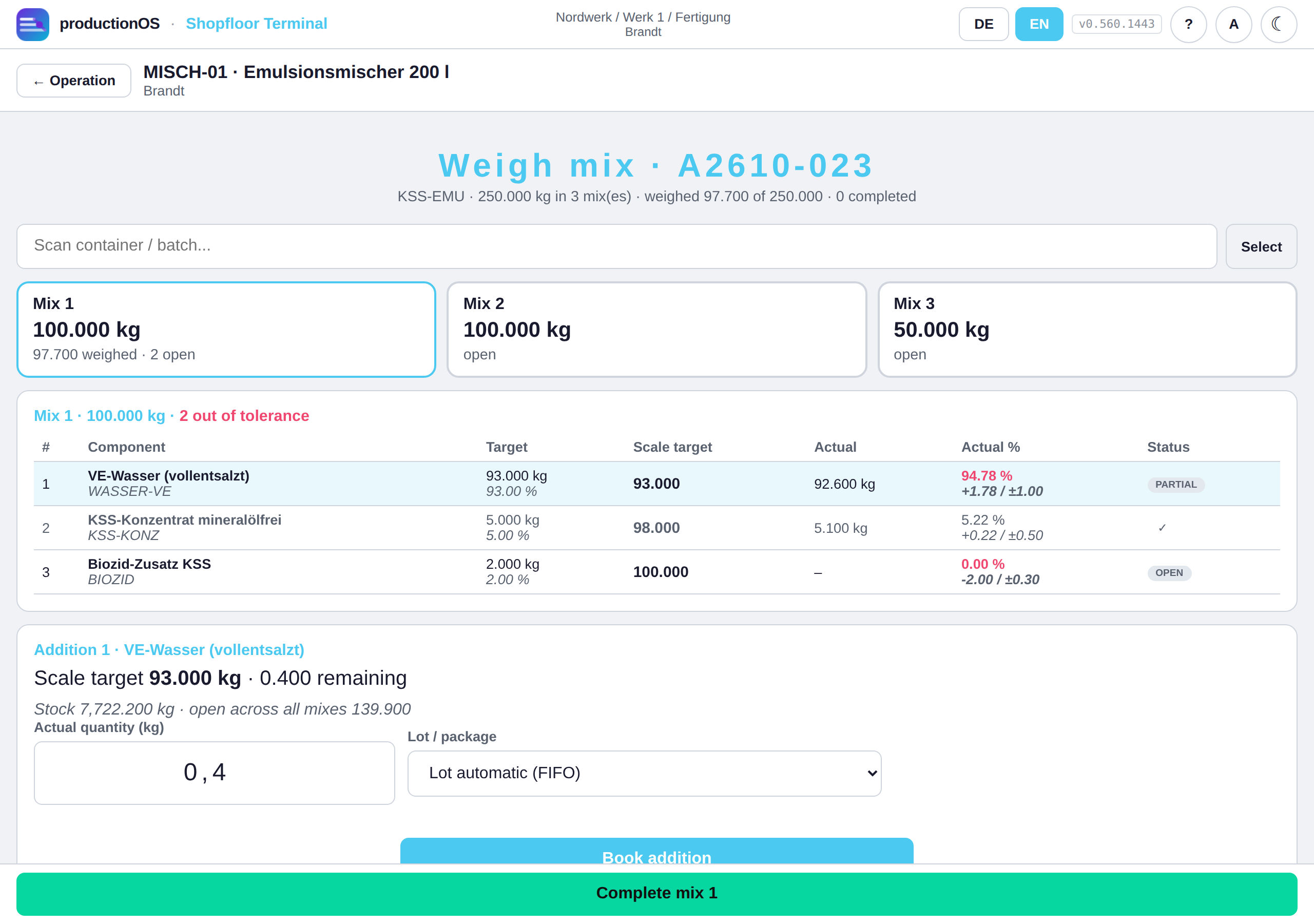
After each addition the screen calculates the actual share back. In the screenshot 0.4 kg of water is missing (92.6 instead of 93 kg): the line is set to partial, the deviation is red, the header says 2 out of tolerance — and the screen offers topping up (0.400 remaining). Deviations are shown, not forbidden: the legacy system records both, and what the operator weighed is the truth, not the specification.
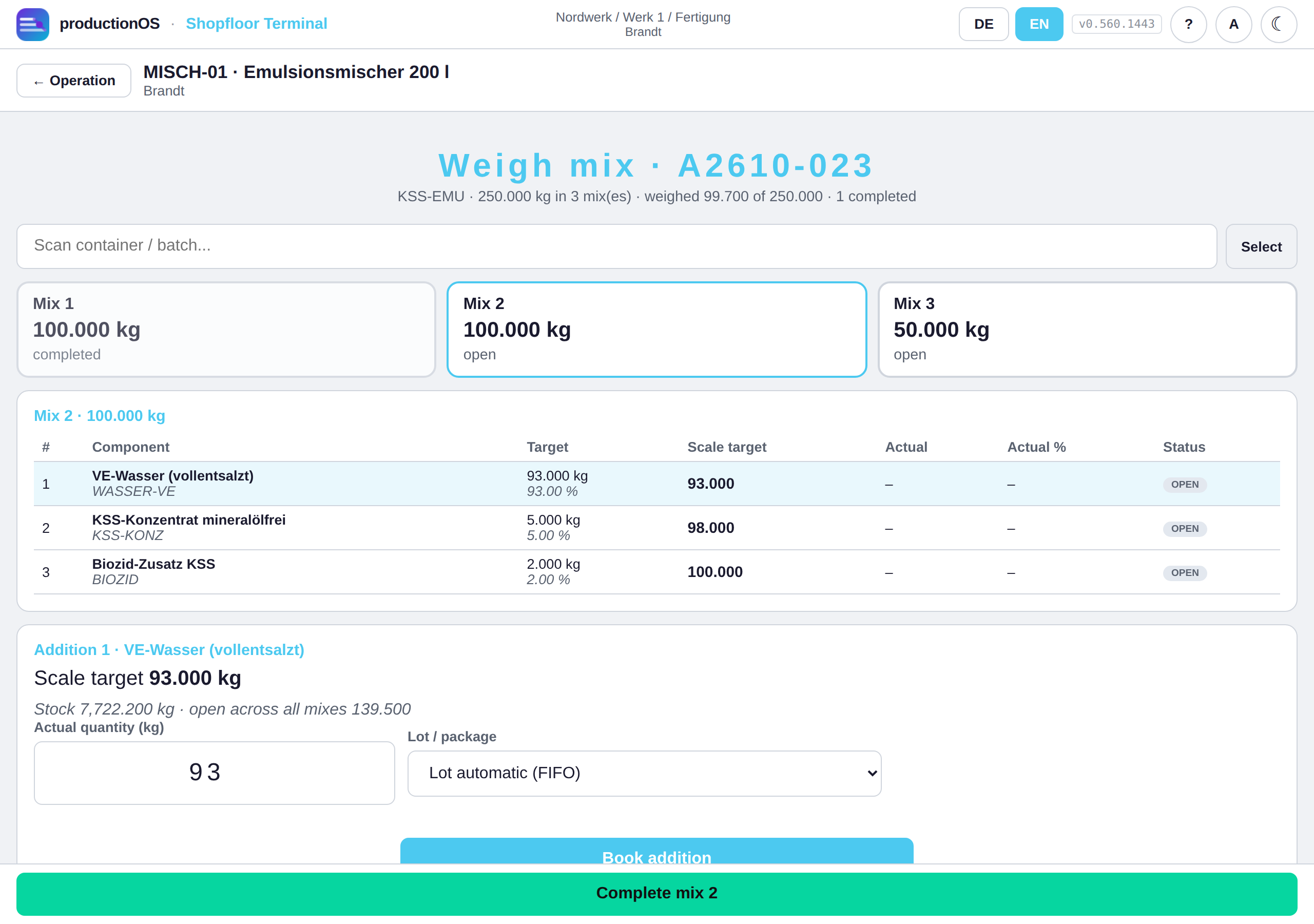
Complete mix checks completeness and tolerance; if a component is missing entirely, the server asks, anyway is possible. The mix is then completed with its weighed quantity (here 99.7 kg), and the next mix is up. The stock preview per component shows whether the remainder is sufficient for all open mixes.
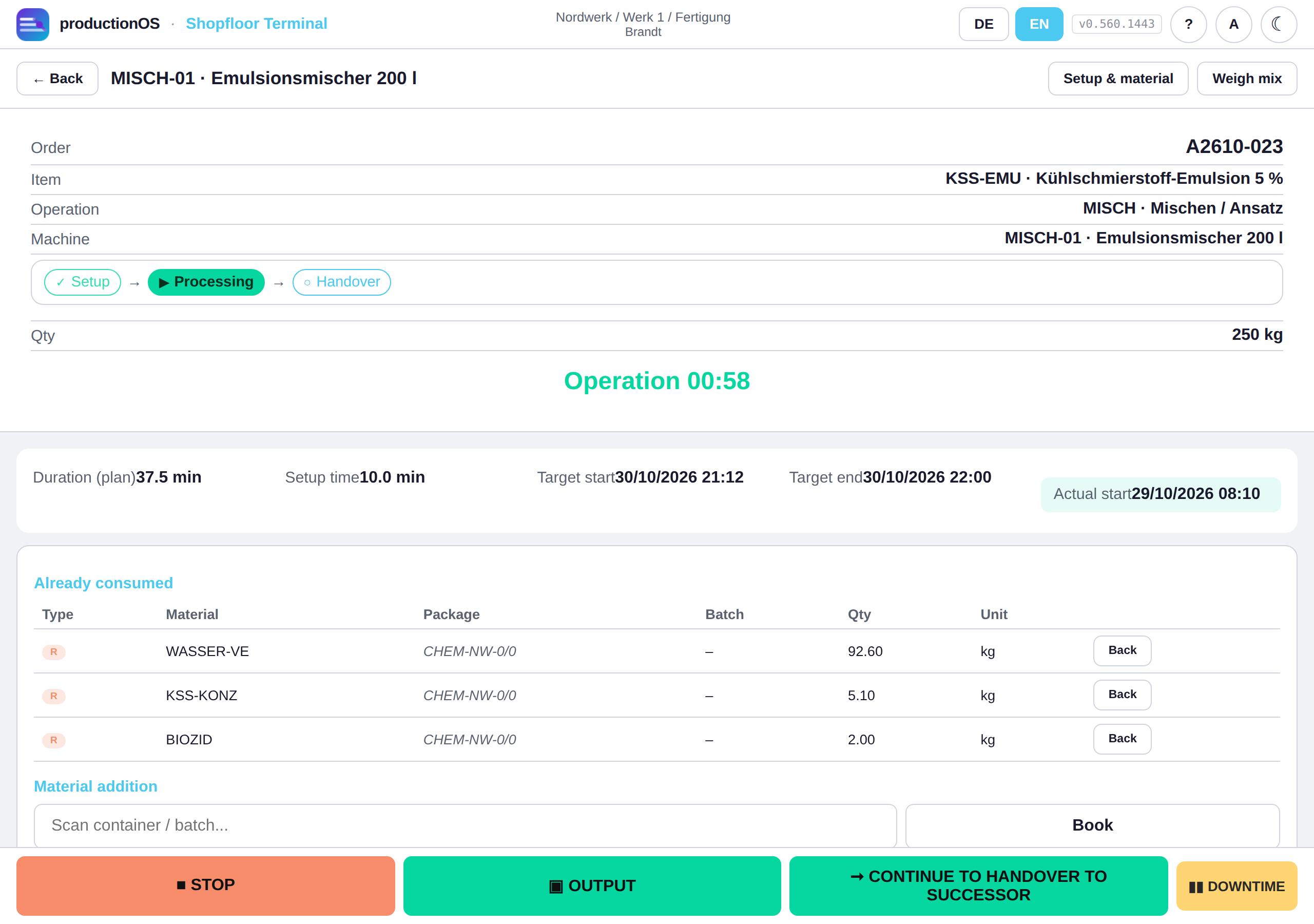
Report output from mix 1 leads back to the operation, which now shows the three additions under Already consumed, and remembers the mix as origin: OUTPUT then reports from this mix. The batch composition of the confirmed outputs takes only the consumptions of this mix, instead of distributing all open consumptions of the operation in proportion to quantity. Traceability thus shows which concentrate lot is in which package of emulsion — mix 2 went into lot 4711, not “some mix”.
4.13 My operations and the shift at the terminal
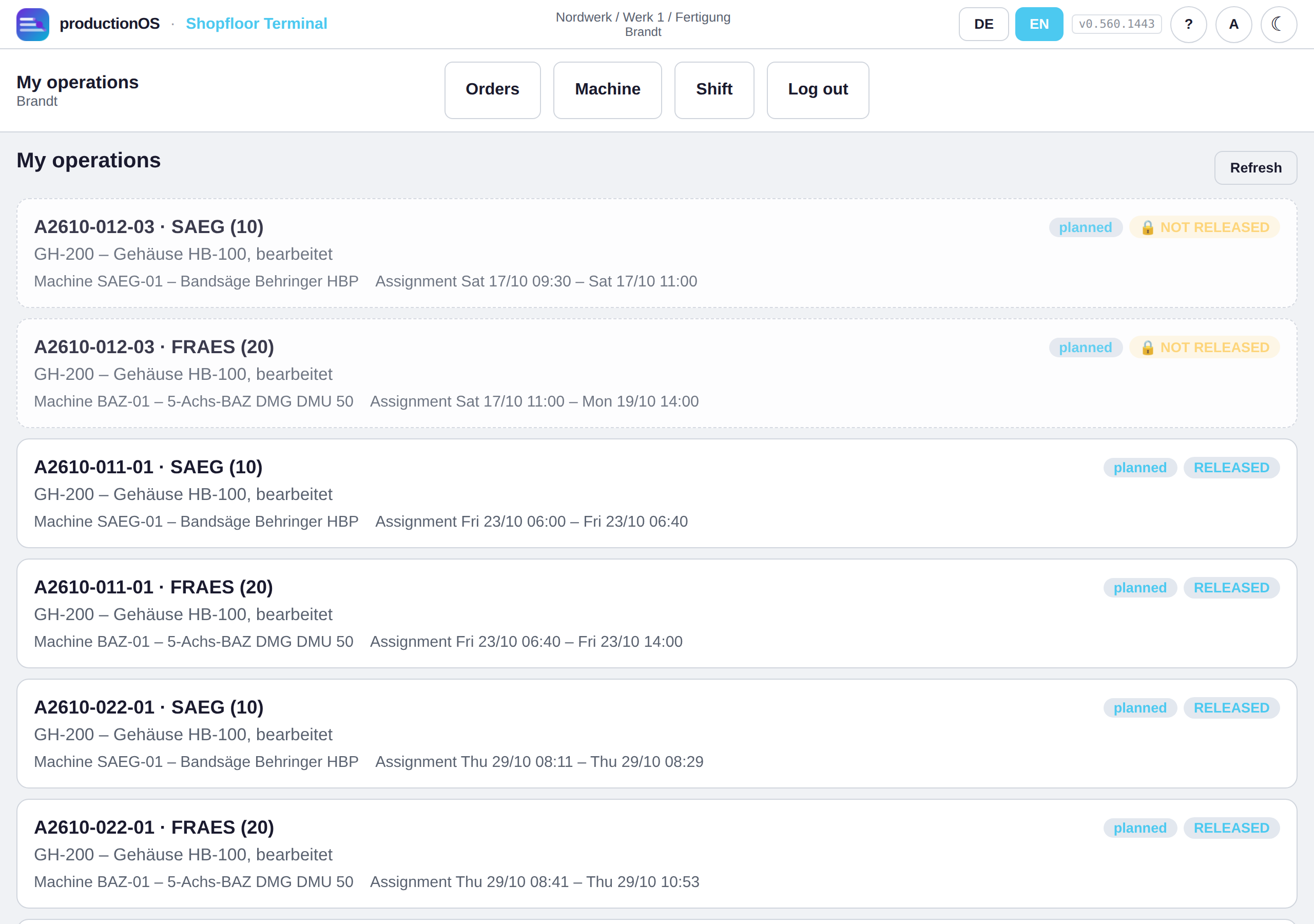
Mine lists the operations for which the signed-in person is scheduled or manually assigned, open and not yet completed, in the sequence of their own deployment: order, operation, machine, deployment window and status (running, overdue). Tapping selects the machine and leads via setup into the operation. Every phase opened at the terminal carries the employee ID of the signed-in person — this is how the actual time per person arises for shift supervisors, personnel costs and CO2.
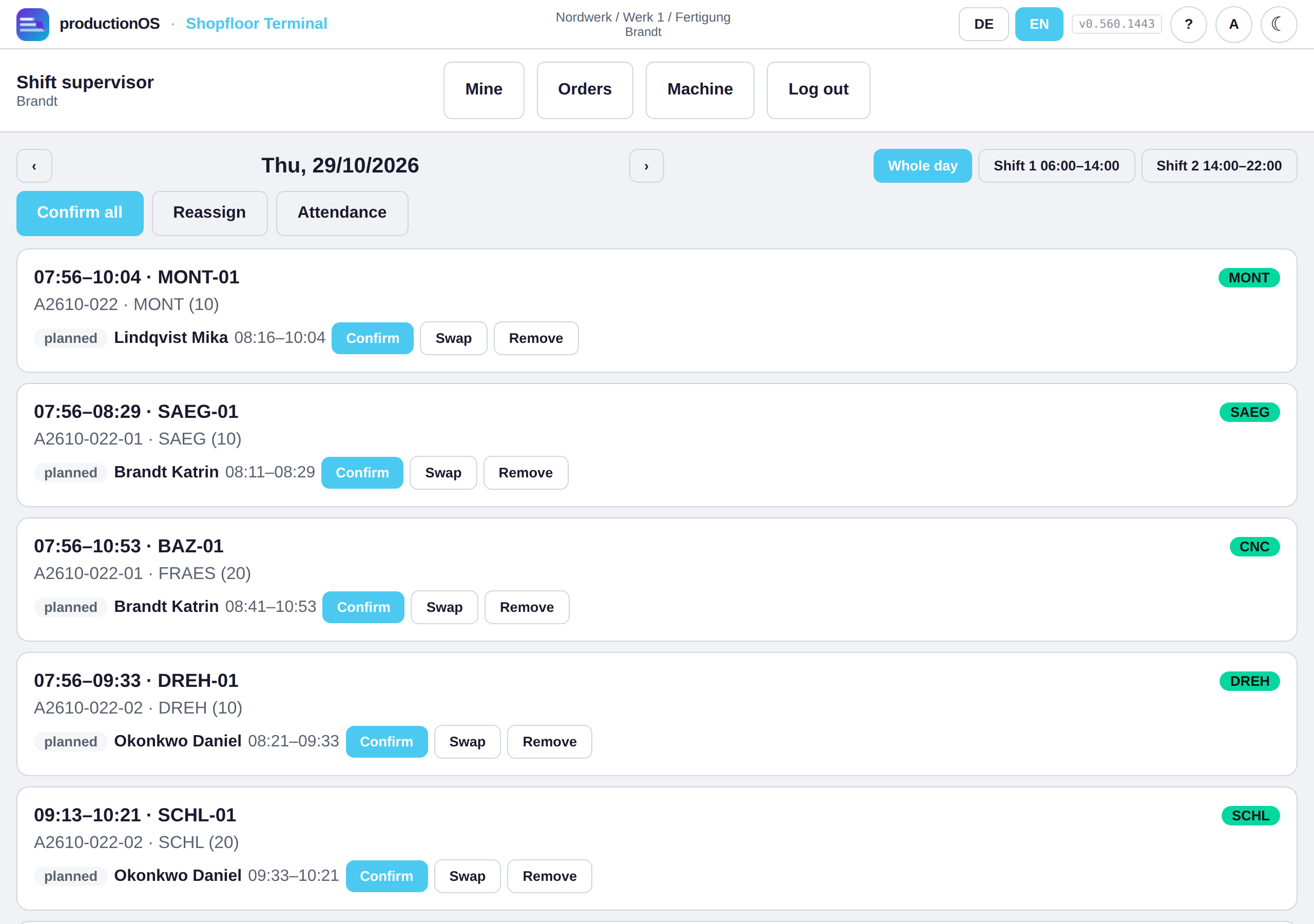
Shift is visible only to people with the additional role shift supervisor (or planners and administrators). It is the same view as in the main frontend (3.12), built for touch: day forward/back, select a shift, per operation the skill requirement (green covered, red uncovered) and the reserved people with Confirm, Swap and Remove; in addition Confirm all, Reassign and Attendance, to enter a sick note directly.
Part 5 — Analysis
The analyses read what planning and the terminal have written — none of it is maintained by hand. The screenshots show order A2608-004 (6 blocks), fully produced in August, and A2610-013, which is currently running.
5.1 Costs: plan versus actual
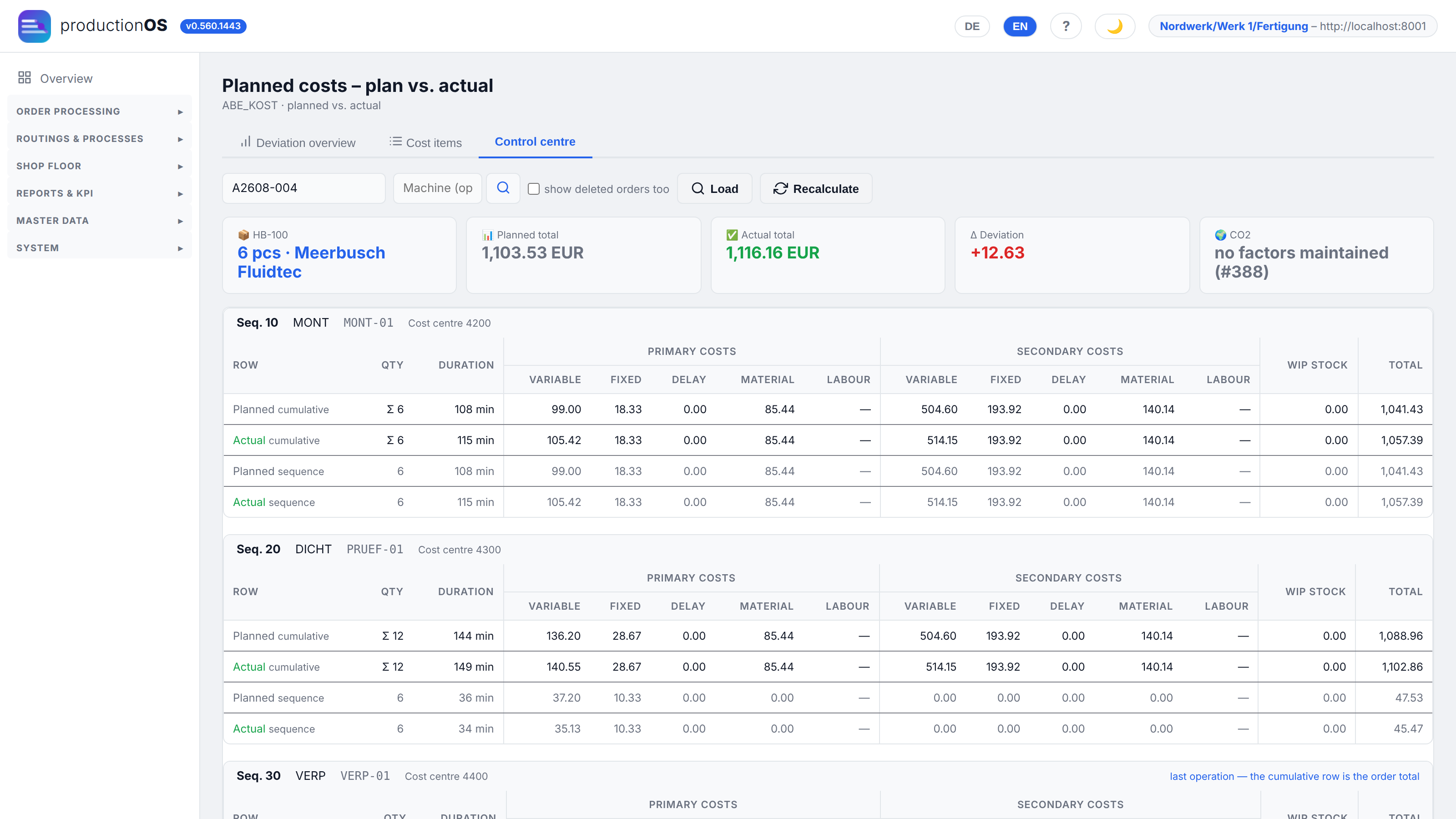
For each operation, planned and actual costs are broken down into variable / fixed / delay / material / labour, with primary (this order) and secondary (its sub-orders) shown separately, plus the WIP stock costs. The header line totals: planned 1,103.53 EUR, actual 1,116.16 EUR, deviation +12.63 EUR. The Control centre tab shows the deviation per operation, Cost items the individual lines.
What is included and what is not: machine costs from hourly rate × actual duration (setup counts too), material costs from the booked consumption, delay from the waiting time before the operation, storage costs from the idle time between handover and take-over. Tools cost their hourly rate from the tool master × usage duration × count and — as in the legacy system — are included in the material of the operation at which they are mounted; in the plan, the usage duration is setup + processing + teardown of that operation. When rolling up to higher-level items they count once per lot, like setup costs. Not included are overheads and a scrap surcharge. The actual calculation is triggered by the final confirmation; Recalculate recalculates an order.
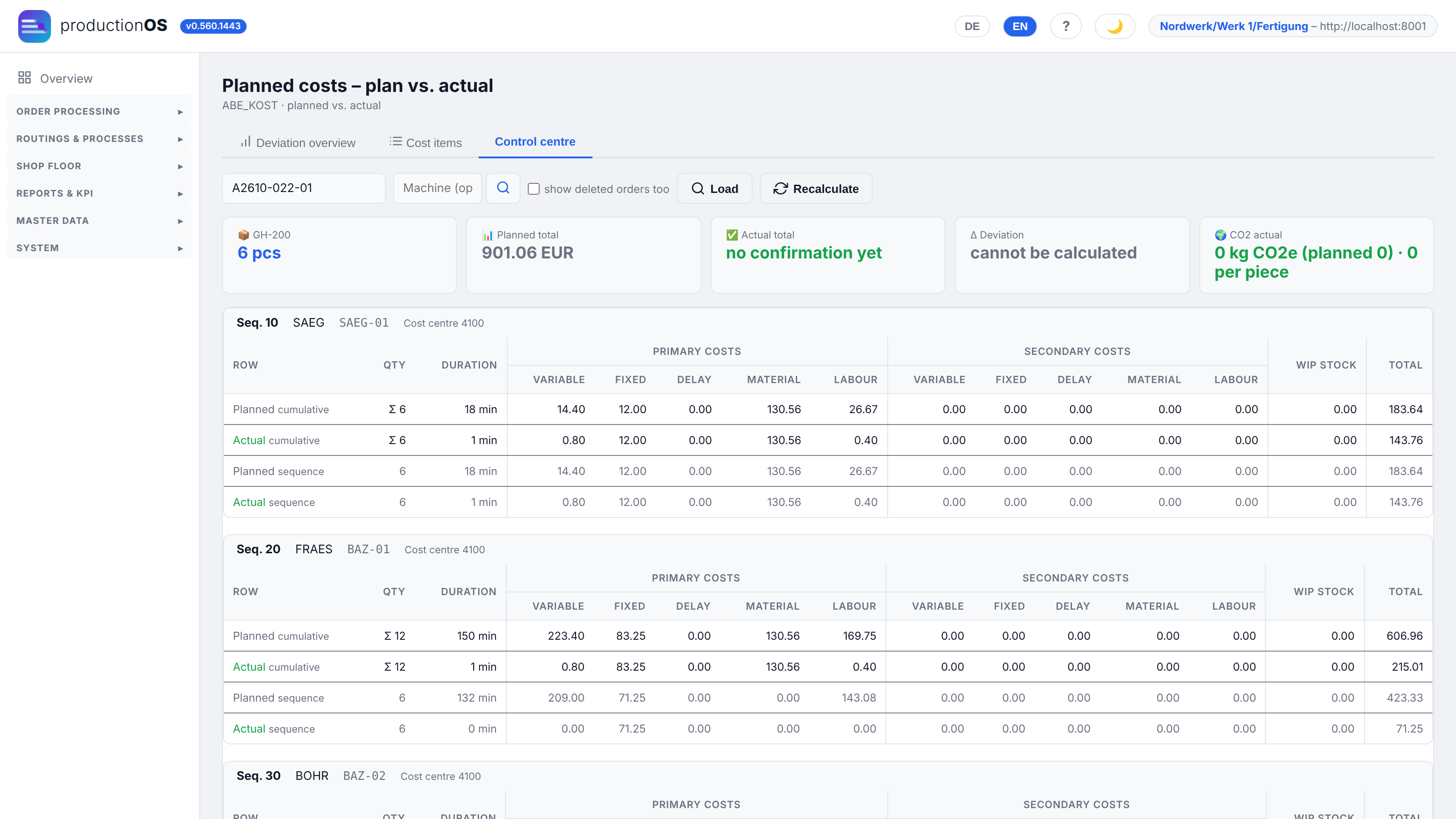
Labour costs are calculated for a tenant that has switched on Calculate labour costs in the operating model. They appear in a separate column, never in the machine rate:
- Planned per phase = duration × persons × loading share × rate of the phase's wage group (1.5).
- Actual = time booked at the terminal per person × rate of their wage group. If one person attends to several operations at the same time, they share that person's time.
- Secondary are the labour costs of the sub-orders.
The screenshot shows the housing sub-order on the current day: sawing plans 18 min of labour (26.67 EUR) and took 13 min (10.10 EUR). Older orders such as A2608-004 above show "—" in the column: they were calculated before the switch was on, and their confirmations carry no employee ID.
5.2 Plan/actual comparison and performance summary
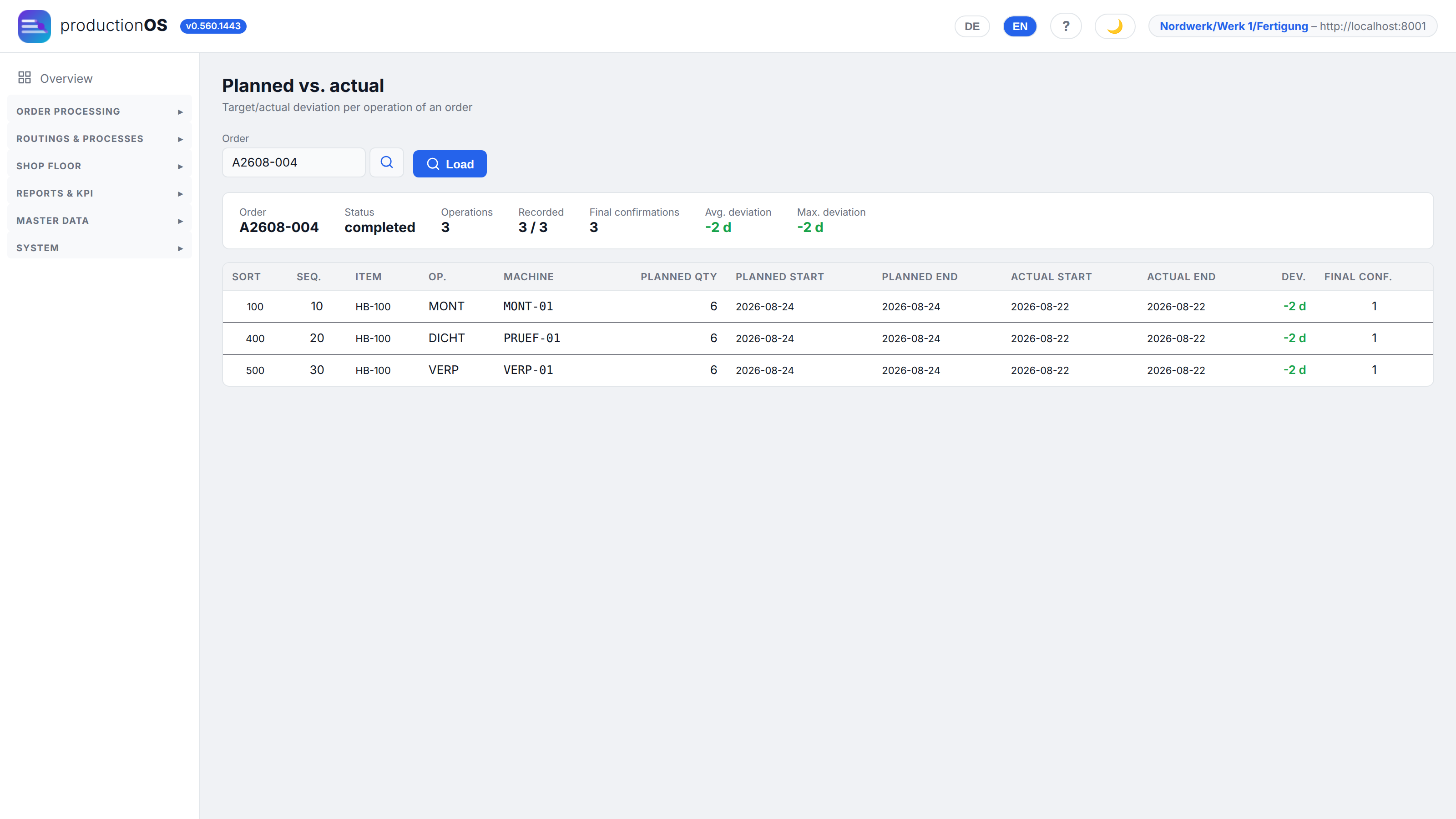
The plan/actual comparison sets planned start/end against actual start/end for each operation and gives the deviation in days and the quantities. Here one can see whether an order ran earlier than scheduled — in the demo case Friday morning to Saturday midday instead of Saturday evening to Monday, because more capacity was free.
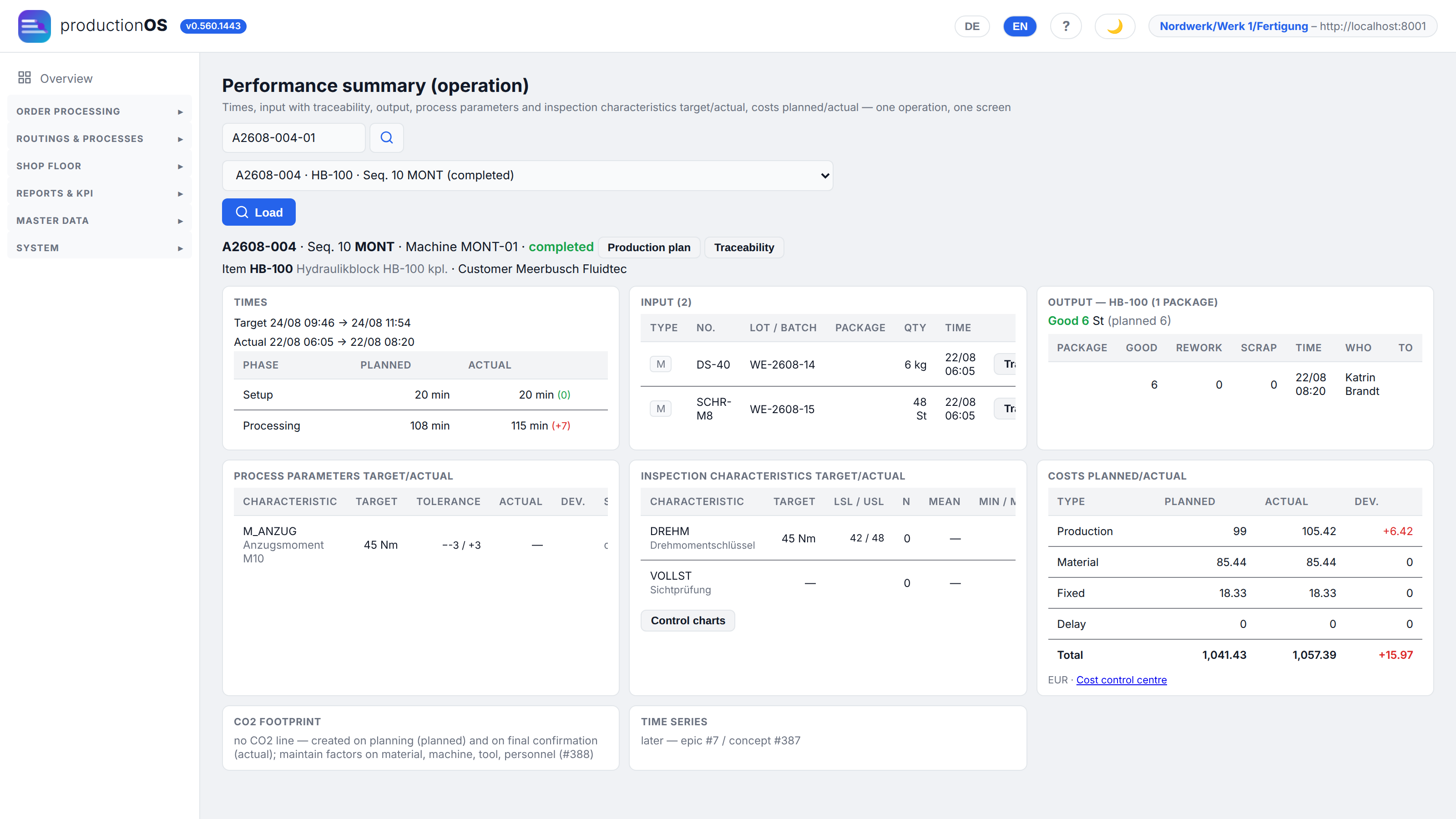
The performance summary of an operation is the same view as at the terminal (4.11), here with links to the control chart and the cost control centre: times per phase, input with lots, output with packages, process parameters target/actual, inspection characteristics with n, mean and number out of range, costs planned/actual, CO2 footprint per piece (once emission factors are maintained).
5.3 Traceability and batches
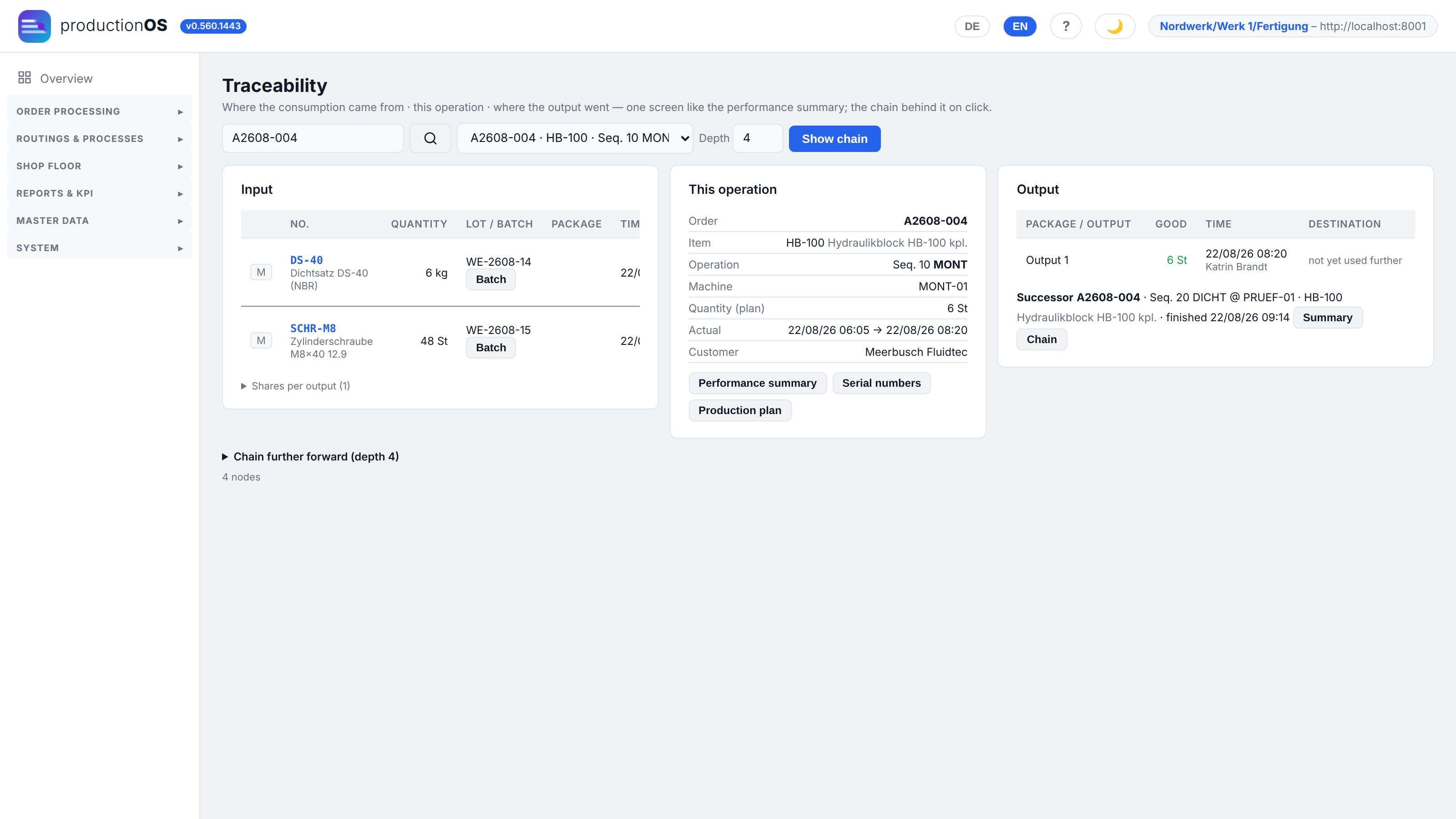
Traceability shows three cards for an operation: where from (consumption: which lot, which batch, which supplier), this operation (times, quantities, end product and customer) and where to (output packages and who took them over) — with adjustable depth across several levels. The chain behind it:
Goods receipt       lot (supplier, batch)
   │
   ▼ consumption recorded
abe_ein             which lot was actually consumed (scan before FIFO)
   │
   ▼ assignment per output
abe_oe              consumption ↔ output, with quantity share
   │
   ▼
abe_out             the output itself
The share (v_proz) is the share of the output's inputs, not of its output quantity.
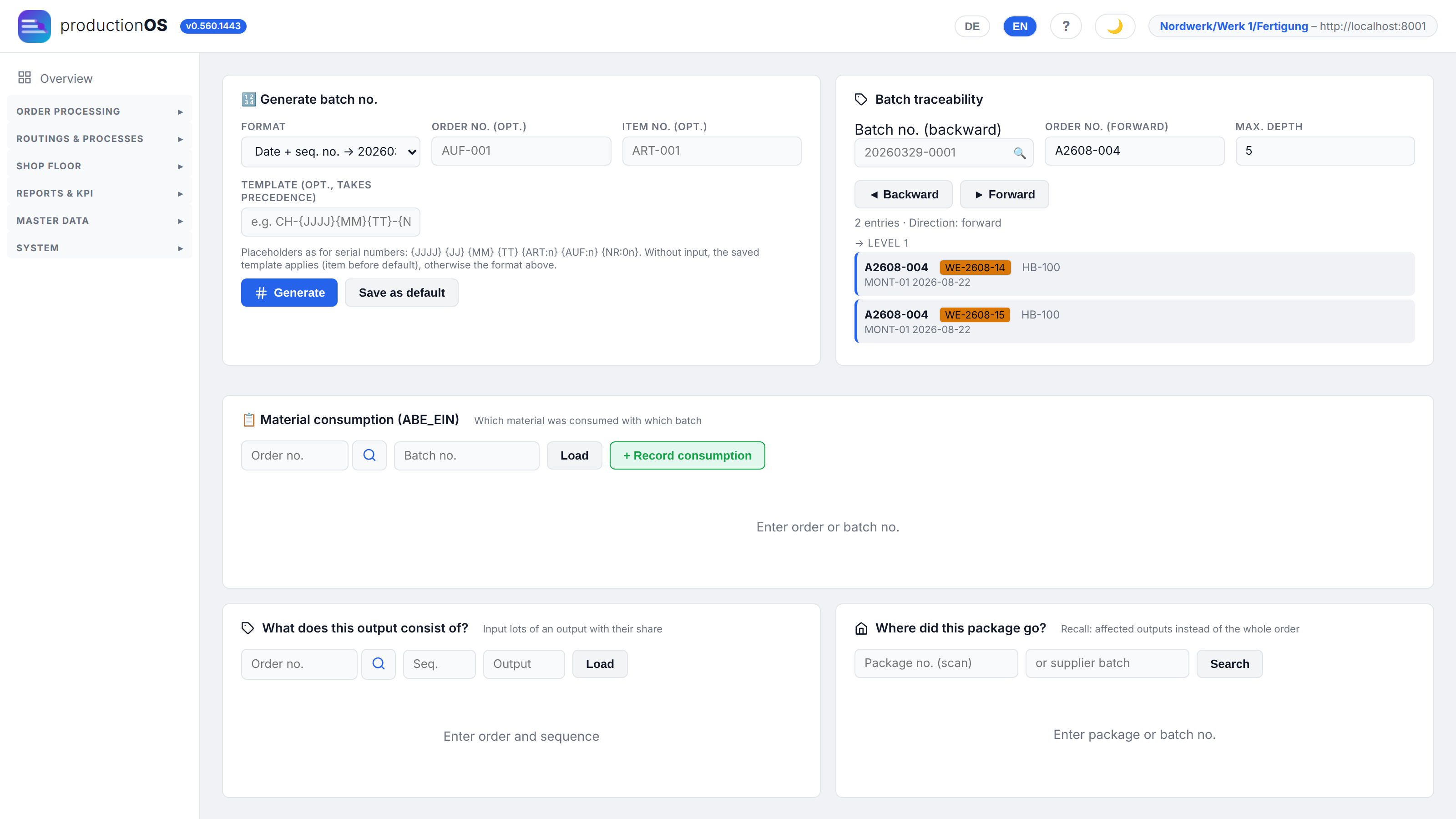
Batches is the view starting from the number: generate batch numbers from a pattern, trace a batch forward (from the customer order: where did the material go?) or backward (from the output: what went into it?), view material consumptions per order, search for a package. Batch number and serial number are the same thing here (Part 7).
5.4 KPI, OEE and disruptions
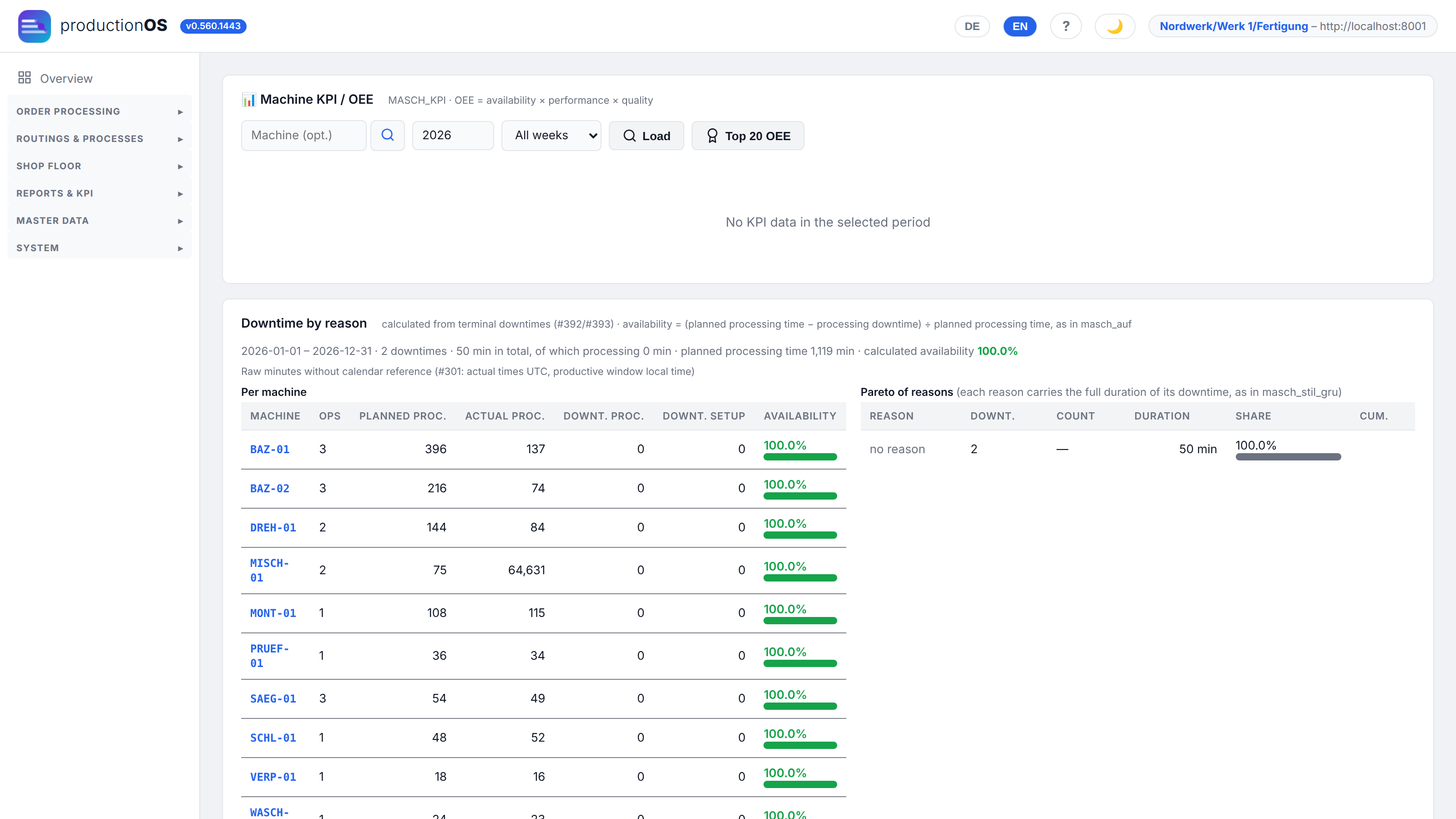
OEE = availability × performance × quality. Availability comes from the terminal's downtimes (planned time minus downtime), performance from planned processing time versus actual, quality from good versus total. The Downtime by reason table shows, per machine, planned and actual processing time, downtime with and without a reason, and the availability rate; on the right is the Pareto list of reasons — no reason is listed there explicitly, so that unexplained losses do not disappear.
The legacy system's KPI table (daily values per machine) is not yet written by us; the OEE view calculates directly from the confirmations.
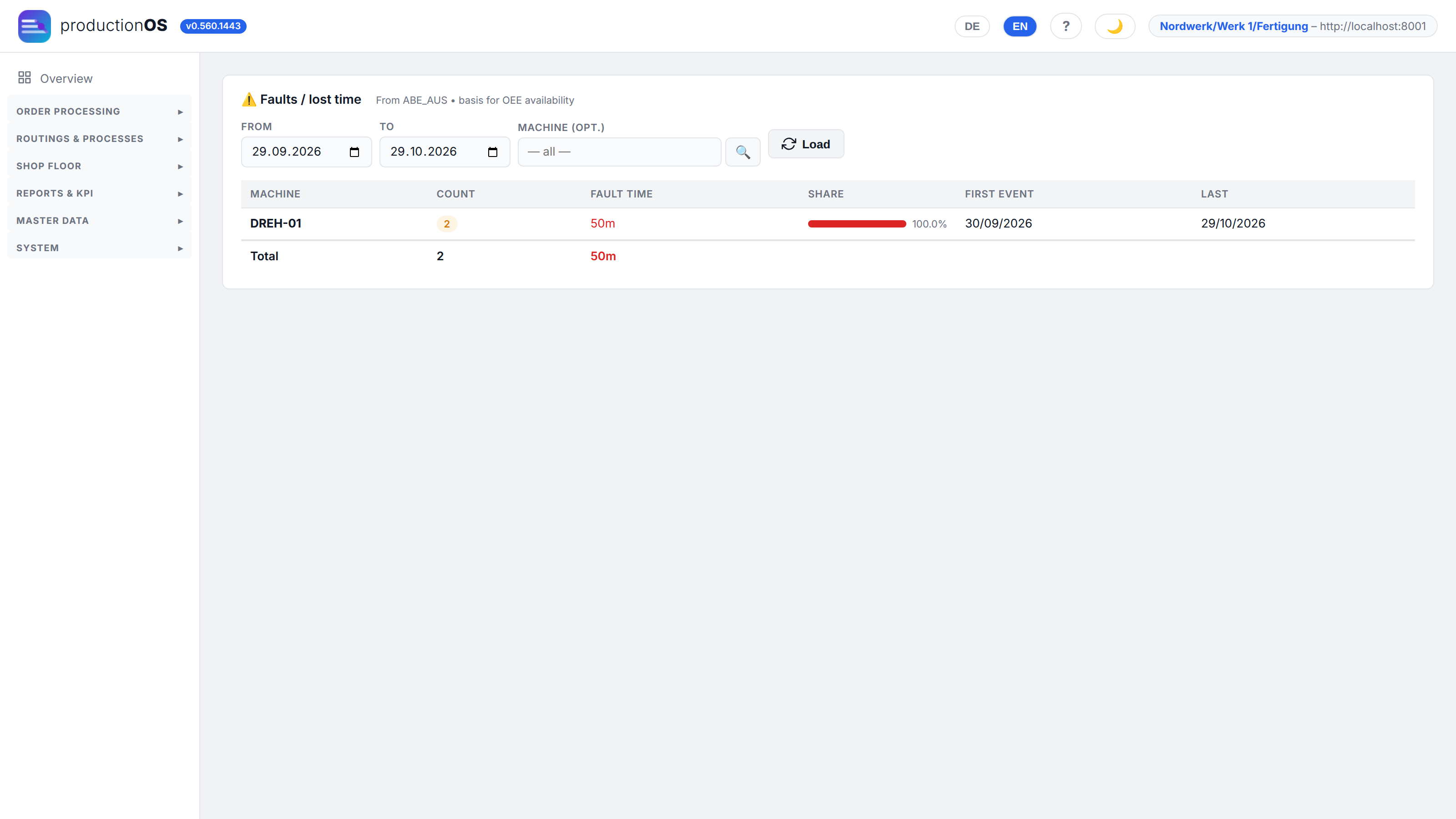
Faults / lost time lists the downtimes per machine with count, duration, share and time — downtimes arise in operation, not in the master data; without a single booking the view stays empty.
5.5 Control charts
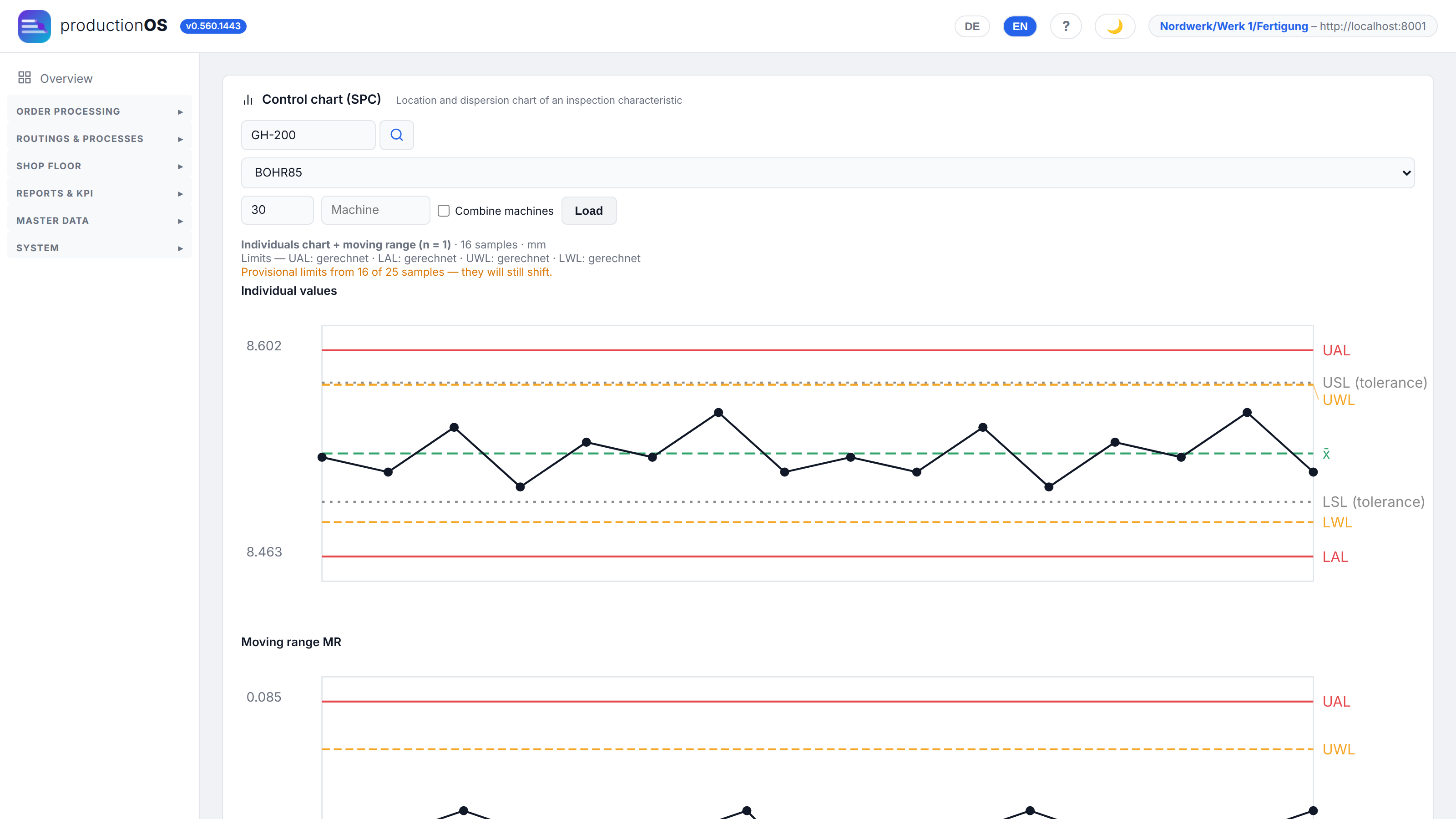
Two charts per inspection characteristic: the location chart (is the process drifting?) and the dispersion chart (is it becoming less stable?). For individual values (n = 1, the most common case) it is the individuals chart with moving range according to ISO 7870-2; for samples the x̄ and s chart; for counting inspections the attribute charts p, np, c, u.
An action limit is not a tolerance limit. The tolerance (grey) is a property of the part, the action limit (red) a property of the process: a point outside the action limit is not a bad part, but the signal that something has changed. The limits are calculated from the data, and for each limit it is shown whether it was entered or calculated. The screenshot shows the characteristic Bohrung 8,5 H7 (bore) from the running order: eight values, all within tolerance, with the moving-range dispersion chart below.
5.6 Scrap by defect type and cause
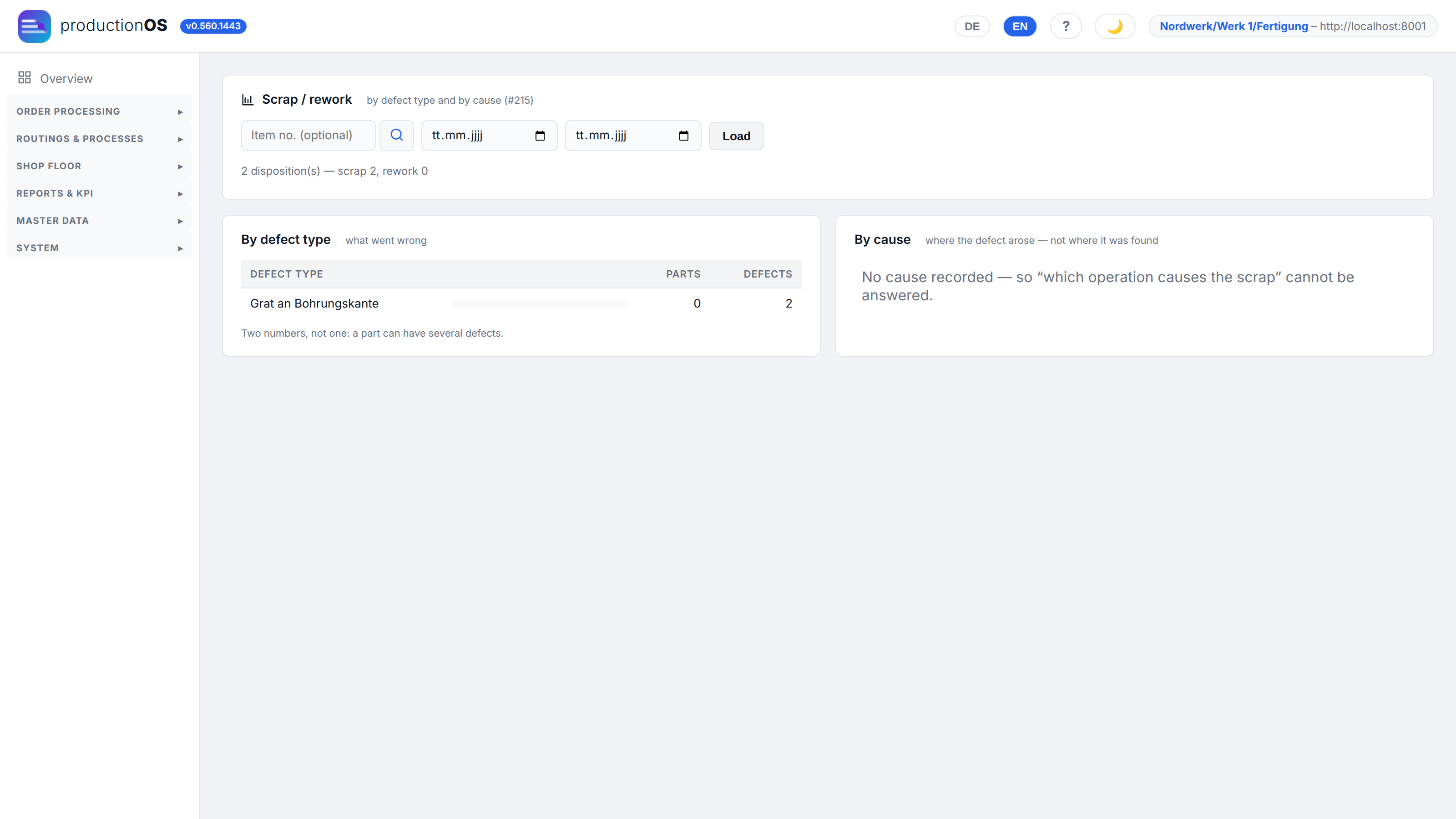
Two rankings, because there are two questions: the defect type says what went wrong, the cause where action is needed. Both come from the disposition at the terminal (4.10). Without a cause entry, the right-hand list stays empty and says so — instead of listing the reporting station as the cause.
5.7 Stock and confirmations
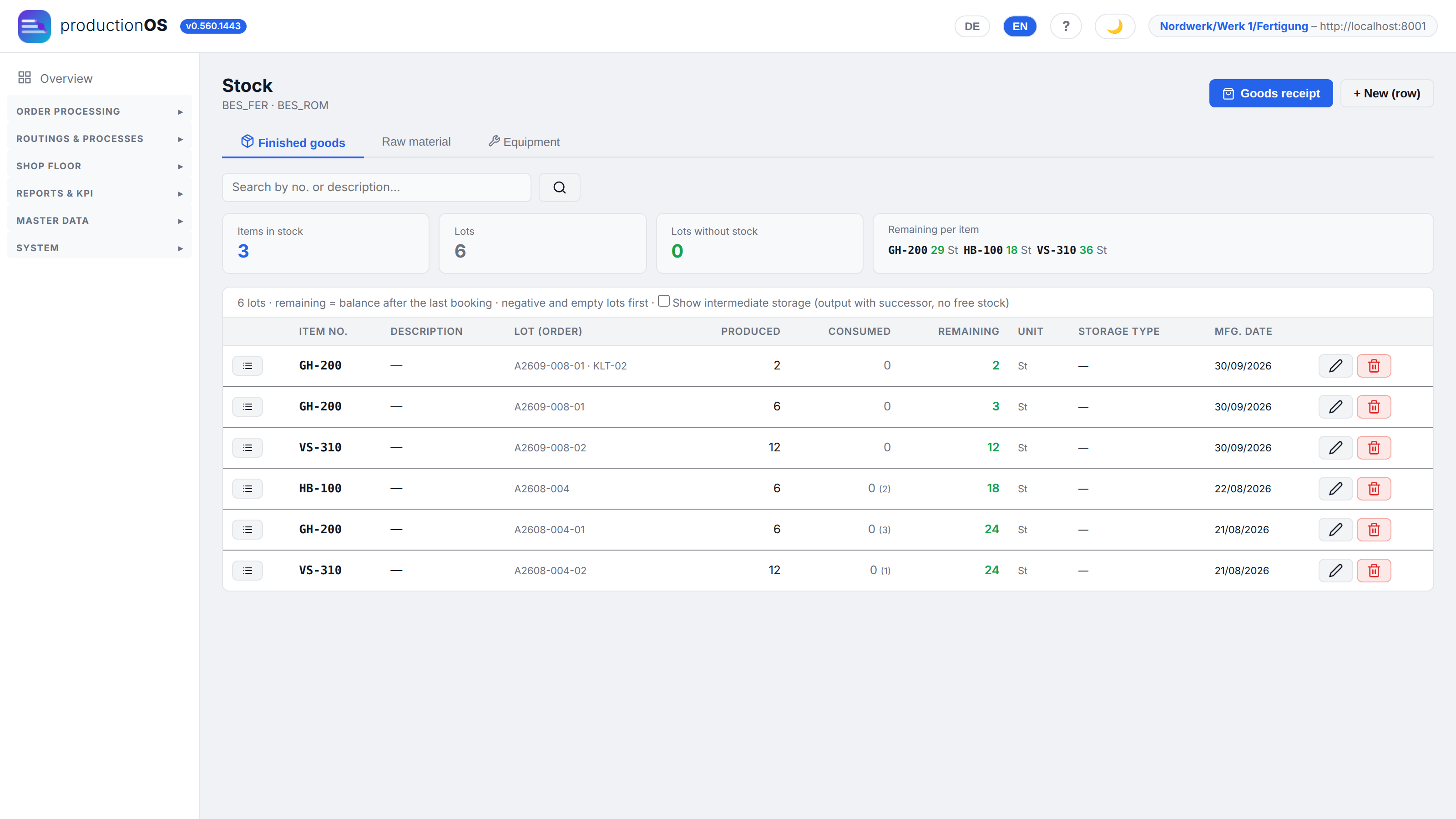
Stock is a statement of lots, not a balance: for each lot (finished goods or raw material) quantity, consumed, remaining, storage location, date. A lot in intermediate storage belongs to the successor operation of the same order; only the last operation books into stock. History shows the movements per item; manual bookings (stocktaking, correction) are possible and remain visible as separate lots. The Equipment tab lists the individual tool pieces like the machines: tool life since the last maintenance against the limit (with traffic light), alongside the service life, which no maintenance resets; likewise the usage (shots, strokes, deployments) since maintenance and in total. If a piece exceeds the limit, a maintenance order for exactly that piece is created (item WRT_<tool>, the piece is recorded on the order); if one is already running for the piece, no second one is created. The final confirmation of this order resets the tool life and counters since maintenance of the piece and records the maintenance date. Maintenance done does the same without an order.
Setting up, and when the check happens. The limits are in the tool master (Max. deployment duration, Usage limit with unit shot, stroke or deployment). The maintenance order only exists if an item WRT_<tool no.> with a routing exists (for WRK01, therefore, WRT_WRK01; its operations are the maintenance steps); if it is missing, only the event is created. The check takes place at the final confirmation of the operation at which the tool is removed — not continuously: a tool that runs past the limit while mounted is only noticed at teardown. The event appears at the terminal under Warnings of the operation and in the main front end under Events (5.8); the maintenance order appears in the order list (number WRT_000.nnn, status new, priority 1) and is scheduled like any other order.
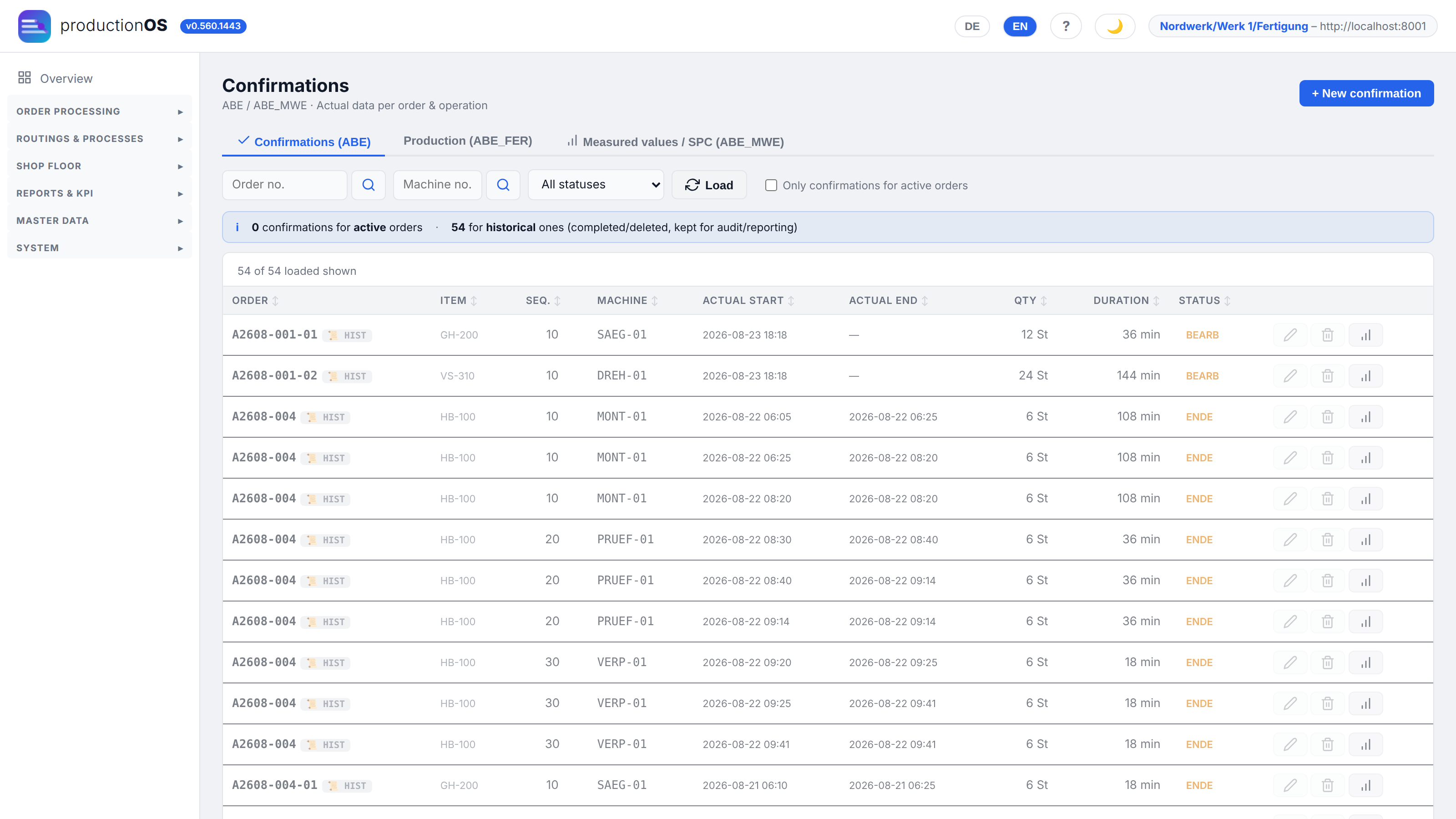
Confirmations is the raw view of what the terminal has written: per operation and phase start, end, quantity, duration, status — with tabs for production, measured values and SPC. A booking can be corrected here if something went wrong at the terminal.
5.8 Events and limit values
Events (Reports & KPI) collects whatever has crossed a limit. Two sources are shown side by side:
- Messages from final confirmations — when an operation is given its final confirmation, the system checks quality (measured value outside the limits), costs and duration (more than 5 % above plan), machine usage and the tool life of the tools. A message has no status; the link button opens the performance summary of the operation.
- Findings of the limit monitor — it checks at a fixed interval also between two final confirmations (tool still mounted beyond its tool life, stock below reorder point or safety stock, machine beyond its usage time). A finding is open as long as the limit is violated; Acknowledge means "seen" — it stays open until the limit is met again, then the monitor sets it to resolved.
The default is open (watchdog); red comes before yellow. Filters by traffic light, type, period and order. On the home page, the Limits tile counts the open findings (red · yellow) and leads here.
Tool in use: For every mounted tool with a Max. deployment duration, the monitor calculates the tool life of the piece since the last maintenance plus the current deployment up to now (via the machine calendar, as at teardown). From 80 % of the limit the finding is yellow, from the limit on it is red ("Tool life reached — tool still mounted"). It also appears at the terminal under Warnings for the operation. Teardown resolves it; the maintenance order is created at teardown as before. The link button leads to the piece in the equipment stock or to the tool master.
Stock: For materials and stock items with a reorder point or safety stock, the monitor compares the stock with the limits — yellow below the reorder point, red below the safety stock. For material, what counts is the free stock (remainder of the lots minus reservations, as in the overview in Stock), for stock items net plus in production (as in Stock items (MRP)). If the stock is above the limit again after a goods receipt or a final confirmation, the finding is resolved. The link button leads to the material stock or to stock item planning.
Machine usage: For machines with a Maximum usage time, the monitor calculates the usage time since the last maintenance plus the operations currently running up to now (without breaks; maintenance orders do not count). From 80 % the finding is yellow, above the limit red ("Maintenance due"). The maintenance order is still created by the final confirmation; the final confirmation of the maintenance order resets the usage time and resolves the finding. The link button leads to the machine.
Switching on: The monitor runs every 15 minutes, but only checks areas in which the Switch on limit monitor switch under Settings → Operating model is on (default off). It only reports — maintenance orders and purchase orders are still created at teardown, final confirmation and stock item planning.
Part 6 — Product passport
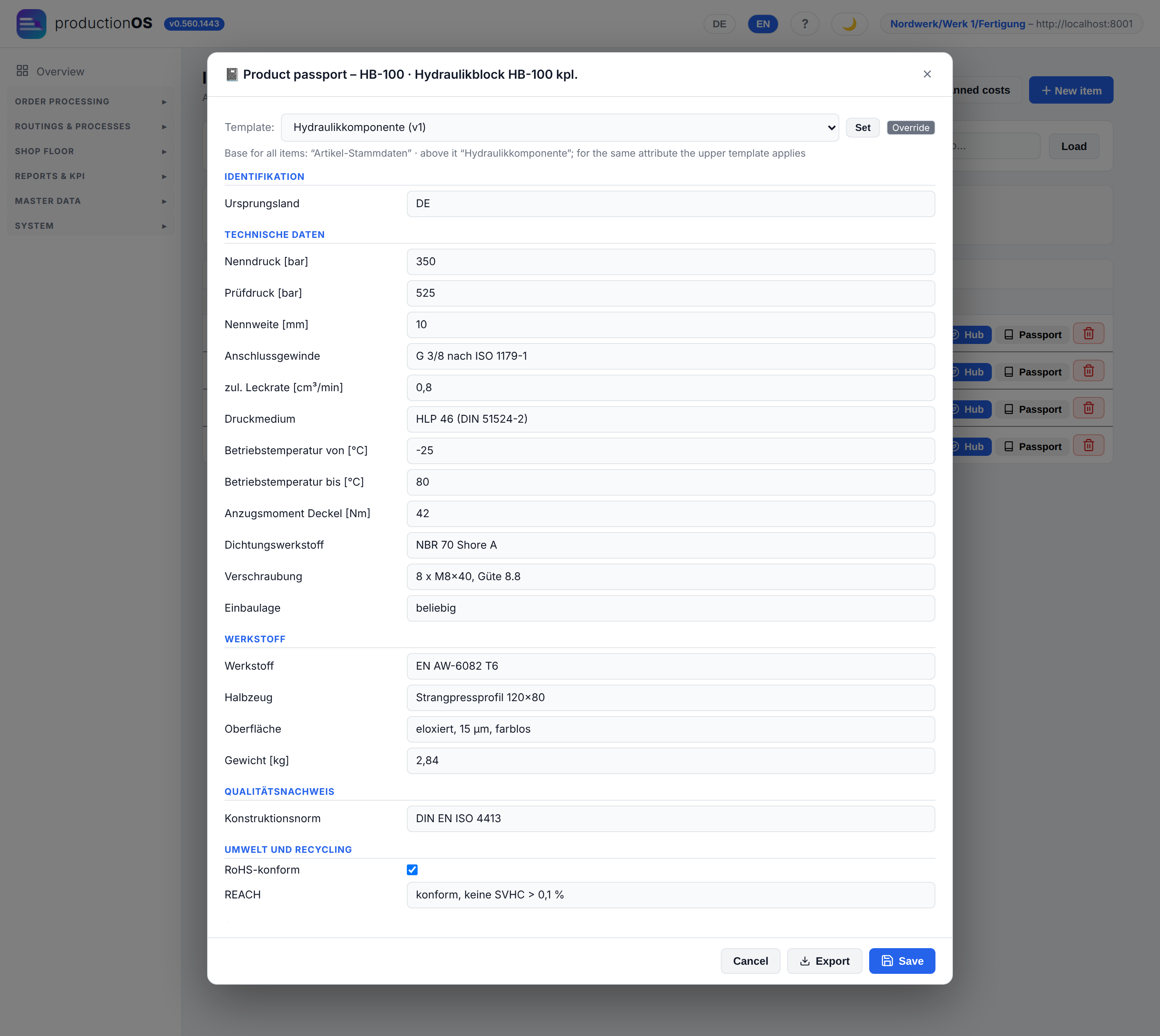
The product passport gathers, per item, the characteristics that a customer or an authority is meant to see: identification, technical data, material, quality evidence, environment and recycling. It is built from templates — "Artikel-Stammdaten" (item master data) is the base for every item; on top of it sits a template per item group (here Hydraulikkomponente, hydraulic component) or an item-specific one. The header shows which template applies; Set changes it.
Where the values come from:
- maintained — entered on the item (nominal pressure, material, weight …)
- from the characteristic master data — characteristics linked to an inspection plan draw their target values and, per output, the measured values from the inspections; in this way the passport of the item becomes the passport of the individual piece
- calculated — CO2 footprint per piece from machine times and material, downtimes deducted, plus tool, labour and transport. The transport calculation is weight × distance × factor: the weight is the quantity times the item weight plus the tare weight of the containers, the distance (in metres) is recorded on the container assignment to the operation (material consumption type V or container node in the plan editor), the factor in kg CO2e per tonne-kilometre on the container master. If any of the three is missing, transport stays 0 and the CO2 tile states what is missing.
Export outputs the passport as a structured document (chapters as in the EU Battery Regulation, named close to AAS); a QR code on the label per output (GET /api/v1/serial_nr/{nummer}/etikett?format=html|zpl) leads to the public view of that output's passport, which shows only the released chapters.
Part 7 — Batch number and serial number are the same thing
This is the point that causes the most confusion, so here it is briefly and in principle.
The legacy system has no serial number; it works throughout at lot and batch level and traces via the lot chain. We have turned this into one identity instead of two: the output ID of an output is also kept as the batch number. A row carries serial_nr and chargen_nr with the same value, plus quantity and container.
The only setting is gebinde_menge per item (under Shop Floor → Serial numbers, configuration):
gebinde_menge | Confirmation | Result | what it is in business terms |
|---|---|---|---|
| 1 | 5 St | 5 IDs of 1 St each | serial number — each piece individually |
| 10 | 50 kg | 5 IDs of 10 kg each | batch — one number per package |
| empty | 200 kg | 1 ID of 200 kg | one lot for the whole confirmation |
A serial number is a batch of quantity 1. No second mechanism, no switching, no separate number range. An item can change its granularity (first by batch, later by piece) without analysis, traceability or label printing having to be adapted.
If the operator records the output per container (4.9), these rows determine the outputs: one ID per row with its quantity and container. The link between the handover row and the identity is the container that both carry.
Three capture modes (erfassung): auto — identities at order creation, carried forward by FIFO (pre-allocated numbers, labels in advance); stueck — the number is scanned; no scan, no event (assembly of serialised assemblies); output — per output at the confirmation (process manufacturing, packages, batches; the legacy system's pattern).
With auto, a confirmation of n pieces carries n numbers forward — per operation the oldest ones not yet booked there; a number only reaches FINISHED once the order has been confirmed completely. With output, Number created at sequence sets the operation at which the numbers are created — otherwise every piece would get its own number per operation. A measured value with a serial number (field Serial no. in the terminal's measurement dialog) counts as an individual measurement of that piece and appears in its product passport, provided the inspection characteristic carries a passport field in the characteristics master (#546).
The input side is a different question: how an input is identified is set in chargen_erfassung — fifo (the oldest lot is consumed, an assumption) or gebinde (the scanned package is withdrawn first, a record).
Part 8 — UI design
productionOS can be simplified per tenant without any functions being lost:
| What | What for | Who notices |
|---|---|---|
| Form profiles | hide, pre-fill, make required or reorder the fields of a form — per role | everyone who opens the form |
| Guided workflows | step by step through related views, with a dedicated form per step | planning, production engineering |
| Terminal layouts | a simple start page for particular terminals or machine groups | operators at the terminal |
| Custom terms | “Benennung” instead of “Bezeichnung” (designation instead of description), “Fertigungsauftrag” instead of “Auftrag” (manufacturing order instead of order) | everyone |
The full view always remains available: in every simplified form via Full, at the terminal via Standard view. Hiding is not a permission — what a role may book is still governed by the role concept.
8.1 Who may design
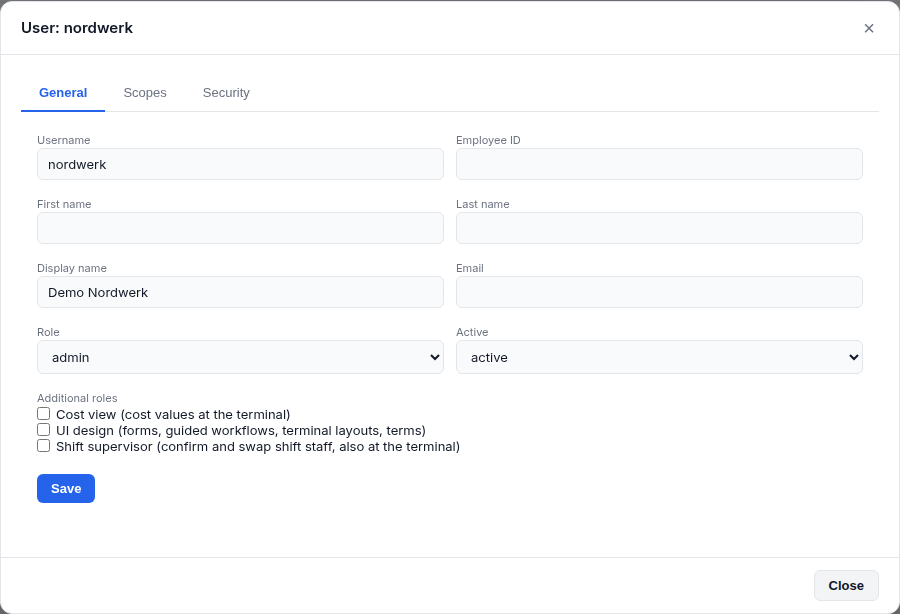
Administrators and everyone with the additional role UI design may design. An additional role is added on top of the main role — someone in production engineering can remain a planner and still design forms. It is assigned under System → Users → Edit, one tick and Save; it takes effect from the next sign-in. The same list carries the additional roles Cost view and Shift supervisor (3.12). The settings are under System → UI design.
8.2 Form profiles
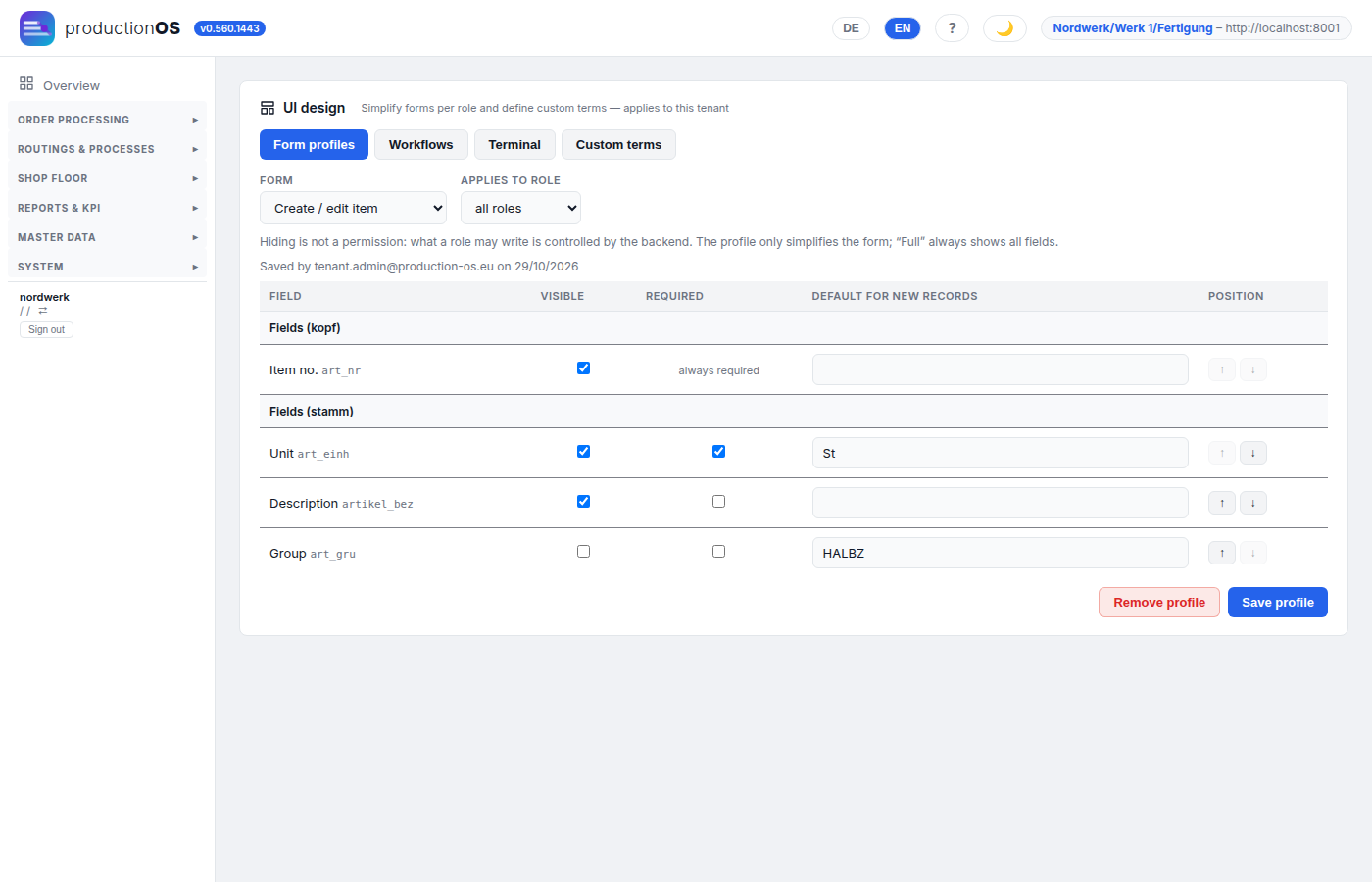
Tab Form profiles: choose form and role (all roles or a specific one; if both exist, the role's profile applies). Per field:
| Column | Effect |
|---|---|
| Visible | without a tick the field is hidden; when editing, its saved value is kept |
| Required | makes a field required; fields marked “always required” stay required — nothing is ever relaxed |
| Default for new records | value with which a new form is pre-filled |
| Position | ↑ ↓ moves the field within its group |
A required field can only be hidden if a default is entered — otherwise the form could no longer be saved; saving rejects such a profile. Remove profile restores the standard form. Profiles currently exist for item creation and confirmation.
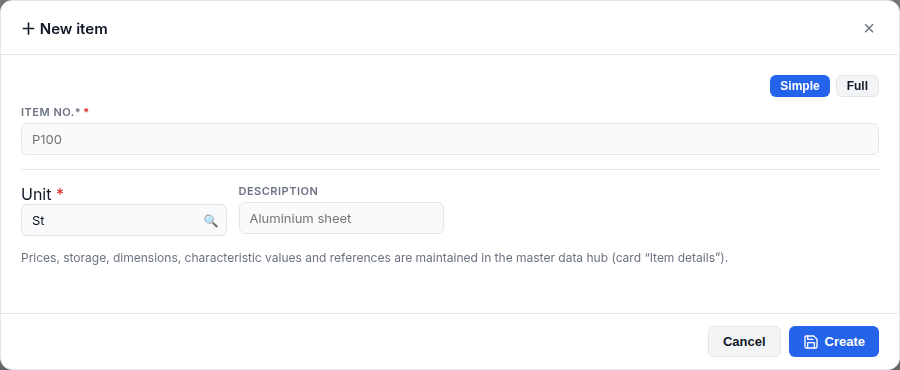
If a form has a profile, the toggle Simple | Full appears at the top right. Simple shows the designed form — in the screenshot the group is hidden and pre-filled, the unit required and moved to the front —, Full shows all fields in the standard position. Entries are kept when toggling; the browser remembers the choice per form.
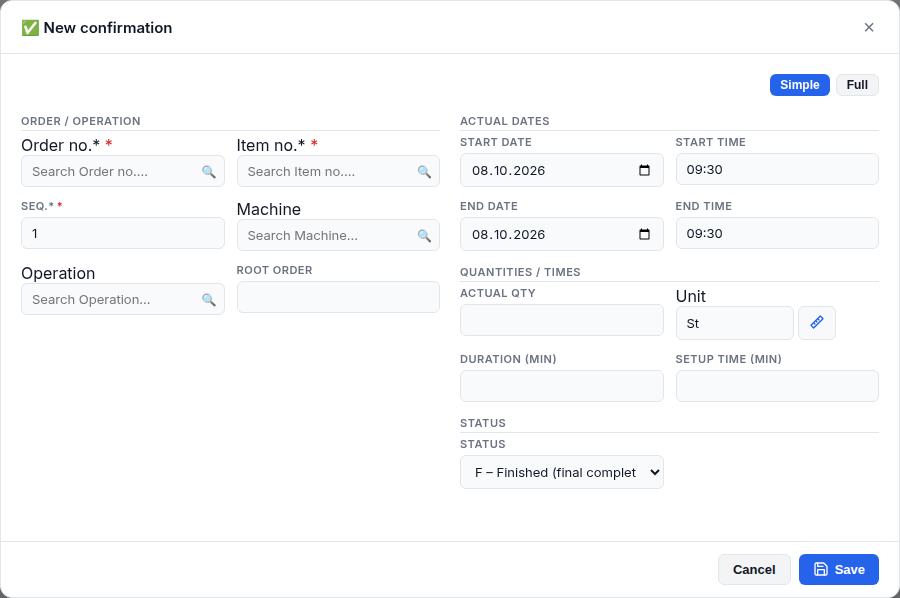
Confirmation with a profile: position numbers, cost centre and teardown time hidden, status pre-filled with “F – Finished”.
8.3 Guided workflows
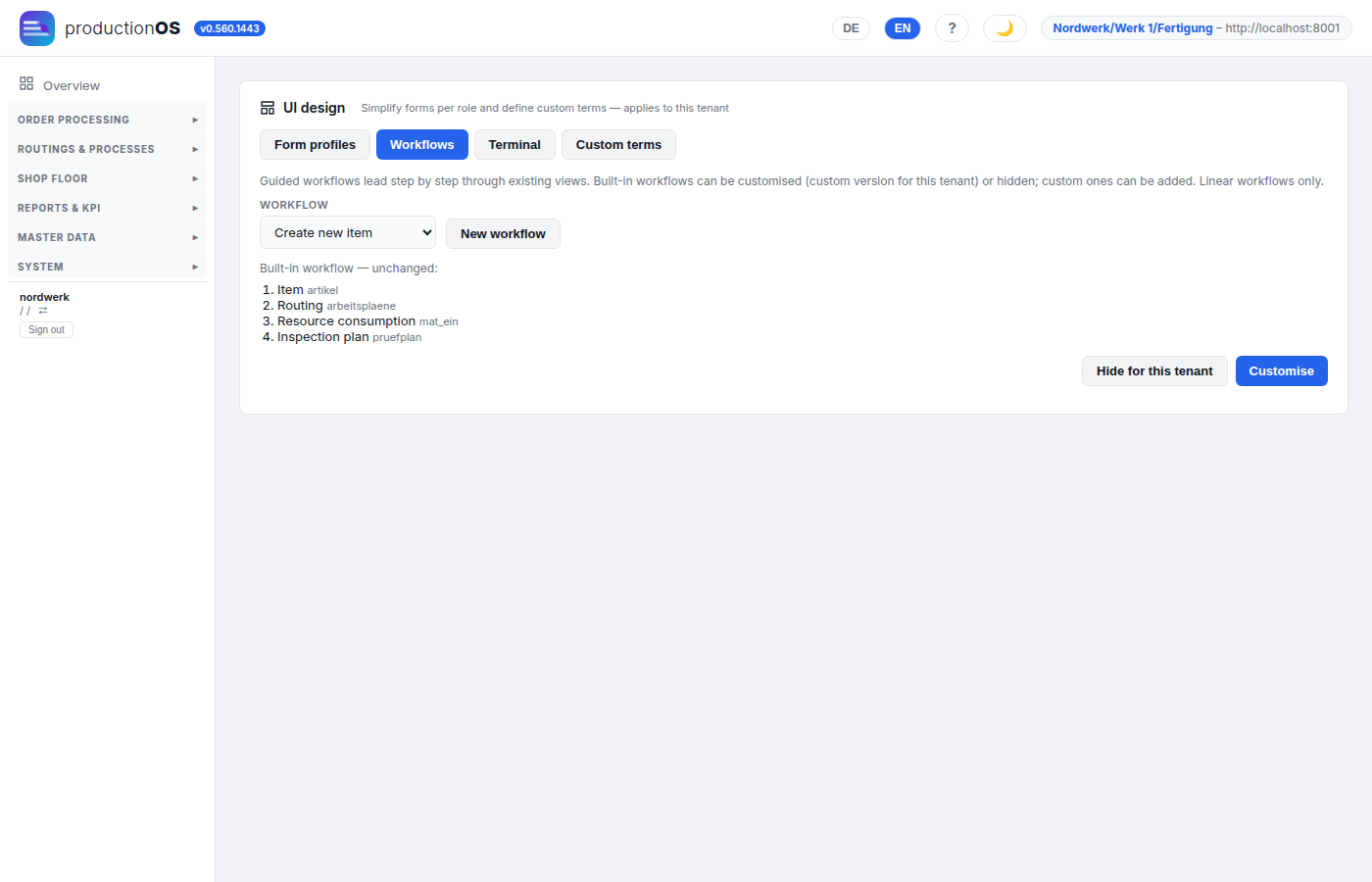
Tab Workflows. Built in are “Create new item” and “Schedule new order”. A template can be customised (a custom version for this tenant; Remove custom version restores the template), hidden for this tenant or left unchanged.
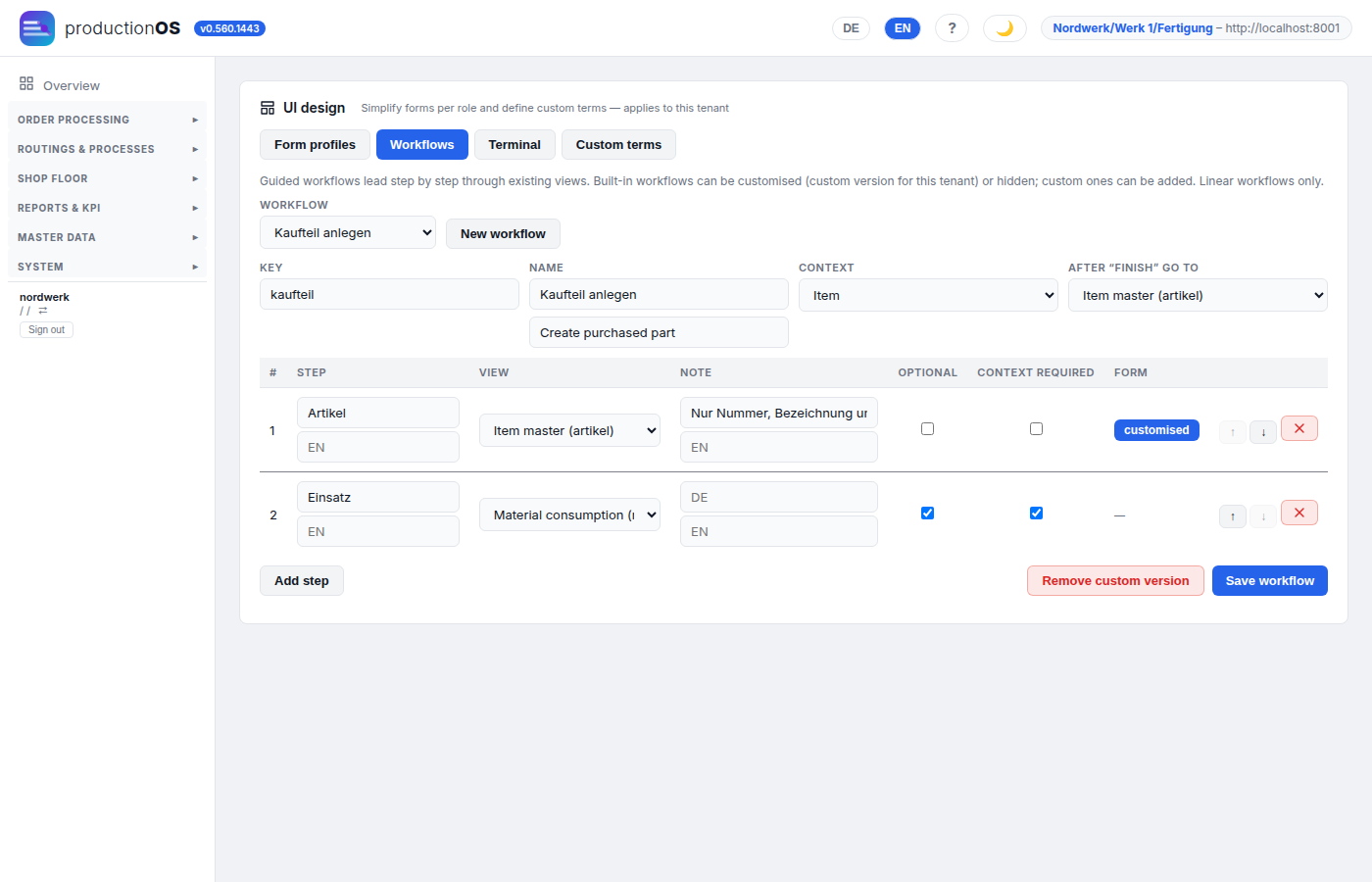
New workflow creates a custom one — in the screenshot „Kaufteil anlegen“ (create purchased part): two steps over existing views, context Item; the item number created in the first step travels through the following steps.
| Field | Meaning |
|---|---|
| Key | technical name, lower-case letters, digits and _; fixed after saving |
| Name, Note | German is required, English optional |
| Context | what is carried from step to step: item, order or nothing |
| Context required | Next only once the context is established (e.g. item created) |
| optional | the step can be skipped |
| Form | a dedicated form for this step only |
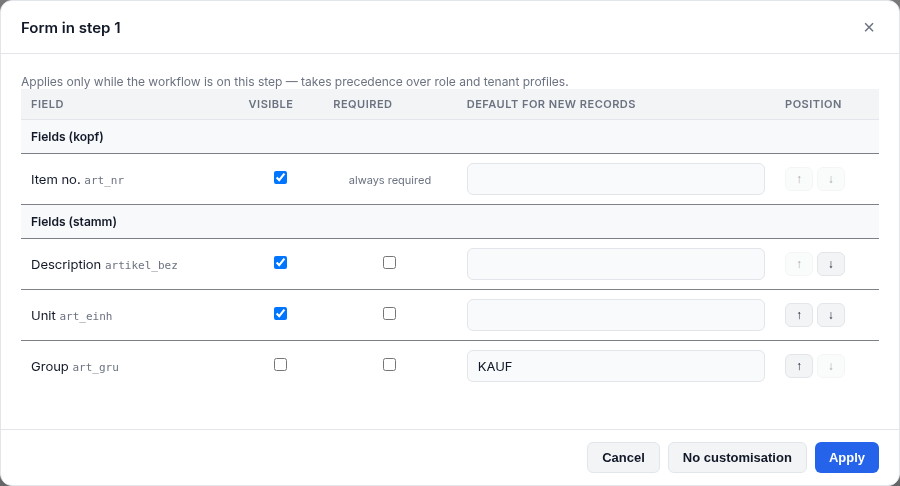
Customise form applies only while the workflow is on this step, and takes precedence over the role and tenant profile — in the screenshot the group is pre-filled with KAUF; anyone coming via „Kaufteil anlegen“ does not have to choose it. Workflows are linear; branching does not exist yet.
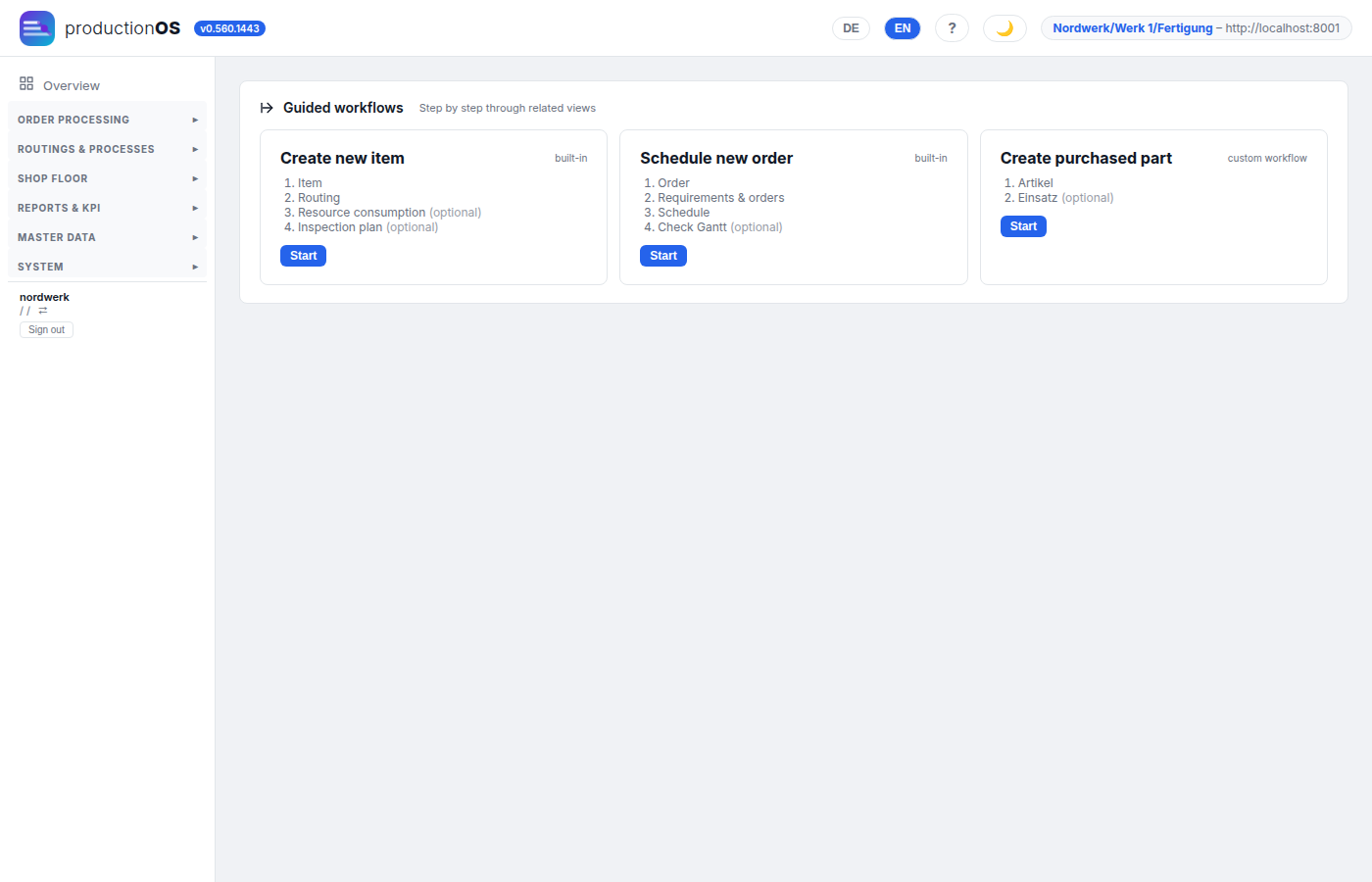
Workflows are started under Order processing → Guided workflows.
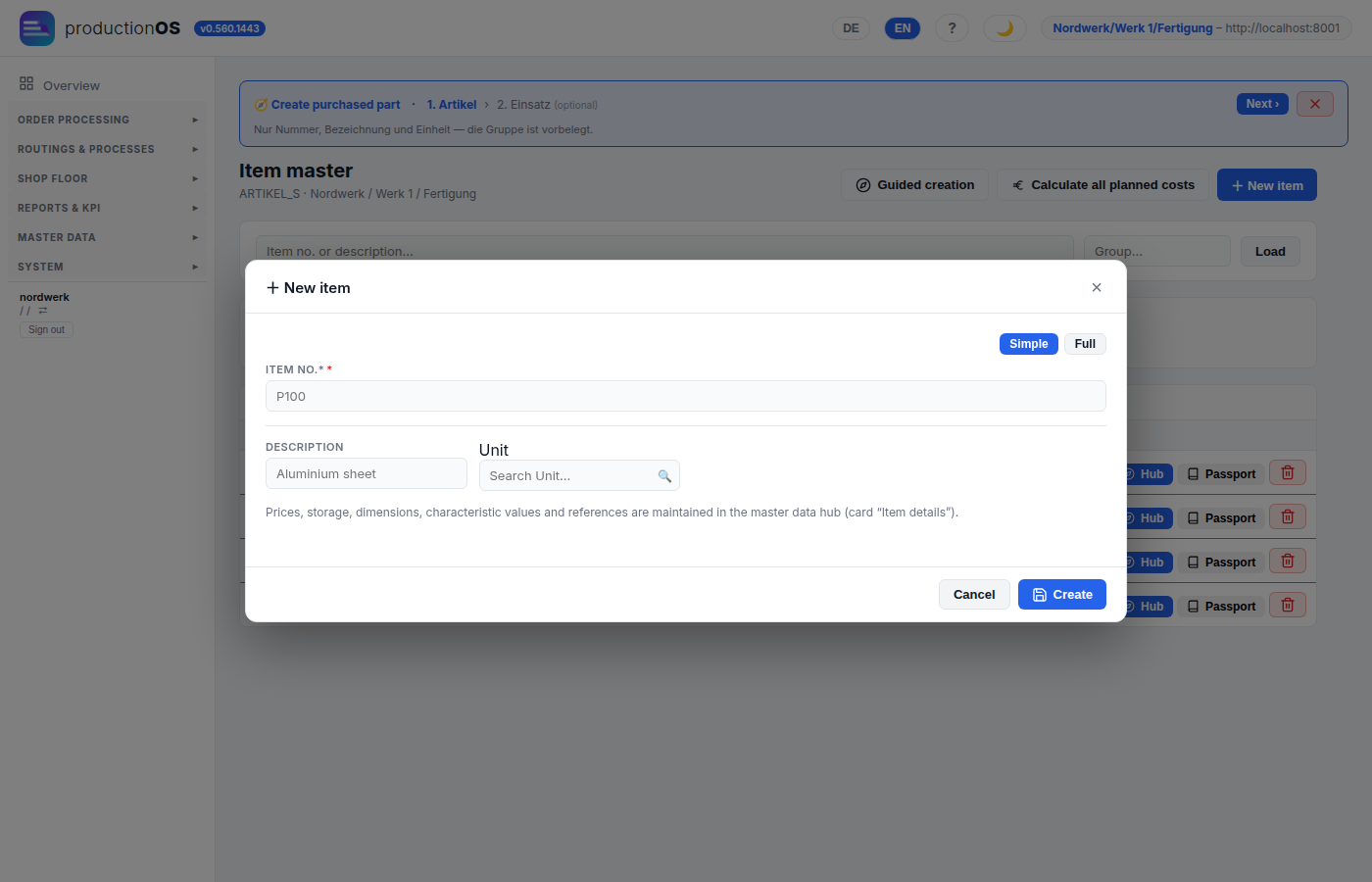
The step bar runs along at the top: completed steps with a tick, the current one highlighted, the note below it. Next goes to the next step, Skip for optional steps, ✕ cancels — anything already saved is kept.
8.4 Terminal layouts
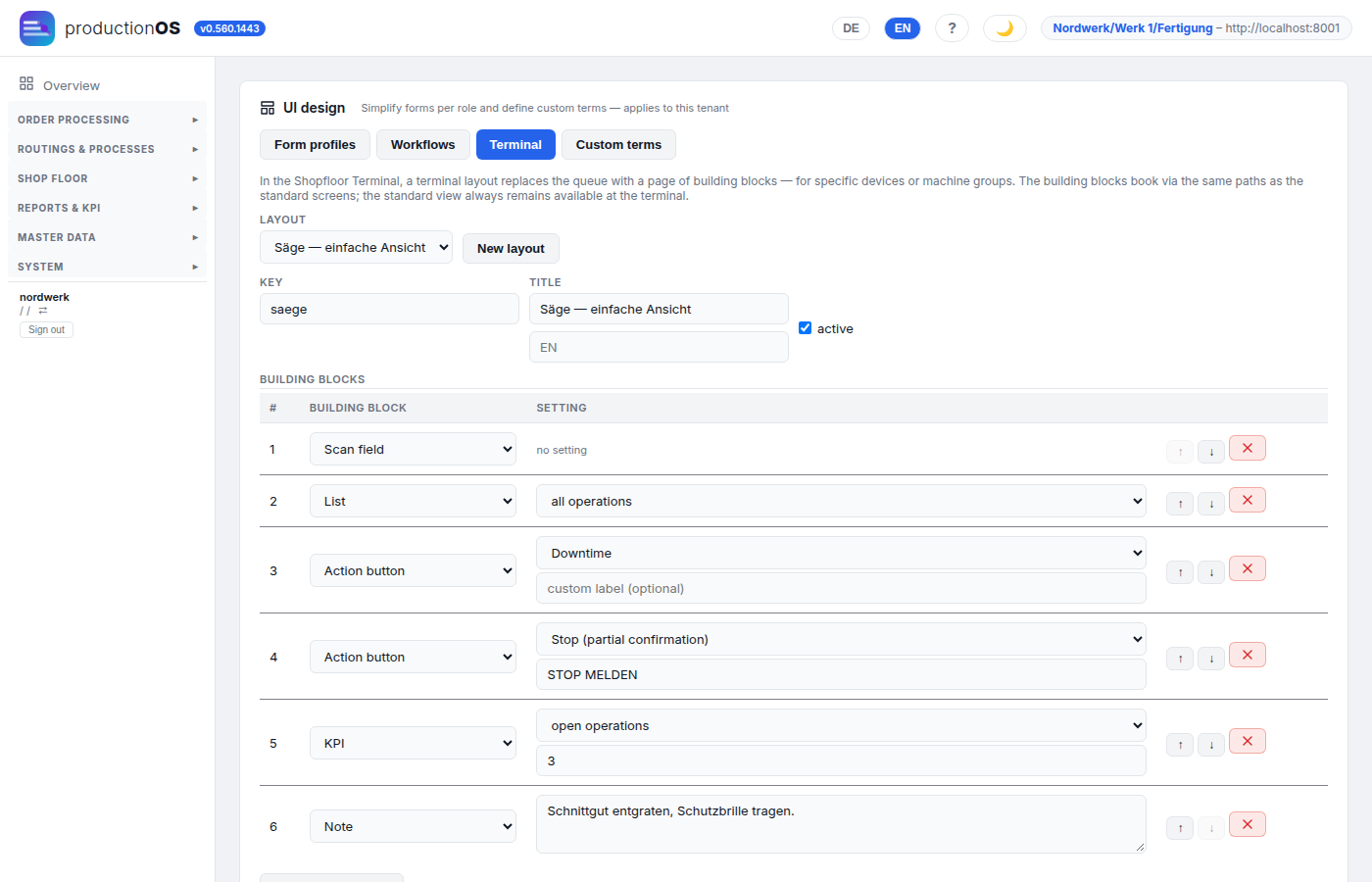
Tab Terminal. At the terminal, a layout replaces the list of operations with a page made of building blocks:
| Building block | At the terminal |
|---|---|
| Scan field | scanning an order number selects the order at this machine; once an order is selected, a container, batch or serial number scan books the staging |
| List | orders at the machine (all or only in progress); tapping selects the order |
| Action button | Start, Continue, Downtime, Stop (partial confirmation), Output, Finish or Measured value — optionally with its own label |
| Measured value | opens measured value entry for the selected order |
| KPI | open, running or overdue operations of the machine; red above the warning threshold |
| Note | free text, e.g. safety notes |
Applies to individual terminal devices and/or machine groups; a device takes precedence over its machine group, and each device and each group can be assigned to only one active layout. An action button books exactly like the corresponding button in the standard view and is only active when the action is currently possible.
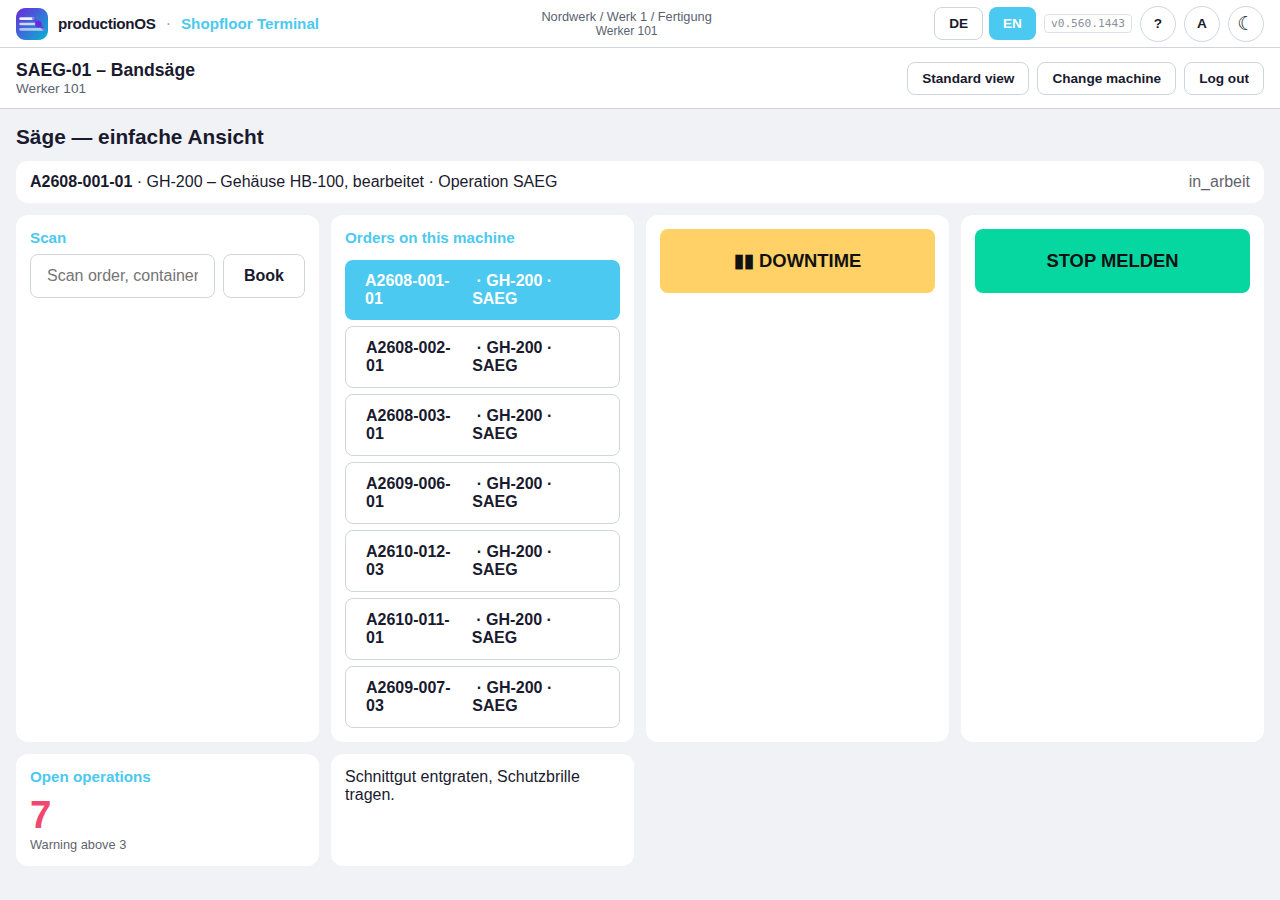
At the terminal the layout page appears after the machine is chosen. First select the order — scan or tap; the line at the top then shows order, item and operation, and the buttons become active. Standard view leads to the familiar list at any time, Simple view back from there; the choice applies until sign-out.
8.5 Custom terms and language
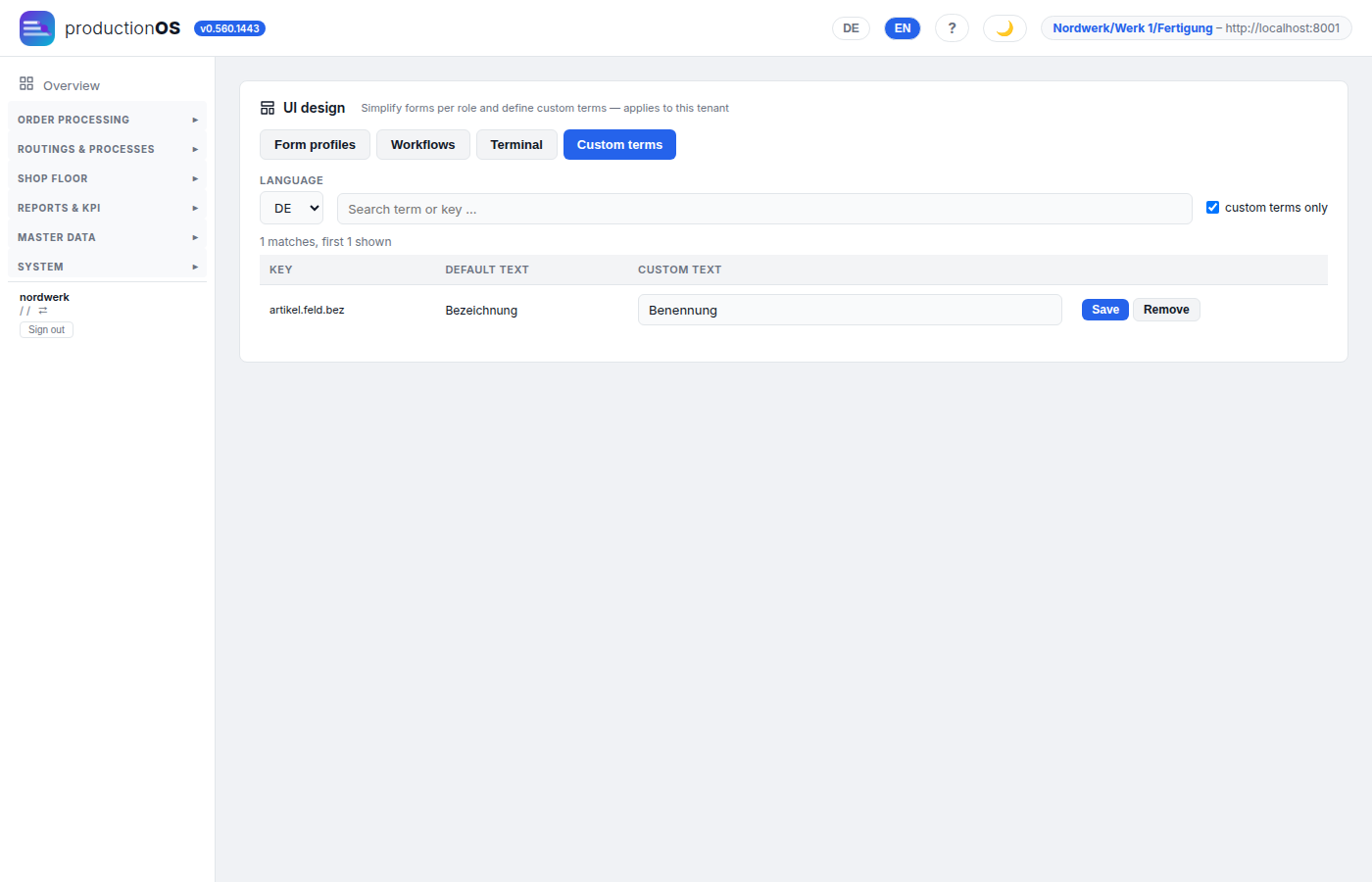
Tab Custom terms: for each term the standard text and next to it a custom text, per language (German, English). They apply in the main frontend and at the terminal. Placeholders in curly braces (e.g. {nr}) must be kept in the custom text, otherwise the standard applies; Remove restores it.
8.6 What is checked on update
On every update productionOS checks all saved profiles, workflows and layouts against the new version. If one no longer fits (for instance because a field was renamed), it is not applied — the form shows the standard —, and UI design shows a red notice with the reason. After it is adjusted and saved, it applies again.
Frequently asked questions. A profile has no effect: the toggle is on “Full”, there is a different profile for one's own role, or the profile no longer fits after an update (red notice). A terminal shows no layout: the layout is inactive, neither device nor machine group is assigned, or “Standard view” is selected at the terminal. An action button is grey: no order selected, or the action is currently not possible for this operation — the text below the button gives the reason.
Part 9 — Glossary
| Term | Meaning |
|---|---|
| Tenant (Mandant) | area / plant / department (Bereich / Werk / Abteilung); all data are separated per tenant |
| Primary order / sub-order (Primärauftrag / Sekundärauftrag) | the customer order and the orders generated from it for semi-finished products (A2610-013 → A2610-013-01); the root order (Ur-Auftrag) is the topmost in the chain |
| Sequence / operation (Folge / Arbeitsgang) | a stage of the routing (sequence 10, 20 …) and its copy on the order |
| Status (order) | the workflow a person sets: neu → geplant → freigegeben → in_produktion → abgeschlossen, plus gesperrt. geplant (planned) means: exploded but not released |
| Progress (Fortschritt, operation) | derived from the actual times: planned, in progress, overdue, completed, unscheduled. A released order with planned operations is the normal case — that is why the two things have different names |
| Target / plan / commitment / actual (Vorgabe / Plan / Zusage / Ist) | target dates are the planner's specification (anchor); plan dates the calculated result; the commitment the customer date; actual the times from the terminal (3.3) |
| Backward / forward (rückwärts / vorwärts) | direction in which scheduling calculates: back from the target end (default for new orders) or forward from the target start |
| Phase | setup → processing → handover (and teardown, if a teardown time is planned); one confirmation line per phase |
| Lot (Los) | a stock quantity with an origin: goods receipt (raw material) or output (finished goods); stock is the sum of the lots, not a balance |
| Batch / serial number (Charge / Seriennummer) | the same identity (Part 7) |
| Package / container (Gebinde / Behälter) | the physical receptacle of an output; the link between handover and identity |
| Handover / take-over (Übergabe / Übernahme) | an output passed to the successor operation; that operation takes it over from intermediate storage when booking material |
| Allocation (Zuteilung) | assignment of specific lots to the requirement, a specification for the terminal |
| A / P | alternative (one of several machines) / parallel line (quantity split) |
| Co-product (Kuppelprodukt) | second output of an operation (by-product, branch-off) |
| Recipe / mix (Rezeptur / Ansatz) | recipe: components of an operation with proportions in per cent. Mix: one mixing run up to the mix quantity; an order for 250 kg with a mix quantity of 100 kg has three mixes (2.7, 4.12) |
| PVA | Prozess-Verfahrens-Anweisung (process instruction): the setting values per operation |
| BEURT | unit of an inspection characteristic that is counted instead of measured |
| Skill | what a person can do and what an operation requires per phase; catalogue Qualifications (1.5) |
| Personnel calendar (Personalkalender) | shift model and status per person and day; the basis of availability |
| Pre-assigned / confirmed (vorgemerkt / bestätigt) | status of a staff assignment: G = pre-assigned by scheduling, B = confirmed by the shift supervisor (survives every rescheduling) |
| Additional role (Zusatzrolle) | a right in addition to the main role, e.g. schichtfuehrer for an operator |
| Wage group (Lohngruppe) | cost attribute of person and phase with a rate in EUR/h; not a planning criterion |
| Piece (Exemplar) | an individually tracked tool with its own tool life and usage |
| Operating model (Betriebsmodell) | the six switches per tenant (1.7) |
| Form profile / guided workflow / terminal layout (Masken-Profil / Ablauf / Terminal-Layout) | design of the user interface per tenant and role; never changes rights (Part 8) |